> ## Documentation Index
> Fetch the complete documentation index at: https://docs.fieldpal.ai/llms.txt
> Use this file to discover all available pages before exploring further.
# Conditional sections in a report
> How extra fields appear on a form once you answer a trigger field a certain way.
Some report templates include **conditional sections** — extra fields that only appear once you've answered another field a certain way. You don't do anything differently to trigger them; they just appear on the form the moment your answer matches. See [Conditional sections](/templates/conditional-sections) for how these are set up on the dashboard.
## Step 1: Start the report
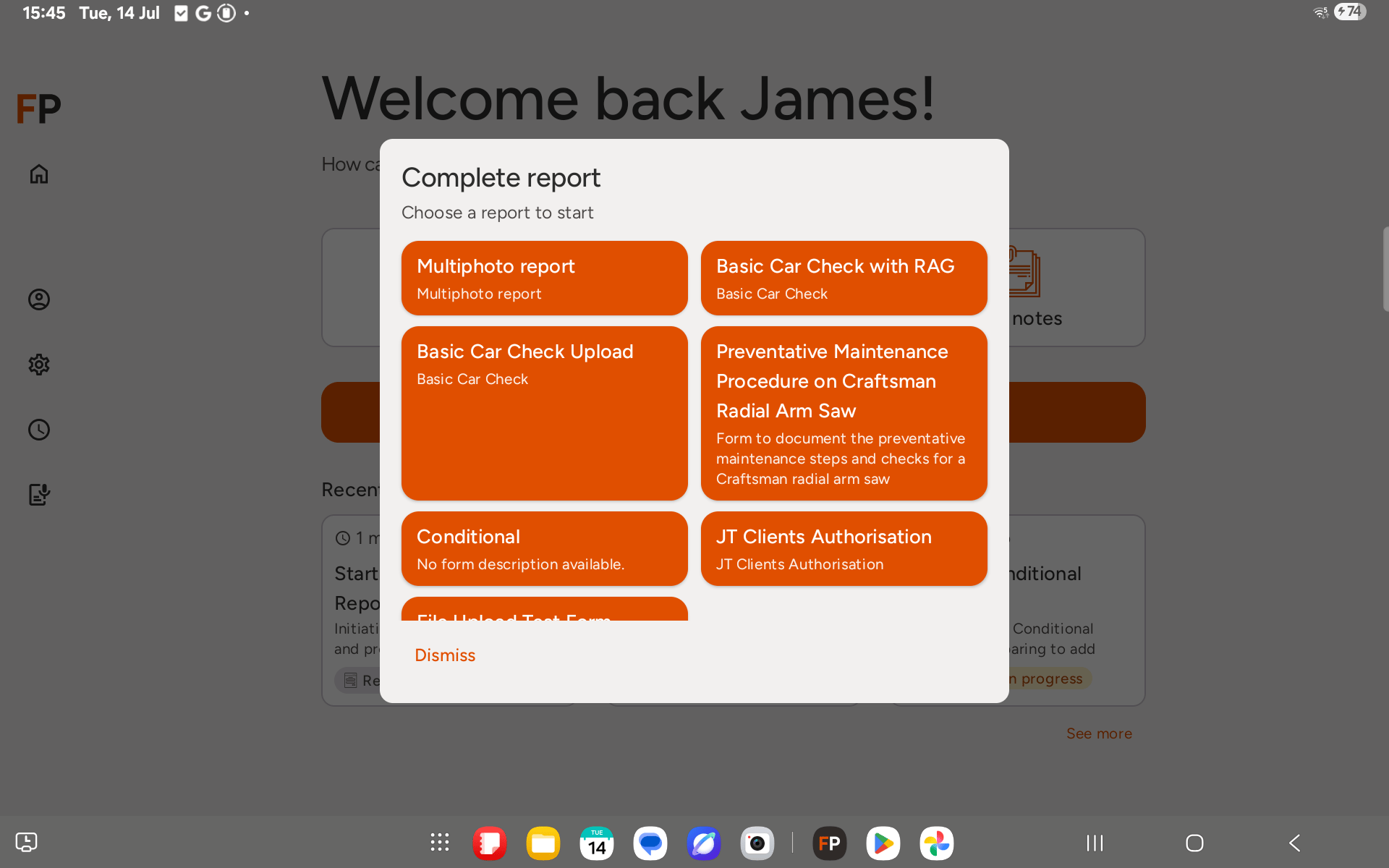
From the home screen, tap **Complete report**, then choose a template that includes a conditional section.
 ## Step 2: Conditional sections start hidden
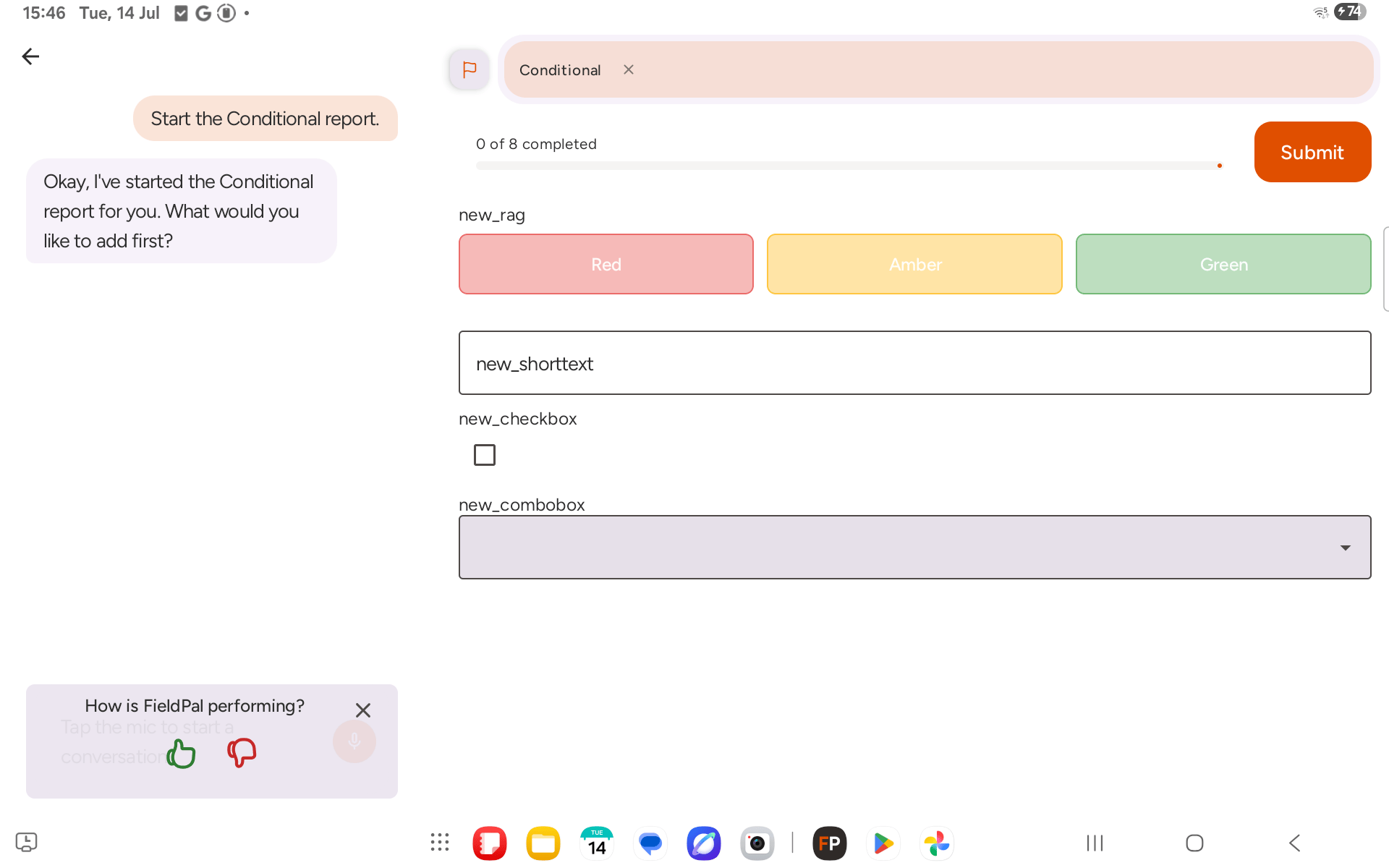
When the report first loads, only the top-level fields are shown. Any conditional sections stay hidden until their trigger condition is met.
## Step 2: Conditional sections start hidden
When the report first loads, only the top-level fields are shown. Any conditional sections stay hidden until their trigger condition is met.
 ## Step 3: Answering a trigger field reveals its section
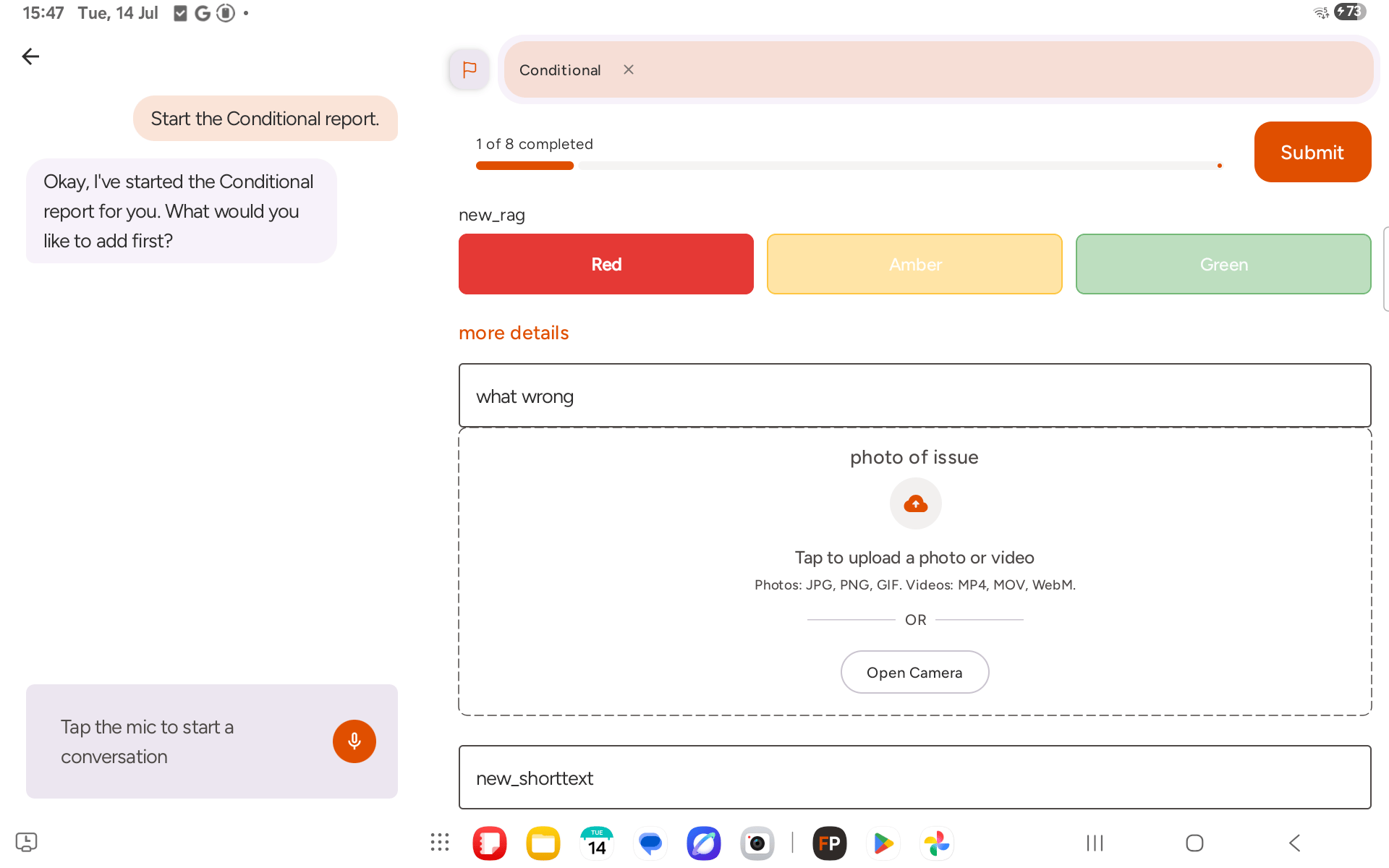
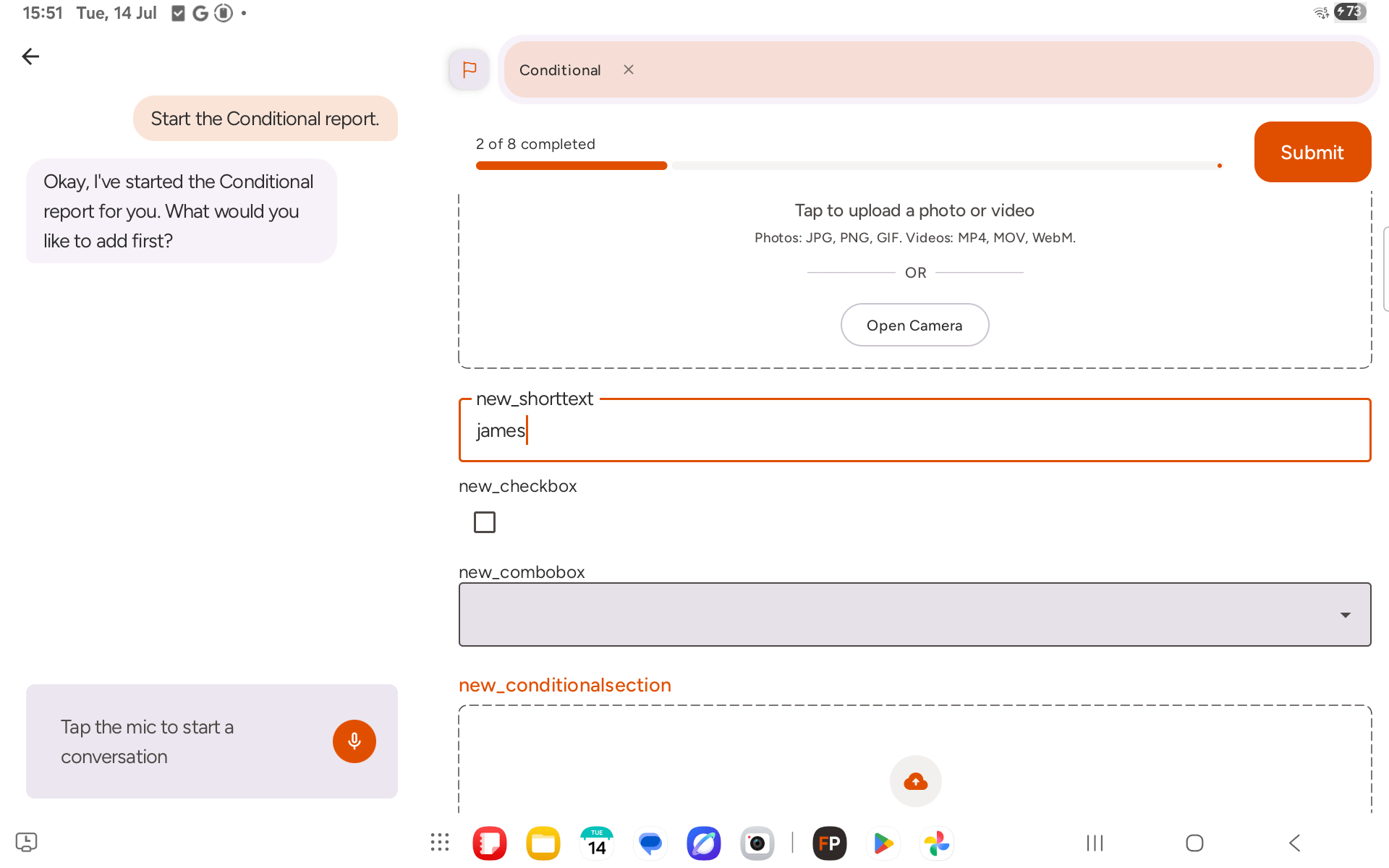
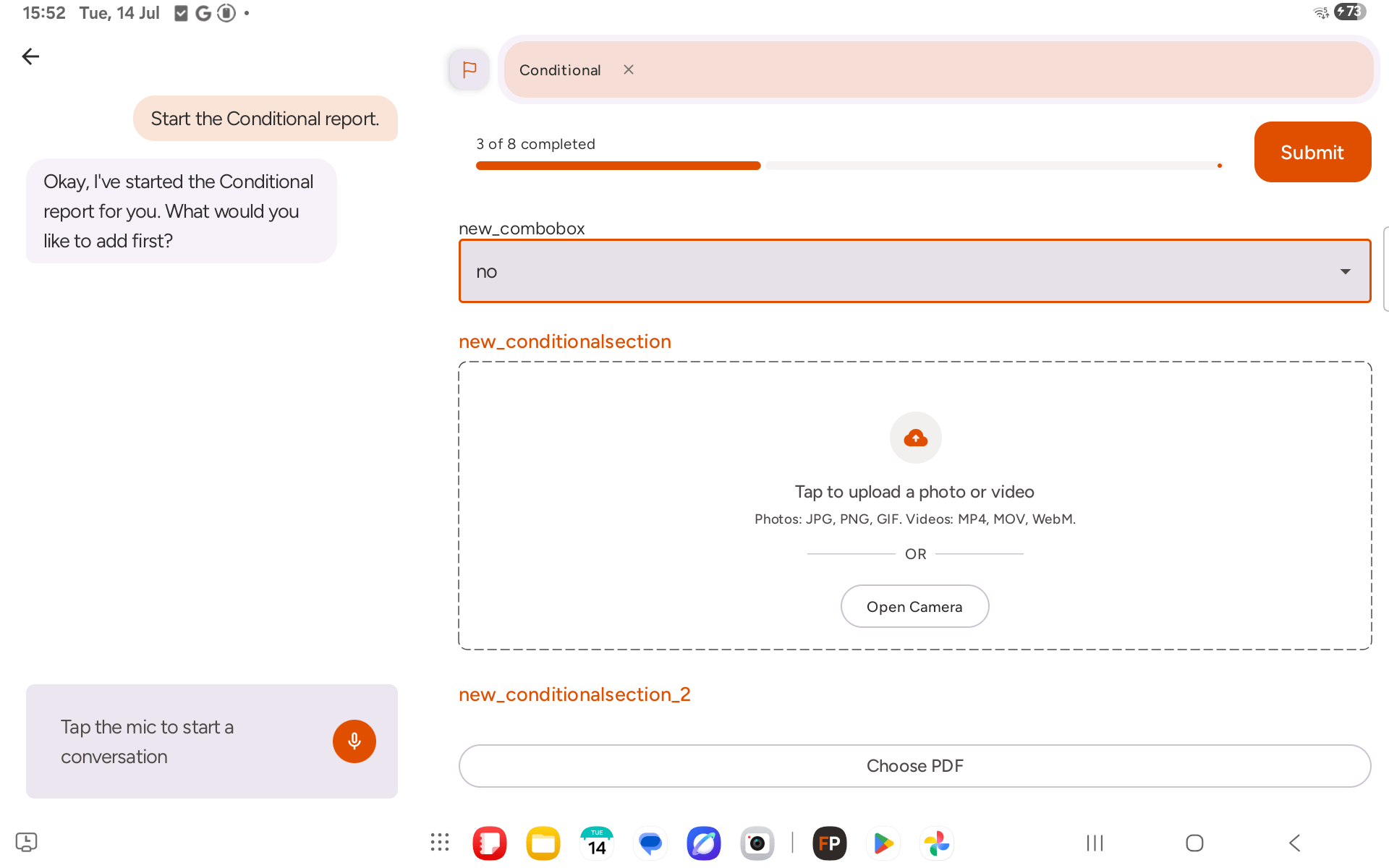
Setting a trigger field to the matching value reveals its section immediately, directly underneath it, with its own fields to fill in. This works the same way regardless of what type of field is doing the triggering.
A RAG field set to the matching colour reveals its section:
## Step 3: Answering a trigger field reveals its section
Setting a trigger field to the matching value reveals its section immediately, directly underneath it, with its own fields to fill in. This works the same way regardless of what type of field is doing the triggering.
A RAG field set to the matching colour reveals its section:
 A short text field matching the expected value reveals its section:
 And a combo box set to the matching option reveals its section:
 ## Step 4: Fill in the revealed fields as normal
Once a conditional section appears, its inner fields behave exactly like any other field on the form — fill them in by tapping, typing, or telling the AI assistant what to add. They count towards the report's completion progress just like top-level fields do.
If you change your answer to a trigger field so it no longer matches, the section disappears from view again — but anything already entered into its inner fields is kept, not deleted, in case you switch the answer back.
A conditional section can only be triggered by an ordinary field (short text, RAG, checkbox, combo box, and so on). It can't be triggered by another conditional section.
## Step 4: Fill in the revealed fields as normal
Once a conditional section appears, its inner fields behave exactly like any other field on the form — fill them in by tapping, typing, or telling the AI assistant what to add. They count towards the report's completion progress just like top-level fields do.
If you change your answer to a trigger field so it no longer matches, the section disappears from view again — but anything already entered into its inner fields is kept, not deleted, in case you switch the answer back.
A conditional section can only be triggered by an ordinary field (short text, RAG, checkbox, combo box, and so on). It can't be triggered by another conditional section.