> ## Documentation Index
> Fetch the complete documentation index at: https://docs.fieldpal.ai/llms.txt
> Use this file to discover all available pages before exploring further.
# Image OCR
> How to pull recognised text from a report photo into a field comment.
Report image fields on Android and iOS can run on-device text recognition (OCR). Instead of typing out text you can see in a photo, you can pull it straight into the field's comment.
## Attaching the photo
Take or upload a photo against a report's image field as normal. Once the photo is attached, a **Match word** control appears alongside it.
## Running OCR
Tap **Match word** next to the photo. FieldPal runs on-device OCR against the image and pulls the recognised text into the field's comment box.
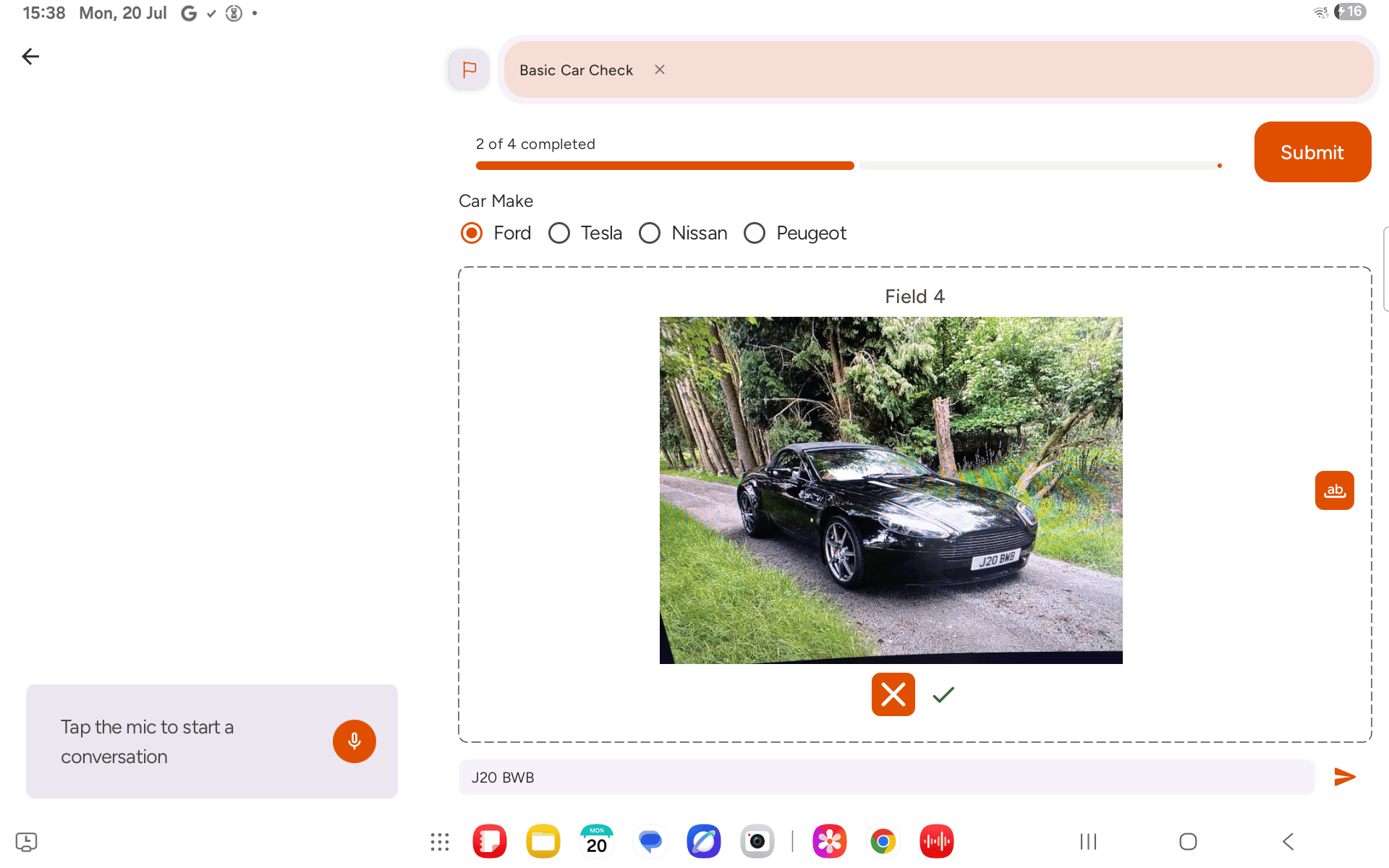 ## Reviewing the result
Check the comment box against the photo before submitting. OCR is a good first pass but isn't guaranteed to be word-perfect on poor lighting, small text, or unusual fonts — edit the comment directly if anything needs correcting.
Running Match word replaces whatever is currently in the comment box rather than appending to it. Voice and video transcription work the same way, so re-running OCR (or dictating over an existing comment) overwrites what was there rather than adding to it.
## Reviewing the result
Check the comment box against the photo before submitting. OCR is a good first pass but isn't guaranteed to be word-perfect on poor lighting, small text, or unusual fonts — edit the comment directly if anything needs correcting.
Running Match word replaces whatever is currently in the comment box rather than appending to it. Voice and video transcription work the same way, so re-running OCR (or dictating over an existing comment) overwrites what was there rather than adding to it.