> ## Documentation Index
> Fetch the complete documentation index at: https://docs.fieldpal.ai/llms.txt
> Use this file to discover all available pages before exploring further.
# Logging in to the app
> How to sign in to the FieldPal app on your device.
## Step 1: Open the app
Tap the FieldPal icon on your device's home screen. You will see the login screen.
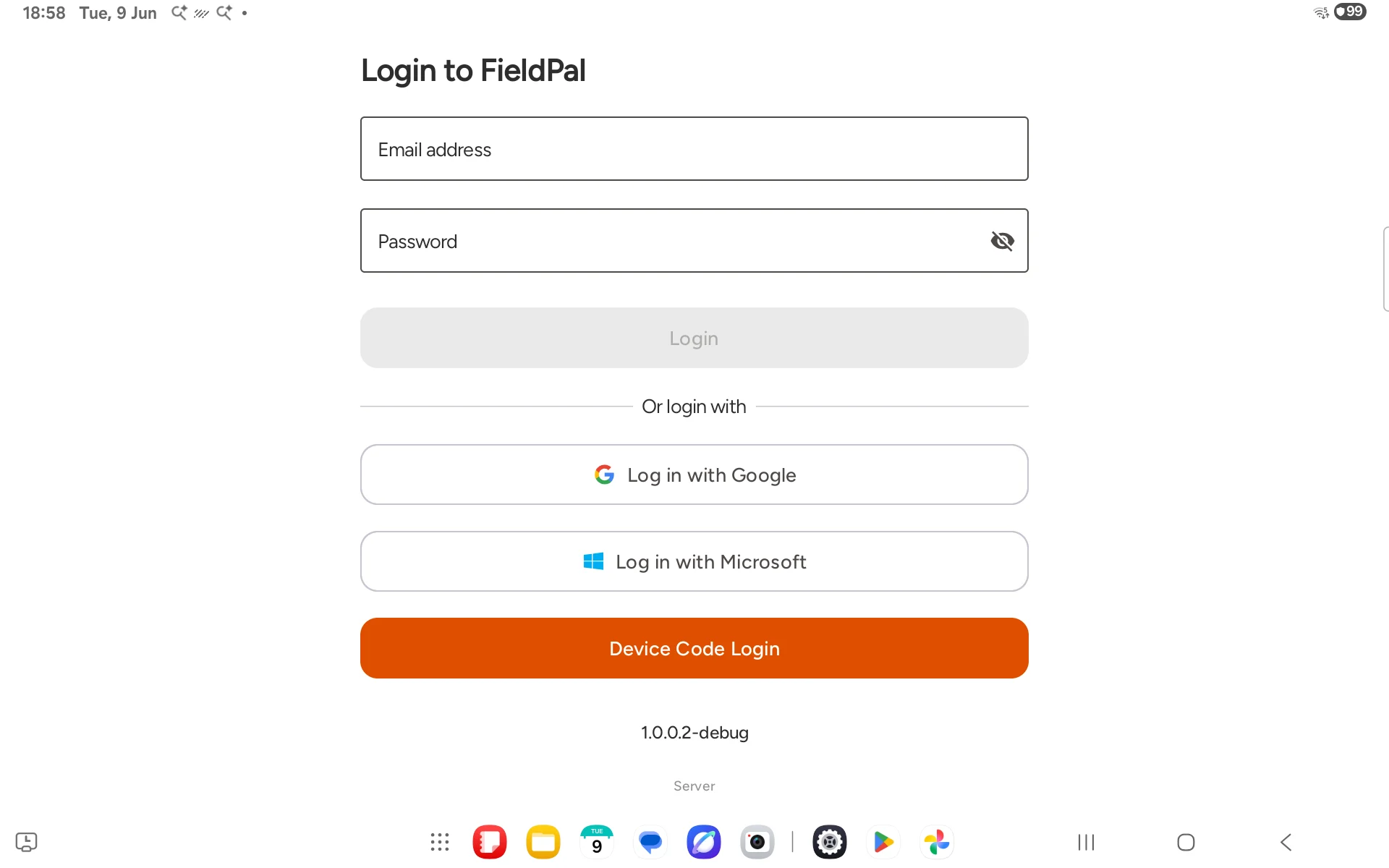 You can log in with your email and password, or with Google or Microsoft if your organisation uses one of those.
## Step 2: Enter your email address
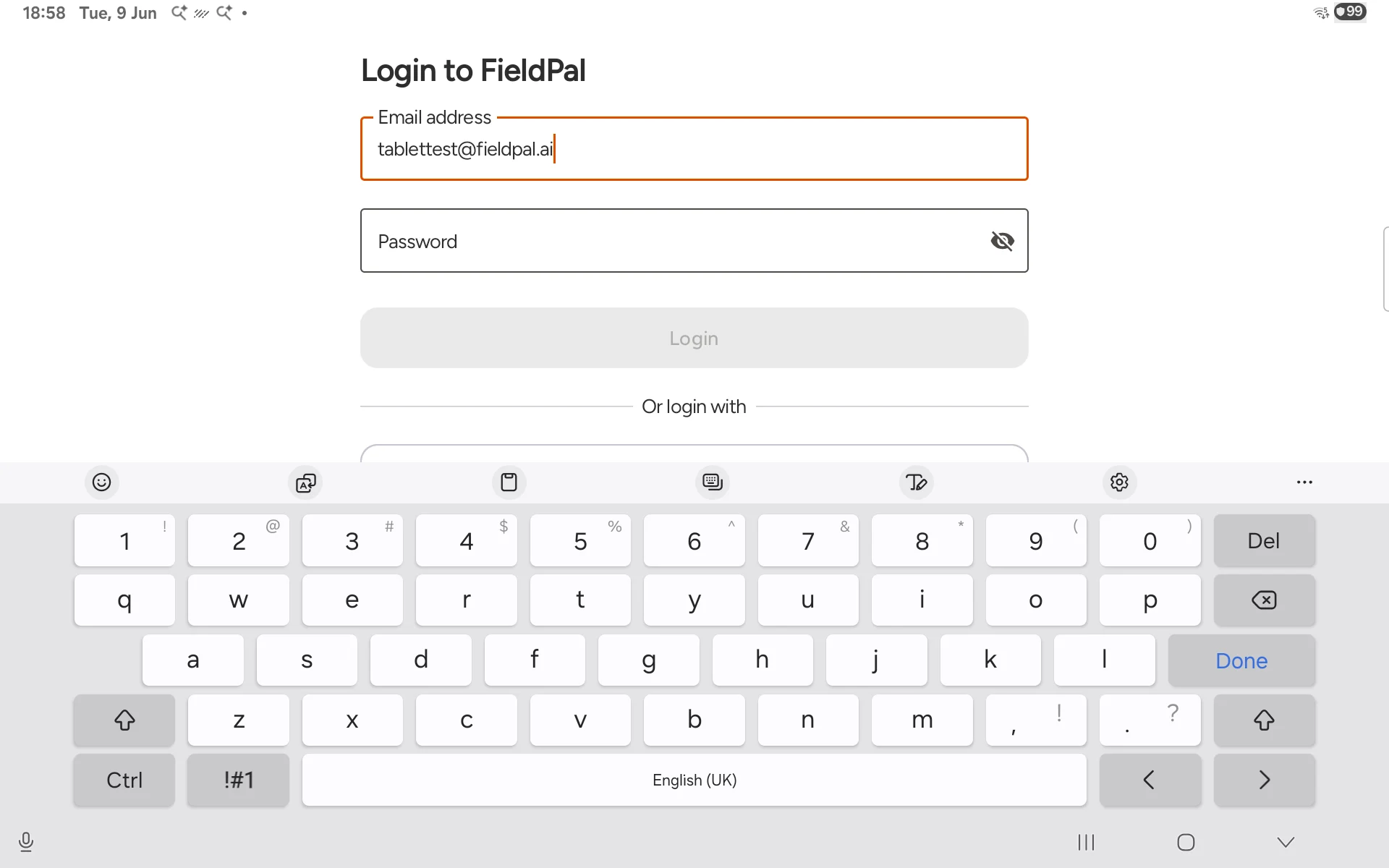
Tap the **Email address** field and type the email address your administrator gave you.
You can log in with your email and password, or with Google or Microsoft if your organisation uses one of those.
## Step 2: Enter your email address
Tap the **Email address** field and type the email address your administrator gave you.
 ## Step 3: Enter your password
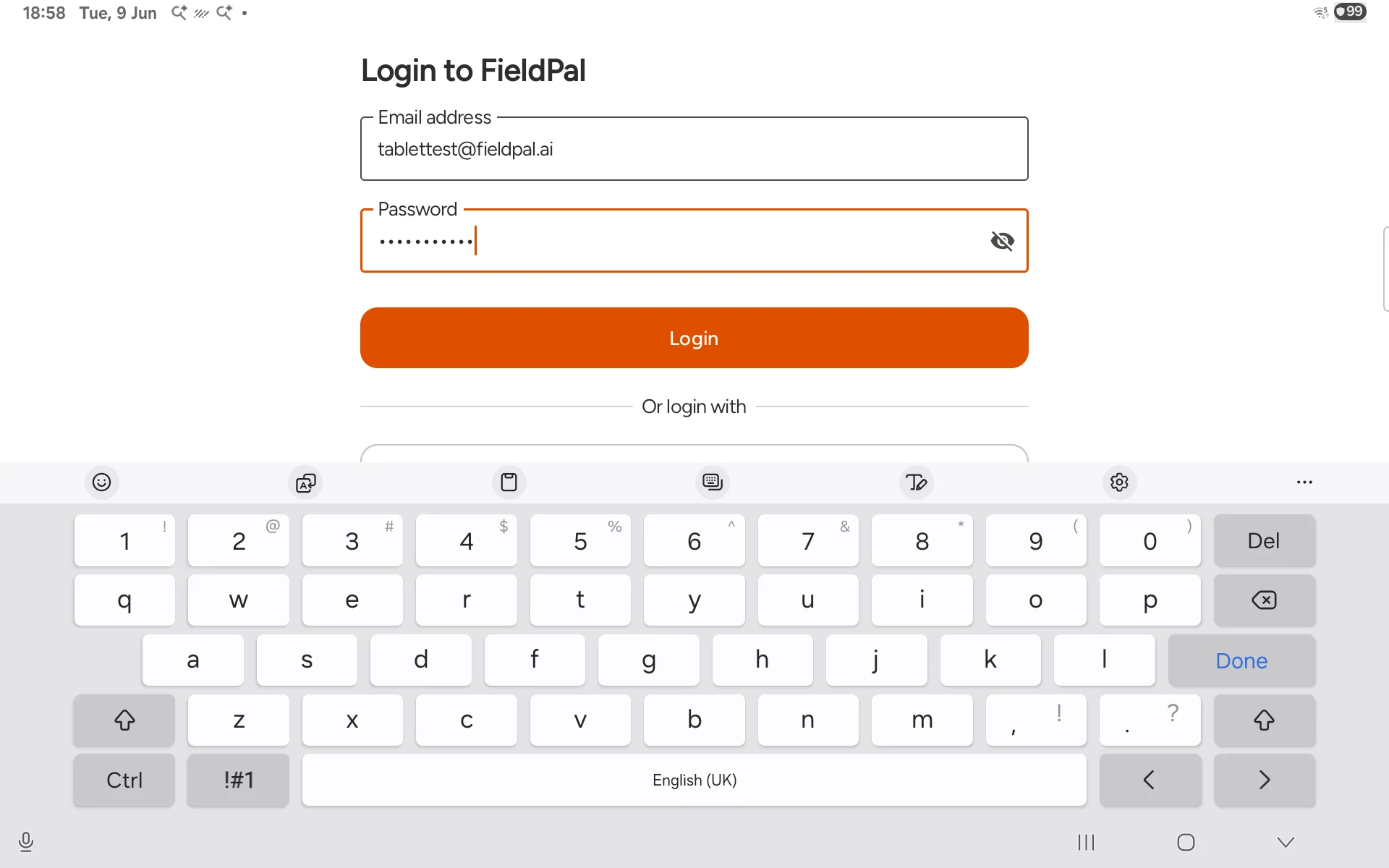
Tap the **Password** field and type your password. Tap the eye icon to reveal what you have typed if needed.
## Step 3: Enter your password
Tap the **Password** field and type your password. Tap the eye icon to reveal what you have typed if needed.
 ## Step 4: Tap Login
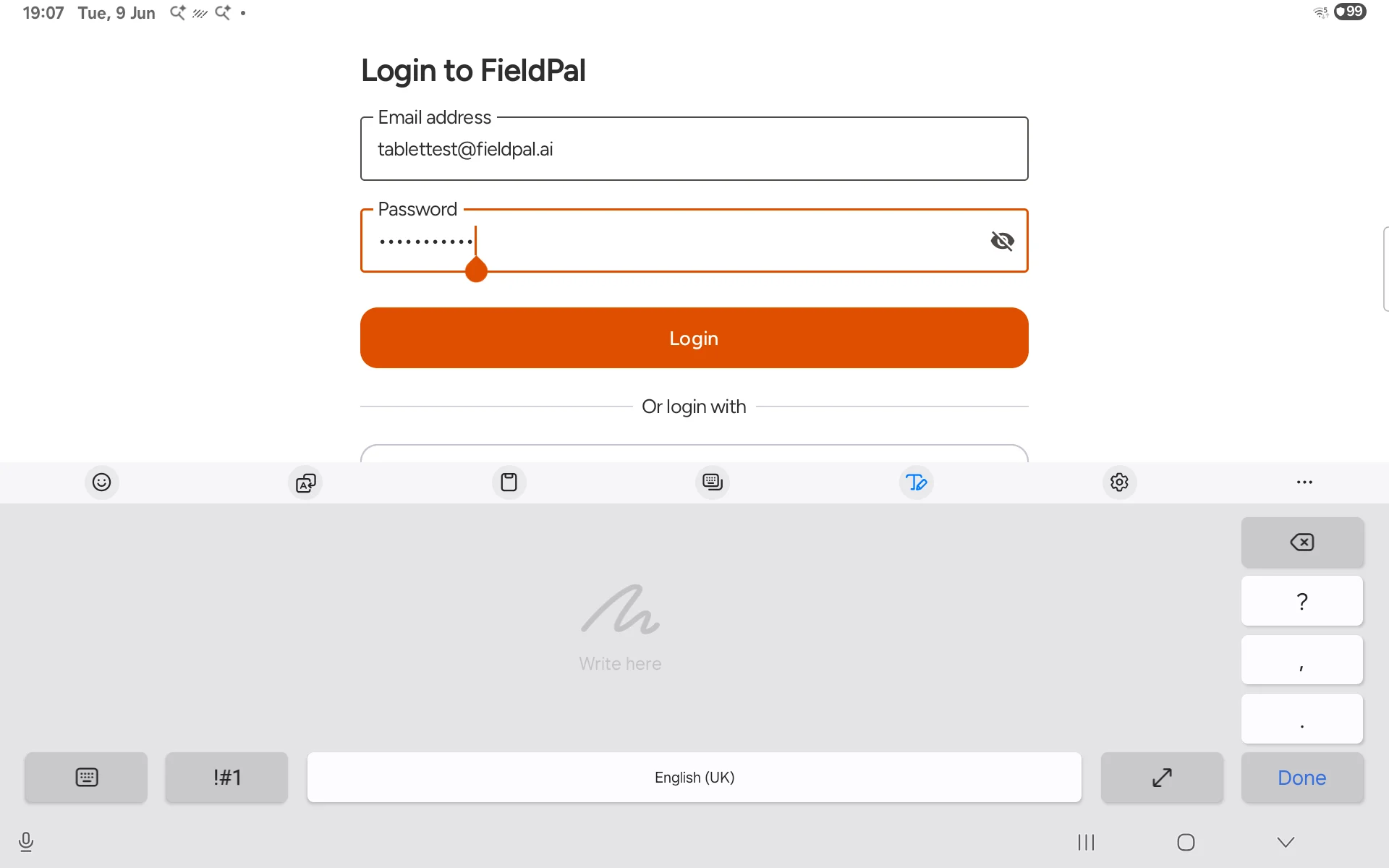
Tap **Login**. The app will connect and take you to the home screen.
## Step 4: Tap Login
Tap **Login**. The app will connect and take you to the home screen.
 ## Tips
* If you forget your password, contact your administrator. There is no self-service password reset in the app.
* The **Device Code Login** button at the bottom is for shared devices set up by your IT team. Most users will not need this.
* Once logged in, the app keeps you signed in between sessions.
## Tips
* If you forget your password, contact your administrator. There is no self-service password reset in the app.
* The **Device Code Login** button at the bottom is for shared devices set up by your IT team. Most users will not need this.
* Once logged in, the app keeps you signed in between sessions.