> ## Documentation Index
> Fetch the complete documentation index at: https://docs.fieldpal.ai/llms.txt
> Use this file to discover all available pages before exploring further.
# Offline recordings
> How to capture voice notes and video on the device without a live connection, and what happens when you come back online.
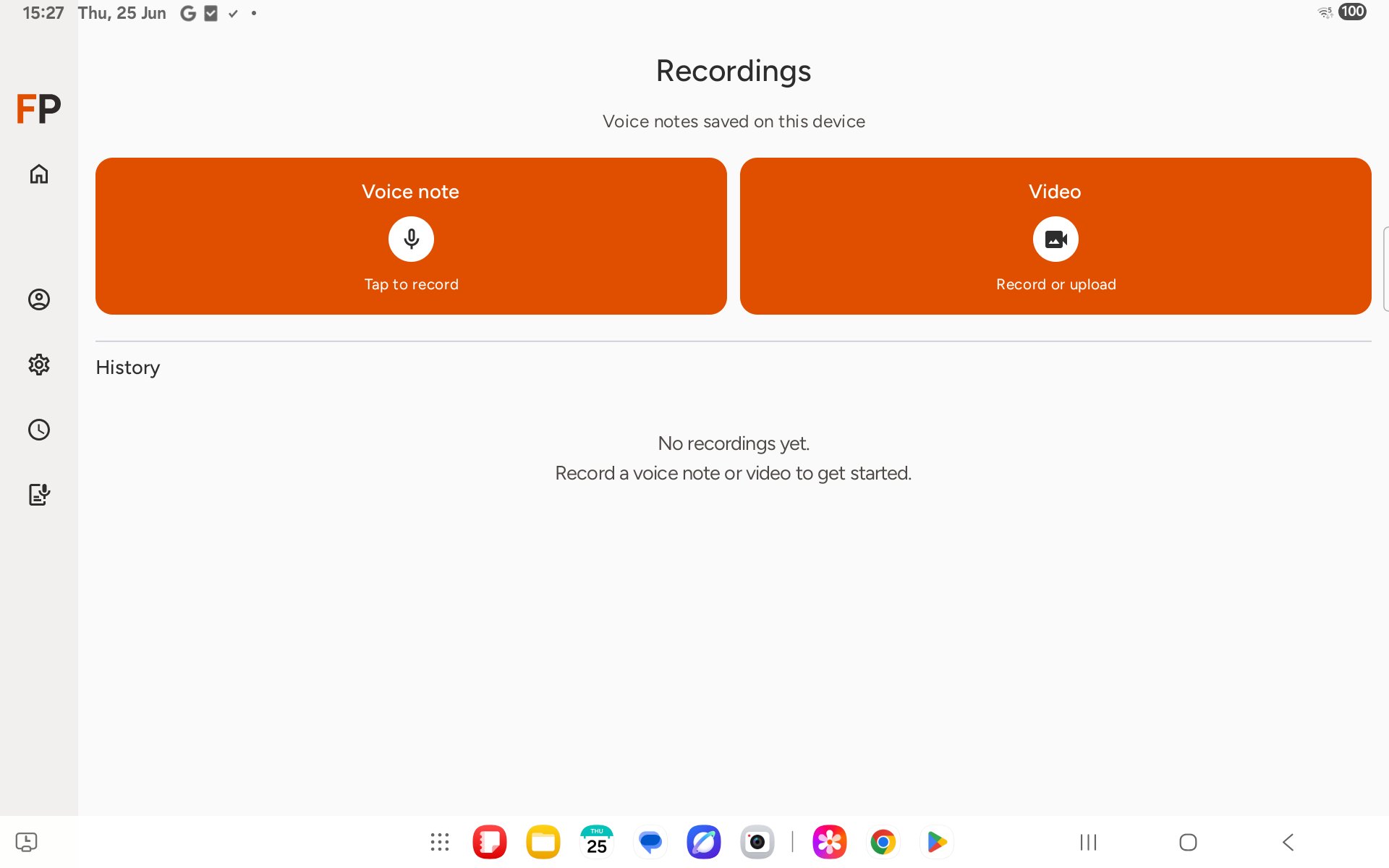
The **Recordings** tab lets you capture a voice note or video directly on the device, without needing a live connection. Recordings save locally straight away and queue for transcription in the background, so you can keep working even if signal drops.
## Step 1: Open Recordings
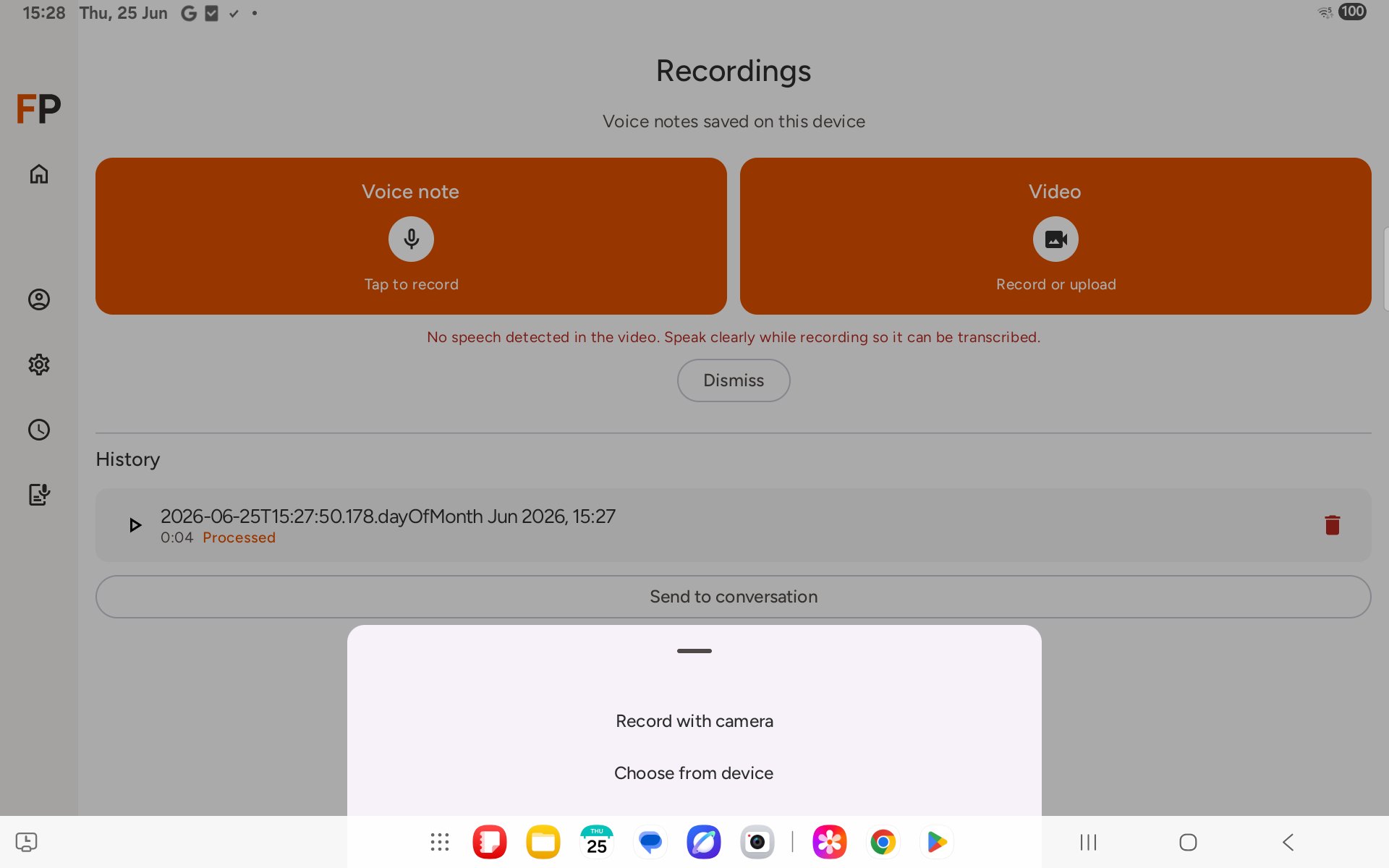
Tap **Recordings** in the navigation — the sidebar on tablet, or the bottom bar on phone. You will see two large buttons, **Voice note** and **Video**, and a **History** list below showing recordings captured on this device.
 ## Step 2: Record a voice note
Tap **Voice note**. Recording starts straight away — you will see **Listening** and a live timer while FieldPal captures audio.
## Step 2: Record a voice note
Tap **Voice note**. Recording starts straight away — you will see **Listening** and a live timer while FieldPal captures audio.
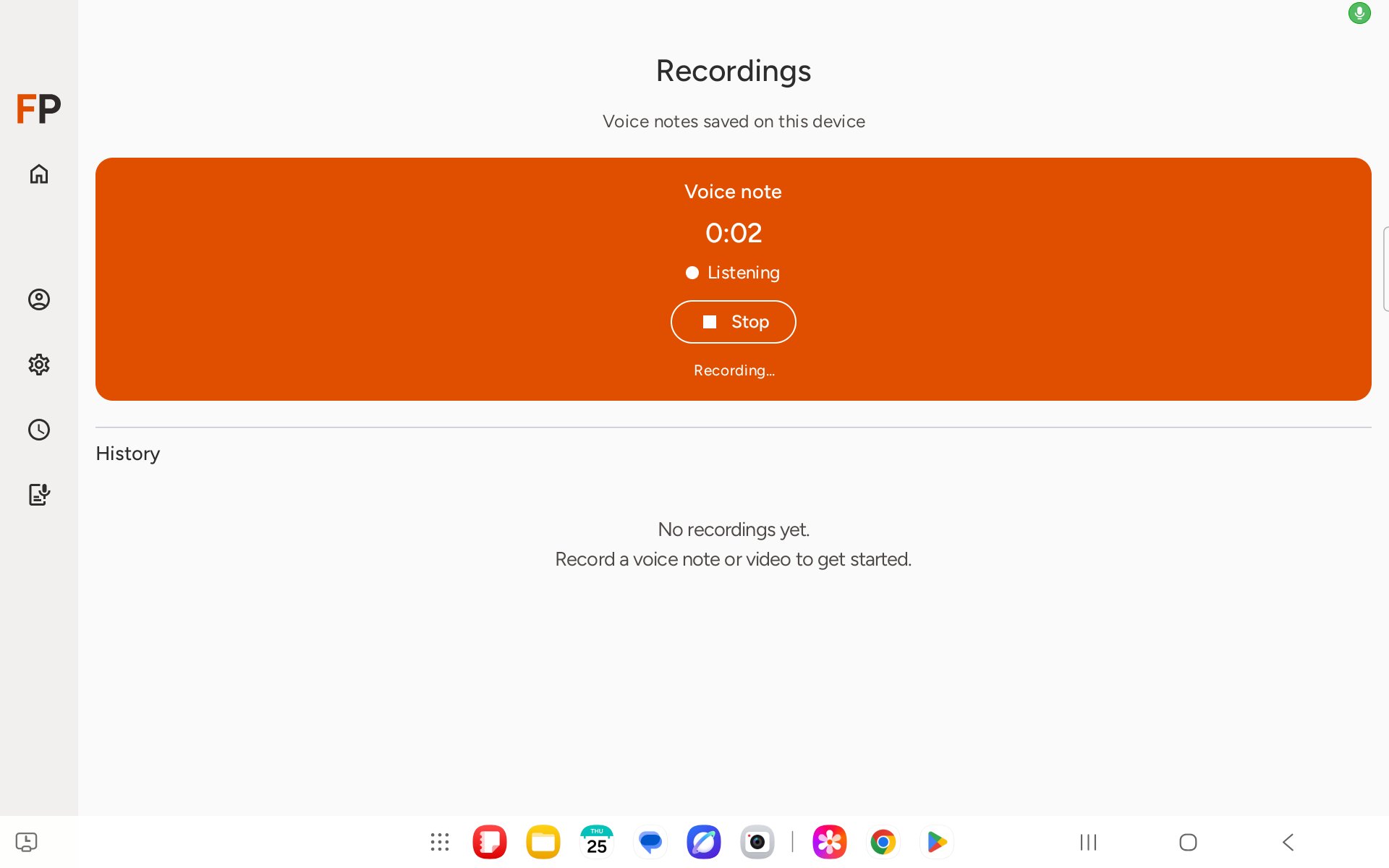 Tap **Stop** when you are finished.
## Step 3: Watch it process
The recording appears in **History** with playback and delete controls, marked **Queued**.
Tap **Stop** when you are finished.
## Step 3: Watch it process
The recording appears in **History** with playback and delete controls, marked **Queued**.
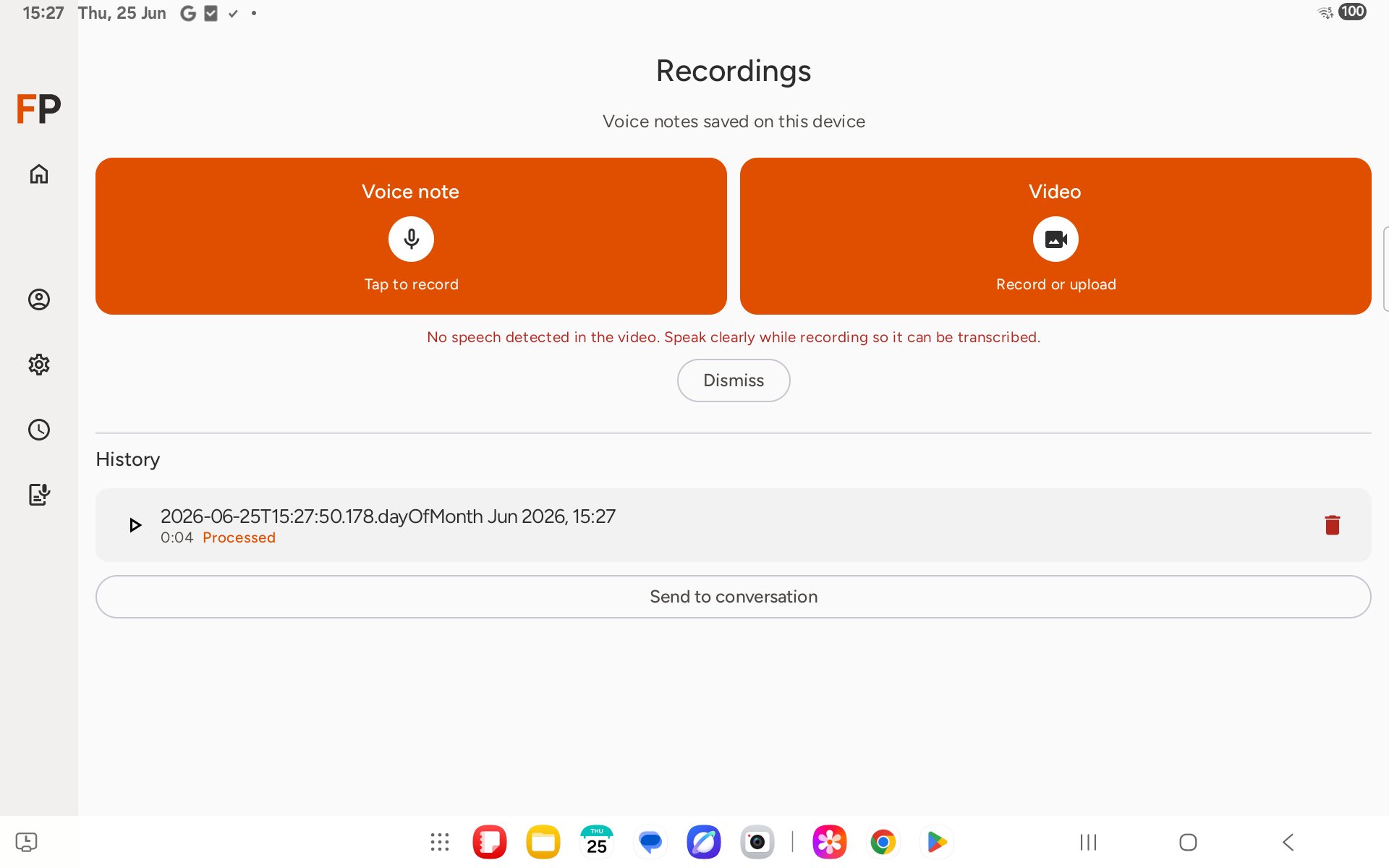
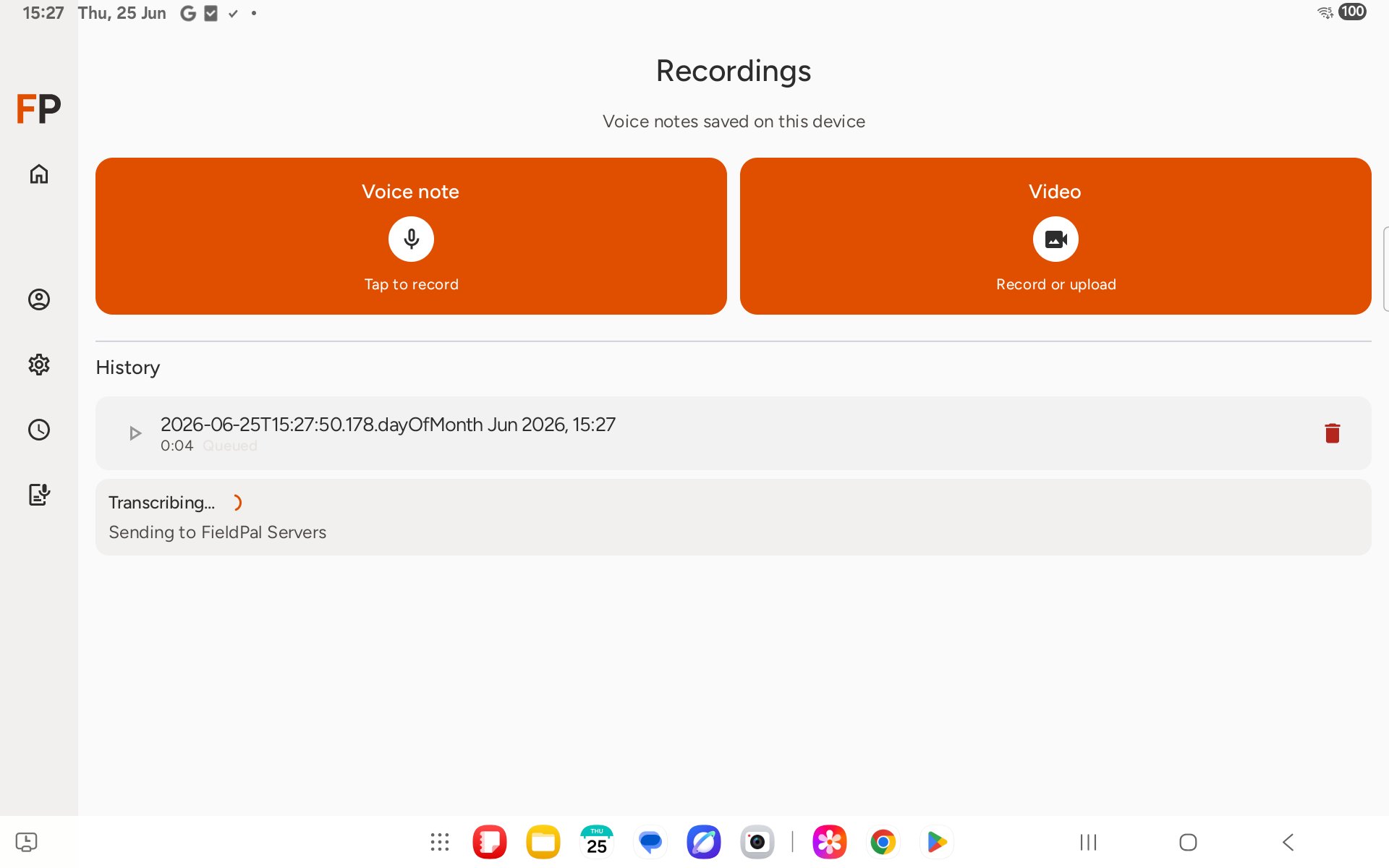 It then transcribes in the background. Once finished, the status changes to **Processed** and you can send it to a conversation or delete it.
 ## Step 4: Record or upload video
Tap **Video** to capture video instead. You are given the choice to **Record with camera** or **Choose from device**.
## Step 4: Record or upload video
Tap **Video** to capture video instead. You are given the choice to **Record with camera** or **Choose from device**.
 Recordings are stored on the device first, so a voice note still saves if you are offline — it will process automatically once you are back online. If a voice note comes back with "No speech detected", try again somewhere quieter and speak clearly into the microphone.