> ## Documentation Index
> Fetch the complete documentation index at: https://docs.fieldpal.ai/llms.txt
> Use this file to discover all available pages before exploring further.
# RAG ratings
> How to set a Red, Amber, or Green rating on a report field — by voice, typing, or tapping directly.
Some report templates include a **RAG field** for rating condition or status at a glance, rather than typing free text. You can set it by tapping a colour directly on the form, or by telling the AI assistant in chat.
## Step 1: Start the report
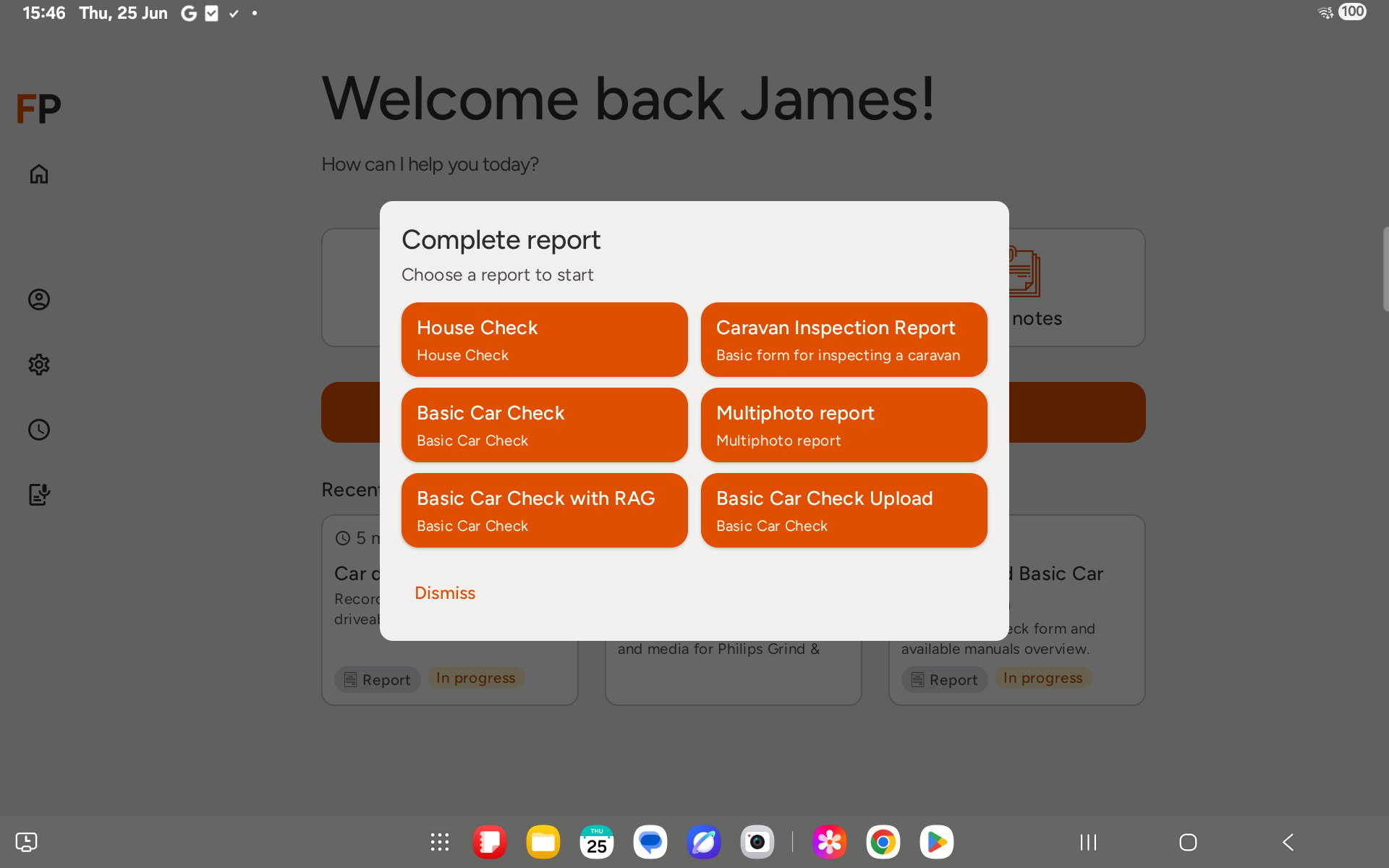
From the home screen, tap **Complete report**, then choose the template that contains a RAG field.
 ## Step 2: Tell the AI the rating
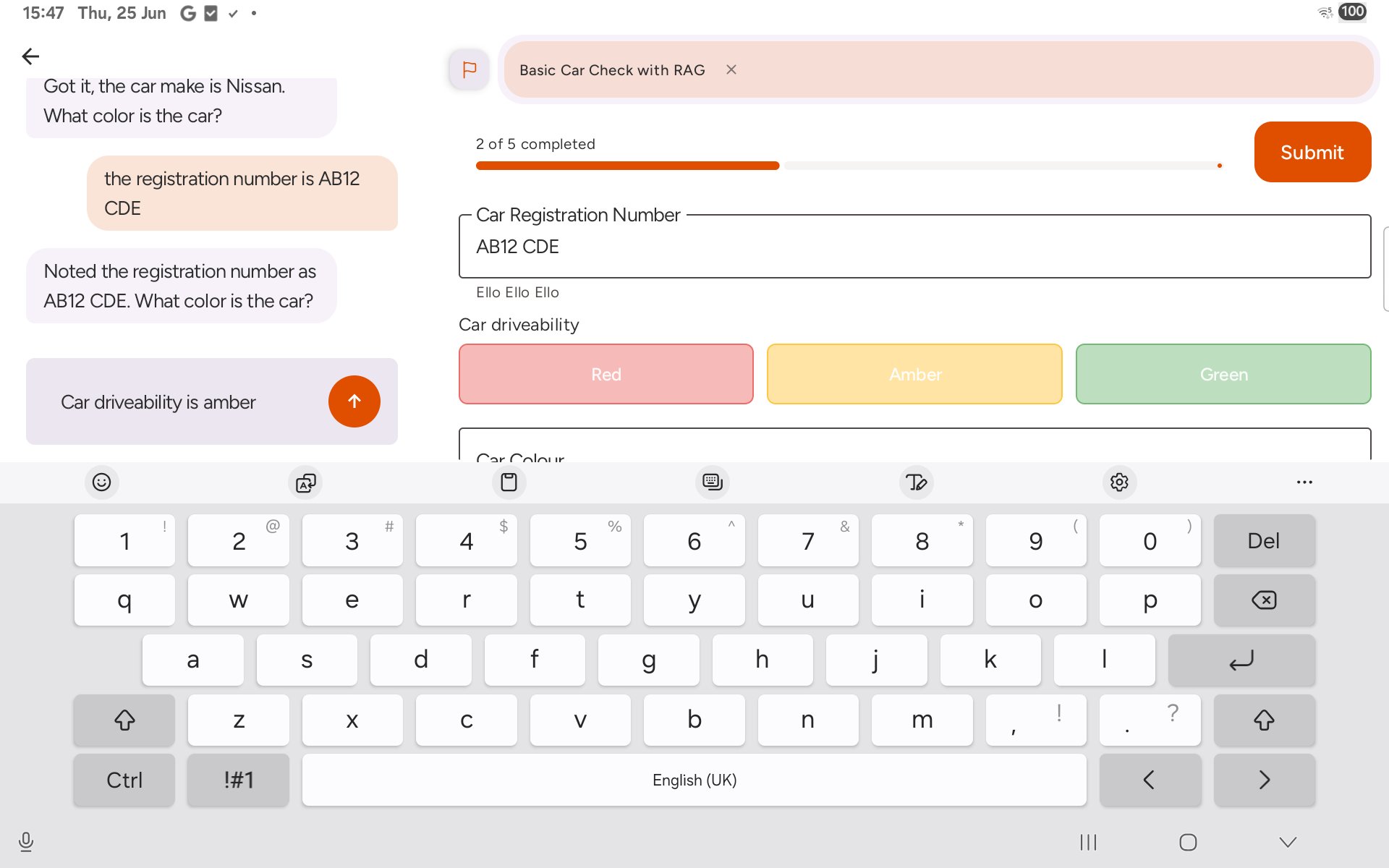
The assistant asks for each field in turn. When it asks about the RAG field, just say the colour — for example, *"driveability is amber"* or *"site safety is green"*.
## Step 2: Tell the AI the rating
The assistant asks for each field in turn. When it asks about the RAG field, just say the colour — for example, *"driveability is amber"* or *"site safety is green"*.
 ## Step 3: Check the form field
As you answer, the form panel fills in alongside the chat. The RAG field shows three colour pills — **Red**, **Amber**, **Green** — and highlights the one the AI set from your answer.
## Step 3: Check the form field
As you answer, the form panel fills in alongside the chat. The RAG field shows three colour pills — **Red**, **Amber**, **Green** — and highlights the one the AI set from your answer.
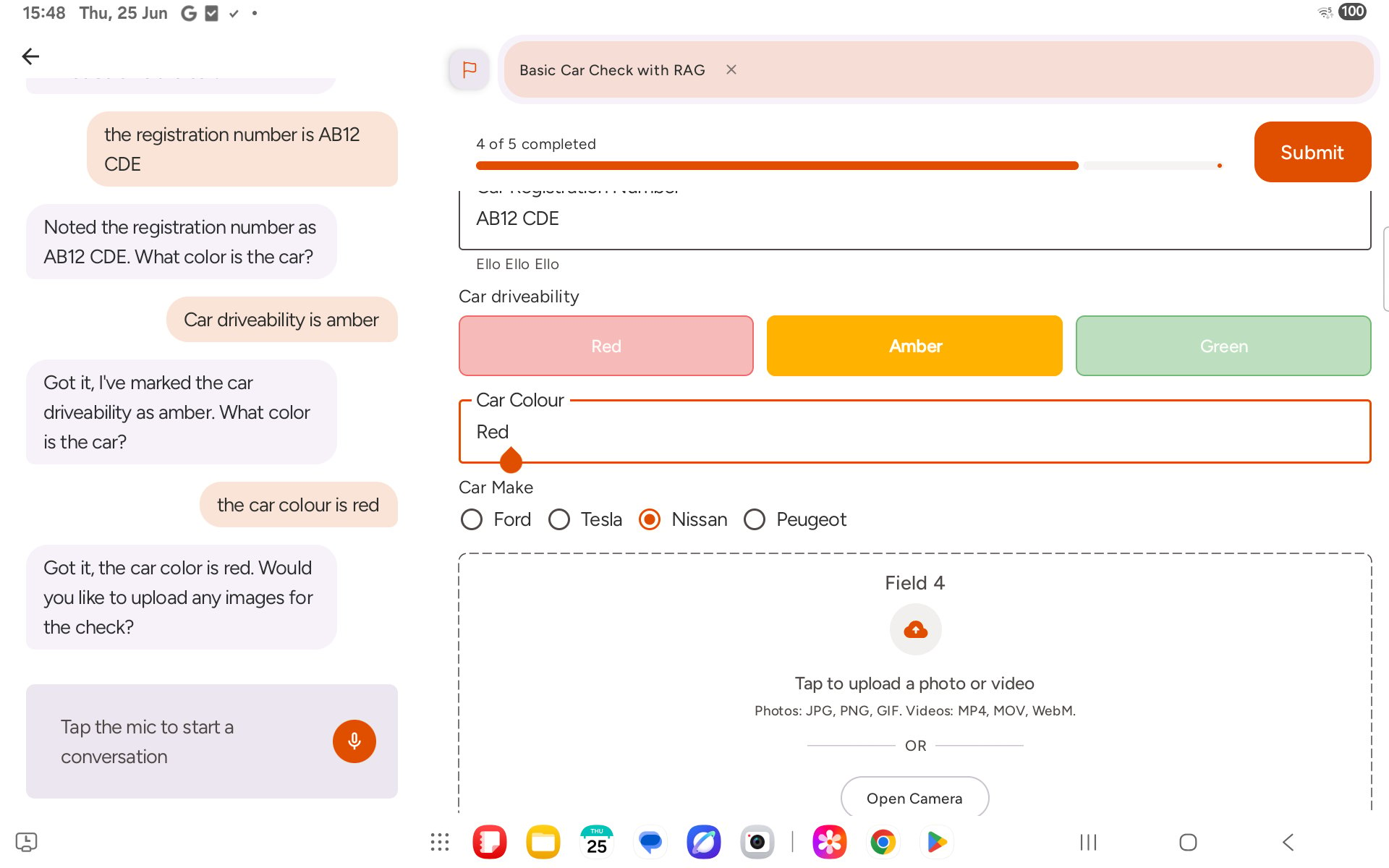 You can also tap a pill directly on the form to set or change it yourself, without going back to chat.
## Step 4: Finish and submit
Once all required fields are filled in, the progress bar reaches 100% and **Submit** becomes active. Tap it to send the report.
You can also tap a pill directly on the form to set or change it yourself, without going back to chat.
## Step 4: Finish and submit
Once all required fields are filled in, the progress bar reaches 100% and **Submit** becomes active. Tap it to send the report.
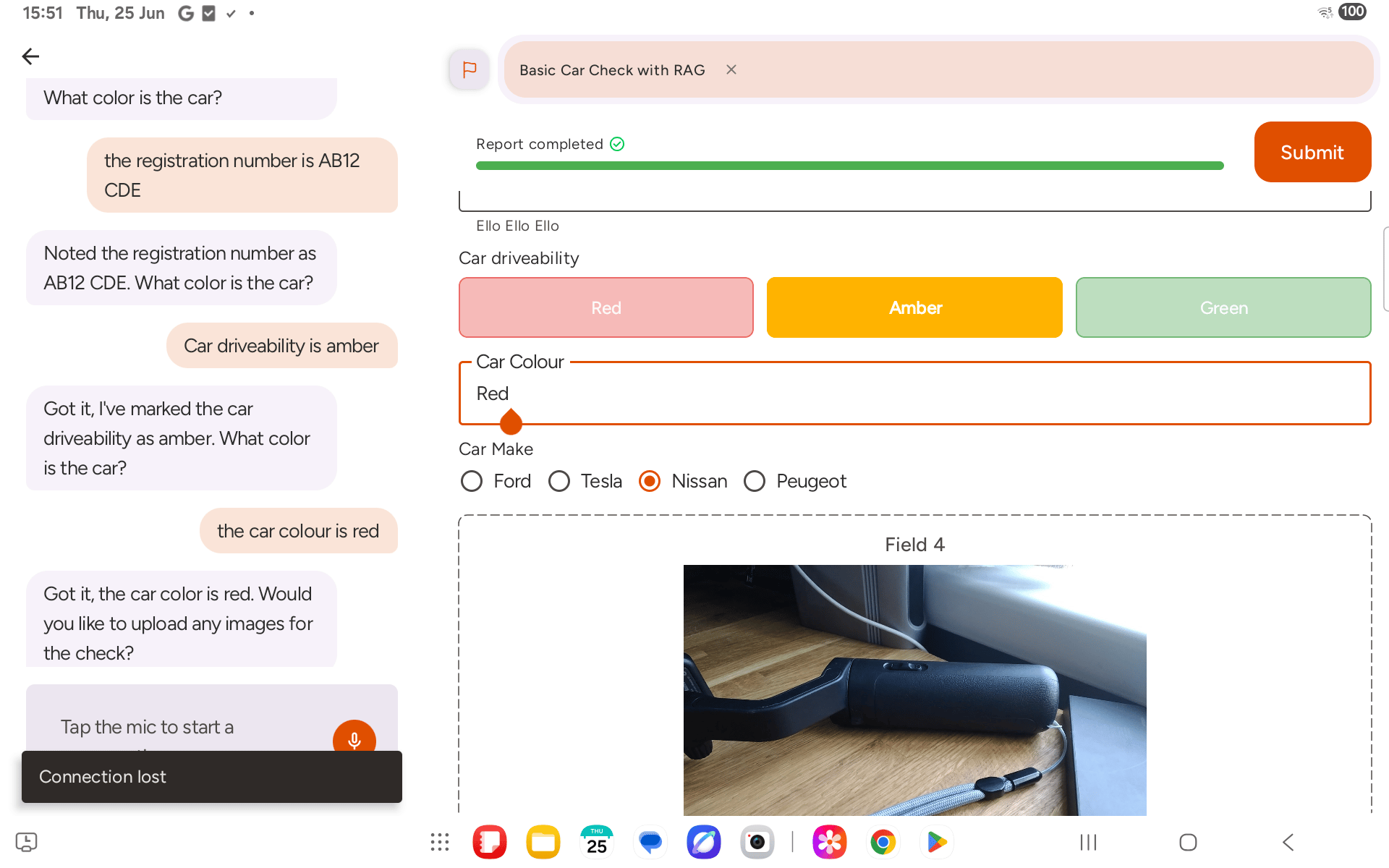
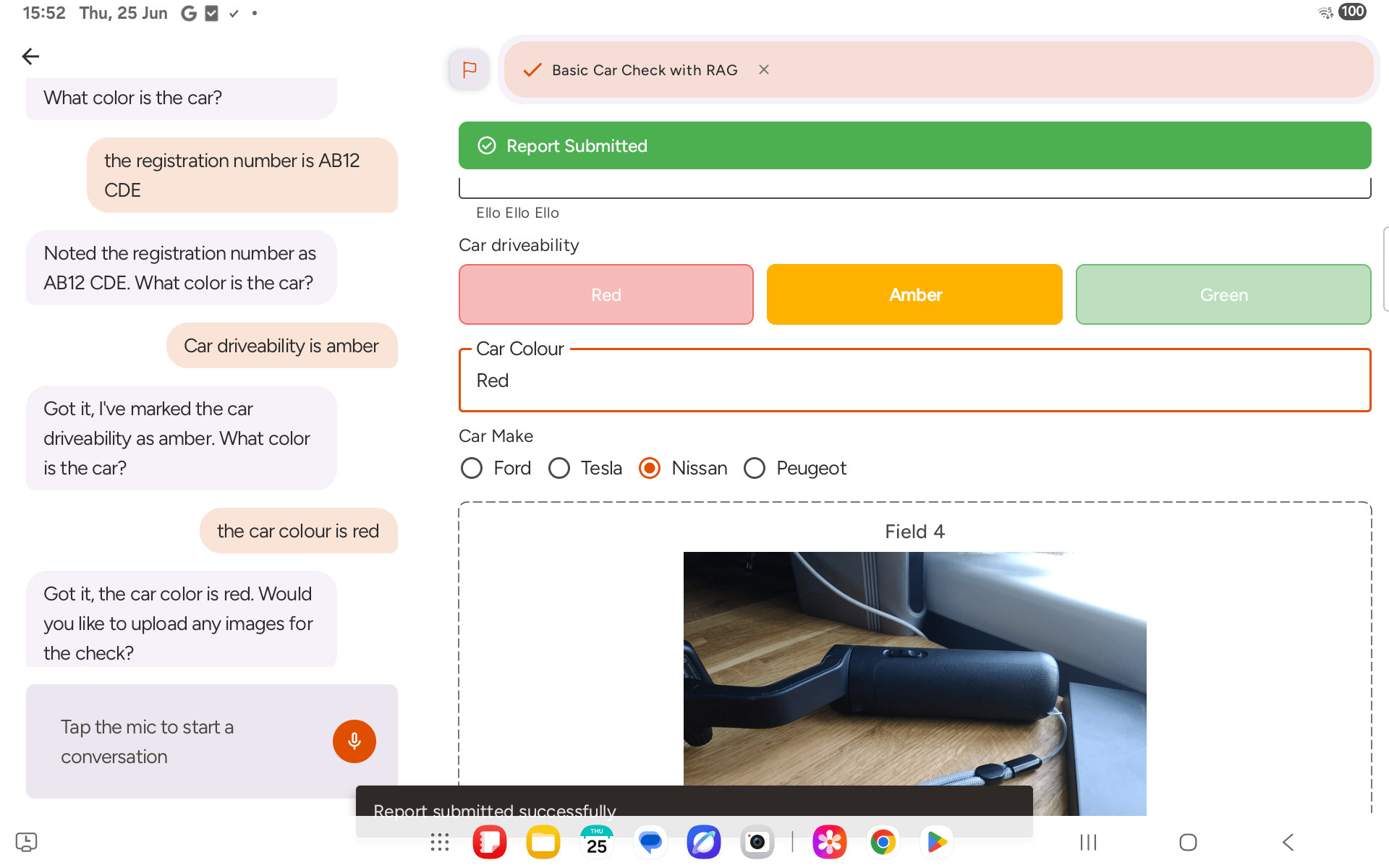 RAG fields work the same whether you fill them by voice, by typing in chat, or by tapping the colour pill directly. The selected colour is the only value saved — there is no separate text entry — so make sure the right one is highlighted before submitting.