> ## Documentation Index
> Fetch the complete documentation index at: https://docs.fieldpal.ai/llms.txt
> Use this file to discover all available pages before exploring further.
# Settings and voice
> How to choose the AI reading voice and test your audio in the FieldPal app.
The Settings screen lets you choose the AI reading voice and test speech. Most users will only visit this once.
## Step 1: Open Settings
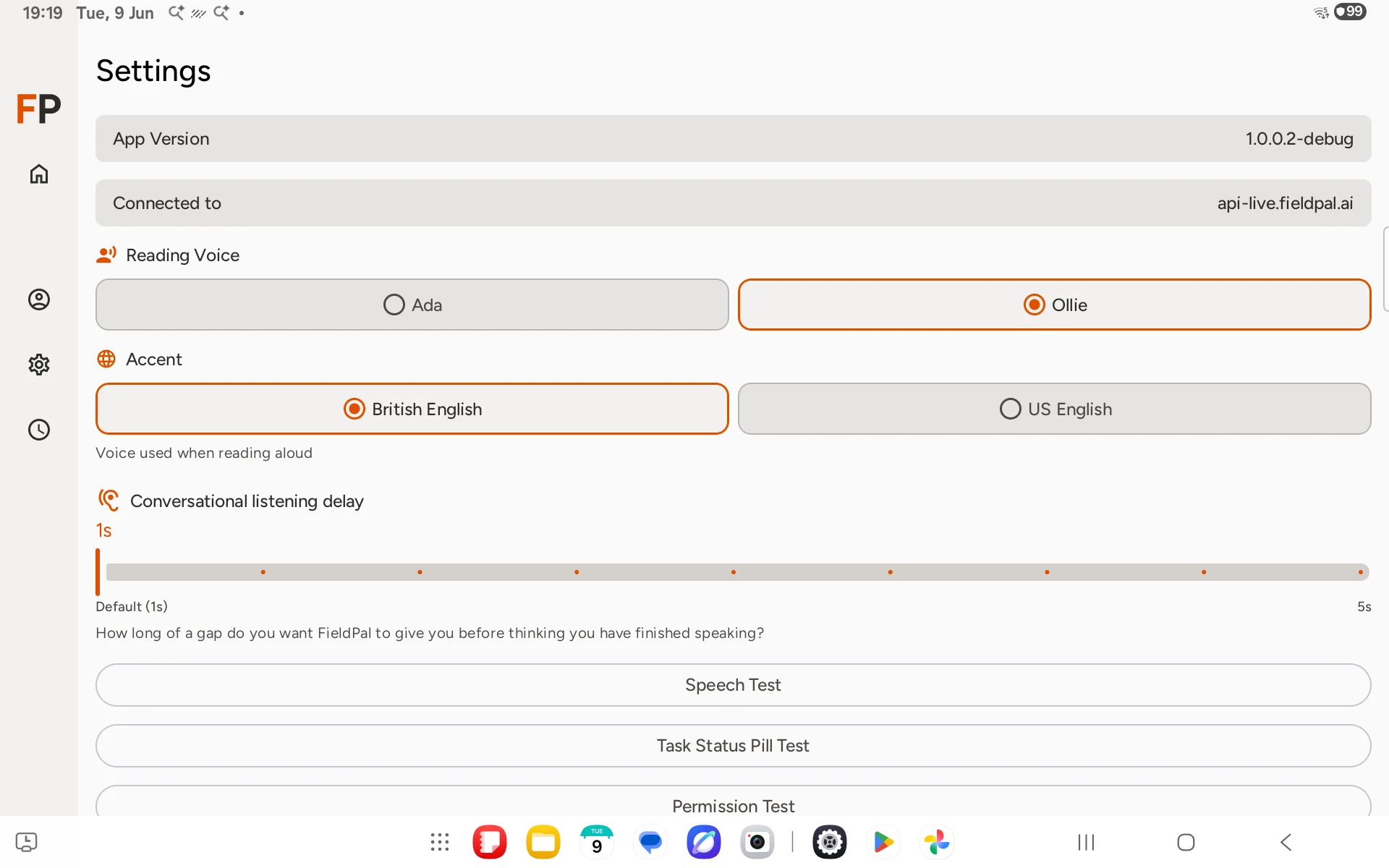
Tap the **gear icon** in the left sidebar (third icon down).
 ## Step 2: Choose a reading voice
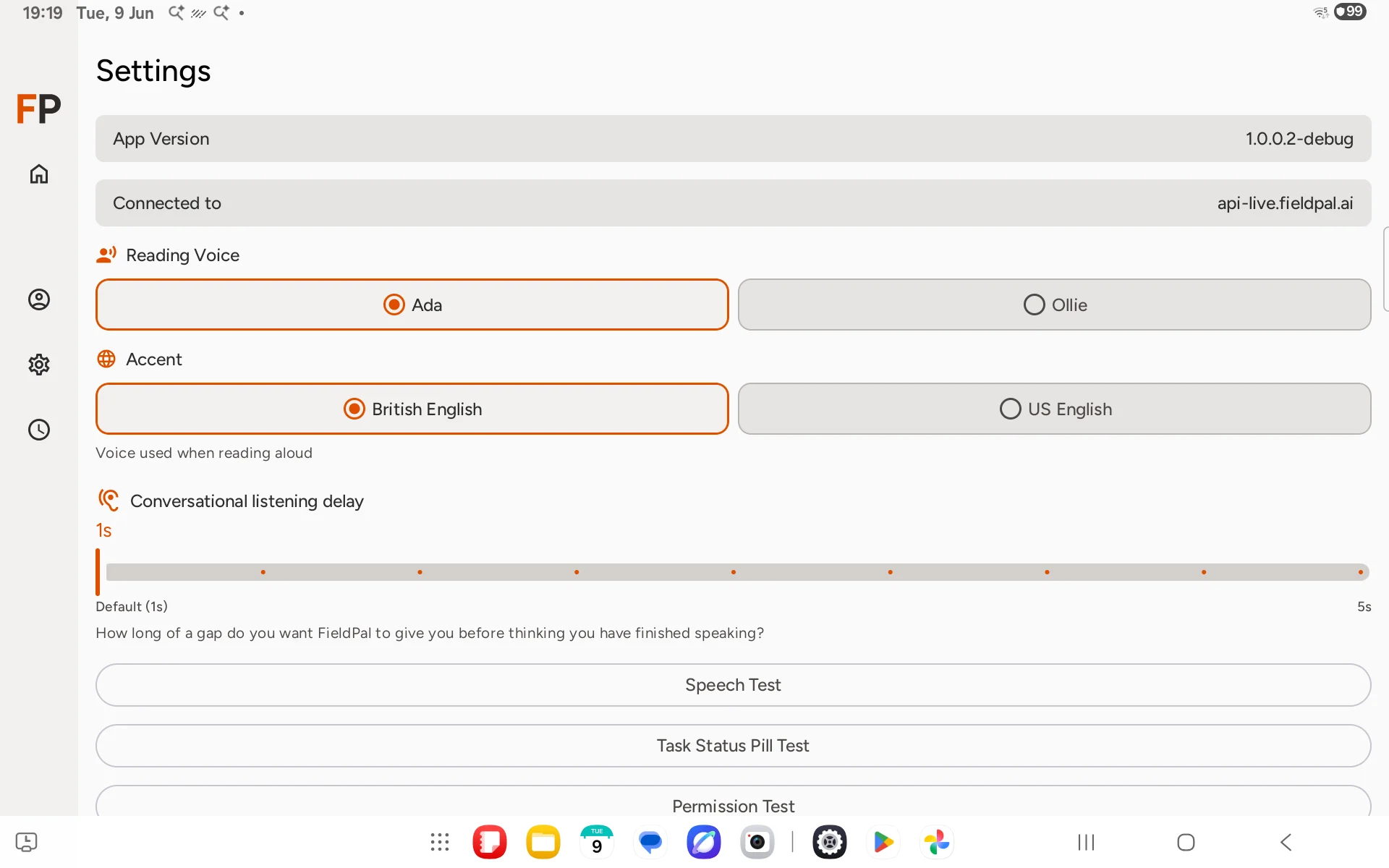
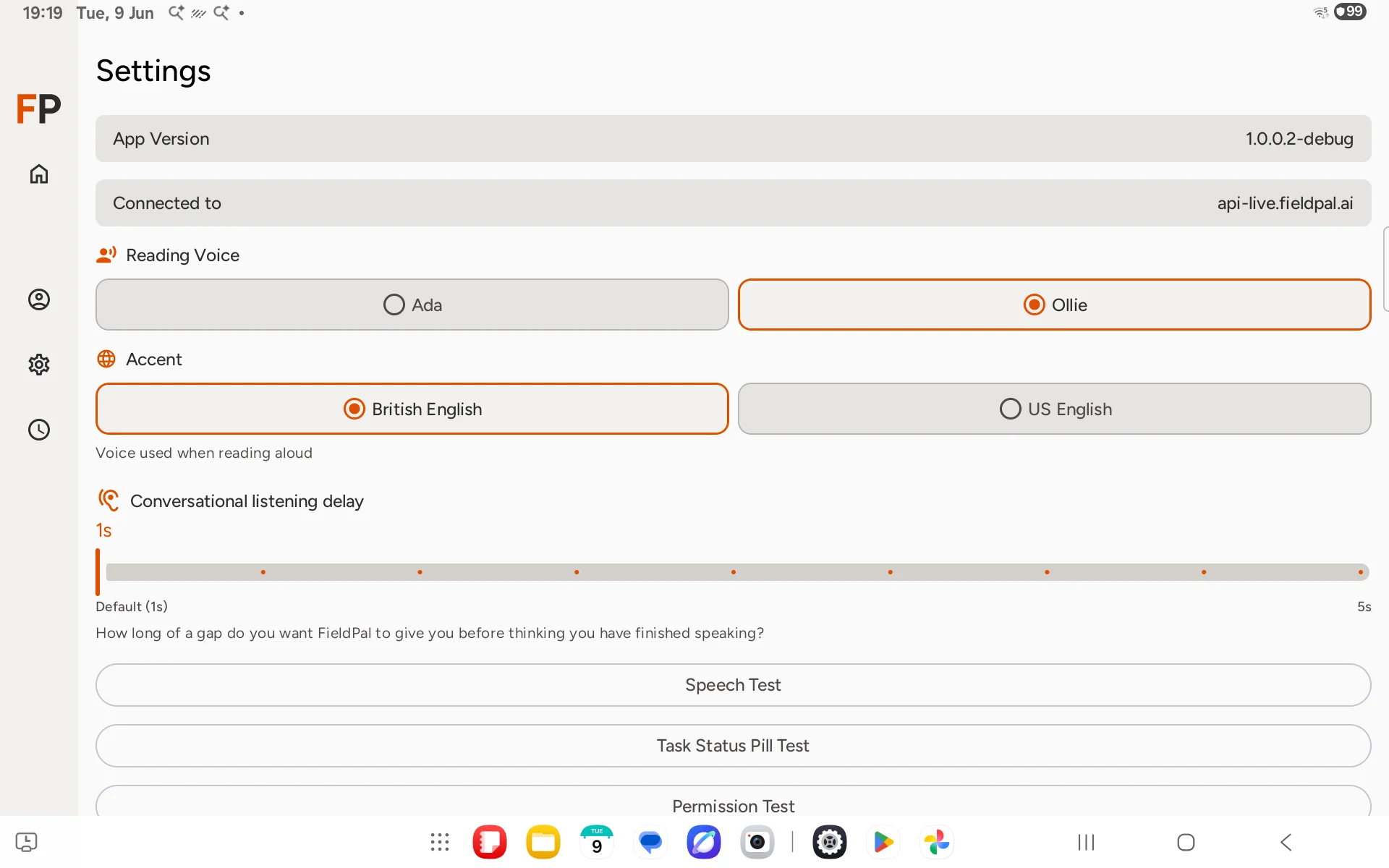
Under **Reading Voice**, tap **Ada** or **Ollie**, the voices the AI uses to read responses aloud.
## Step 2: Choose a reading voice
Under **Reading Voice**, tap **Ada** or **Ollie**, the voices the AI uses to read responses aloud.
 ## Step 3: Test the voice
Tap **Speech Test** to hear a sample and confirm your speaker and microphone are working. Press the back button to return to Settings when done.
## Tips
* Your voice choice saves automatically: there is no Save button.
* If the AI reads too quietly, use the physical volume buttons on the side of your device.
* The **Task Status Pill Test** option is a developer tool. You do not need it for normal use.
## Step 3: Test the voice
Tap **Speech Test** to hear a sample and confirm your speaker and microphone are working. Press the back button to return to Settings when done.
## Tips
* Your voice choice saves automatically: there is no Save button.
* If the AI reads too quietly, use the physical volume buttons on the side of your device.
* The **Task Status Pill Test** option is a developer tool. You do not need it for normal use.