> ## Documentation Index
> Fetch the complete documentation index at: https://docs.fieldpal.ai/llms.txt
> Use this file to discover all available pages before exploring further.
# Starting and completing a report
> How to start a report, fill it in with the AI assistant, and submit it.
## Step 1: Tap Complete report
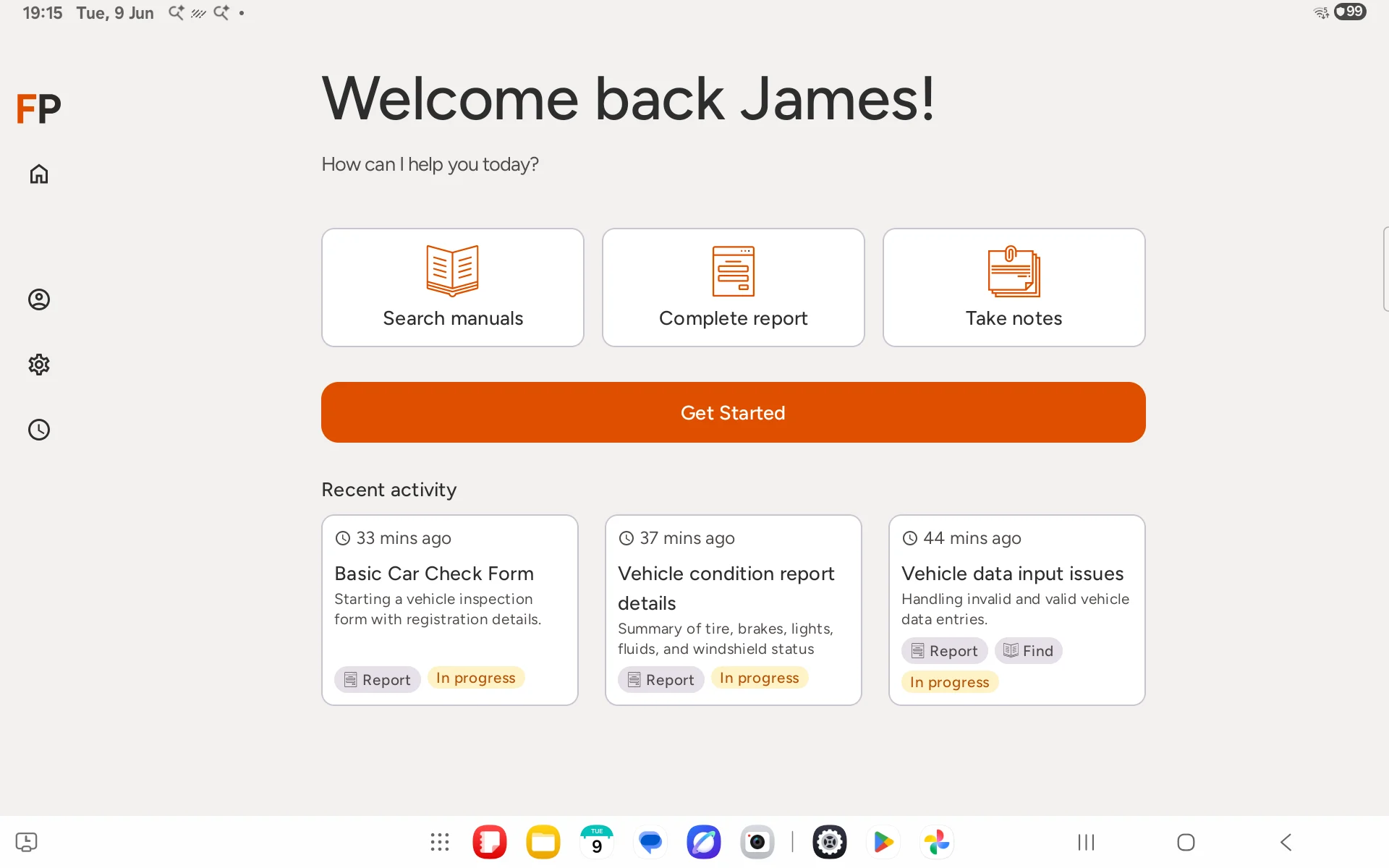
From the home screen, tap **Complete report**.
 ## Step 2: Choose a report template
A list of available report types will appear. Tap the one that matches your current job.
## Step 2: Choose a report template
A list of available report types will appear. Tap the one that matches your current job.
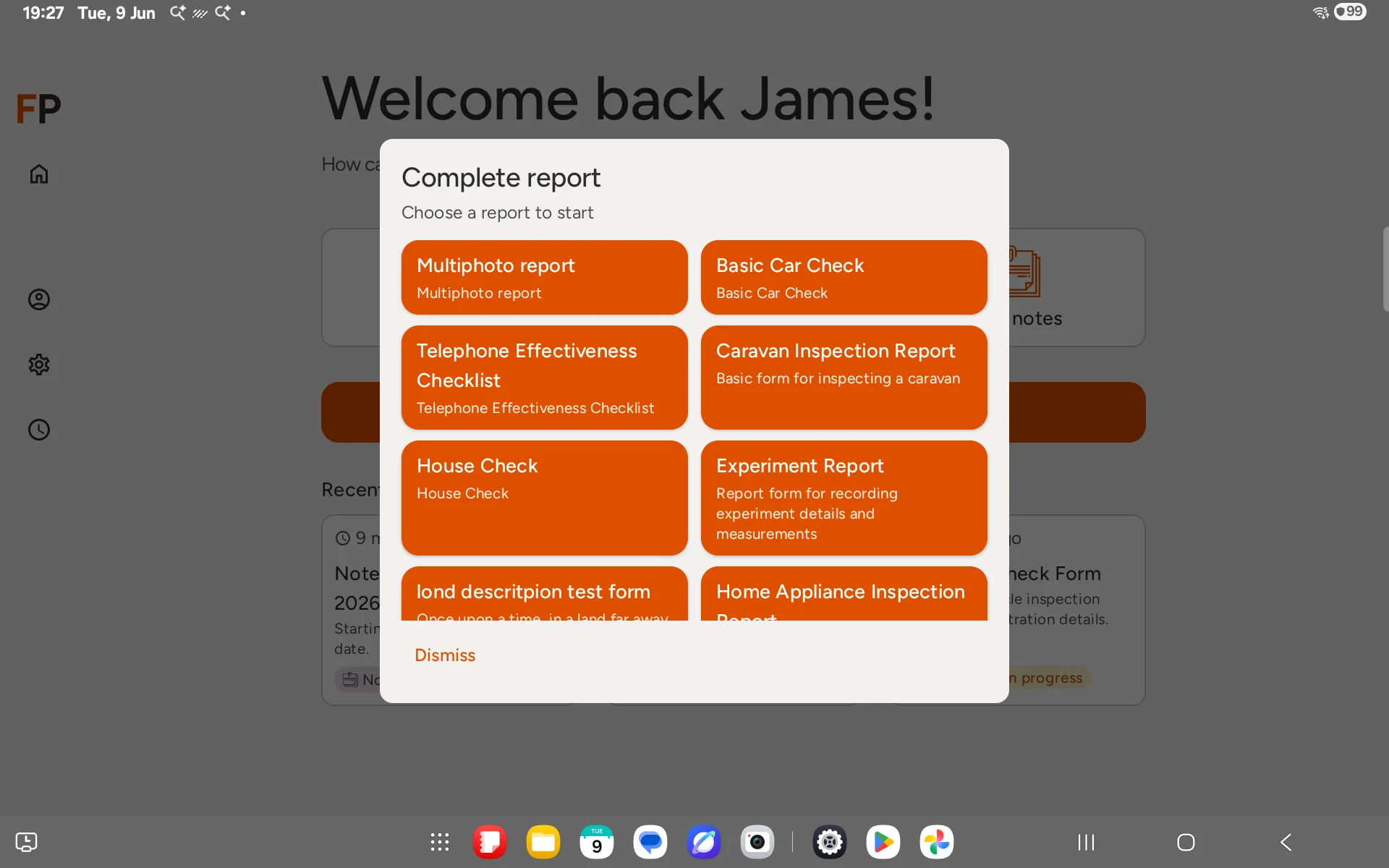 If you are not sure which to use, ask your supervisor.
## Step 3: Fill in the form with the AI assistant
The report screen opens with two panels:
* **Left:** the AI assistant chat, where you describe what you are doing
* **Right:** the form fields, which the AI fills in automatically as you speak or type
If you are not sure which to use, ask your supervisor.
## Step 3: Fill in the form with the AI assistant
The report screen opens with two panels:
* **Left:** the AI assistant chat, where you describe what you are doing
* **Right:** the form fields, which the AI fills in automatically as you speak or type
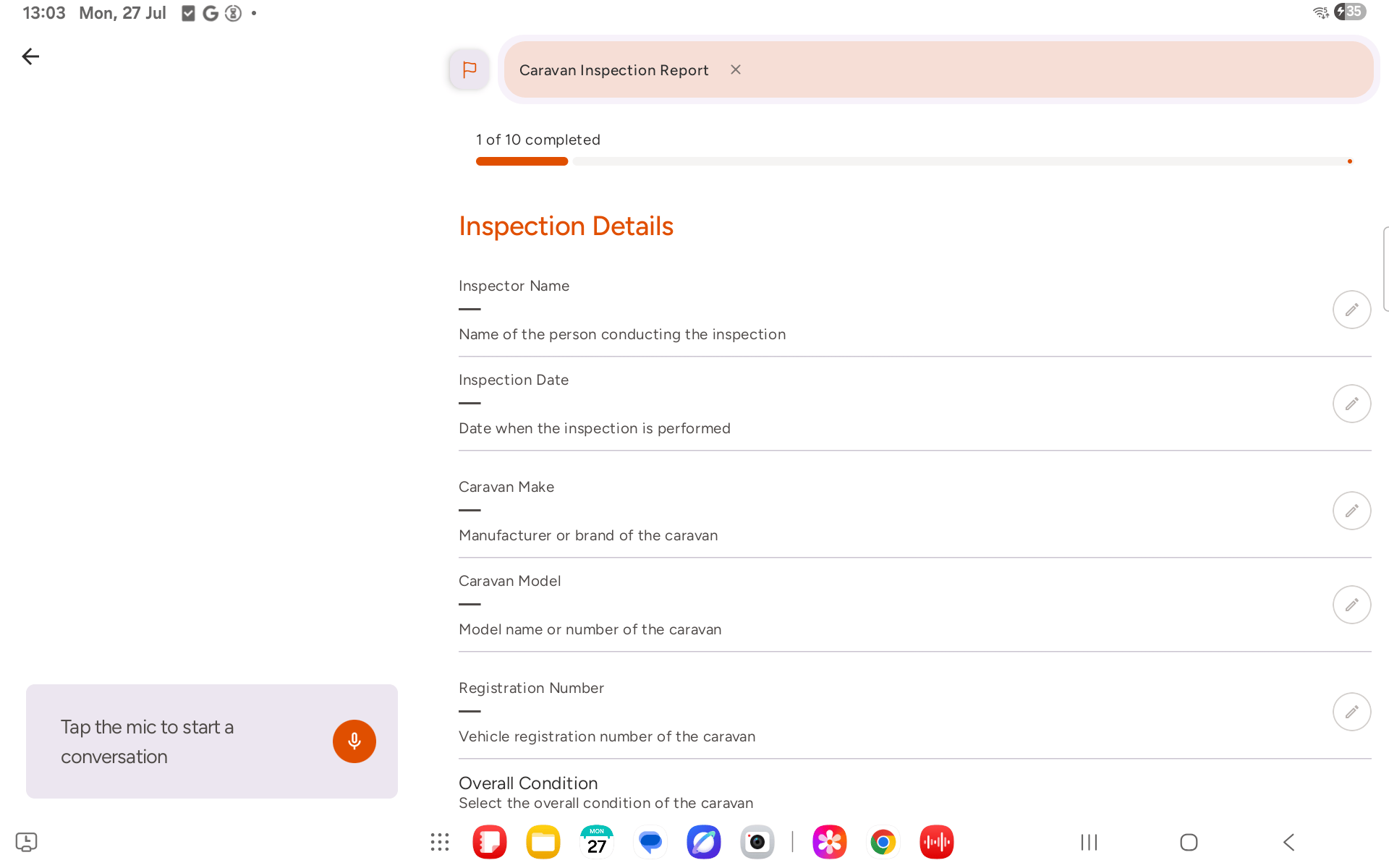
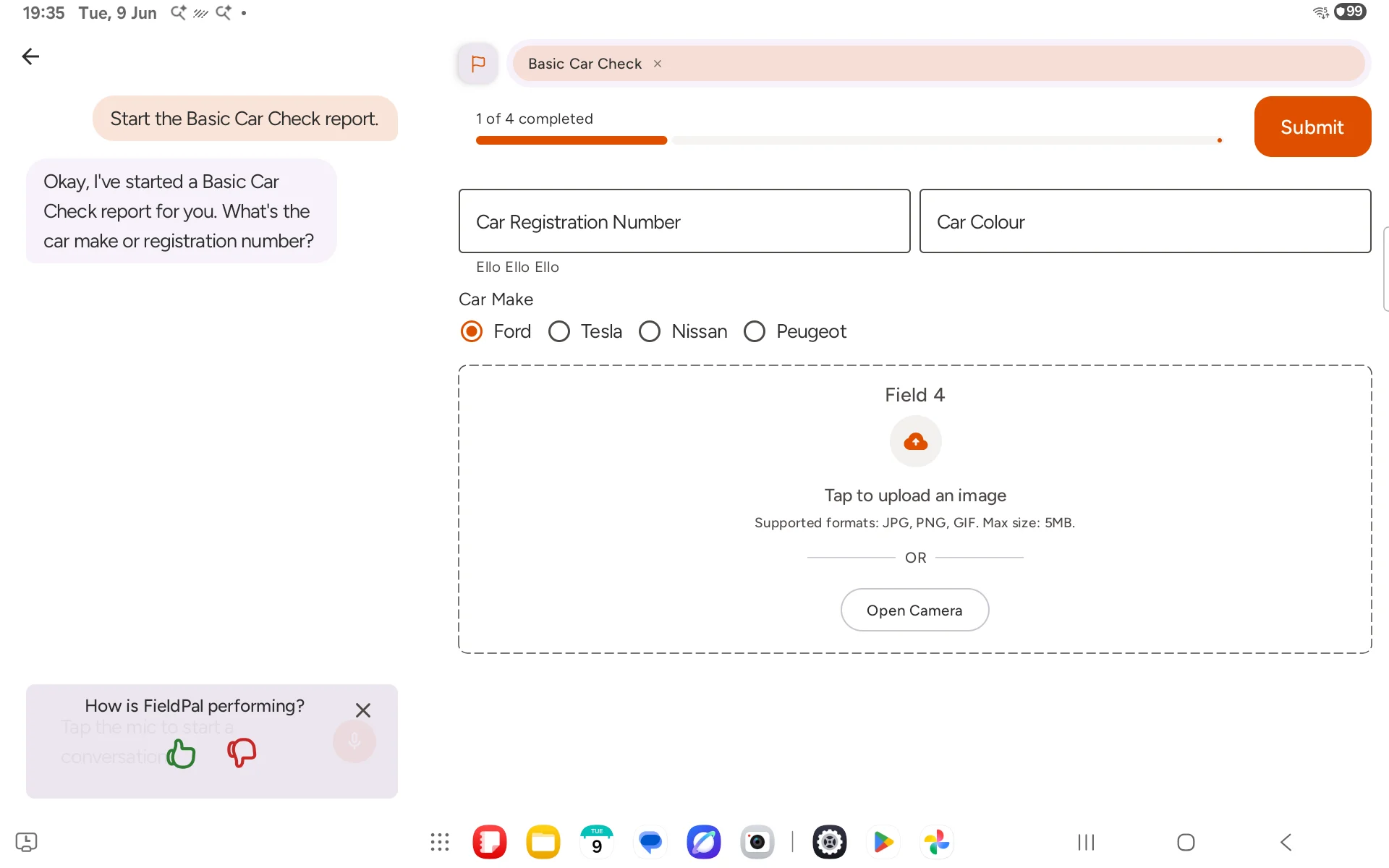 The progress bar at the top right shows how many fields have been completed. Text fields on the right are read-only by default, showing the label, current value, and a small pencil button.
 ## Step 4: Talk to the AI naturally
FieldPal is voice-first. The fastest way to complete a form is to speak to the assistant the same way you would describe a job to a colleague, in full sentences, without worrying about which field you are filling in.
A single sentence can fill multiple fields at once. For example:
*"I'm currently working on a blue Nissan with registration ABE344 and I can see one of the tyres is missing."*
The AI will extract the colour, make, registration, and the observation and fill in the corresponding fields automatically: no need to answer question by question.
## Step 5: Edit a field manually
The first time you tap a text field in a conversation, a coach overlay appears encouraging voice input instead.
## Step 4: Talk to the AI naturally
FieldPal is voice-first. The fastest way to complete a form is to speak to the assistant the same way you would describe a job to a colleague, in full sentences, without worrying about which field you are filling in.
A single sentence can fill multiple fields at once. For example:
*"I'm currently working on a blue Nissan with registration ABE344 and I can see one of the tyres is missing."*
The AI will extract the colour, make, registration, and the observation and fill in the corresponding fields automatically: no need to answer question by question.
## Step 5: Edit a field manually
The first time you tap a text field in a conversation, a coach overlay appears encouraging voice input instead.
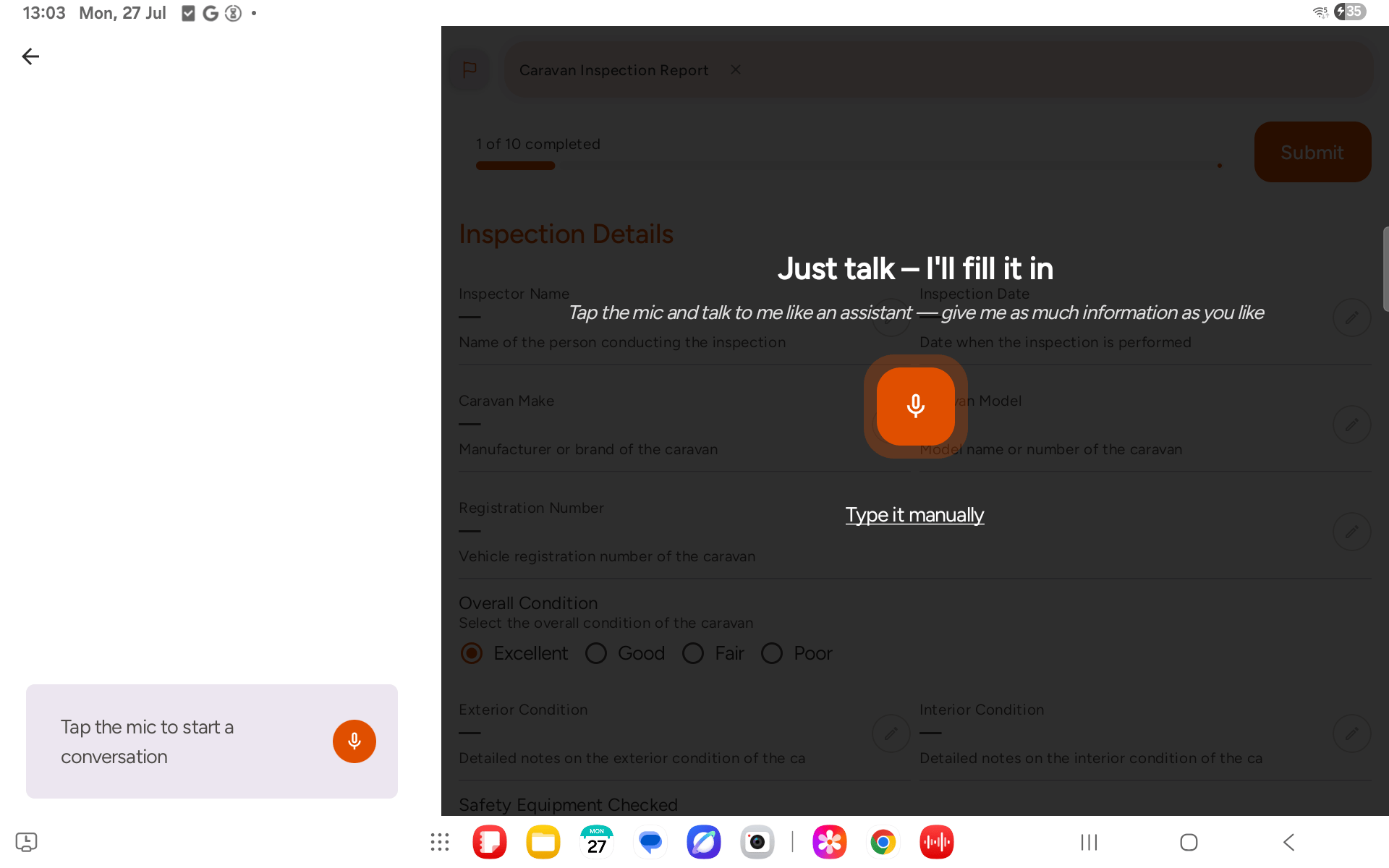 * Tap the microphone to start speaking your answer
* Tap **Type it manually** to dismiss the coach and use the keyboard instead
Once dismissed, tap the pencil button next to any field to open an edit dialog. Type your answer and tap **Save**, or **Cancel** to leave it unchanged.
* Tap the microphone to start speaking your answer
* Tap **Type it manually** to dismiss the coach and use the keyboard instead
Once dismissed, tap the pencil button next to any field to open an edit dialog. Type your answer and tap **Save**, or **Cancel** to leave it unchanged.
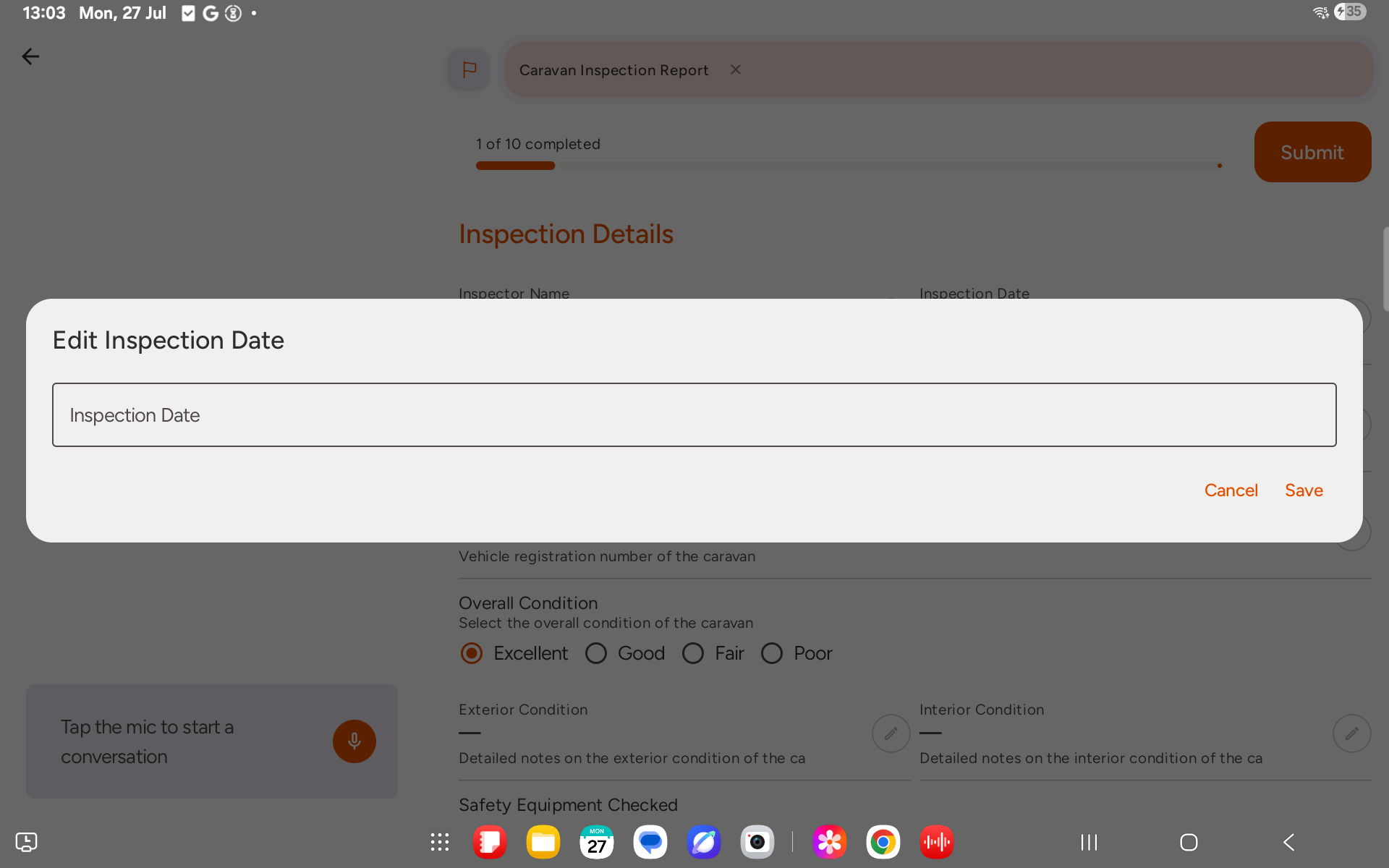 The coach only appears once per conversation. The pencil button is hidden once a field has been submitted, or while voice mode is active.
## Step 6: Submit the report
When all required fields are complete, tap **Submit** in the top right corner. The report is sent to your organisation's dashboard immediately.
If you close the app mid-way through, your progress is saved. The report appears as **In progress** under Recent activity on the home screen. Tap it to continue.
The coach only appears once per conversation. The pencil button is hidden once a field has been submitted, or while voice mode is active.
## Step 6: Submit the report
When all required fields are complete, tap **Submit** in the top right corner. The report is sent to your organisation's dashboard immediately.
If you close the app mid-way through, your progress is saved. The report appears as **In progress** under Recent activity on the home screen. Tap it to continue.