> ## Documentation Index
> Fetch the complete documentation index at: https://docs.fieldpal.ai/llms.txt
> Use this file to discover all available pages before exploring further.
# Uploading files to a report
> How to attach a PDF document or an audio file to a report field from your device.
Some report templates include **upload fields** that let you attach an existing file from your device — a PDF document or an audio recording — rather than typing or recording fresh. This is useful when you already have the file saved (for example, a manual or a voice note made earlier).
## Step 1: Start the report
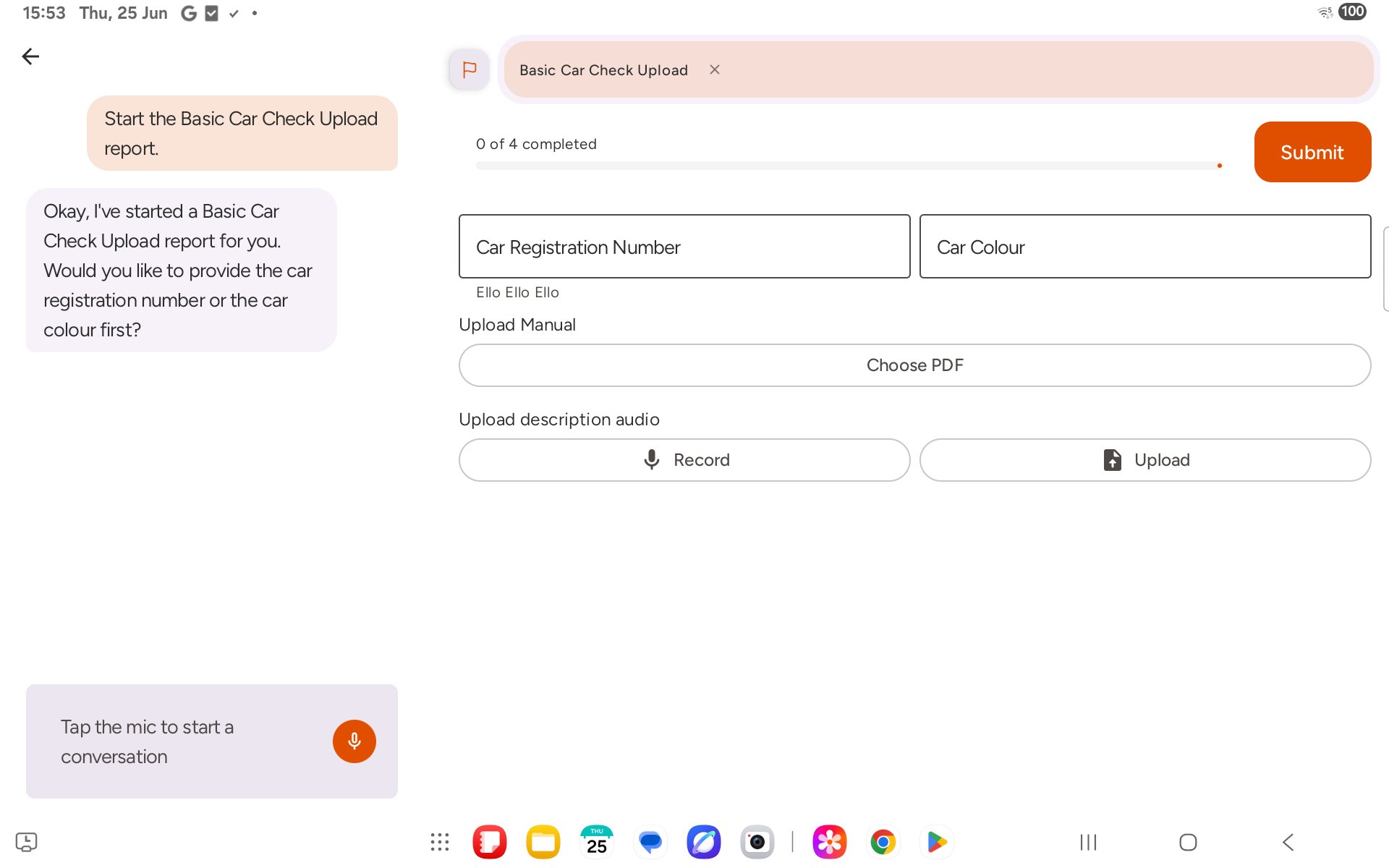
Tap **Complete report** and choose a template with upload fields. You will see the upload controls on the form: a **Choose PDF** button under any PDF field, and **Record** / **Upload** buttons under any audio field.
 ## Step 2: Attach a PDF
Tap **Choose PDF**. Your device's file picker opens. Browse to the file you want — for example in Downloads — and tap it. The field shows **PDF attached** once the upload is complete.
## Step 2: Attach a PDF
Tap **Choose PDF**. Your device's file picker opens. Browse to the file you want — for example in Downloads — and tap it. The field shows **PDF attached** once the upload is complete.
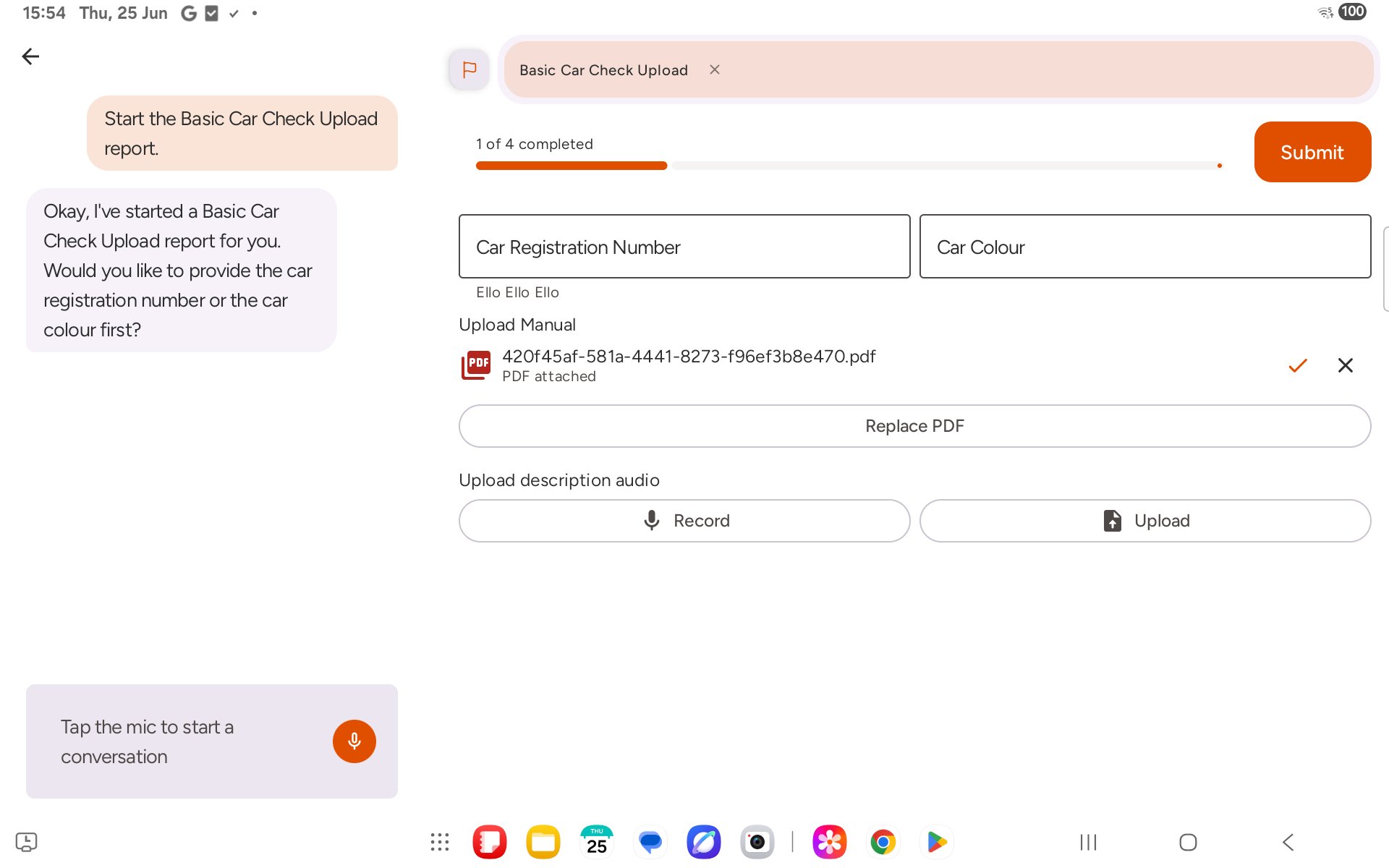 Tap **Replace PDF** if you need to swap it for a different file.
## Step 3: Attach an audio file
Under the audio field, tap **Upload** and choose an existing audio file from your device the same way. The field shows **Audio attached** once done.
Tap **Replace PDF** if you need to swap it for a different file.
## Step 3: Attach an audio file
Under the audio field, tap **Upload** and choose an existing audio file from your device the same way. The field shows **Audio attached** once done.
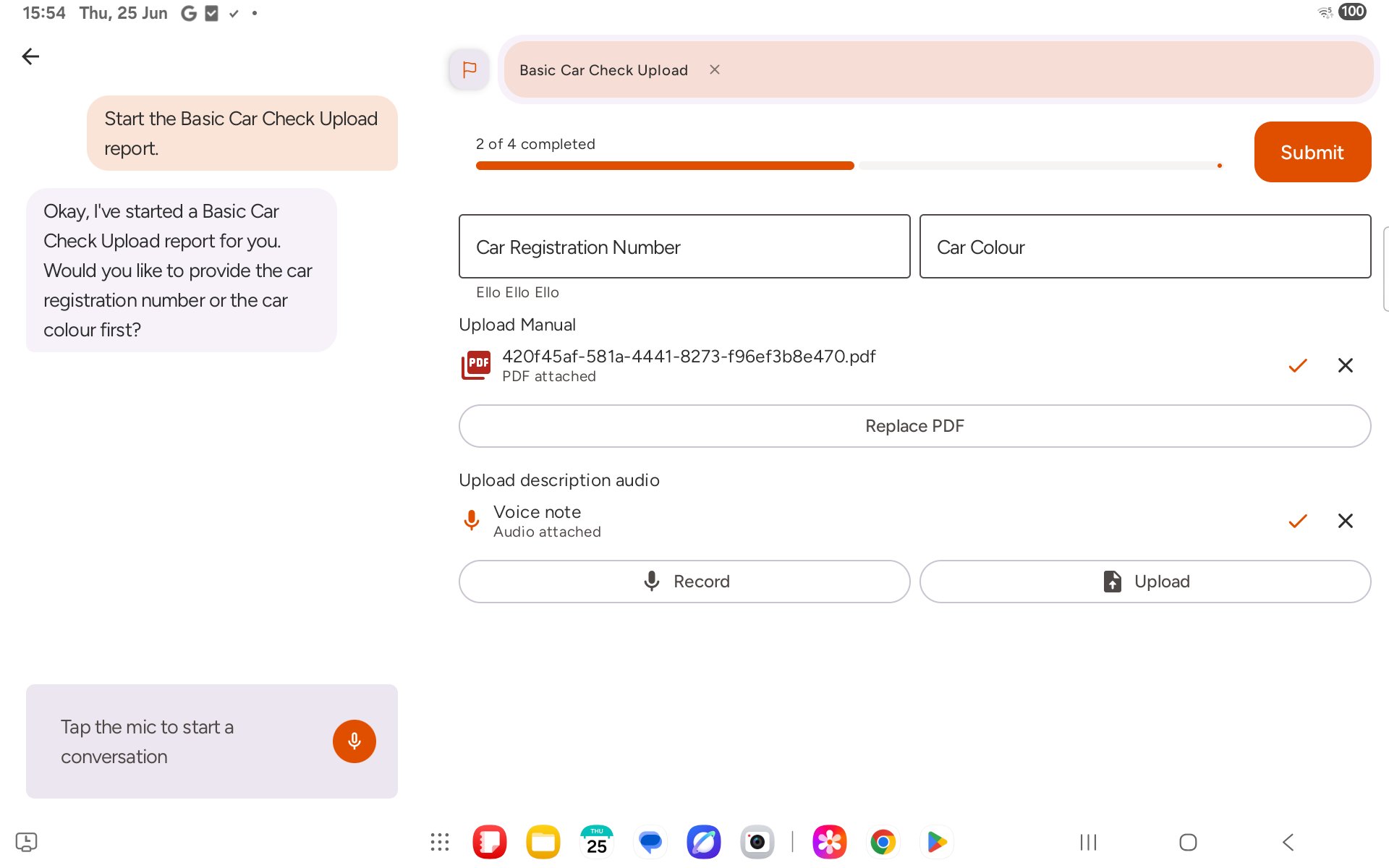 Tap **Record** instead if you want to record a new voice note on the spot rather than uploading an existing file.
## Step 4: Finish and submit
With the files attached and the remaining fields filled in, the progress bar reaches 100%. Tap **Submit** to send the report.
Tap **Record** instead if you want to record a new voice note on the spot rather than uploading an existing file.
## Step 4: Finish and submit
With the files attached and the remaining fields filled in, the progress bar reaches 100%. Tap **Submit** to send the report.
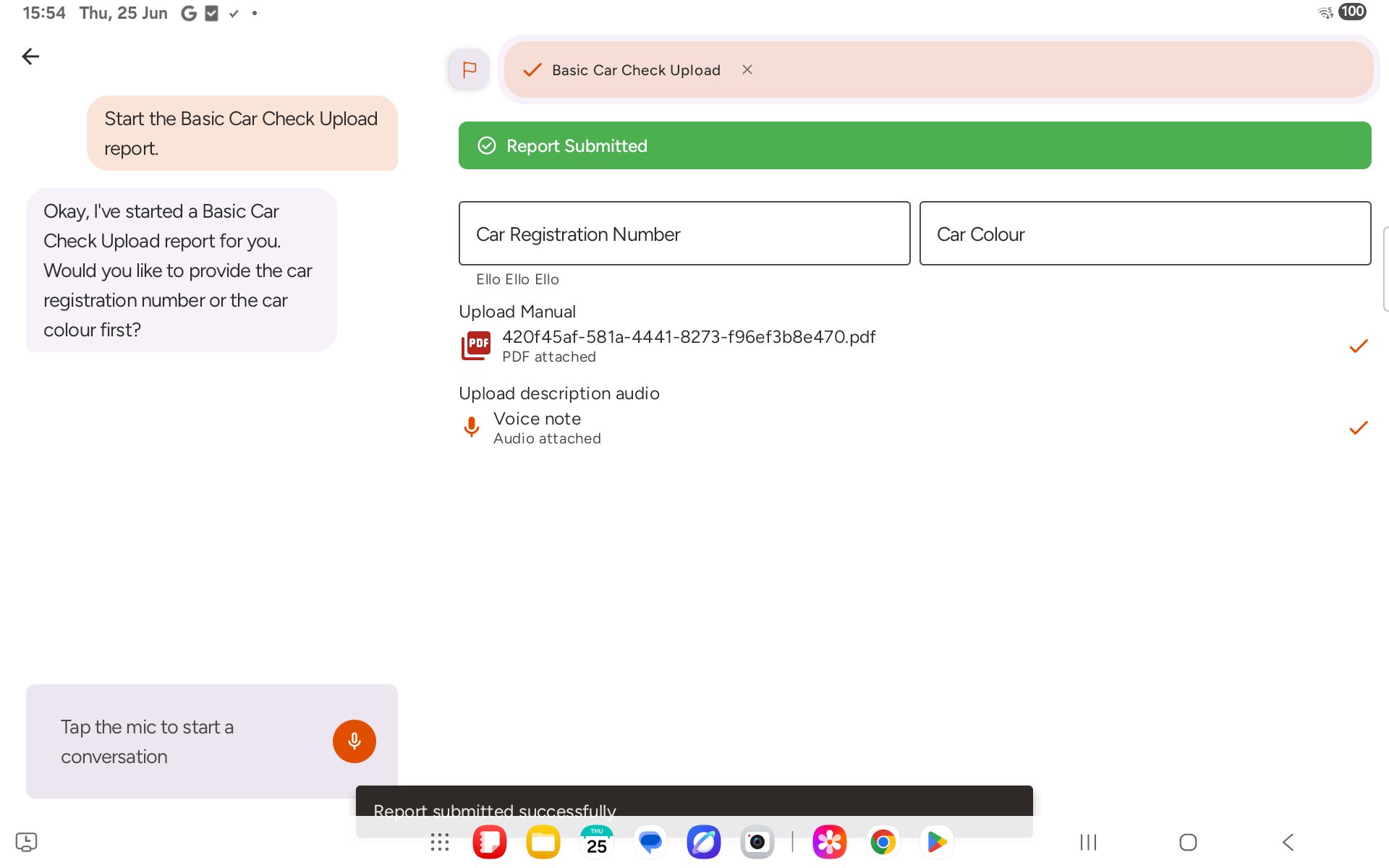 Uploaded files are renamed internally once attached — if the filename shown after upload does not match what you picked, the right file has still been attached. You can replace either attachment at any point before submitting.