> ## Documentation Index
> Fetch the complete documentation index at: https://docs.fieldpal.ai/llms.txt
> Use this file to discover all available pages before exploring further.
# Connections
> Link external data sources so the AI assistant can look up values and fill in report fields automatically.
Connections are external data sources the FieldPal assistant can draw on to fill report fields automatically. There is one built-in connection (a UK DVLA vehicle lookup) plus any CSV spreadsheet you upload yourself, for example a parts catalogue, a customer list, or an asset register. Once a connection is set up, the assistant can look up a value (like a part number) and pull back the rest of that row (description, price, and so on) to fill in a report without the field worker typing it.
## Adding a connection
### Step 1: Open the Connections page
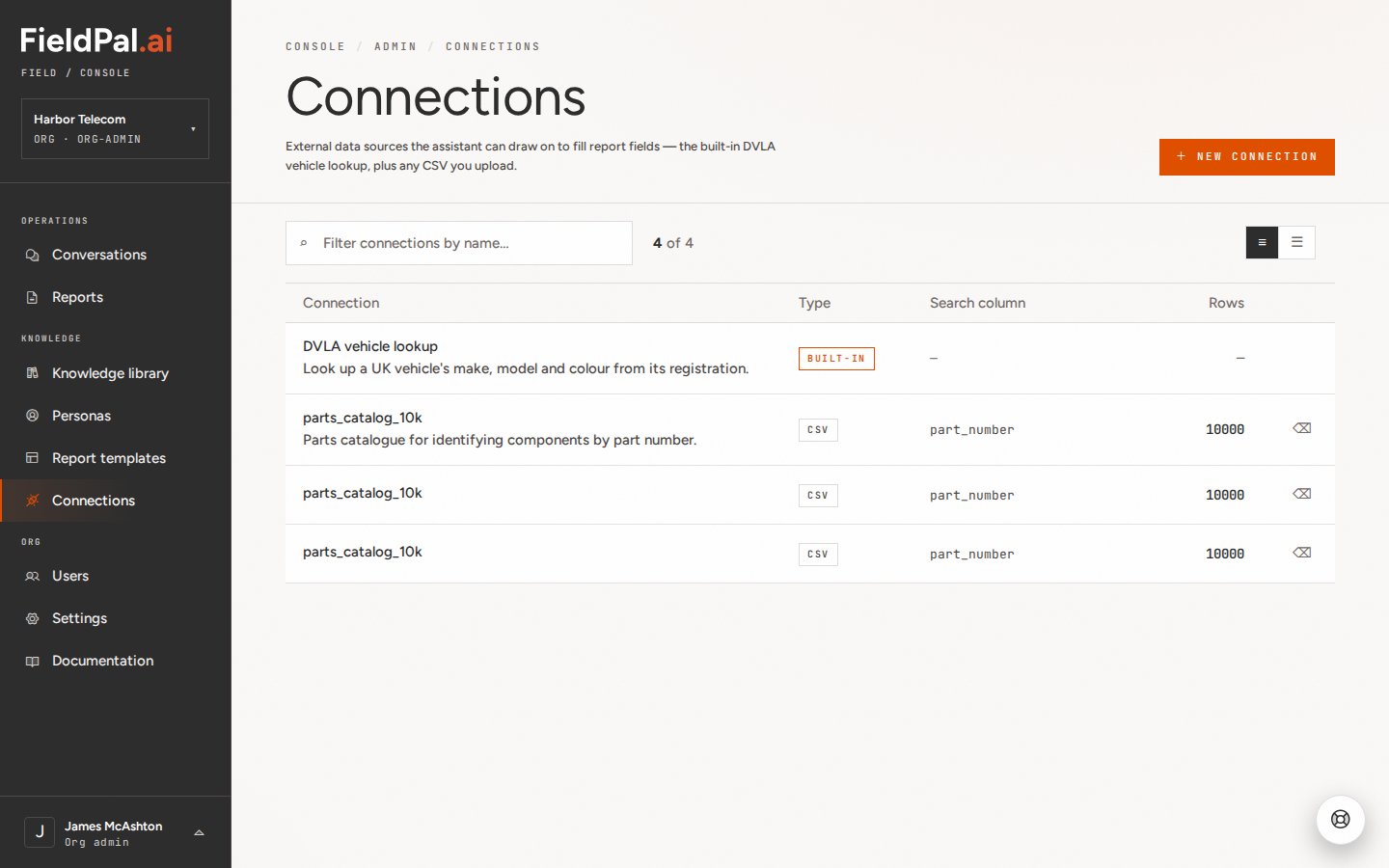
In the left-hand sidebar, click **Connections**, in the Knowledge group below Report templates. You will see a table of all connections currently set up for your organisation, with columns for the connection name, its type, the search column, and how many rows of data it holds.
 ### Step 2: Start a new connection
Click **+ New connection** in the top right. A dialog appears asking where the data should come from.
### Step 2: Start a new connection
Click **+ New connection** in the top right. A dialog appears asking where the data should come from.
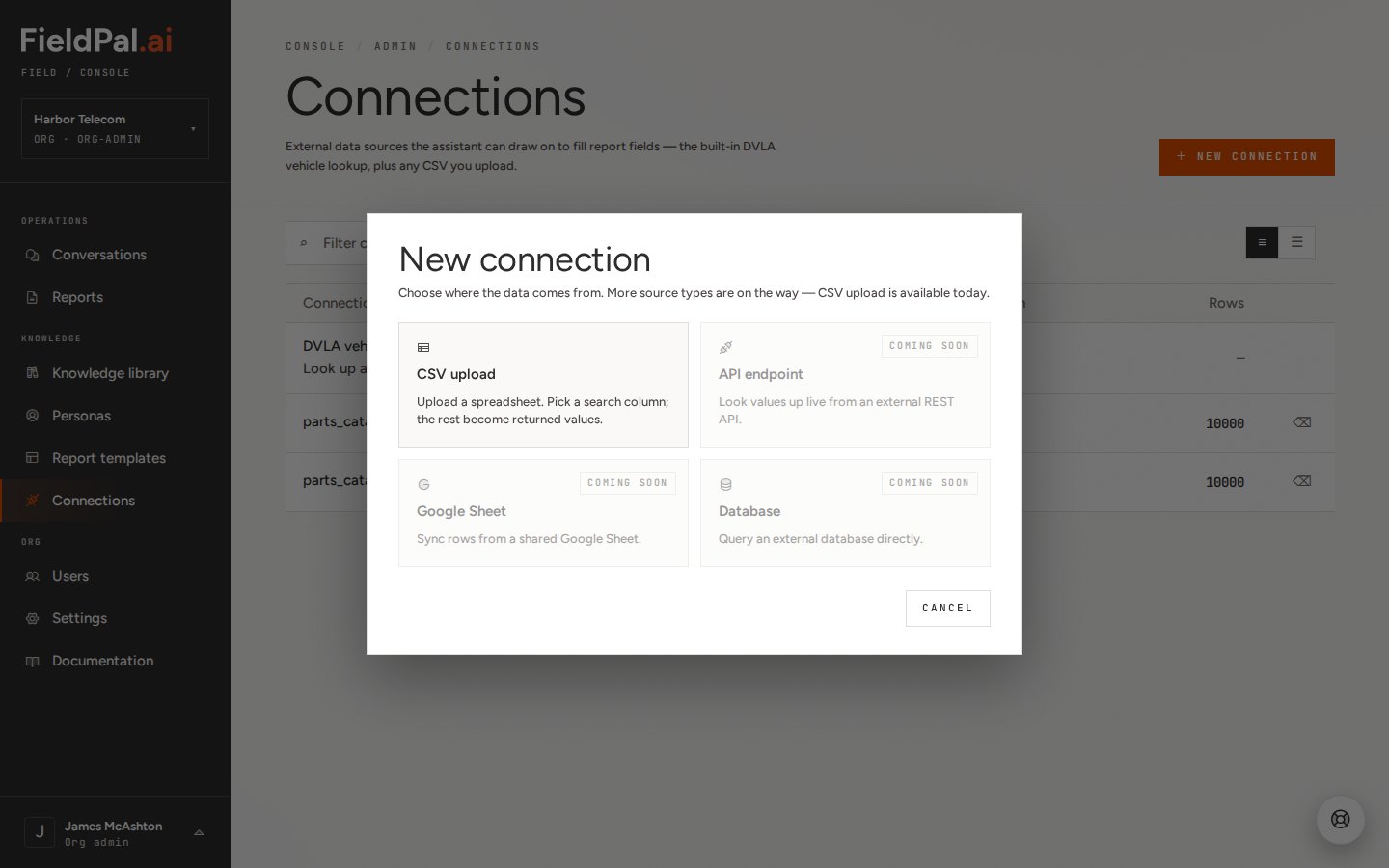 Only **CSV upload** is available today. The other three options, API endpoint, Google Sheet, and Database, are marked "Coming soon".
### Step 3: Choose CSV upload
Click **CSV upload**. The dialog changes to a file picker.
Only **CSV upload** is available today. The other three options, API endpoint, Google Sheet, and Database, are marked "Coming soon".
### Step 3: Choose CSV upload
Click **CSV upload**. The dialog changes to a file picker.
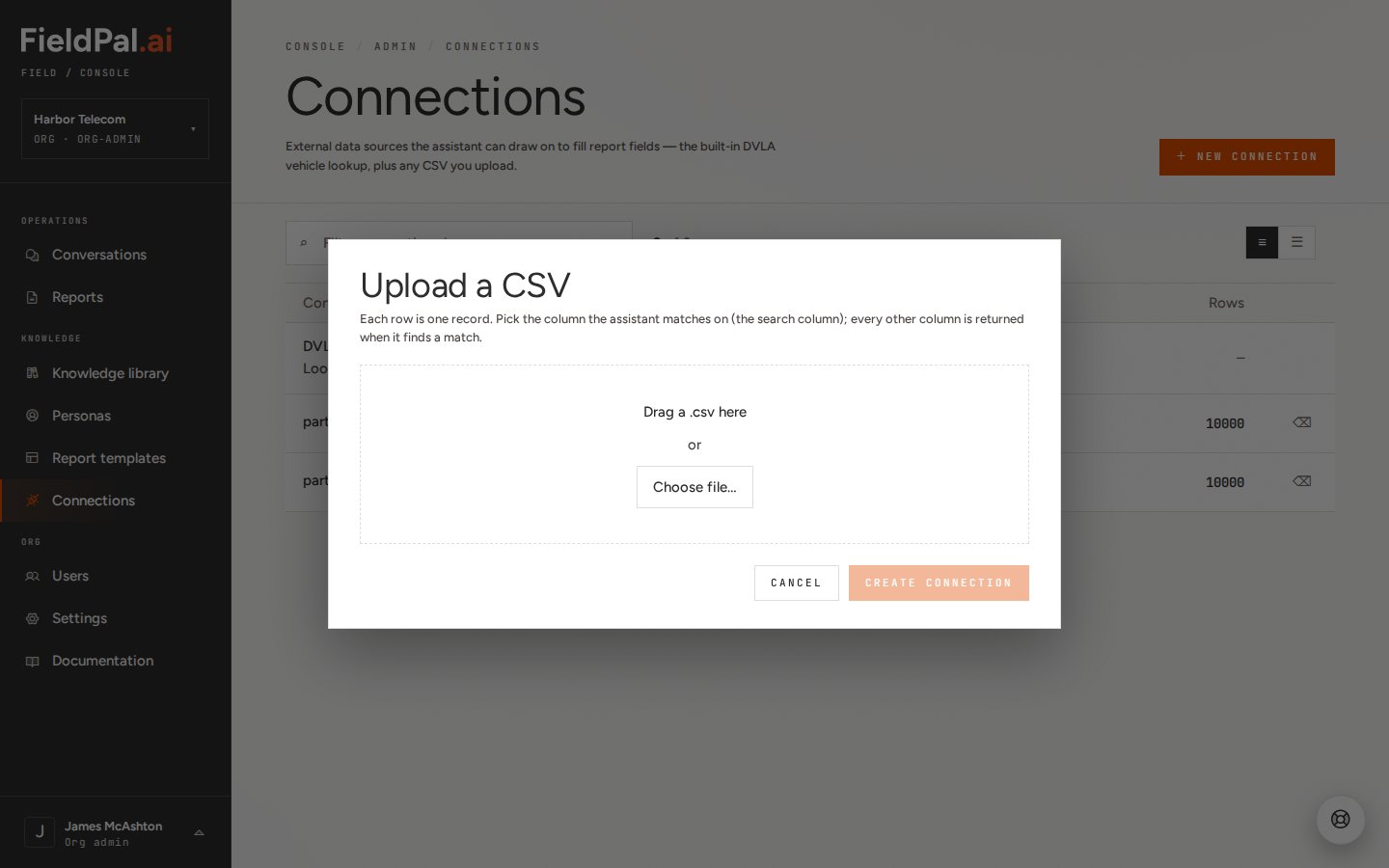 Drag a `.csv` file onto the drop area, or click **Choose file…** to open your operating system's file picker.
### Step 4: Review the detected columns
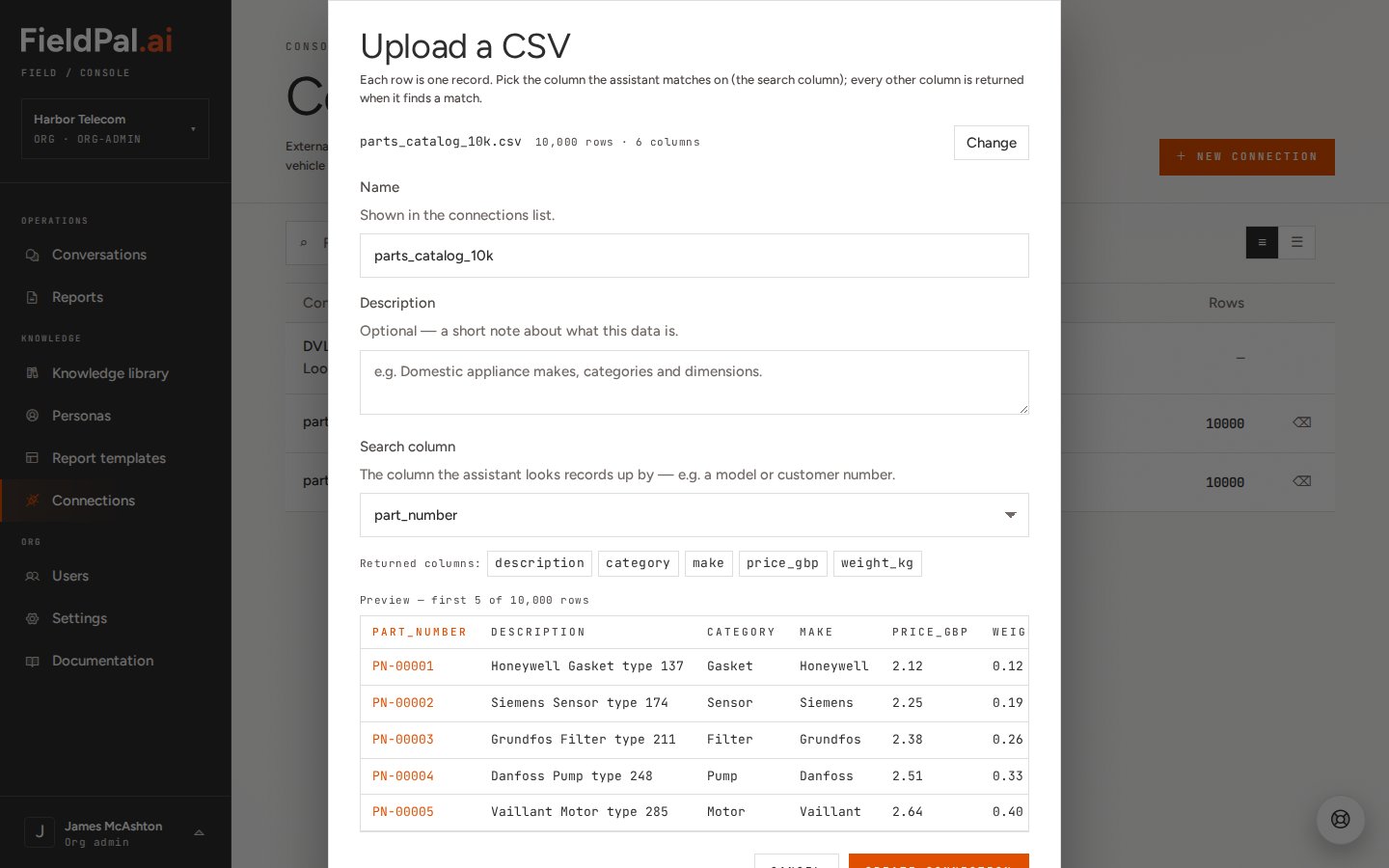
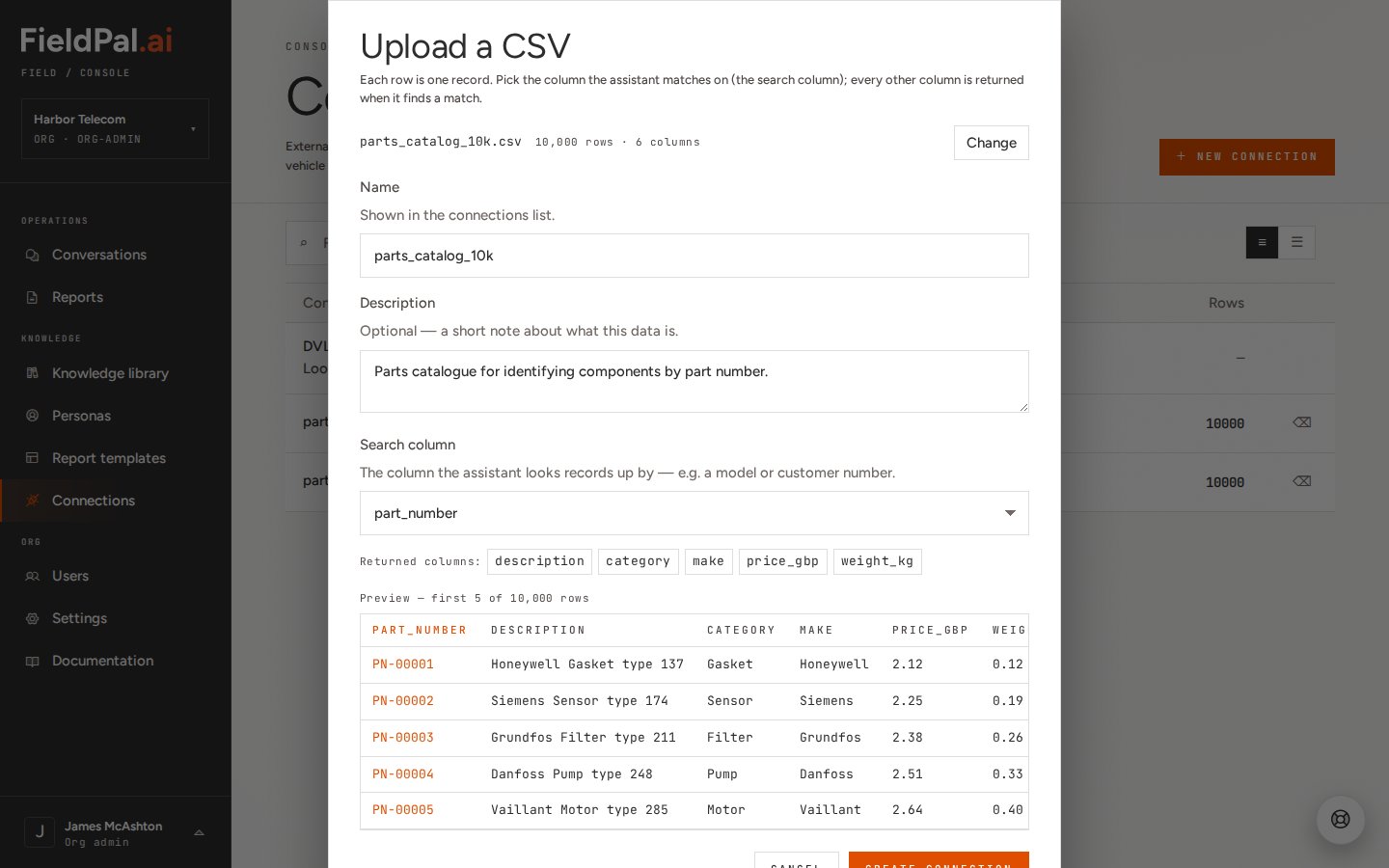
Once a file is chosen, the dialog expands to show:
* The file name, row count, and column count, for example "parts\_catalog\_10k.csv · 10,000 rows · 6 columns"
* A **Name** field, pre-filled with the file name (minus the extension). This is what appears in the connections list
* A **Description** field (optional)
* A **Search column** dropdown. FieldPal auto-detects a likely column (in this case `part_number`), but you can change it to any column in the file
* The **Returned columns**: every other column in the file, returned when a match is found
* A preview table showing the first 5 rows
Drag a `.csv` file onto the drop area, or click **Choose file…** to open your operating system's file picker.
### Step 4: Review the detected columns
Once a file is chosen, the dialog expands to show:
* The file name, row count, and column count, for example "parts\_catalog\_10k.csv · 10,000 rows · 6 columns"
* A **Name** field, pre-filled with the file name (minus the extension). This is what appears in the connections list
* A **Description** field (optional)
* A **Search column** dropdown. FieldPal auto-detects a likely column (in this case `part_number`), but you can change it to any column in the file
* The **Returned columns**: every other column in the file, returned when a match is found
* A preview table showing the first 5 rows
 The search column is the one the assistant matches on. For a parts catalogue that's the part number; for a customer list it might be an account number or postcode.
### Step 5: Add a description (optional)
Add a short description so other admins can tell what the data is at a glance, without opening the file.
The search column is the one the assistant matches on. For a parts catalogue that's the part number; for a customer list it might be an account number or postcode.
### Step 5: Add a description (optional)
Add a short description so other admins can tell what the data is at a glance, without opening the file.
 ### Step 6: Create the connection
Click **Create connection**. You are taken to a detail page for the new connection, showing:
* **Details**: description, search column, returned columns, and row count
* **Test lookup**: type a value (for example a part number) and click **Look up** to see exactly what the assistant would get back
* **Rows**: a table of the uploaded data, with a **Replace data** button to re-upload a newer version of the same file
### Step 6: Create the connection
Click **Create connection**. You are taken to a detail page for the new connection, showing:
* **Details**: description, search column, returned columns, and row count
* **Test lookup**: type a value (for example a part number) and click **Look up** to see exactly what the assistant would get back
* **Rows**: a table of the uploaded data, with a **Replace data** button to re-upload a newer version of the same file
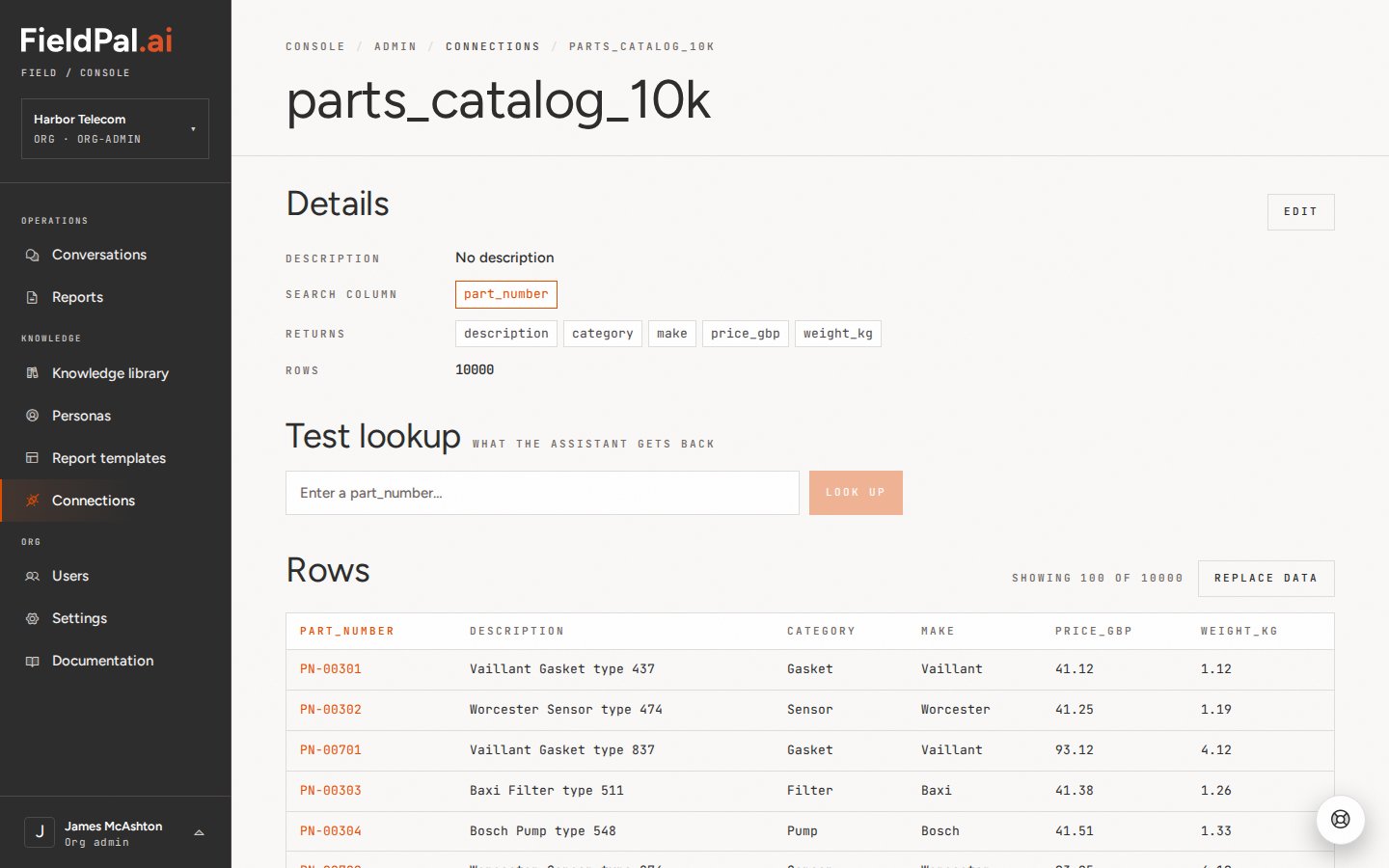 Use **Test lookup** to sanity-check the connection before relying on it in a report. It is the fastest way to confirm the right column was picked as the search column.
Go back to **Connections** in the left nav and the new connection now appears in the list alongside the others, showing its type (**CSV**), search column, and row count.
Use **Test lookup** to sanity-check the connection before relying on it in a report. It is the fastest way to confirm the right column was picked as the search column.
Go back to **Connections** in the left nav and the new connection now appears in the list alongside the others, showing its type (**CSV**), search column, and row count.
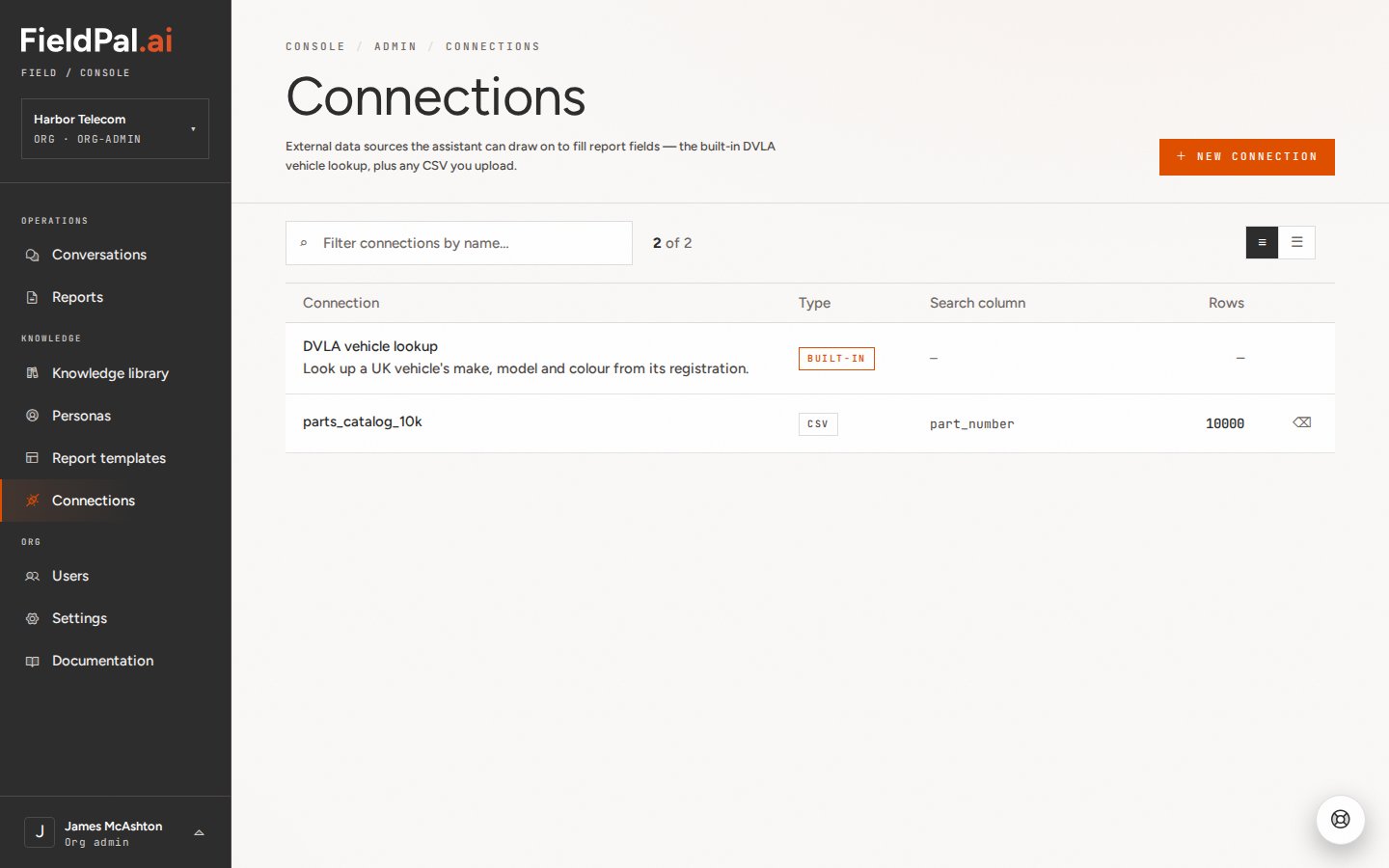 The assistant can use this data immediately: no separate "publish" or "activate" step is required.
***
## Tips
* **The search column can be changed later only by re-uploading.** There is no in-place edit for column mapping. If you picked the wrong search column, upload the CSV again as a new connection and delete the old one, or use **Replace data** on the existing connection's detail page if the column layout hasn't changed.
* **Deleting is immediate.** The delete icon at the end of a CSV row removes the connection straight away. There is no undo, only a "Deleted '\[name]'" confirmation toast.
* **Only CSV files are supported today.** API endpoint, Google Sheet, and Database connections are shown in the picker as "Coming soon", worth checking back periodically if you need live data rather than a static upload.
* **Name your file sensibly before uploading.** The Name field defaults to the filename, so `parts_catalog_10k.csv` becomes "parts\_catalog\_10k" in the list. Rename the file first, or edit the Name field, if you want something more descriptive for other admins.
* **Built-in connections can't be edited or deleted.** The DVLA vehicle lookup is fixed and shows `—` for search column and row count, since it queries an external service rather than a static file.
The assistant can use this data immediately: no separate "publish" or "activate" step is required.
***
## Tips
* **The search column can be changed later only by re-uploading.** There is no in-place edit for column mapping. If you picked the wrong search column, upload the CSV again as a new connection and delete the old one, or use **Replace data** on the existing connection's detail page if the column layout hasn't changed.
* **Deleting is immediate.** The delete icon at the end of a CSV row removes the connection straight away. There is no undo, only a "Deleted '\[name]'" confirmation toast.
* **Only CSV files are supported today.** API endpoint, Google Sheet, and Database connections are shown in the picker as "Coming soon", worth checking back periodically if you need live data rather than a static upload.
* **Name your file sensibly before uploading.** The Name field defaults to the filename, so `parts_catalog_10k.csv` becomes "parts\_catalog\_10k" in the list. Rename the file first, or edit the Name field, if you want something more descriptive for other admins.
* **Built-in connections can't be edited or deleted.** The DVLA vehicle lookup is fixed and shows `—` for search column and row count, since it queries an external service rather than a static file.