> ## Documentation Index
> Fetch the complete documentation index at: https://docs.fieldpal.ai/llms.txt
> Use this file to discover all available pages before exploring further.
# Exporting a report as PDF
> How to download a report as a PDF from the FieldPal dashboard.
## Step 1: Open the Reports section
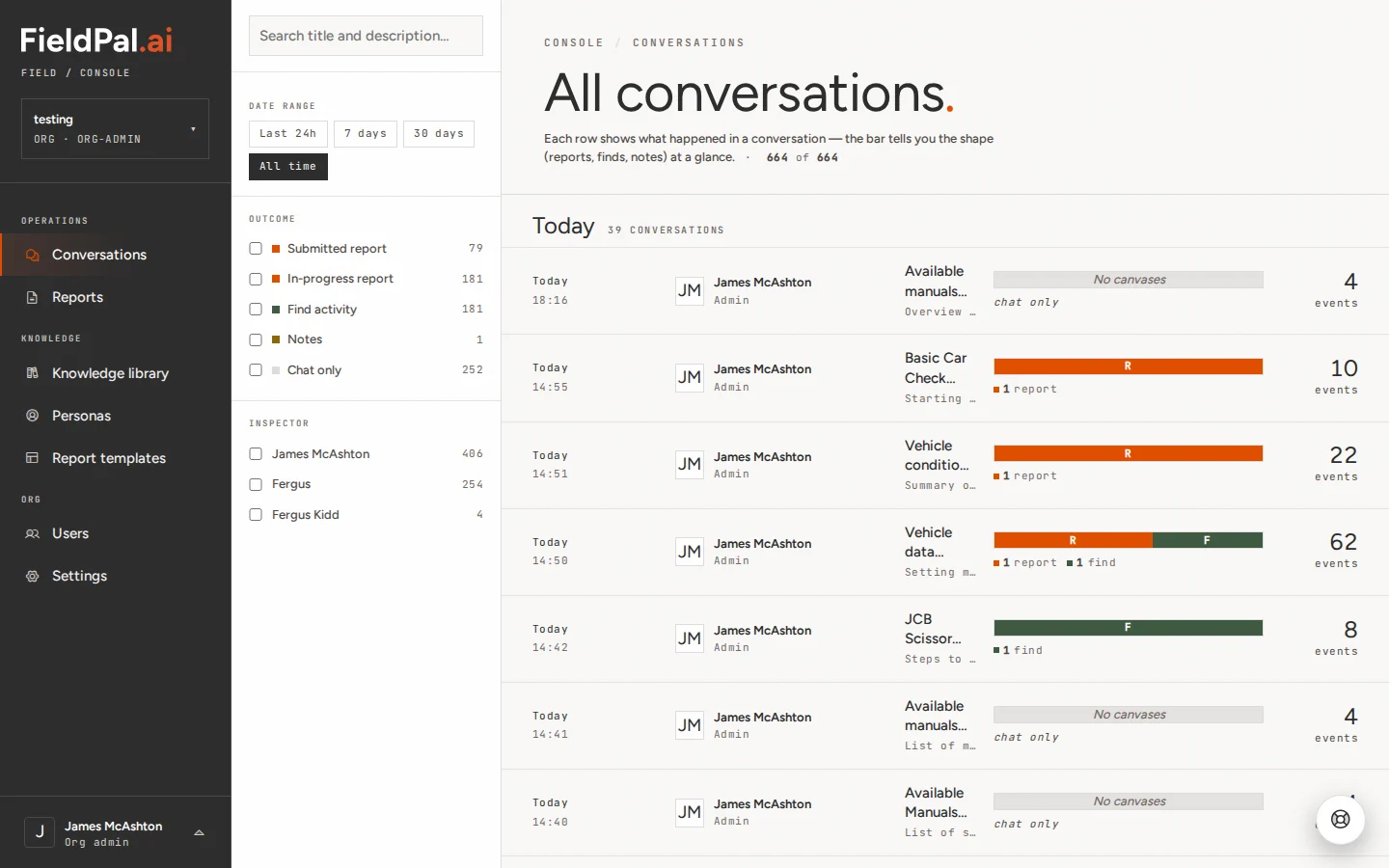
After logging in, click **Reports** in the left-hand sidebar.
 ## Step 2: Find your report
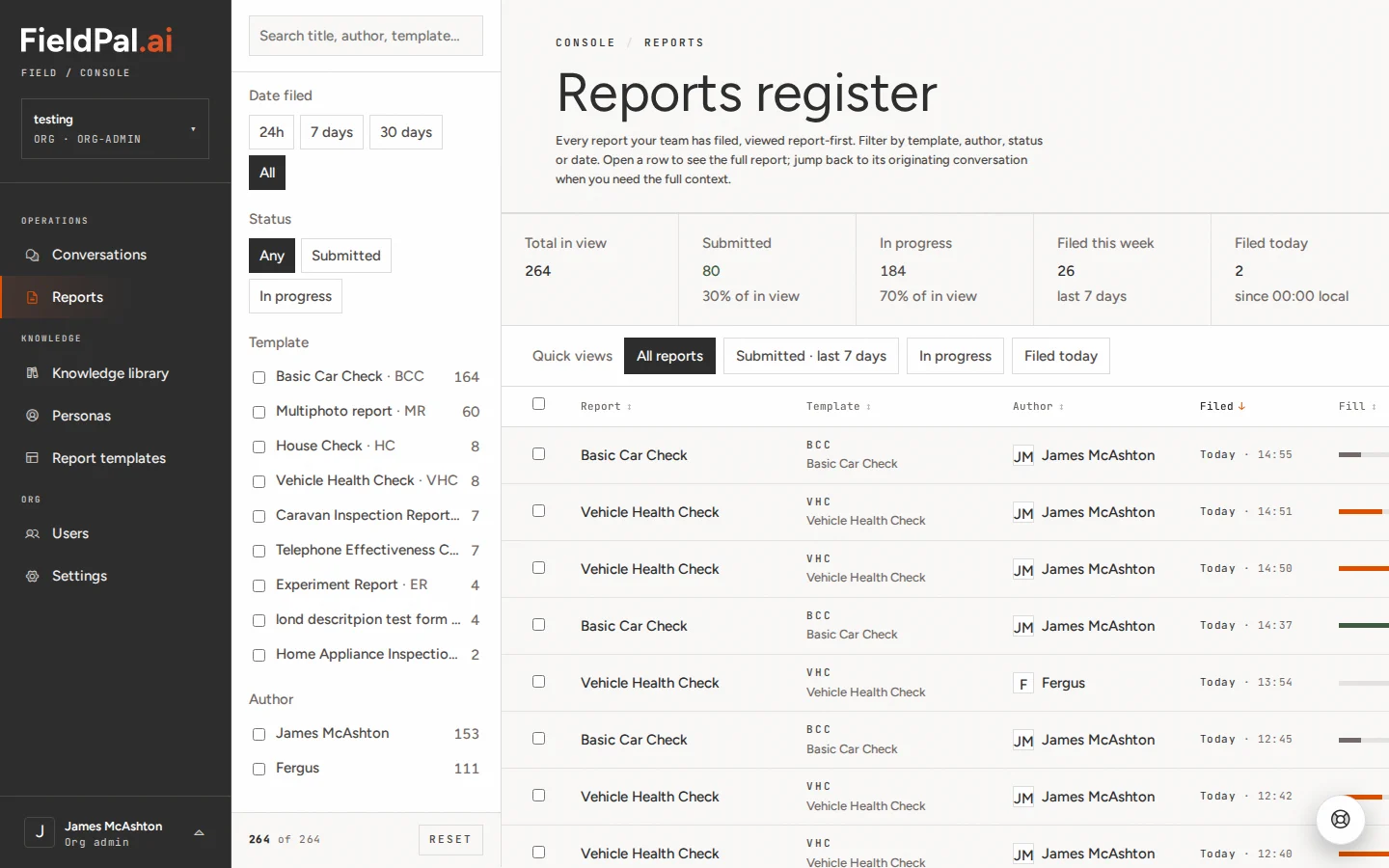
You will see the **Reports register**, a list of every report your team has filed. Each row shows the report name, template, author, date filed, completion percentage, and status.
## Step 2: Find your report
You will see the **Reports register**, a list of every report your team has filed. Each row shows the report name, template, author, date filed, completion percentage, and status.
 Use the filters on the left to narrow the list:
* **Date filed**: last 24 hours, 7 days, 30 days, or all time
* **Status**: Submitted or In progress
* **Template**: reports from a specific template only
* **Author**: reports filed by a specific person
You can also search by title, author, or template name using the search bar at the top of the filter panel.
## Step 3: Filter to Submitted reports (optional)
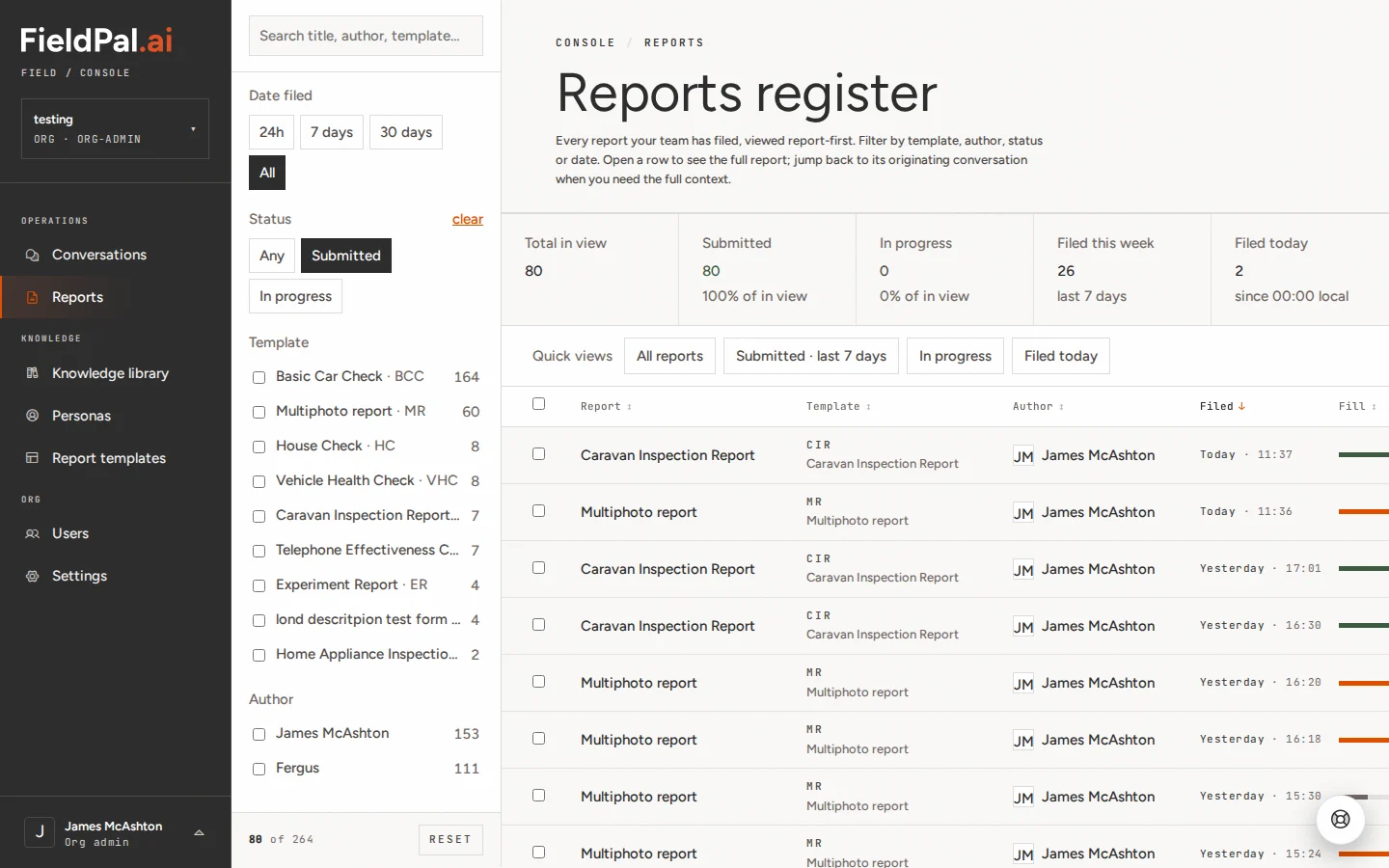
To see only completed reports, click **Submitted** under Status in the filter panel.
Use the filters on the left to narrow the list:
* **Date filed**: last 24 hours, 7 days, 30 days, or all time
* **Status**: Submitted or In progress
* **Template**: reports from a specific template only
* **Author**: reports filed by a specific person
You can also search by title, author, or template name using the search bar at the top of the filter panel.
## Step 3: Filter to Submitted reports (optional)
To see only completed reports, click **Submitted** under Status in the filter panel.
 ## Step 4: Open the report
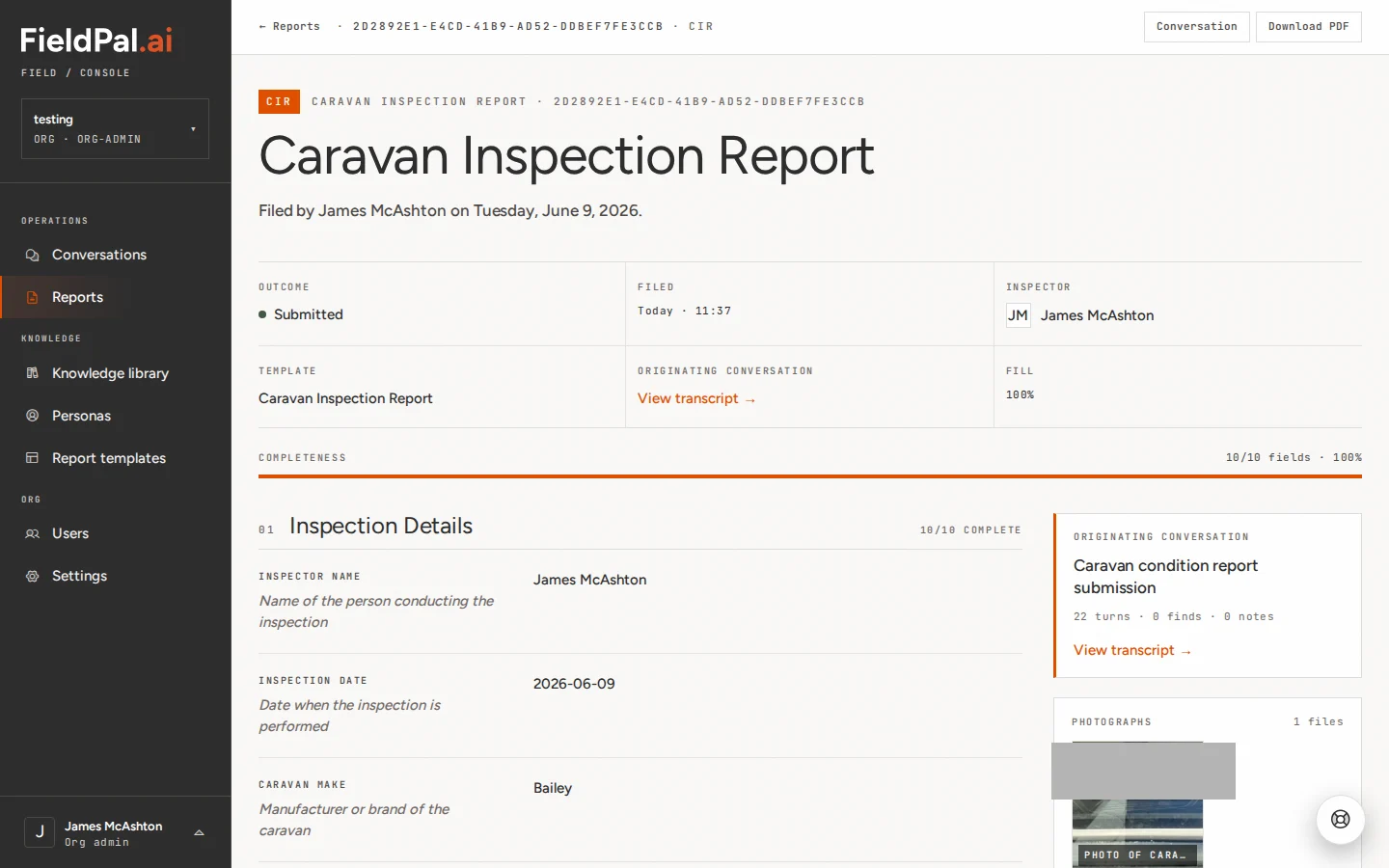
Click anywhere on a report row to open it.
## Step 4: Open the report
Click anywhere on a report row to open it.
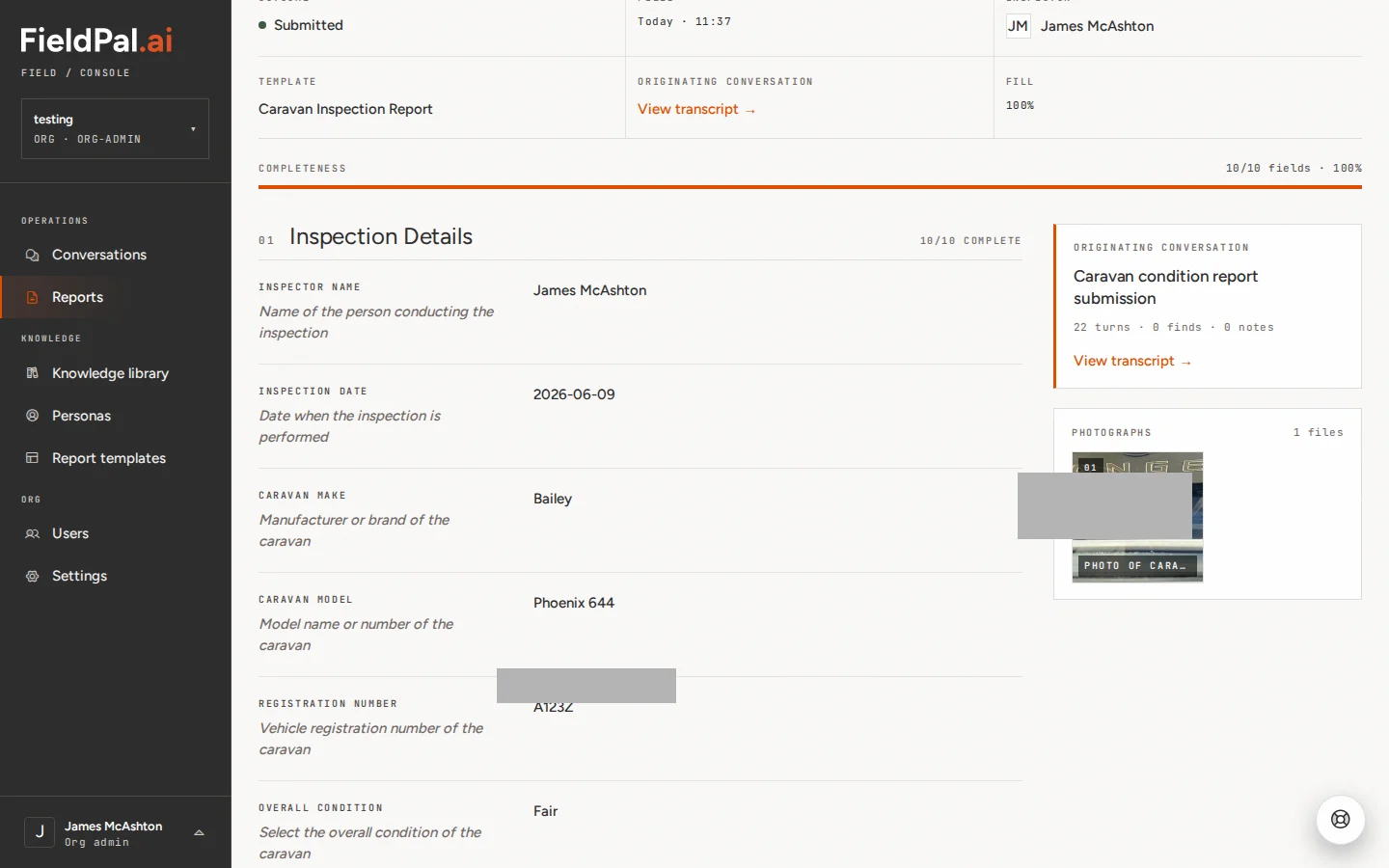
 ## Step 5: Review the report content
Scroll down to see all the fields and answers the field worker filled in.
## Step 5: Review the report content
Scroll down to see all the fields and answers the field worker filled in.
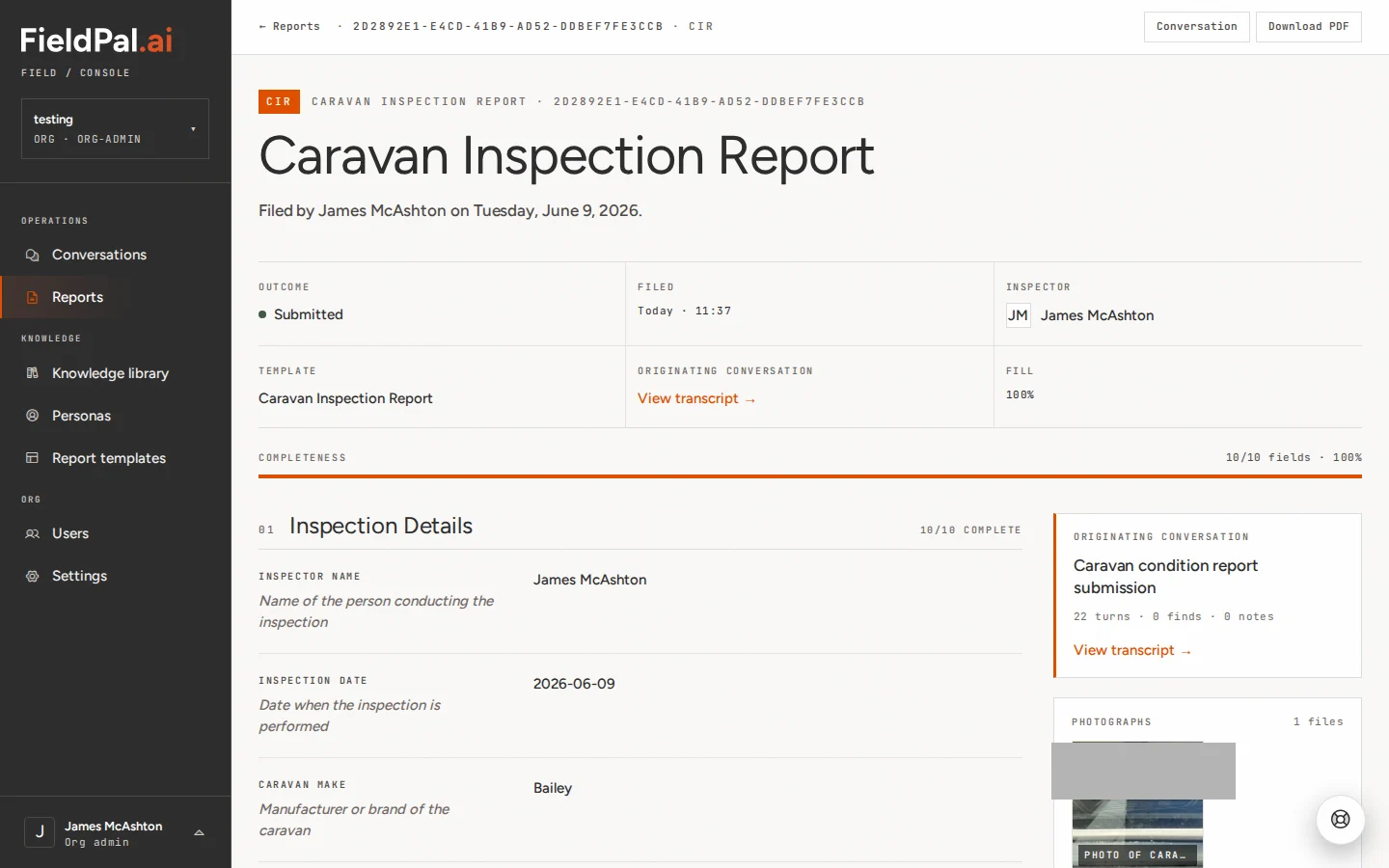
 ## Step 6: Click Download PDF
At the top of the report, click **Download PDF**.
## Step 6: Click Download PDF
At the top of the report, click **Download PDF**.
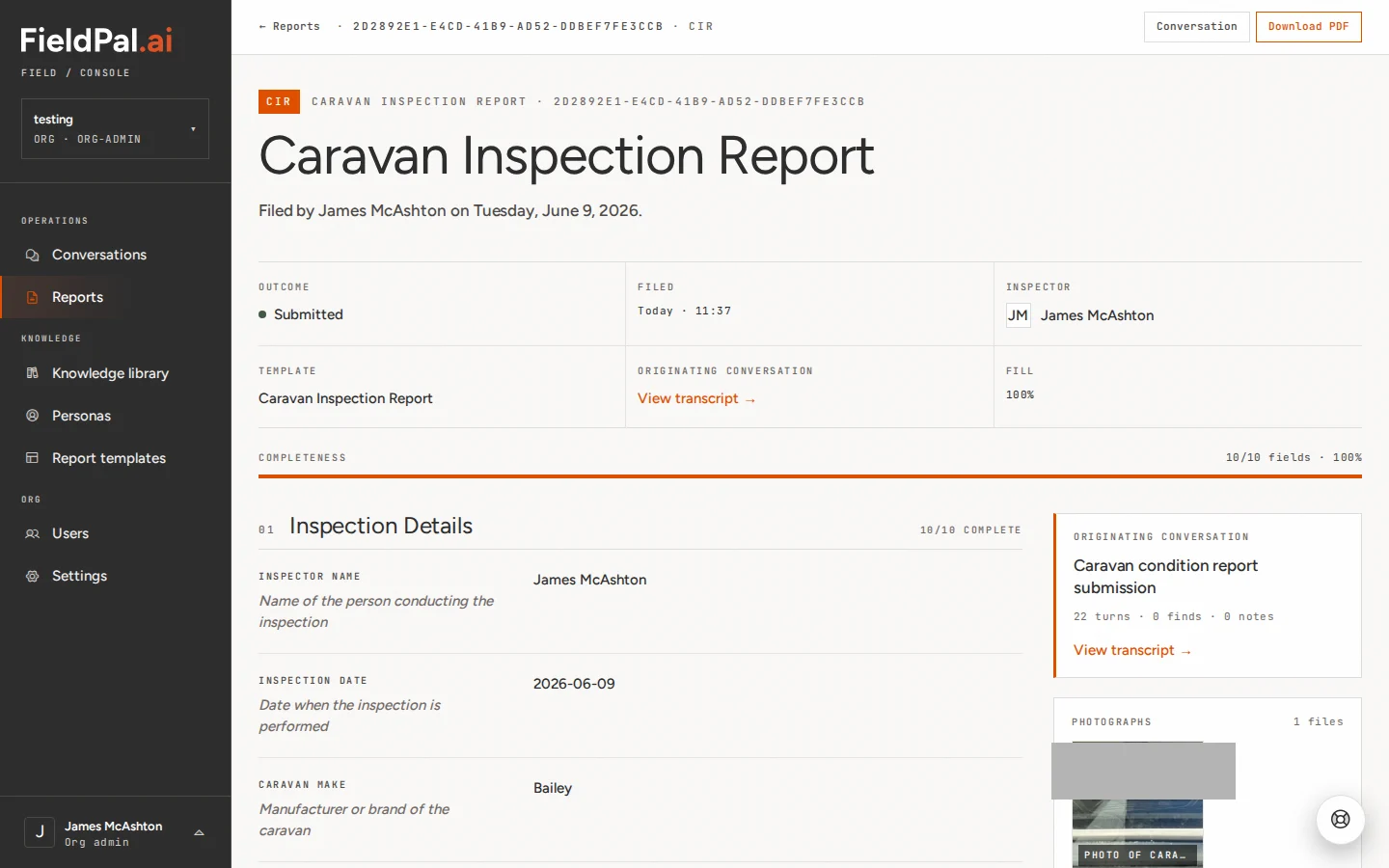
 ## Step 7: The PDF downloads
The file downloads to your computer immediately. Your browser will show it in the usual way: downloads bar, notification, or bottom of the screen depending on your browser.
## Step 7: The PDF downloads
The file downloads to your computer immediately. Your browser will show it in the usual way: downloads bar, notification, or bottom of the screen depending on your browser.
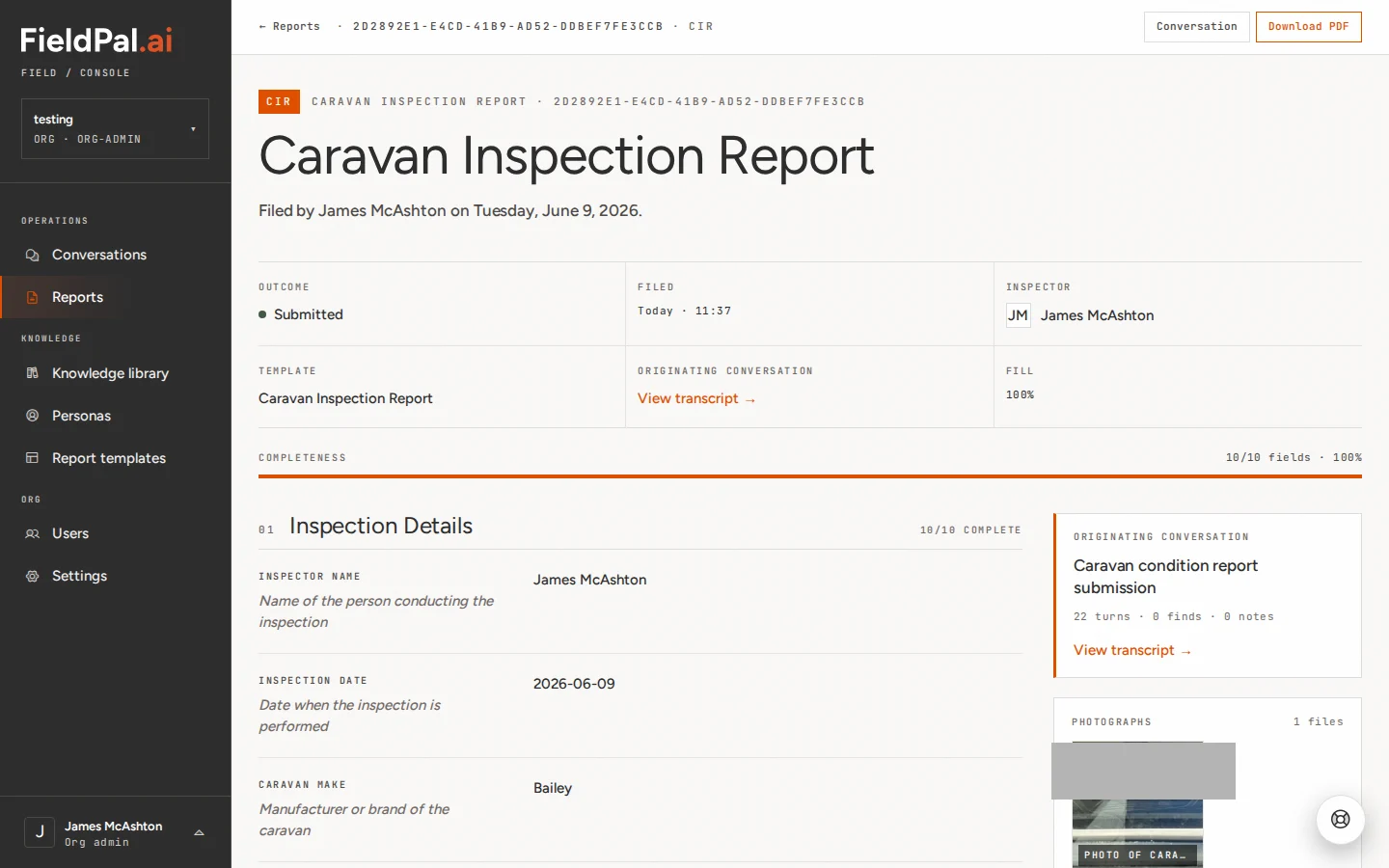
 The file is named automatically using the template name and the date filed, for example:
```
caravan-inspection-report-2026-06-09-2d2892e1.pdf
```
The file is named automatically using the template name and the date filed, for example:
```
caravan-inspection-report-2026-06-09-2d2892e1.pdf
```
 ## Tips
* You must open a report first before you can download it. There is no bulk PDF export from the list view.
* The **conv ↗** button on each row in the reports list opens the originating AI conversation, not the report PDF.
* Reports with **In progress** status can be downloaded, but may have empty fields where the field worker has not yet answered.
* The **← Reports** button at the top left of the report detail page takes you back to the full list.
## Tips
* You must open a report first before you can download it. There is no bulk PDF export from the list view.
* The **conv ↗** button on each row in the reports list opens the originating AI conversation, not the report PDF.
* Reports with **In progress** status can be downloaded, but may have empty fields where the field worker has not yet answered.
* The **← Reports** button at the top left of the report detail page takes you back to the full list.