> ## Documentation Index
> Fetch the complete documentation index at: https://docs.fieldpal.ai/llms.txt
> Use this file to discover all available pages before exploring further.
# Facets
> Choose what your reports can be searched by, and find every report with the same value across all your templates.
A **facet** is something you want to search your reports by: a vehicle registration, an asset tag, a site code, a customer reference. FieldPal can't guess which of the fields on your forms matter for searching, so a facet is how you tell it.
You create the facet once, then point the matching field on each report template at it. Different templates can call the field different things (*Registration* on one, *Vehicle Registration* on another) and a single search in the Reports register still finds them all. Matching ignores spacing, punctuation and capitals, so `AB12 CDE` and `ab12cde` count as the same vehicle.
Facets only work going forward, not retrospectively. A report is only searchable by a facet if it was filed after the field was pointed at that facet. Set up your facets before you need to search by them.
Only organisation admins can create and manage facets. Nobody filling in a report sees any of this: facets only change what you can search for in the dashboard afterwards.
## Step 1: Open the Facets page
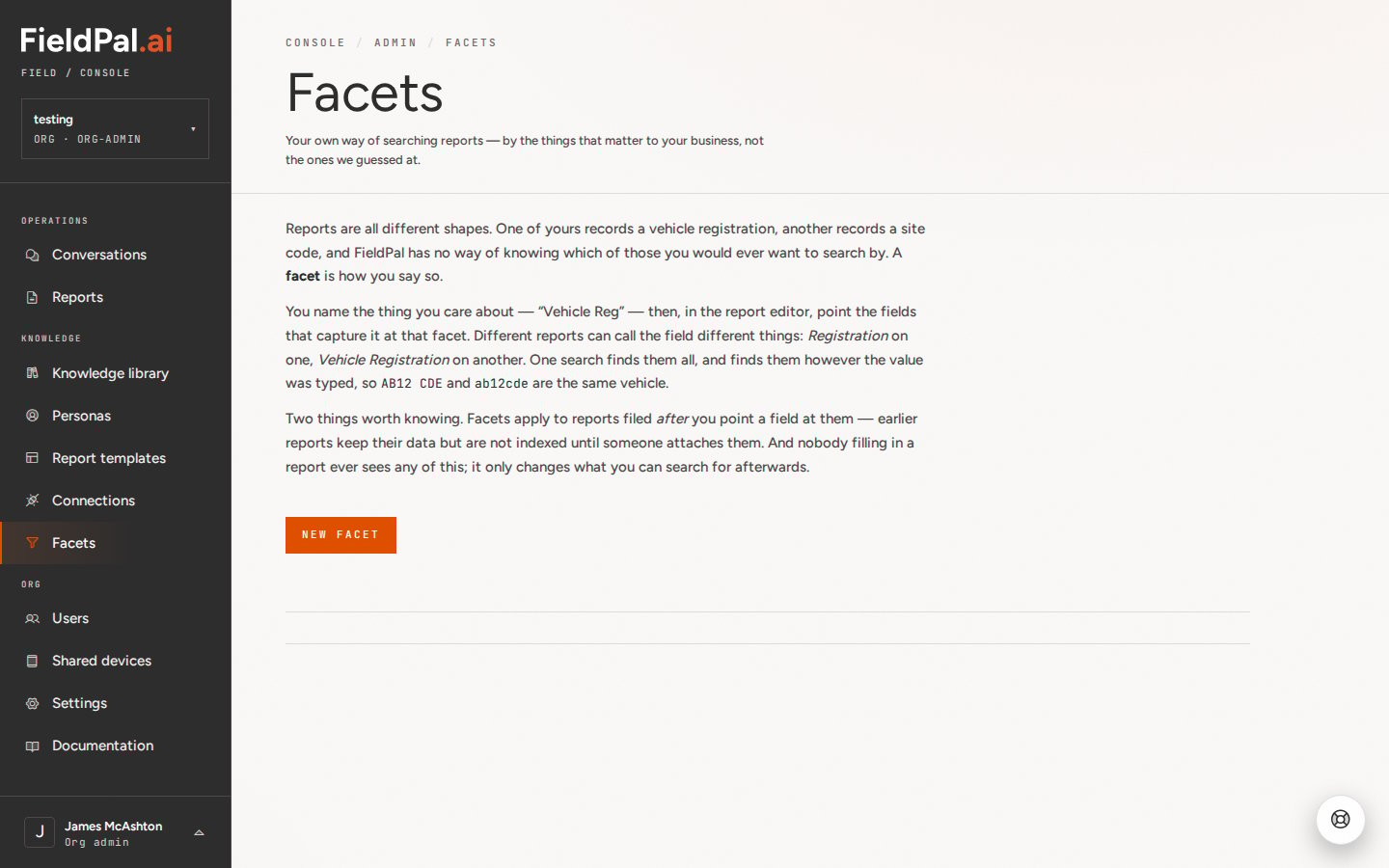
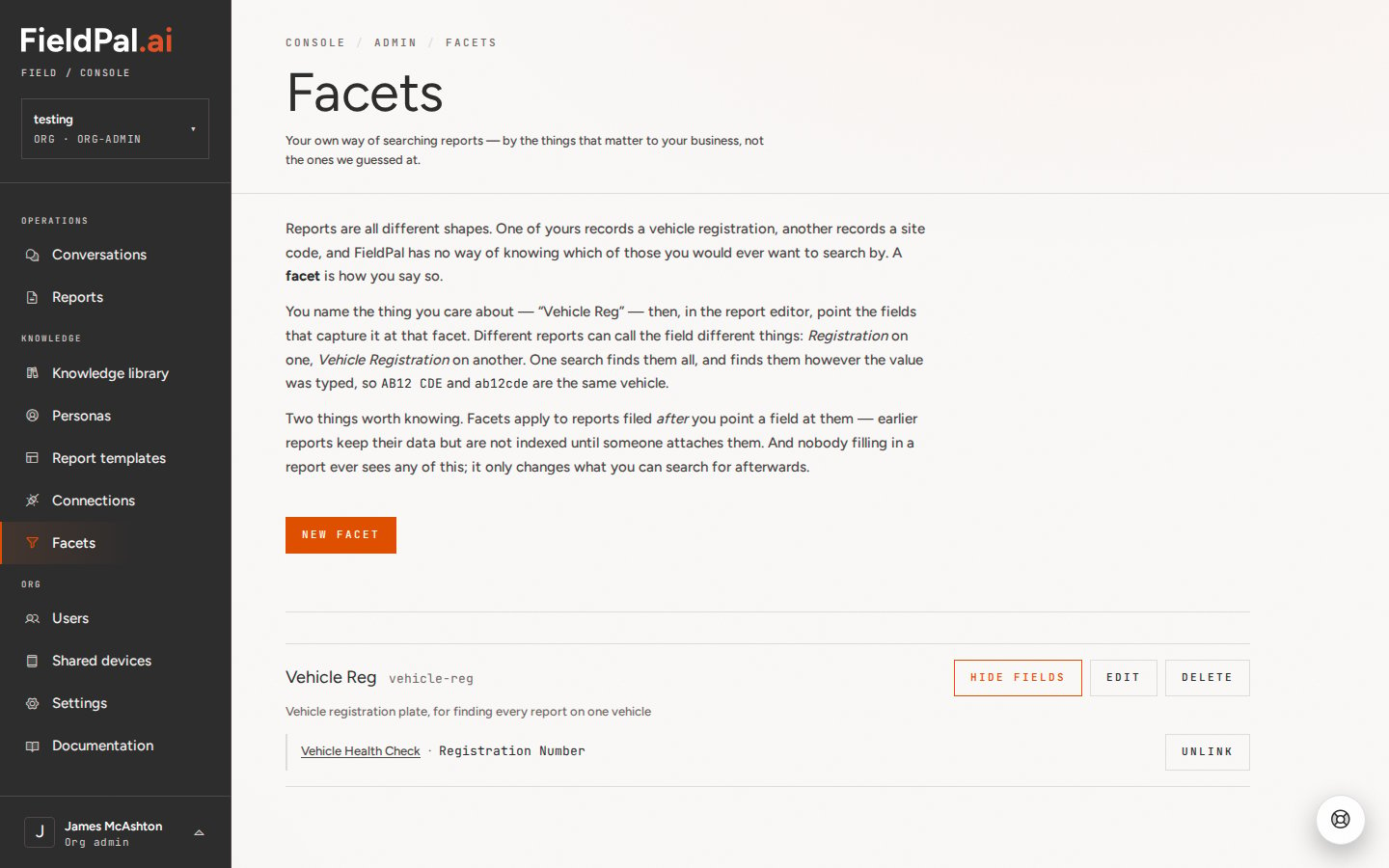
In the left-hand sidebar, click **Facets**, in the Knowledge group below Connections. The page explains what facets are and lists any you have already created.
 ## Step 2: Create a facet
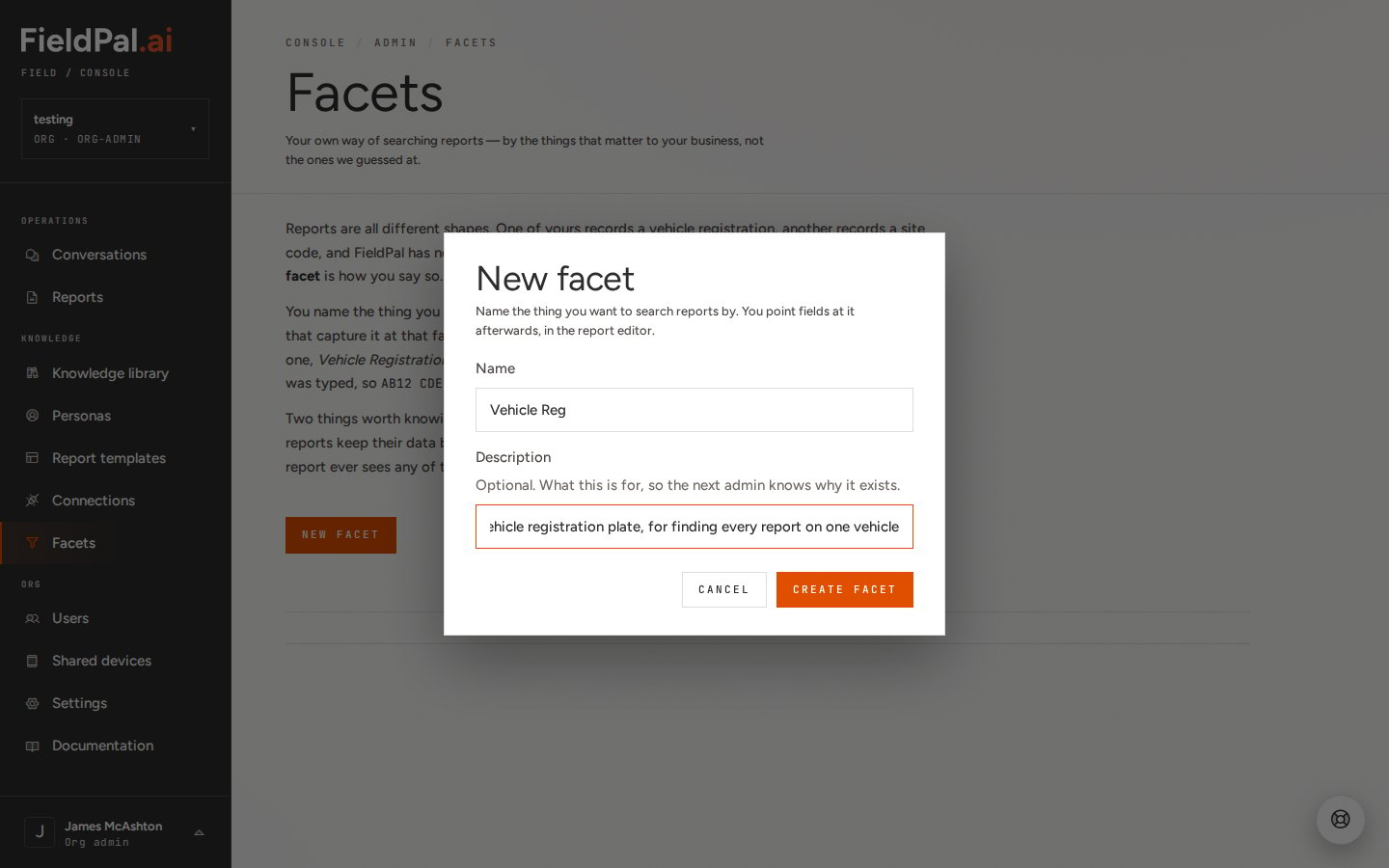
Click **New facet**. Enter:
* **Name**: what you want to search by, for example `Vehicle Reg`
* **Description** (optional): what the facet is for, so the next admin knows why it exists
Click **Create facet**.
## Step 2: Create a facet
Click **New facet**. Enter:
* **Name**: what you want to search by, for example `Vehicle Reg`
* **Description** (optional): what the facet is for, so the next admin knows why it exists
Click **Create facet**.
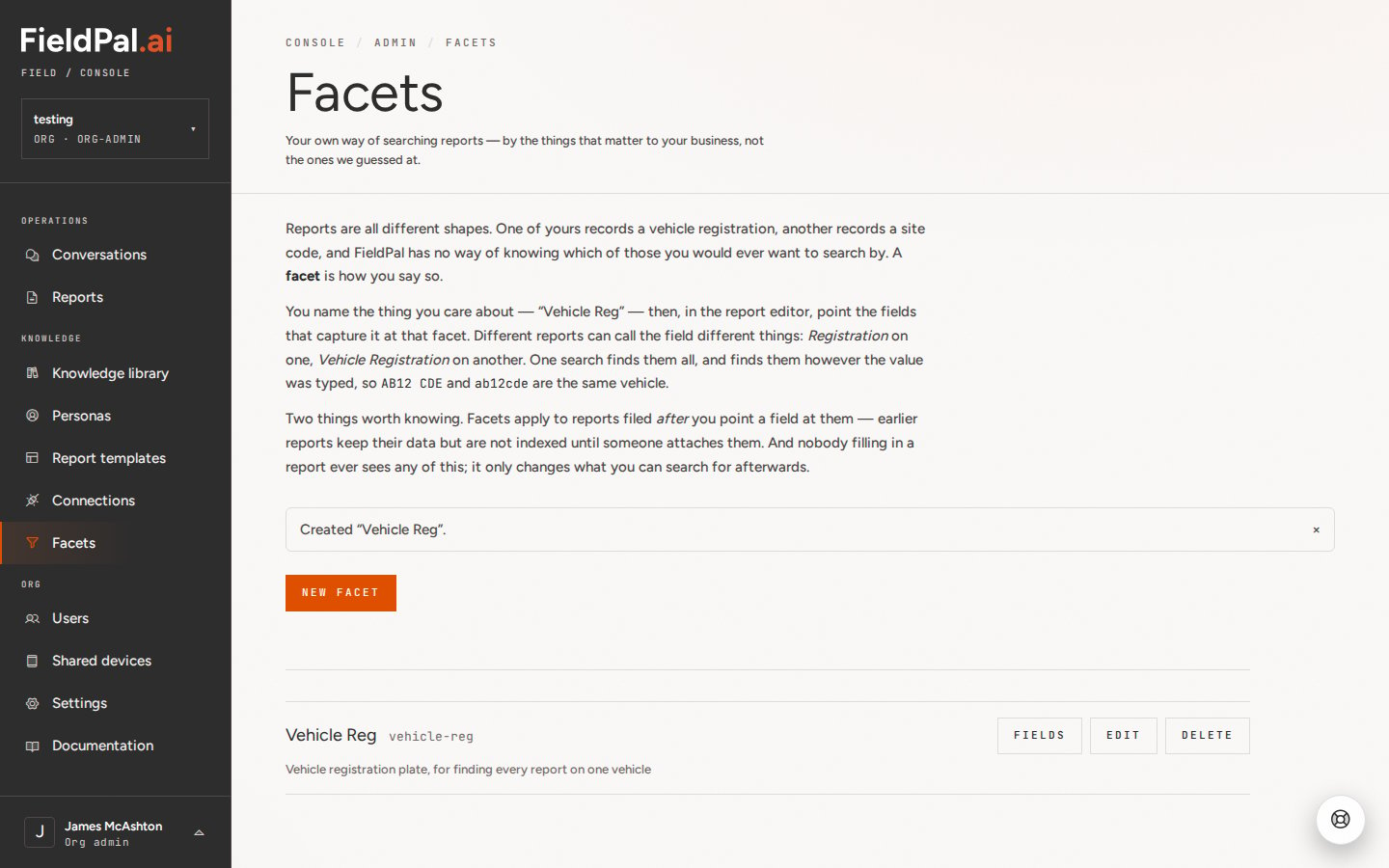
 The facet appears in the list. The grey text next to its name is its identifier. This never changes, even if you rename the facet later, so existing search results are unaffected by a rename.
 ## Step 3: Point a template field at the facet
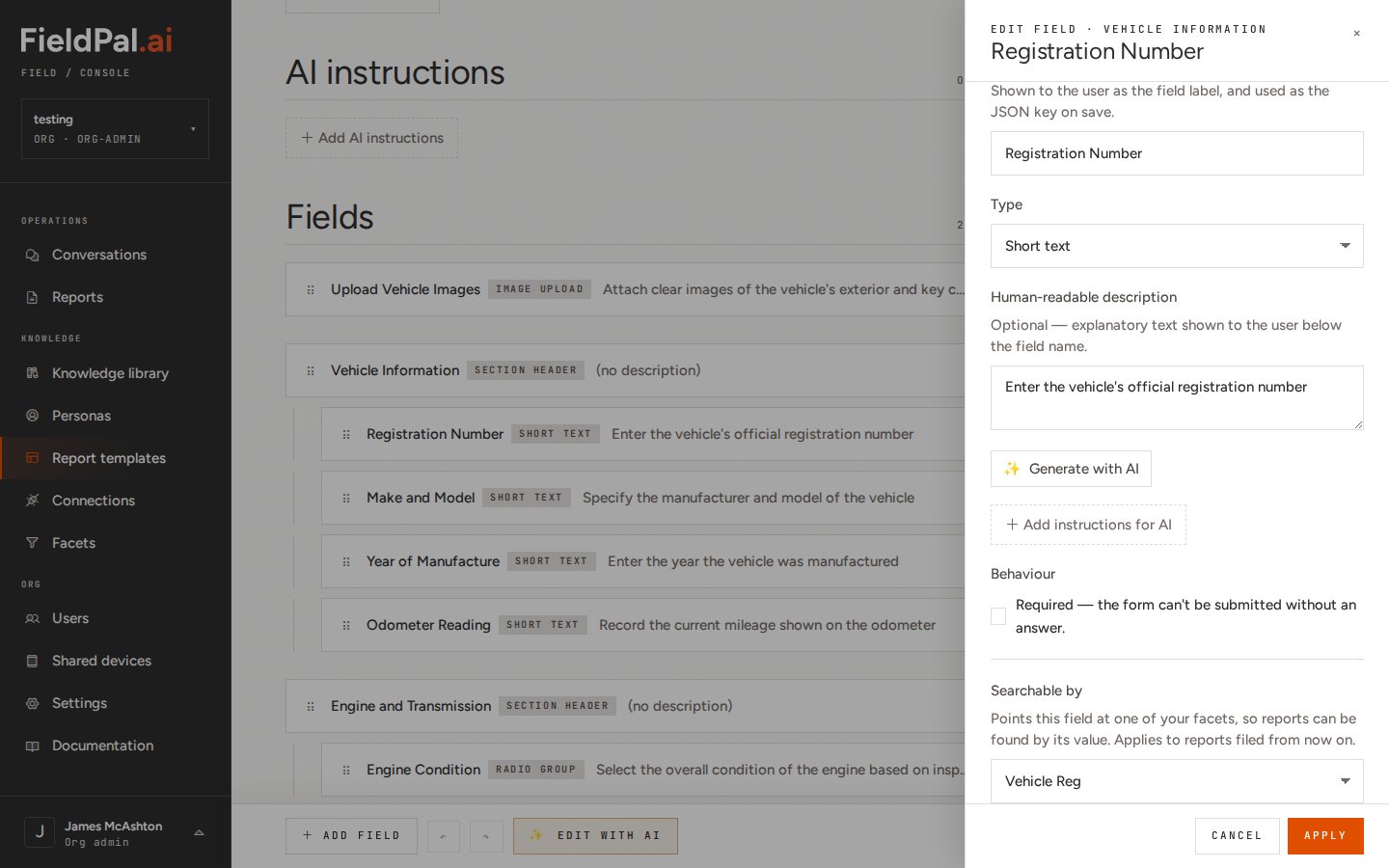
Go to **Report templates** and open the template that captures the value, for example a vehicle inspection form. Click the field that holds it (here, **Registration Number**) to open the field editor.
Scroll down to **Searchable by** and choose your facet from the list. Click **Apply**, then **Save** the template.
## Step 3: Point a template field at the facet
Go to **Report templates** and open the template that captures the value, for example a vehicle inspection form. Click the field that holds it (here, **Registration Number**) to open the field editor.
Scroll down to **Searchable by** and choose your facet from the list. Click **Apply**, then **Save** the template.
 Repeat this for every template that records the same thing. Each template can use its own field name.
Only fields that hold a single value can be made searchable: short text, long text, combo box, radio group, RAG, checkbox and scan fields. Photo, file and section fields can't.
## Step 4: Check which fields are linked
Back on the **Facets** page, click **Fields** next to a facet to see every template field pointing at it. Click the template name to open it, or **Unlink** to stop that field feeding the facet.
Repeat this for every template that records the same thing. Each template can use its own field name.
Only fields that hold a single value can be made searchable: short text, long text, combo box, radio group, RAG, checkbox and scan fields. Photo, file and section fields can't.
## Step 4: Check which fields are linked
Back on the **Facets** page, click **Fields** next to a facet to see every template field pointing at it. Click the template name to open it, or **Unlink** to stop that field feeding the facet.
 ## Step 5: Search your reports
Open **Reports** and type the value into the search box at the top of the filter panel, for example a registration. The register shows every report carrying that value, whichever template it was filed on. The matching value is shown on each report row.
A facet only covers reports filed **after** you point a field at it. Reports filed before then keep all their data but won't appear in facet searches, and they can't be added to a facet afterwards.
## Editing or deleting a facet
Click **Edit** to change a facet's name or description. Renaming is safe: reports already indexed stay in the facet.
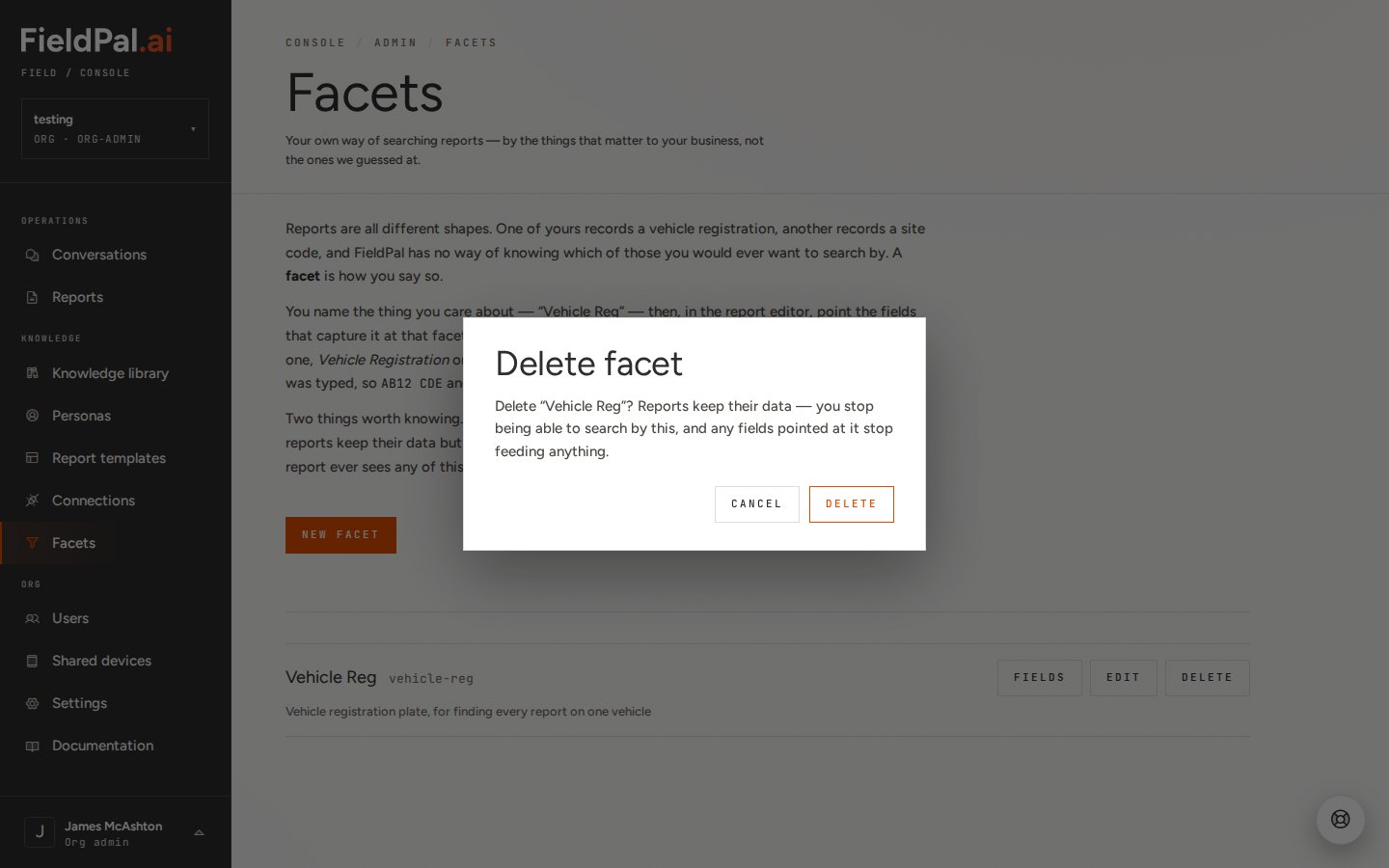
Click **Delete** to remove a facet. You will be asked to confirm. Your reports keep all their data; you just lose the ability to search by that facet, and any fields pointing at it stop feeding anything.
## Step 5: Search your reports
Open **Reports** and type the value into the search box at the top of the filter panel, for example a registration. The register shows every report carrying that value, whichever template it was filed on. The matching value is shown on each report row.
A facet only covers reports filed **after** you point a field at it. Reports filed before then keep all their data but won't appear in facet searches, and they can't be added to a facet afterwards.
## Editing or deleting a facet
Click **Edit** to change a facet's name or description. Renaming is safe: reports already indexed stay in the facet.
Click **Delete** to remove a facet. You will be asked to confirm. Your reports keep all their data; you just lose the ability to search by that facet, and any fields pointing at it stop feeding anything.
 ## Tips
* Create one facet per real-world thing, not one per template. The point is that `Vehicle Reg` finds reports from your MOT form, your damage form and your handover form in one search.
* Set up facets before a new template goes live, so every report filed on it is searchable from day one.
* Search combines with the filters on the left, so set **Date filed** to **All** and **Status** to **Any** if you want every report on a vehicle, not just recent ones.
## Tips
* Create one facet per real-world thing, not one per template. The point is that `Vehicle Reg` finds reports from your MOT form, your damage form and your handover form in one search.
* Set up facets before a new template goes live, so every report filed on it is searchable from day one.
* Search combines with the filters on the left, so set **Date filed** to **All** and **Status** to **Any** if you want every report on a vehicle, not just recent ones.