> ## Documentation Index
> Fetch the complete documentation index at: https://docs.fieldpal.ai/llms.txt
> Use this file to discover all available pages before exploring further.
# Inviting a mobile user
> How to invite a new team member and get them set up on the FieldPal app.
To give a new field worker access to FieldPal, an admin sends them an invite from the dashboard. The new user then receives an email with an invite code, which they enter in the FieldPal app on their device to join your organisation.
This guide covers both sides of the process: sending the invite as an admin, and accepting it as the new user.
***
## Part 1: Send the invite (dashboard)
### Step 1: Open Users
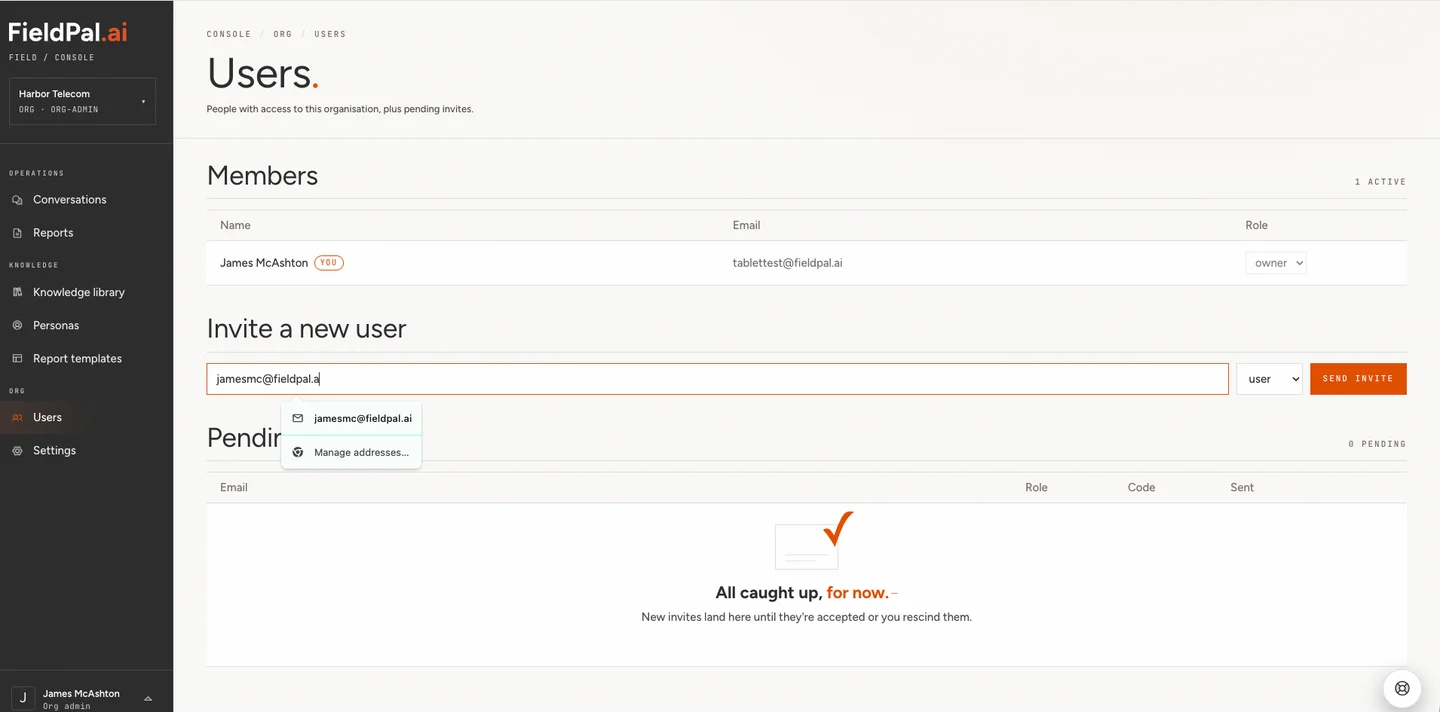
In the left-hand sidebar, click **Users**. This page lists everyone with access to your organisation, plus any pending invites.
### Step 2: Enter the new user's details
Under **Invite a new user**, type the person's email address, choose a role from the dropdown (**user** for most field workers), and click **Send invite**.
 ### Step 3: Check the pending invite
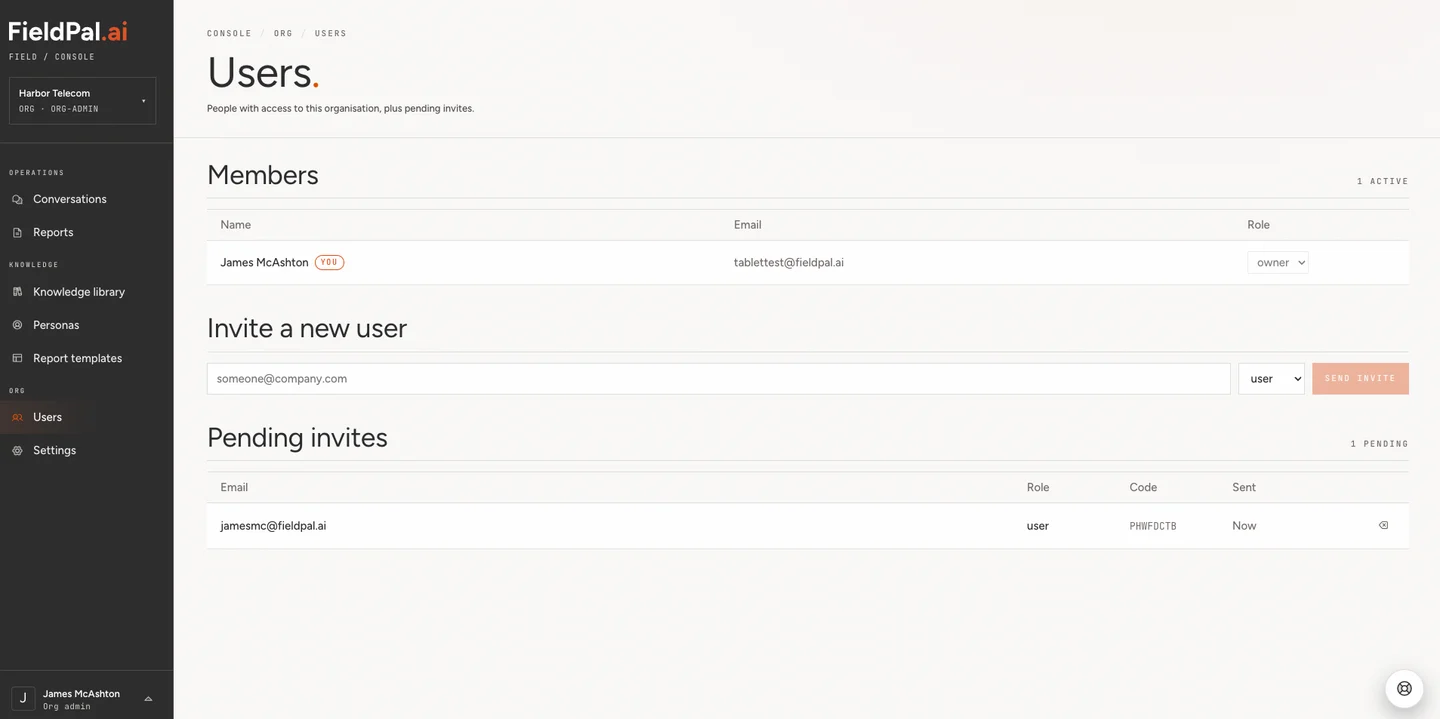
The new invite appears under **Pending invites**, showing the email address, role, invite code, and when it was sent. FieldPal emails the invite code to the user automatically, so you don't need to send it yourself.
### Step 3: Check the pending invite
The new invite appears under **Pending invites**, showing the email address, role, invite code, and when it was sent. FieldPal emails the invite code to the user automatically, so you don't need to send it yourself.
 ***
## Part 2: Accept the invite (mobile app)
The new user now needs to do the following on their own device.
### Step 1: Open the invite email
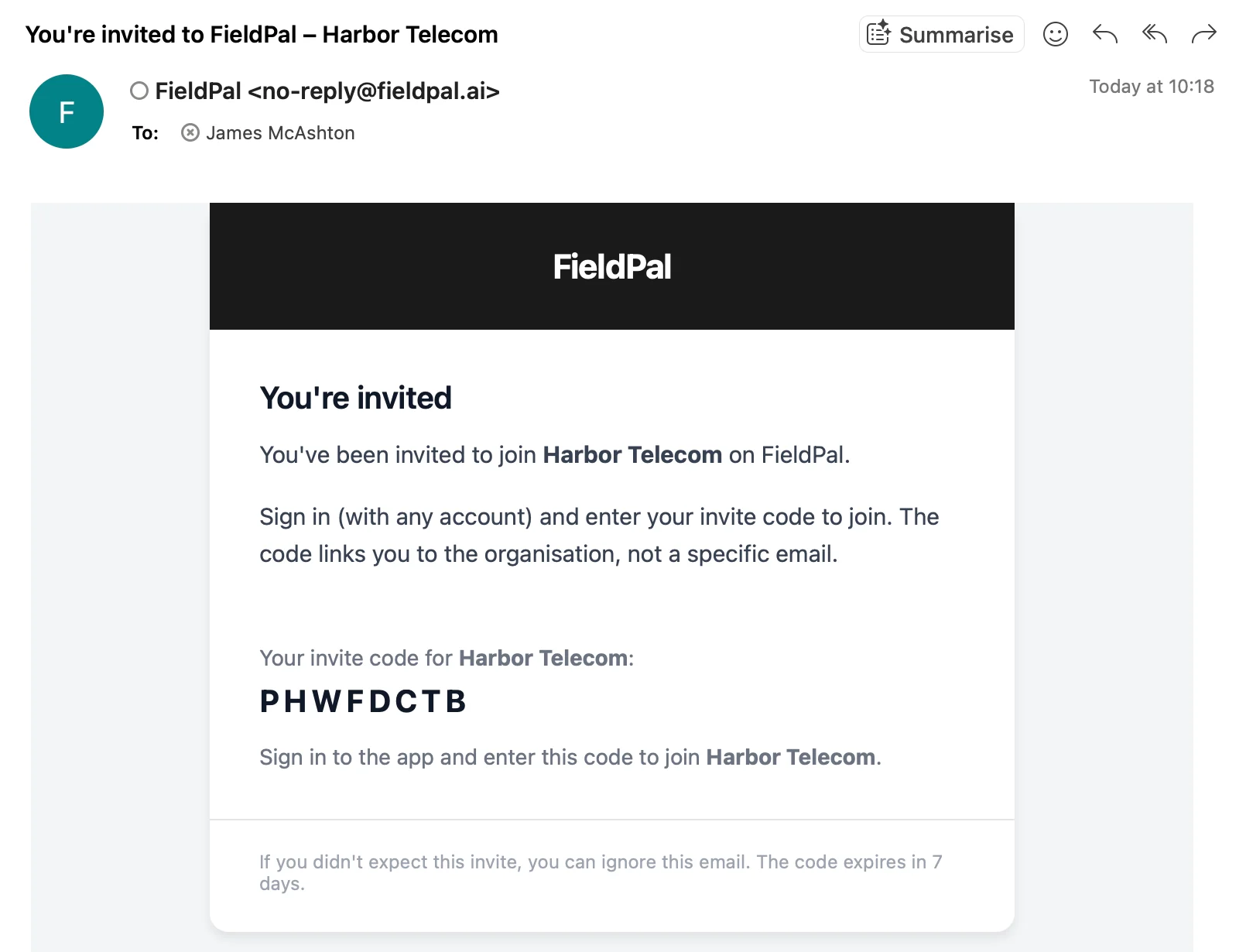
The user receives an email titled **"You're invited to FieldPal"**, containing their invite code for your organisation.
***
## Part 2: Accept the invite (mobile app)
The new user now needs to do the following on their own device.
### Step 1: Open the invite email
The user receives an email titled **"You're invited to FieldPal"**, containing their invite code for your organisation.
 The code expires after 7 days.
### Step 2: Sign in to the FieldPal app
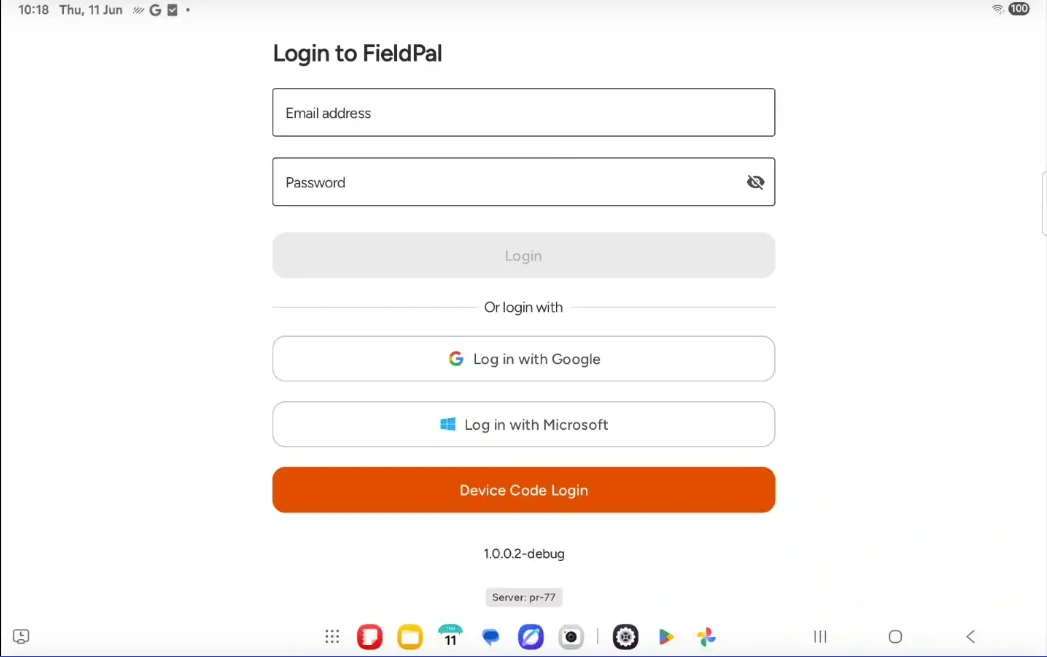
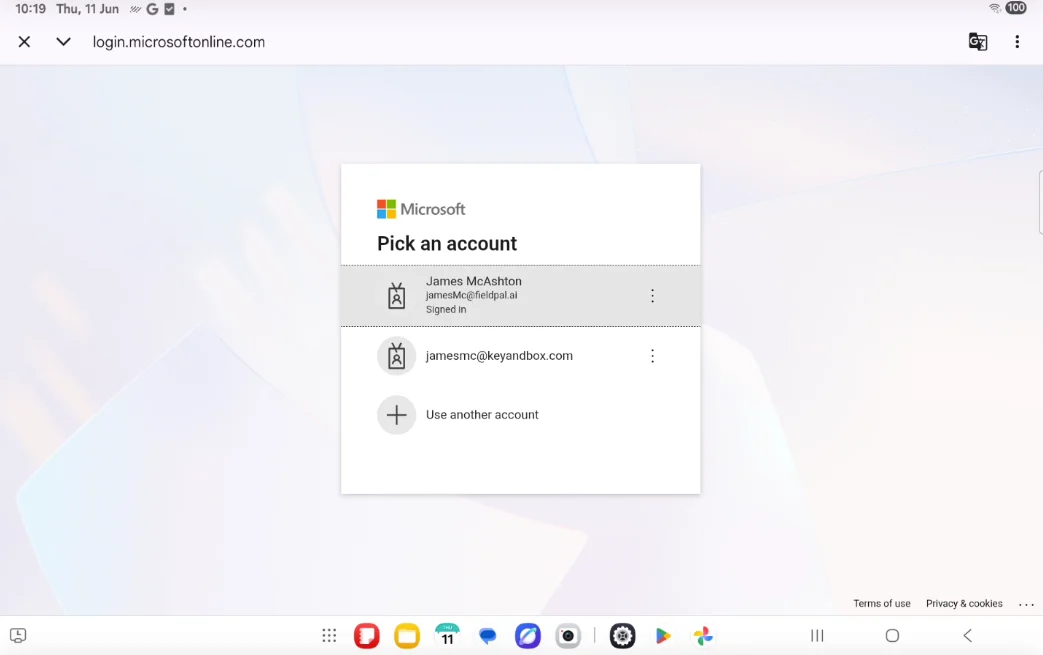
The user opens the FieldPal app and signs in using the email address the invite was sent to, with email and password, Google, or Microsoft.
The code expires after 7 days.
### Step 2: Sign in to the FieldPal app
The user opens the FieldPal app and signs in using the email address the invite was sent to, with email and password, Google, or Microsoft.
 ### Step 3: Enter the invite code
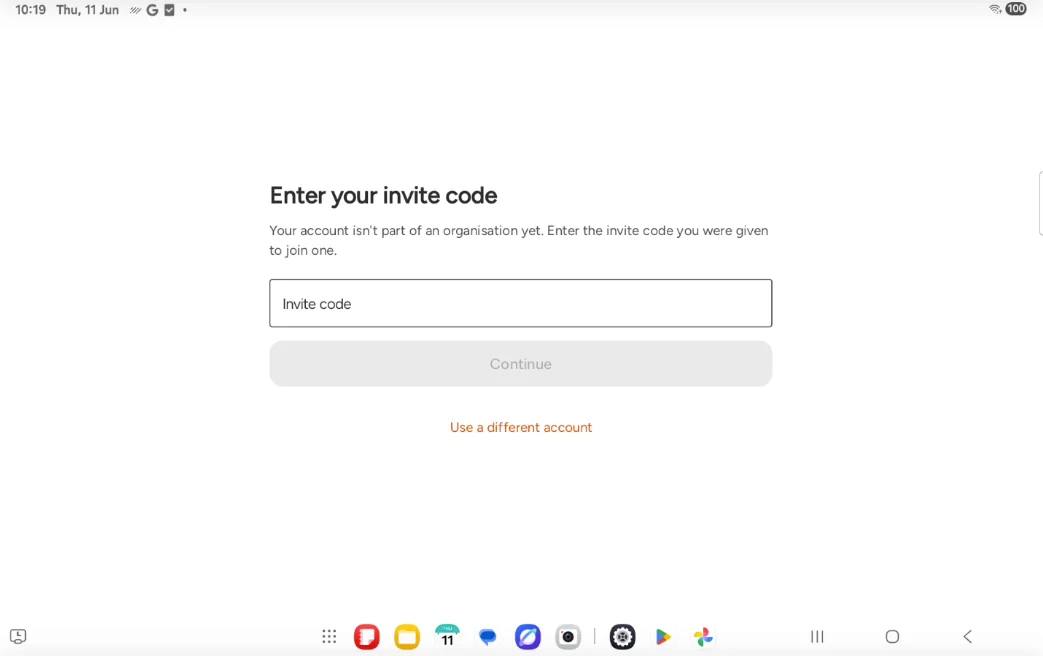
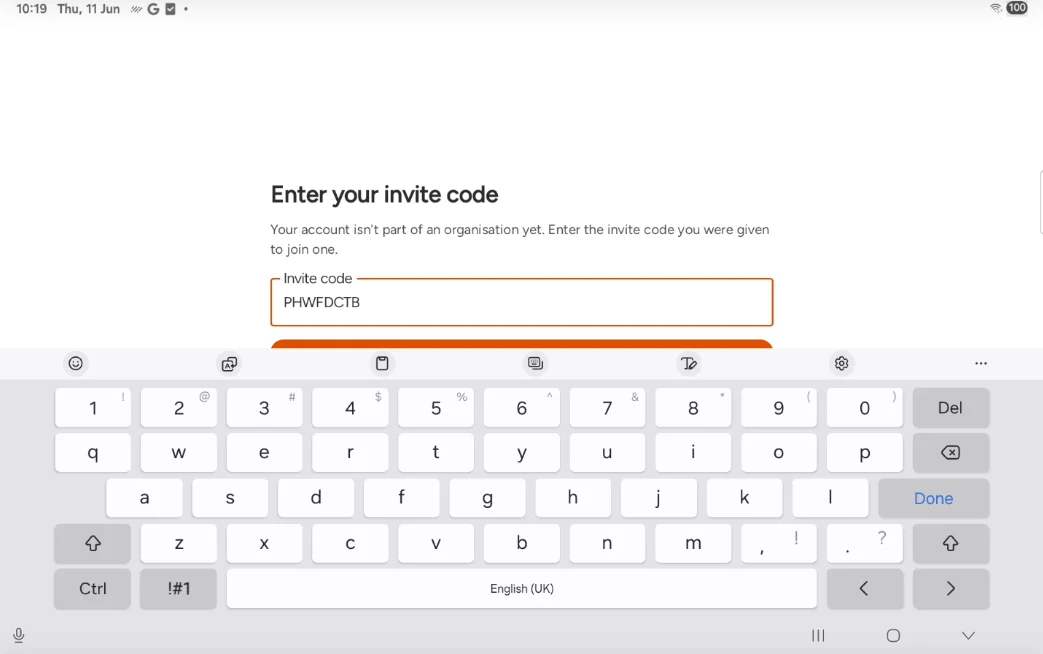
Because the account isn't part of an organisation yet, the app shows an **Enter your invite code** screen. The user types in the code from the invite email and taps **Continue**.
### Step 3: Enter the invite code
Because the account isn't part of an organisation yet, the app shows an **Enter your invite code** screen. The user types in the code from the invite email and taps **Continue**.
 ### Step 4: Join the organisation
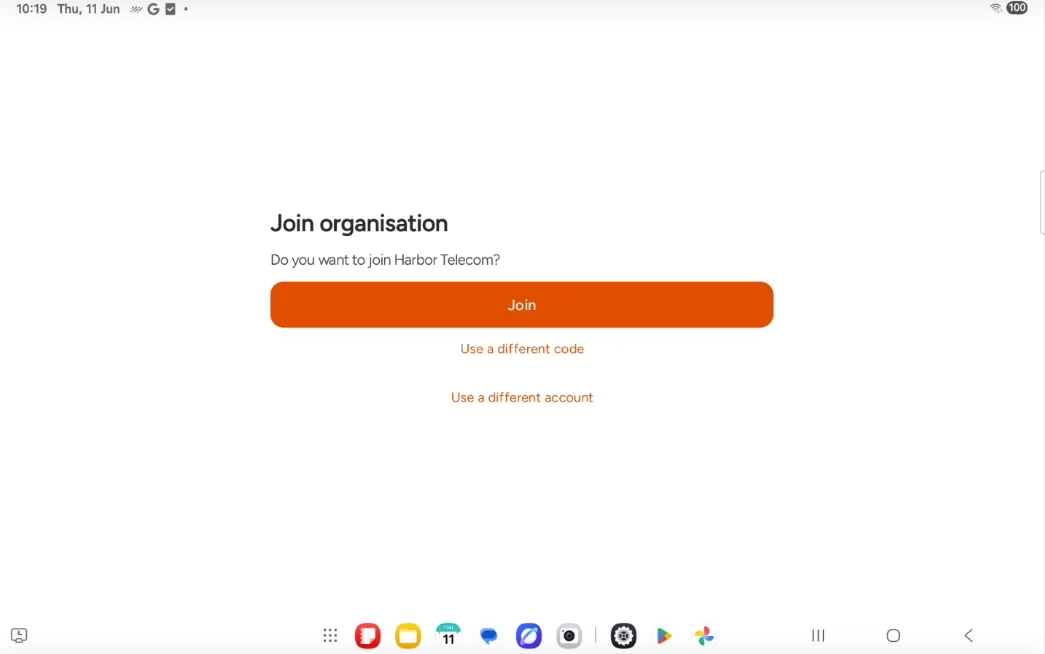
The app confirms which organisation the code belongs to. The user taps **Join** to confirm.
### Step 4: Join the organisation
The app confirms which organisation the code belongs to. The user taps **Join** to confirm.
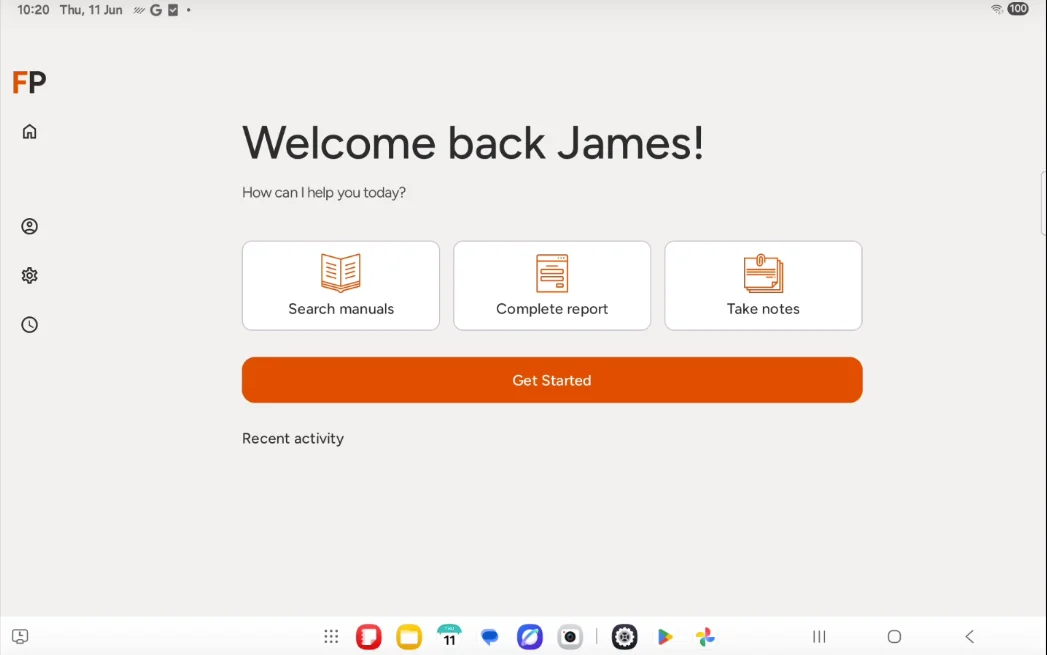
 ### Step 5: Start using FieldPal
The user is now signed in and ready to go.
### Step 5: Start using FieldPal
The user is now signed in and ready to go.
 ***
## Confirming access (dashboard)
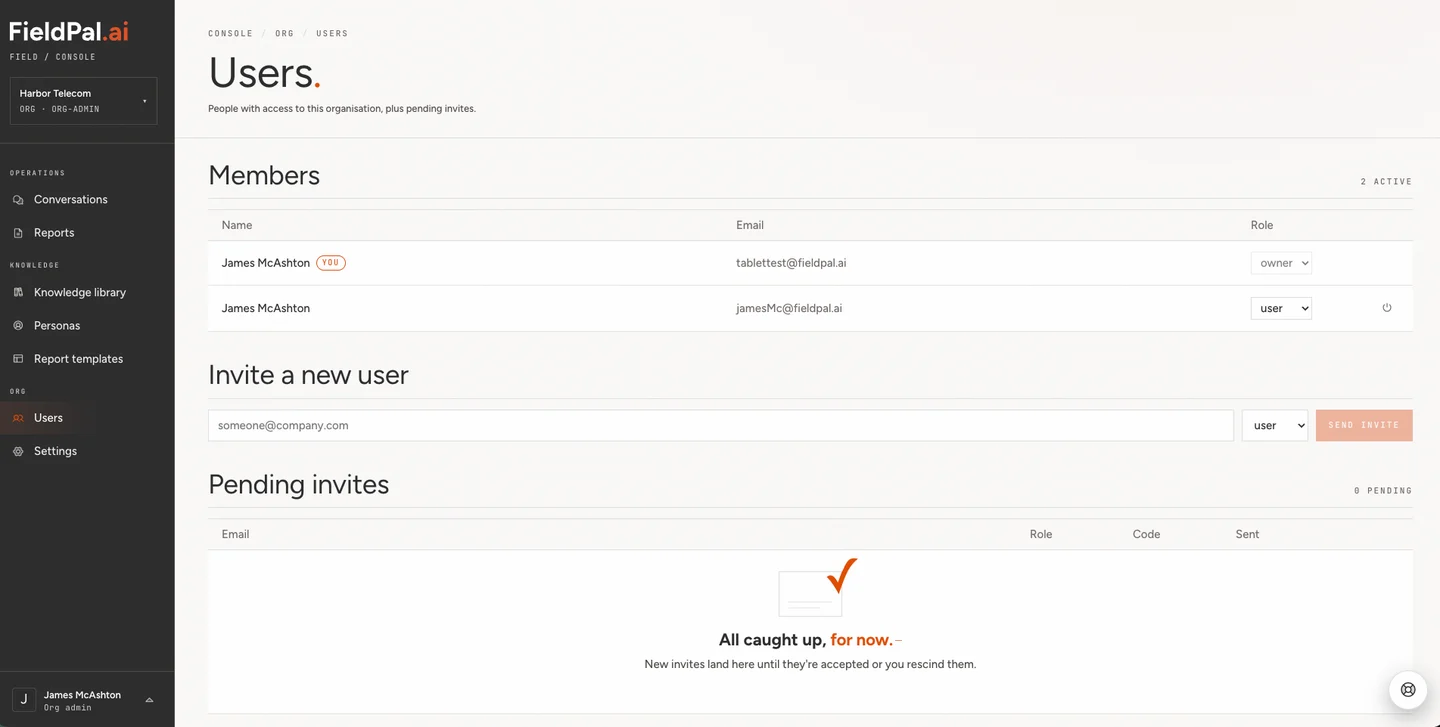
Back on the dashboard **Users** page, the pending invite disappears and the new user appears in the **Members** list with the role you assigned.
***
## Confirming access (dashboard)
Back on the dashboard **Users** page, the pending invite disappears and the new user appears in the **Members** list with the role you assigned.
 ***
## Tips
* **The user must sign in with the email address the invite was sent to.** If they sign in with a different account, the invite code won't work.
* **Codes expire after 7 days.** If a user hasn't joined in time, cancel the pending invite using the icon next to it in the **Pending invites** table, then send a new one.
* **Wrong account?** On the sign-in or invite code screens, the user can tap **Use a different account** to switch to the correct one before entering the code.
***
## Tips
* **The user must sign in with the email address the invite was sent to.** If they sign in with a different account, the invite code won't work.
* **Codes expire after 7 days.** If a user hasn't joined in time, cancel the pending invite using the icon next to it in the **Pending invites** table, then send a new one.
* **Wrong account?** On the sign-in or invite code screens, the user can tap **Use a different account** to switch to the correct one before entering the code.