> ## Documentation Index
> Fetch the complete documentation index at: https://docs.fieldpal.ai/llms.txt
> Use this file to discover all available pages before exploring further.
# Knowledge Library
> Upload reference documents and videos so the AI assistant can answer questions about them on site.
The Knowledge Library is where you store the reference material that powers FieldPal's AI assistant. Upload manuals, procedures, safety guides, and training videos (anything your field workers might need to look something up) and the assistant can draw on them in conversation.
## What it enables on site
Once documents are in the library, field workers can ask the assistant natural questions while they are on the job:
* *"How do I connect the scissor lift to AC power?"*
* *"Can you tell me about the Truma heating system on a Bailey caravan?"*
* *"How do I clean the Phillips coffee machine?"*
The assistant searches the library, finds the relevant section, and quotes it back. If the answer is in a specific part of a document, it can point the field worker to the right page. For videos, the AI has processed the full content and can answer questions about it. If a specific moment in the video is relevant, it can direct the field worker to the right point in the footage.
This means your team can get accurate, source-specific answers without leaving FieldPal or hunting through folders of PDFs.
## Supported file types
| Type | Extensions |
| ------------------ | -------------------------------------- |
| PDF | `.pdf` |
| Word document | `.docx`, `.doc` |
| Plain text | `.txt`, `.md` |
| Spreadsheet / data | `.csv`, `.json` |
| Images | `.jpg`, `.jpeg`, `.png` |
| Video | `.mp4` (drag and drop only, see below) |
***
## Adding documents to the library
### Step 1: Open the Knowledge Library
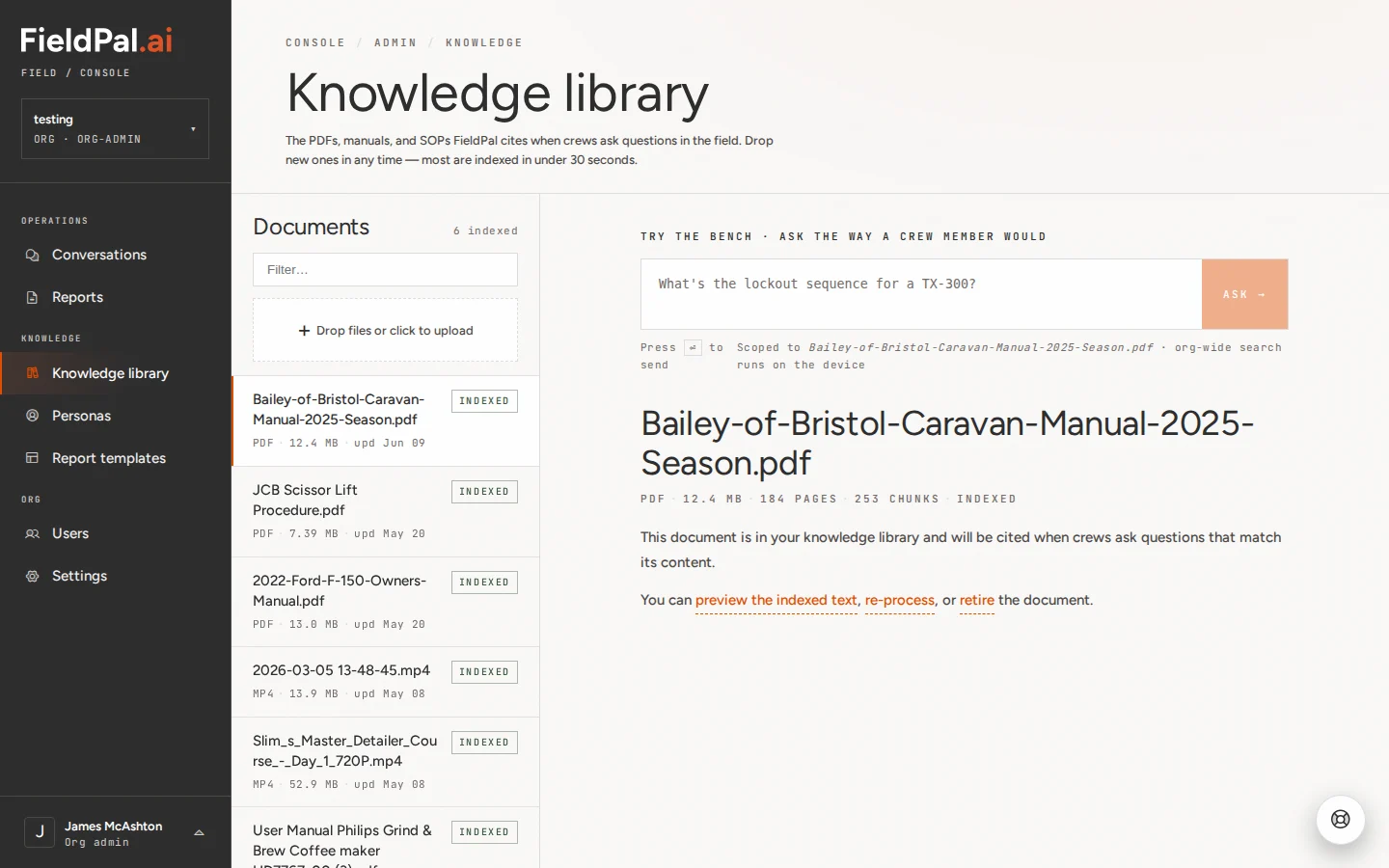
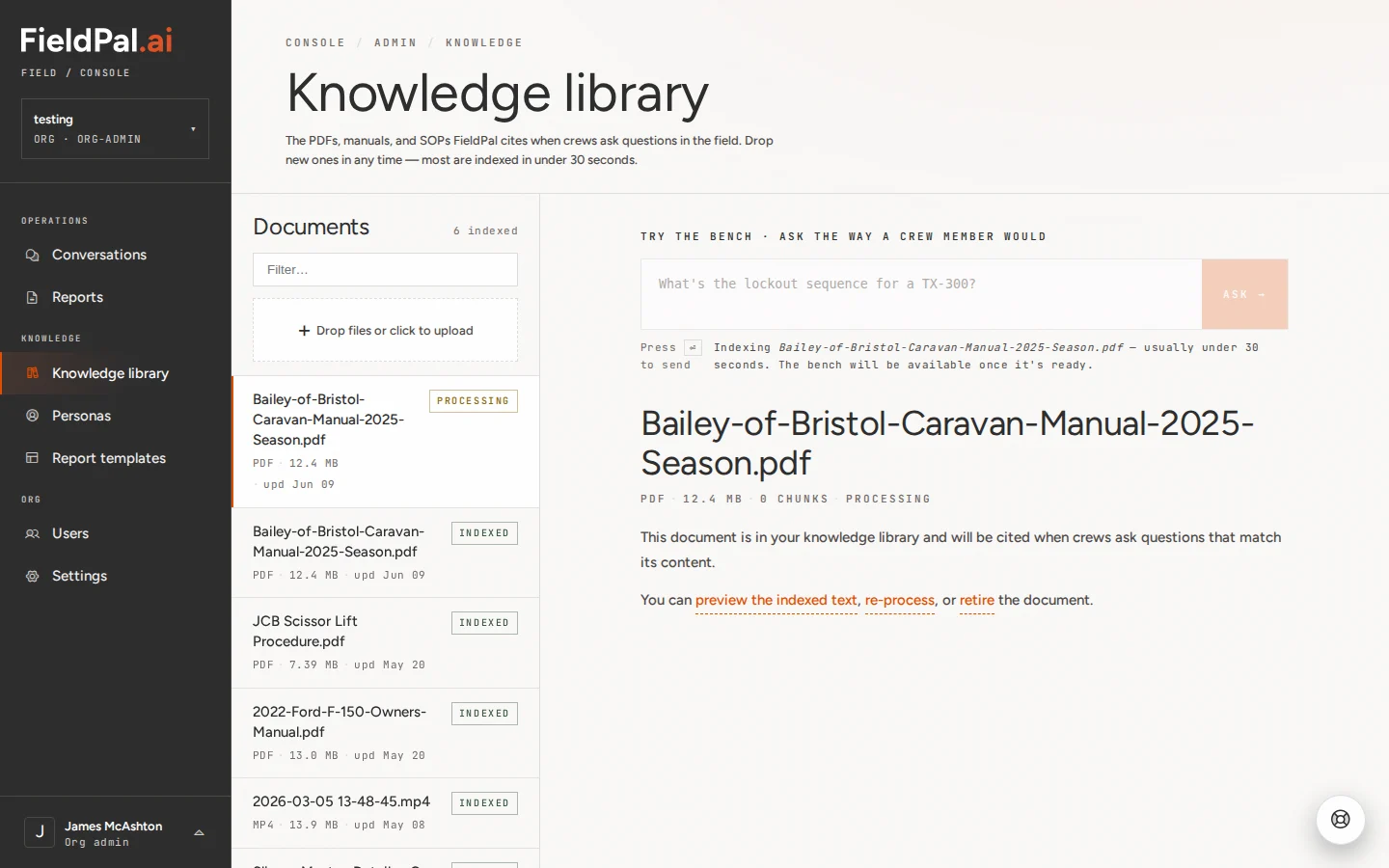
In the left-hand sidebar, click **Knowledge library**. You will see all previously uploaded documents, each listed with its file type, size, and indexed status.
 ### Step 2: Open the upload dialog
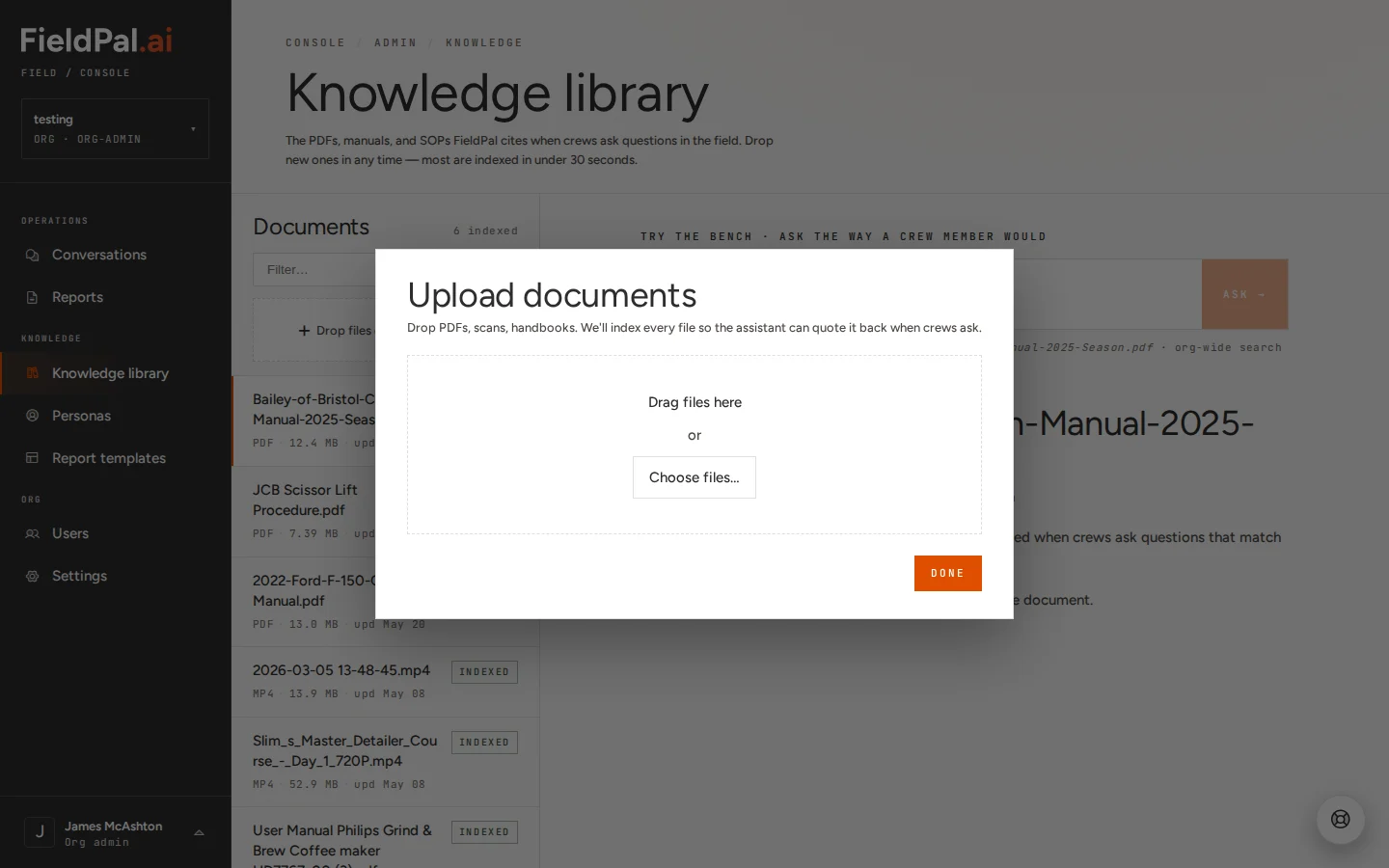
Click the **+ Drop files or click to upload** button at the top of the document list. The "Upload documents" dialog will appear.
### Step 2: Open the upload dialog
Click the **+ Drop files or click to upload** button at the top of the document list. The "Upload documents" dialog will appear.
 ### Step 3: Choose your files
**File picker:** Click **Choose files…** inside the dialog and select one or more files. The file picker shows documents and images.
**Drag and drop:** Drag files from your file manager directly onto the drop area. Use this method for video files (.mp4), which do not appear in the file picker.
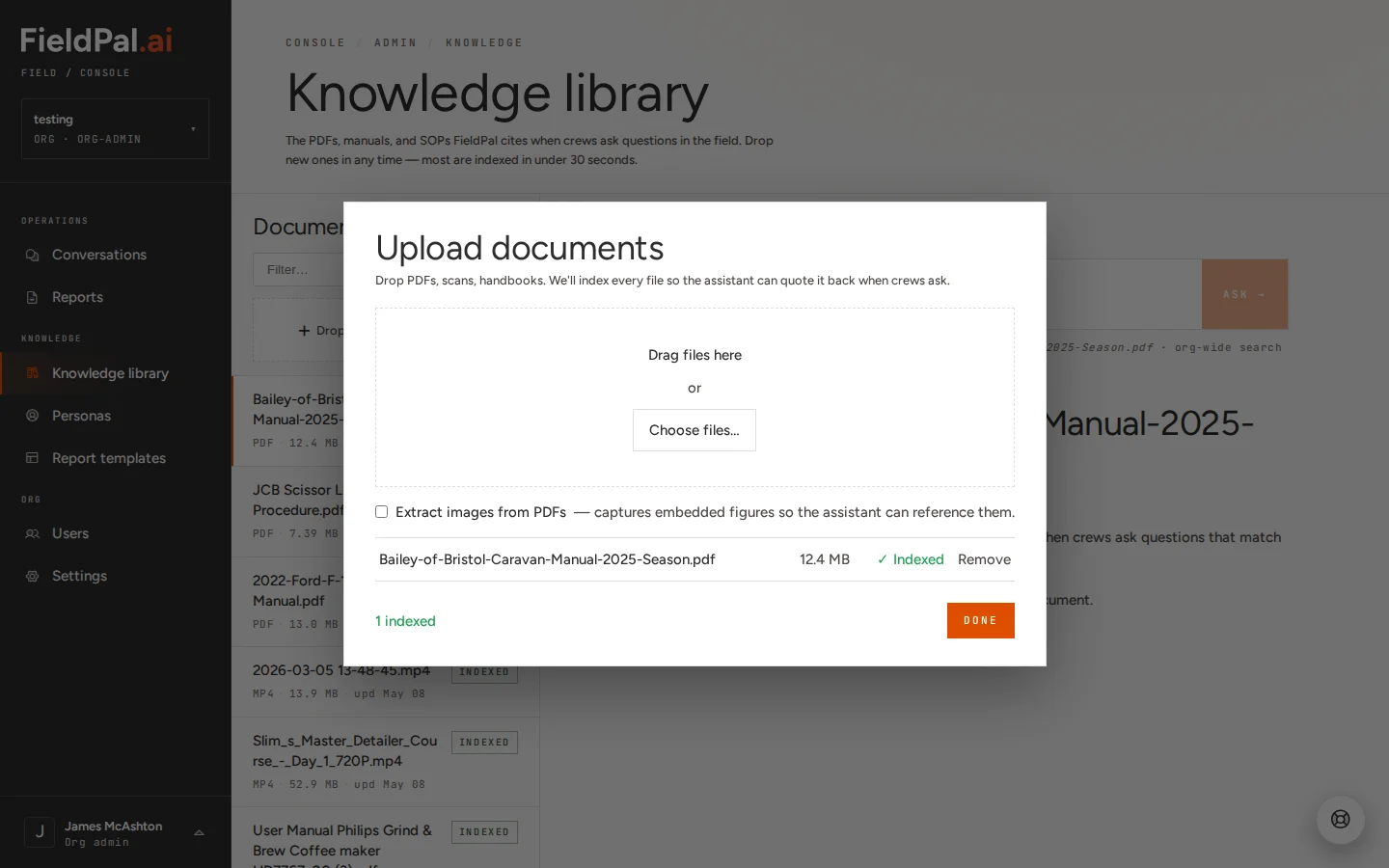
You can upload multiple files at once with either method. Each file appears in the dialog with its filename, size, and a status indicator.
### Step 3: Choose your files
**File picker:** Click **Choose files…** inside the dialog and select one or more files. The file picker shows documents and images.
**Drag and drop:** Drag files from your file manager directly onto the drop area. Use this method for video files (.mp4), which do not appear in the file picker.
You can upload multiple files at once with either method. Each file appears in the dialog with its filename, size, and a status indicator.
 ### Step 4: Extract images from PDFs (optional)
Before clicking Done, you will see a toggle: **Extract images from PDFs**. Turn this on if your PDFs contain diagrams, charts, safety illustrations, or labelled photos that you want the assistant to reference. Leave it off for text-only documents.
### Step 5: Confirm the upload
Click **Done**. Your files appear in the document list with a **Processing** status while indexing runs in the background. Standard documents typically take a minute or two. Large video files can take 10–15 minutes.
### Step 4: Extract images from PDFs (optional)
Before clicking Done, you will see a toggle: **Extract images from PDFs**. Turn this on if your PDFs contain diagrams, charts, safety illustrations, or labelled photos that you want the assistant to reference. Leave it off for text-only documents.
### Step 5: Confirm the upload
Click **Done**. Your files appear in the document list with a **Processing** status while indexing runs in the background. Standard documents typically take a minute or two. Large video files can take 10–15 minutes.
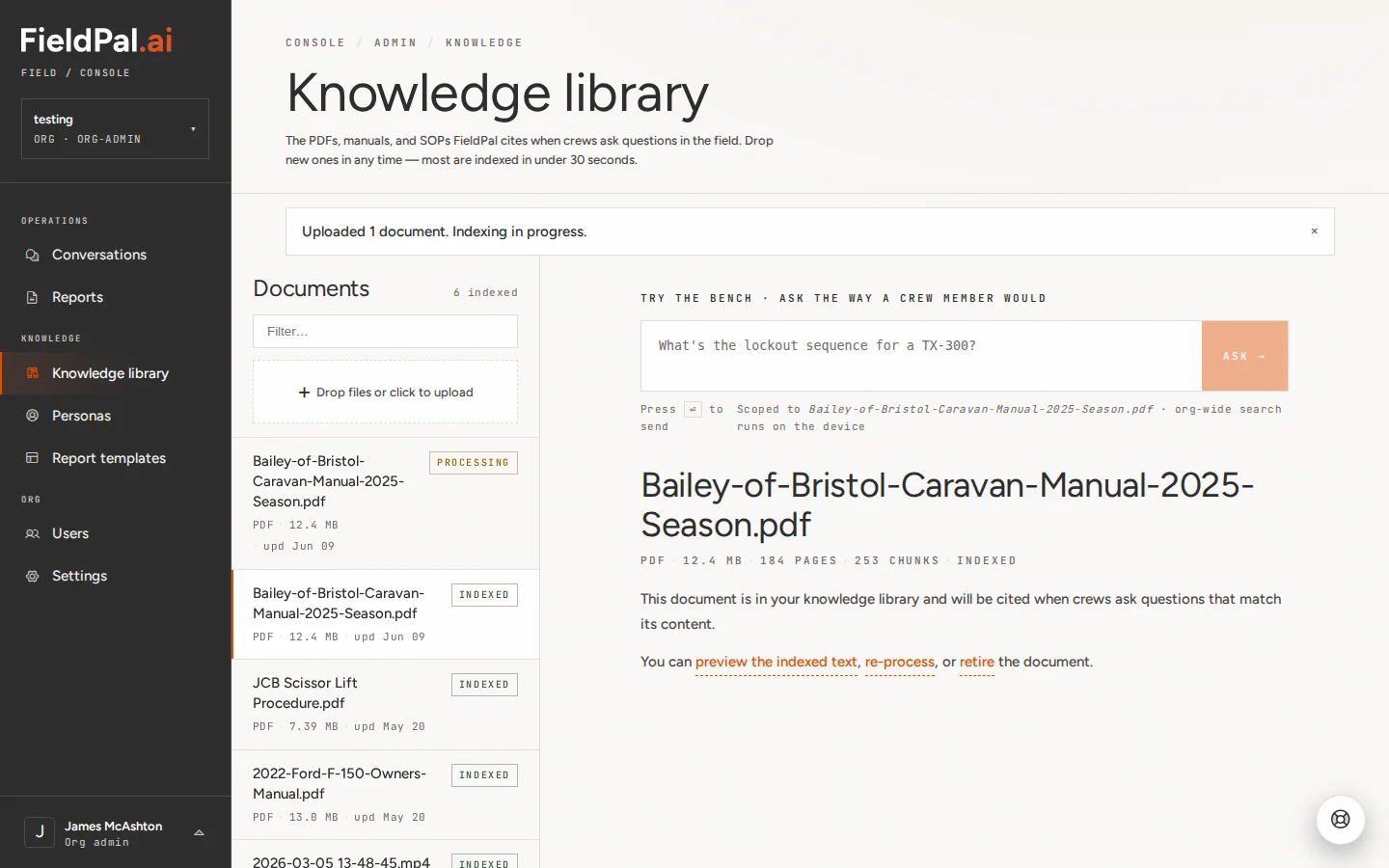 Once complete, the status changes to **Indexed**. The assistant can use the document from this point.
 ### Step 6: Verify it is working (optional)
Hover over any document to reveal its action buttons. Click **Ask →** to open a test conversation pre-loaded with that document as context. Ask a question about the content to confirm the assistant finds the right information before your team starts relying on it.
### Step 6: Verify it is working (optional)
Hover over any document to reveal its action buttons. Click **Ask →** to open a test conversation pre-loaded with that document as context. Ask a question about the content to confirm the assistant finds the right information before your team starts relying on it.
 ***
## Filtering the library
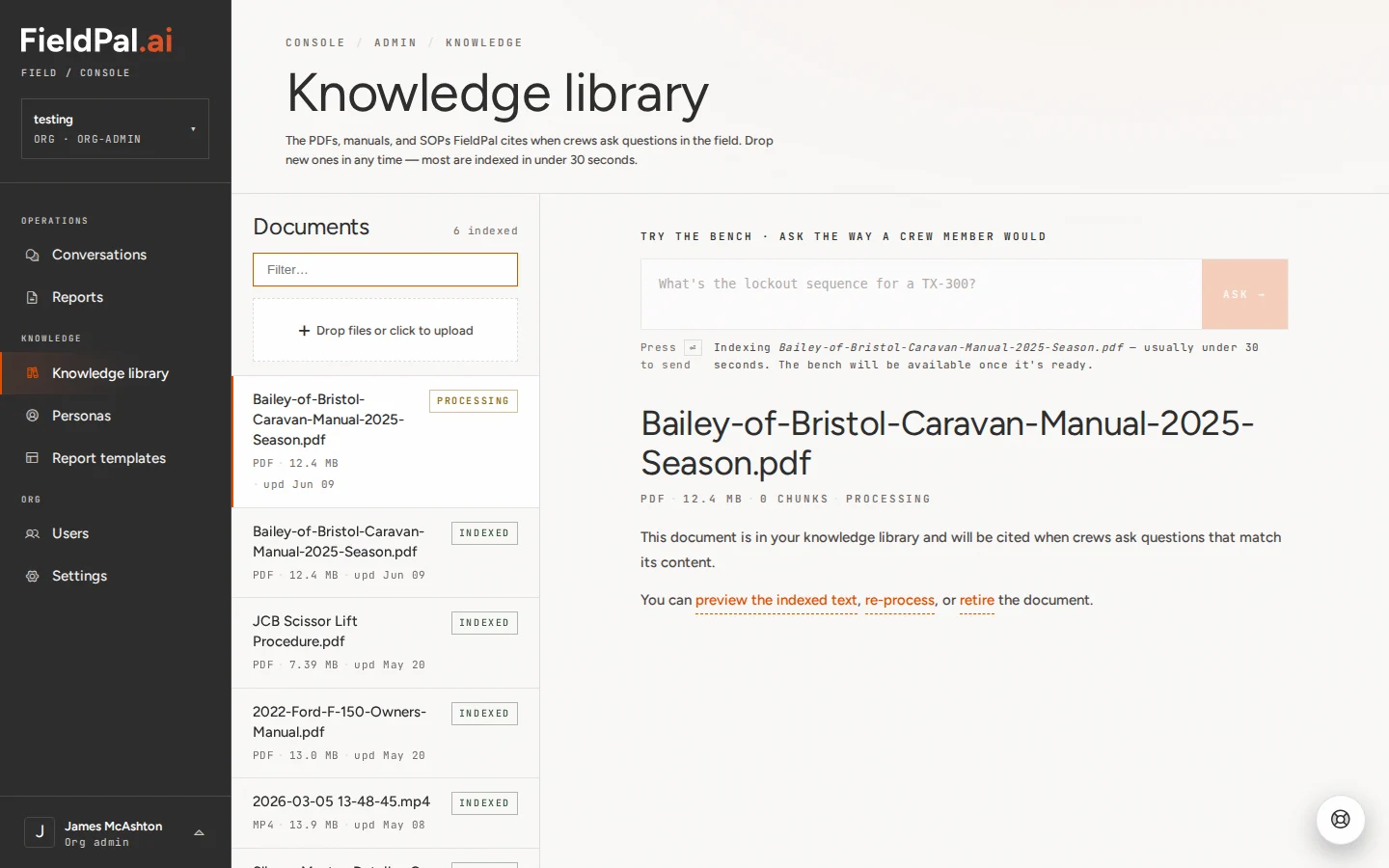
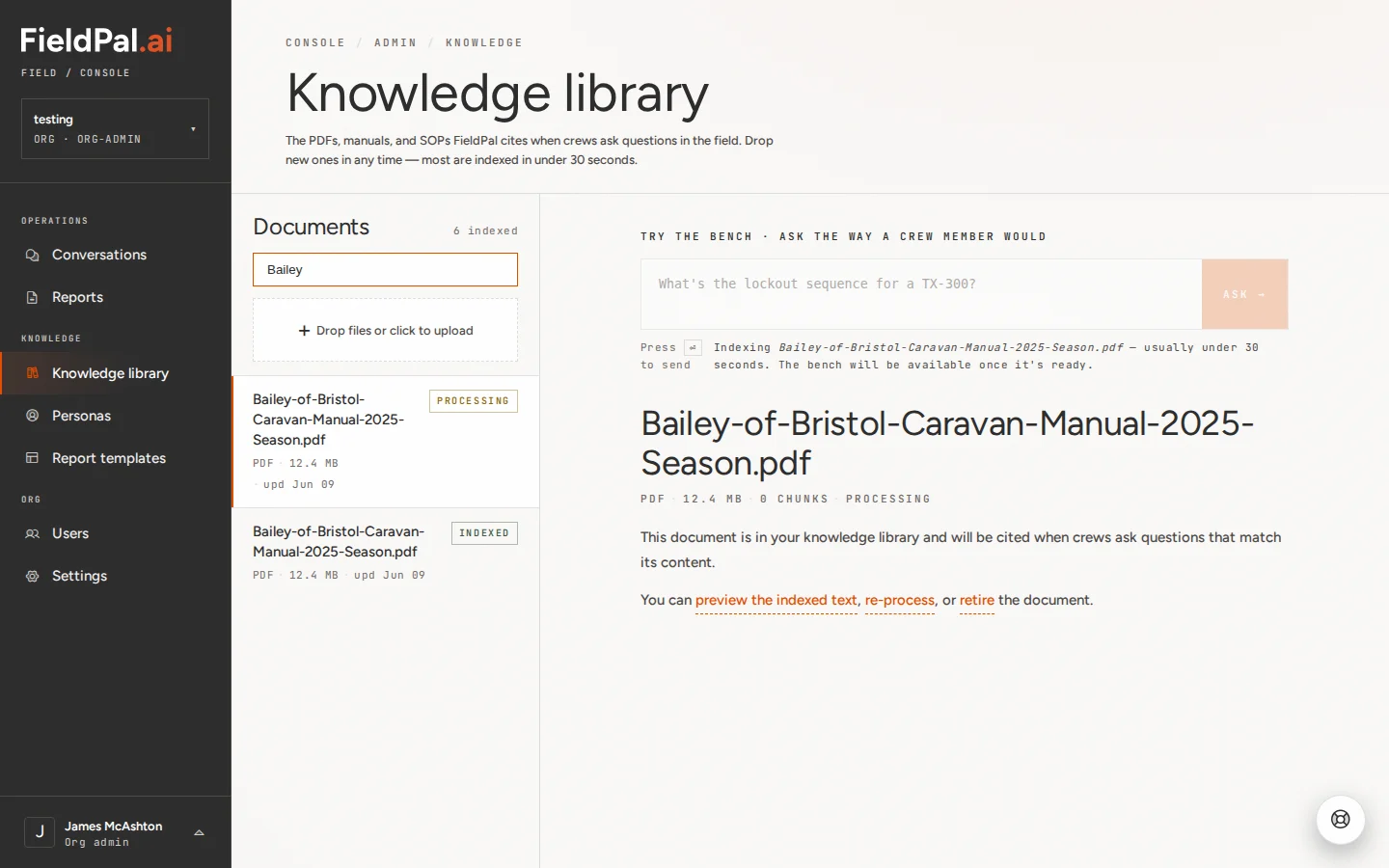
Use the **Filter…** search box at the top of the document list to find a file by name.
***
## Filtering the library
Use the **Filter…** search box at the top of the document list to find a file by name.
 ***
## Managing existing documents
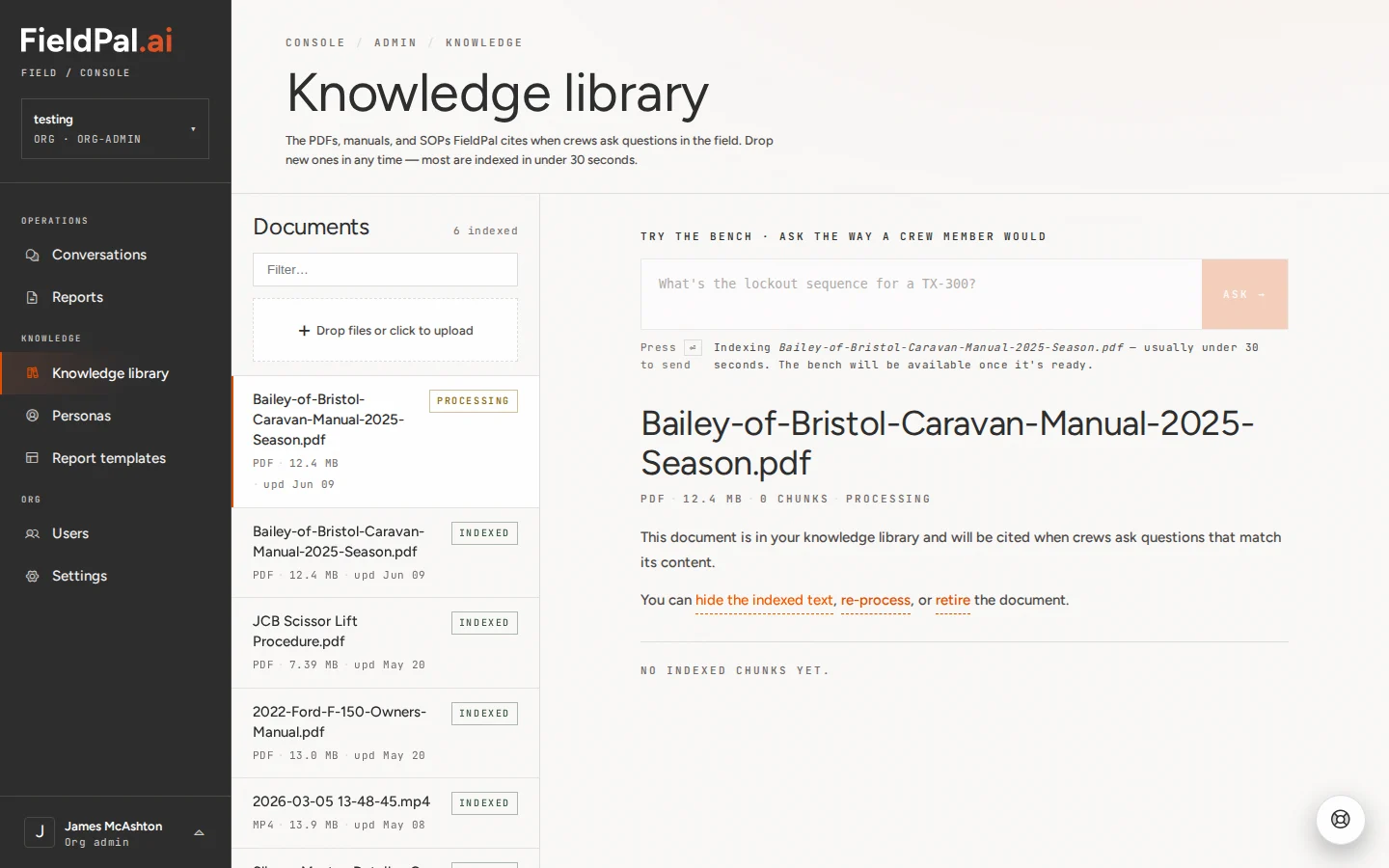
Hover over any document to reveal three actions:
| Action | What it does |
| ------------------------ | -------------------------------------------------------------------------------------------------------------------------------- |
| **Preview indexed text** | Shows the raw text the AI extracted. Useful for spotting extraction errors, particularly with scanned PDFs. |
| **Re-process** | Triggers re-indexing. Use this if the original indexing produced poor results. |
| **Retire** | Removes the document from the active library. The assistant will no longer draw on it. Keeps a record that the document existed. |
***
## Managing existing documents
Hover over any document to reveal three actions:
| Action | What it does |
| ------------------------ | -------------------------------------------------------------------------------------------------------------------------------- |
| **Preview indexed text** | Shows the raw text the AI extracted. Useful for spotting extraction errors, particularly with scanned PDFs. |
| **Re-process** | Triggers re-indexing. Use this if the original indexing produced poor results. |
| **Retire** | Removes the document from the active library. The assistant will no longer draw on it. Keeps a record that the document existed. |
 ***
## Tips
* **File names matter.** The assistant uses the file name as part of its context. Rename files to something descriptive before uploading: `JCB-Scissor-Lift-Safety-Procedure.pdf` is far more useful than `doc_v3_final.pdf`.
* **Scanned PDFs index less accurately.** If the assistant gives poor answers from a scanned document, use "Preview indexed text" to check what was extracted. Upload a text-based version if one is available.
* **The library is organisation-wide.** All admin users can see and manage it. There is no per-user scoping at upload time.
***
## Tips
* **File names matter.** The assistant uses the file name as part of its context. Rename files to something descriptive before uploading: `JCB-Scissor-Lift-Safety-Procedure.pdf` is far more useful than `doc_v3_final.pdf`.
* **Scanned PDFs index less accurately.** If the assistant gives poor answers from a scanned document, use "Preview indexed text" to check what was extracted. Upload a text-based version if one is available.
* **The library is organisation-wide.** All admin users can see and manage it. There is no per-user scoping at upload time.