> ## Documentation Index
> Fetch the complete documentation index at: https://docs.fieldpal.ai/llms.txt
> Use this file to discover all available pages before exploring further.
# Shared devices and card users
> Set up a tablet or headset that frontline workers sign in to by scanning a card.
Some field workers don't have a company email address, or share a tablet or headset instead of using their own device. For them, FieldPal offers **shared devices**: a tablet or headset registered to your organisation that any **card user** can sign in to by scanning a card, no email or password needed.
Setting this up has two parts: registering the device itself, and adding the card users who'll sign in on it. You can do these in either order, but a card only works once it's been assigned to a real, printed card, and a card only works on a device that's been registered here.
***
## Part 1: Register a shared device
### Step 1: Open Shared devices
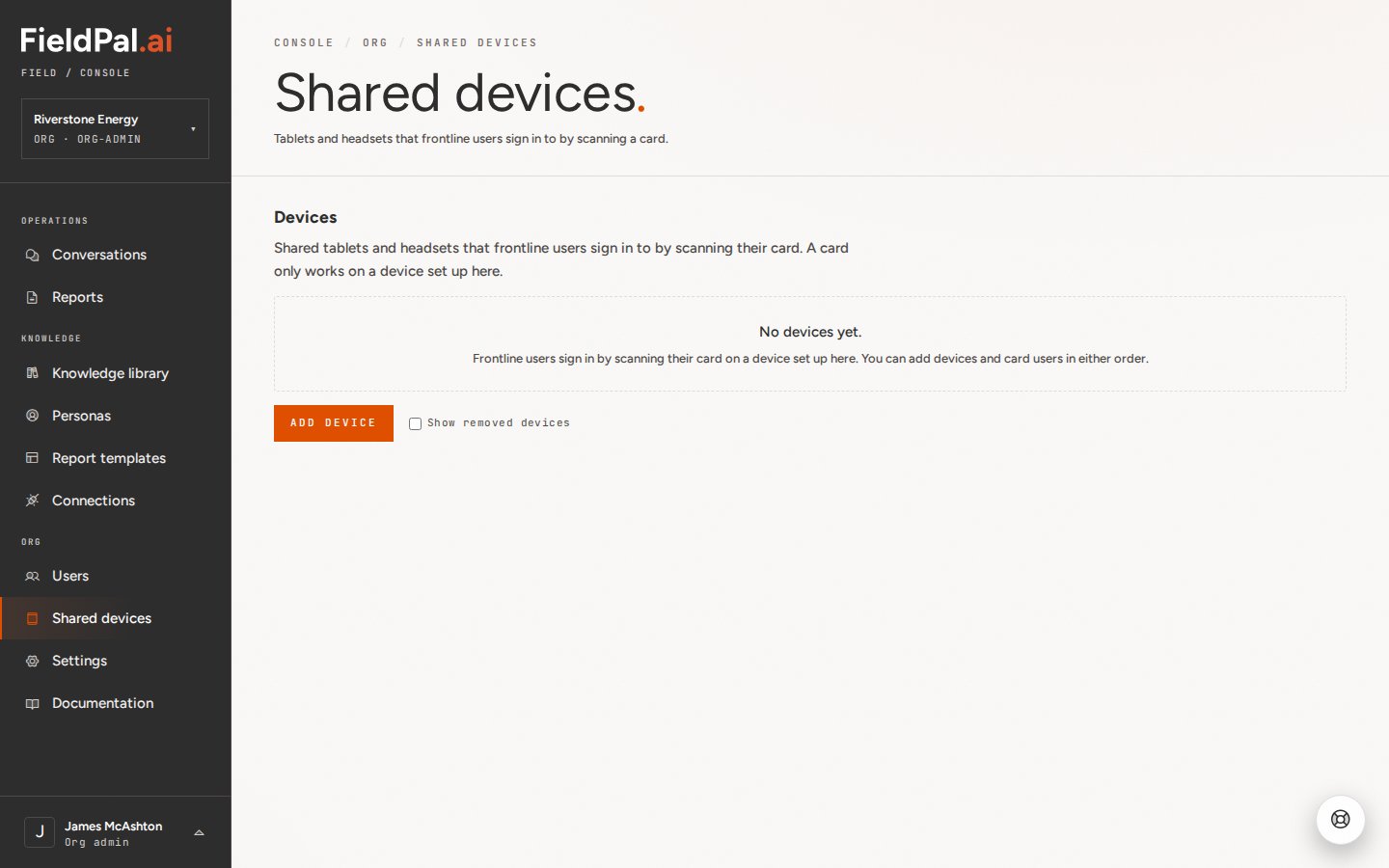
In the left-hand sidebar, click **Shared devices**.
 ### Step 2: Click Add device
Click **Add device**. A QR code appears, along with the instruction to open **Scan setup code** on the tablet or headset and enter the code shown.
### Step 2: Click Add device
Click **Add device**. A QR code appears, along with the instruction to open **Scan setup code** on the tablet or headset and enter the code shown.
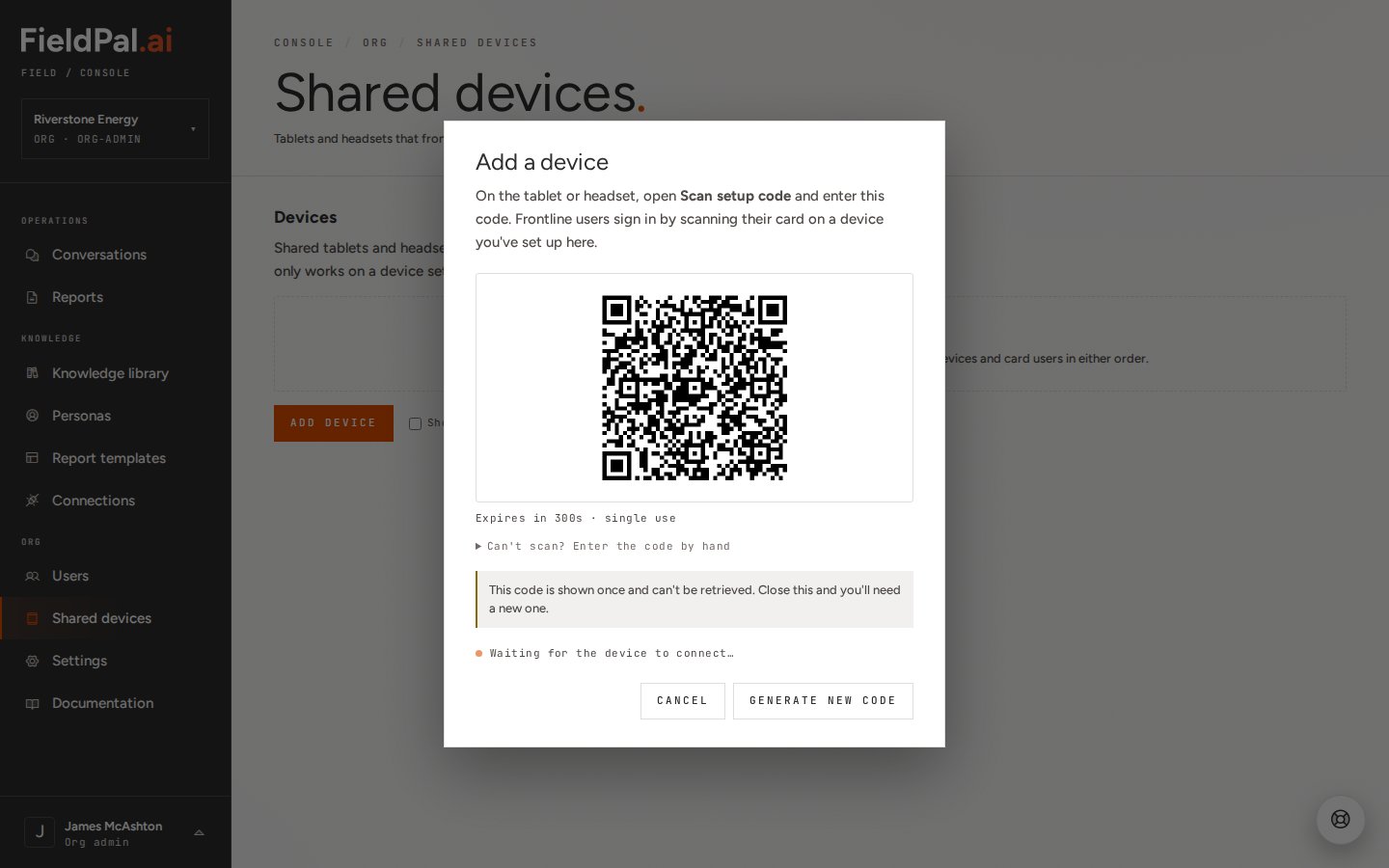 The code is single-use and expires in 300 seconds. It's only shown once, so if the dialog is closed before the device connects, click **Generate new code** to start again.
### Step 3: Scan or enter the code on the device
On the tablet or headset, open the FieldPal app and choose **Scan setup code**, then point the camera at the QR code.
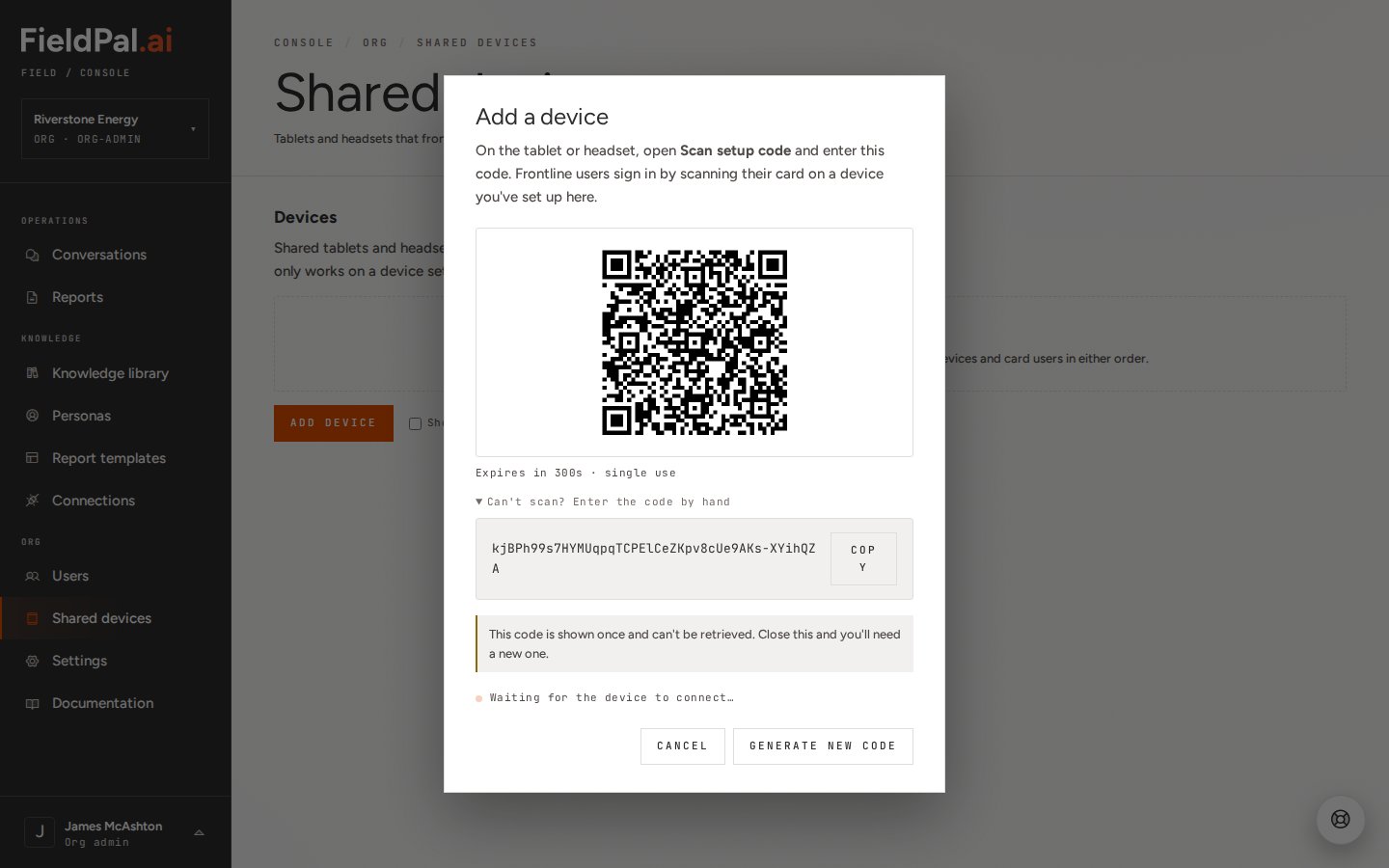
If the device can't scan the code, click **Can't scan? Enter the code by hand** to reveal a text version that can be typed in instead.
The code is single-use and expires in 300 seconds. It's only shown once, so if the dialog is closed before the device connects, click **Generate new code** to start again.
### Step 3: Scan or enter the code on the device
On the tablet or headset, open the FieldPal app and choose **Scan setup code**, then point the camera at the QR code.
If the device can't scan the code, click **Can't scan? Enter the code by hand** to reveal a text version that can be typed in instead.
 ### Step 4: Device connects
Once the device scans or enters the code, it pairs to your organisation and shows in the **Devices** list. Card users can now sign in on it.
***
## Part 2: Add a card user
### Step 1: Open Users
In the left-hand sidebar, click **Users**.
### Step 4: Device connects
Once the device scans or enters the code, it pairs to your organisation and shows in the **Devices** list. Card users can now sign in on it.
***
## Part 2: Add a card user
### Step 1: Open Users
In the left-hand sidebar, click **Users**.
 ### Step 2: Click Add a card user
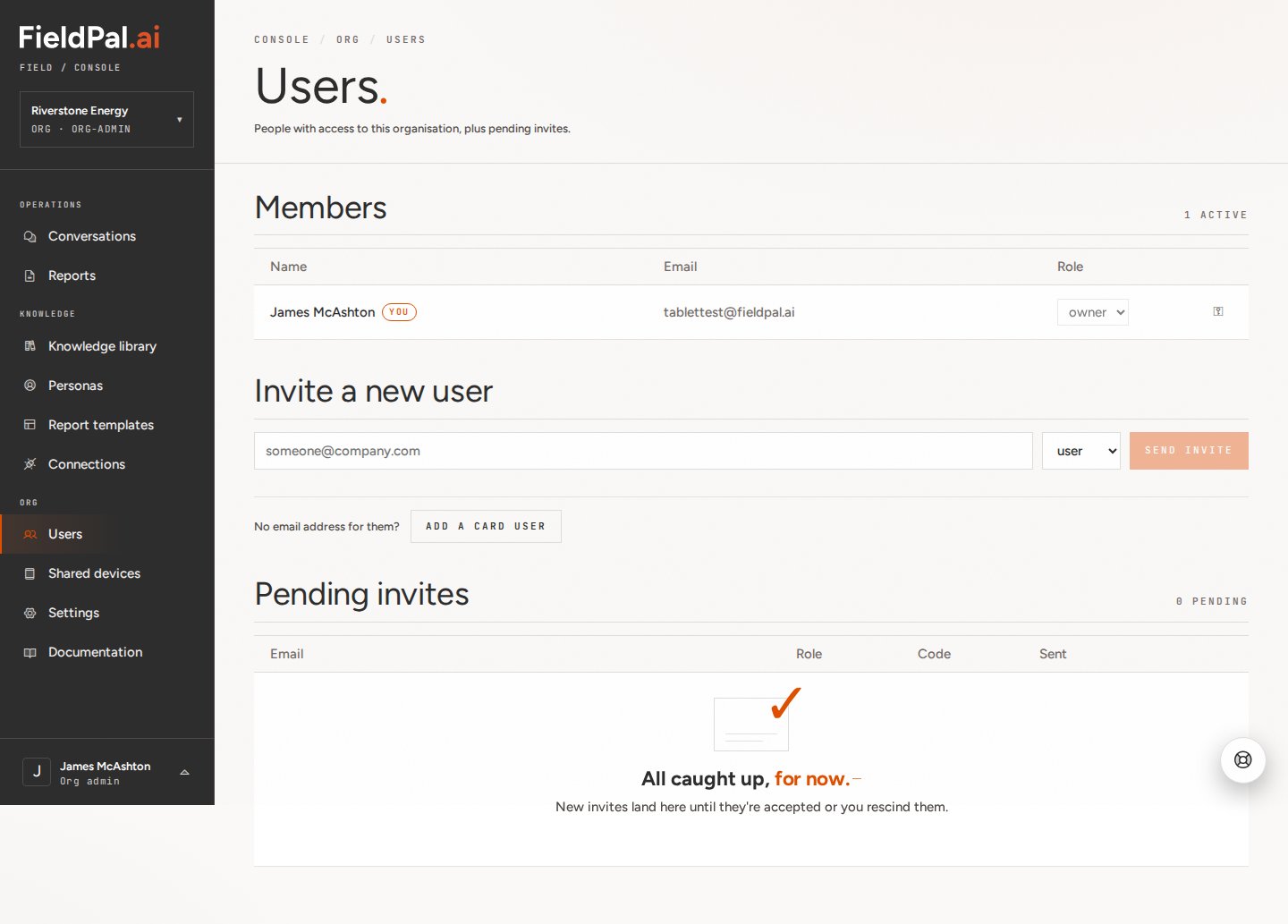
Under **Invite a new user**, next to "No email address for them?", click **Add a card user**.
### Step 2: Click Add a card user
Under **Invite a new user**, next to "No email address for them?", click **Add a card user**.
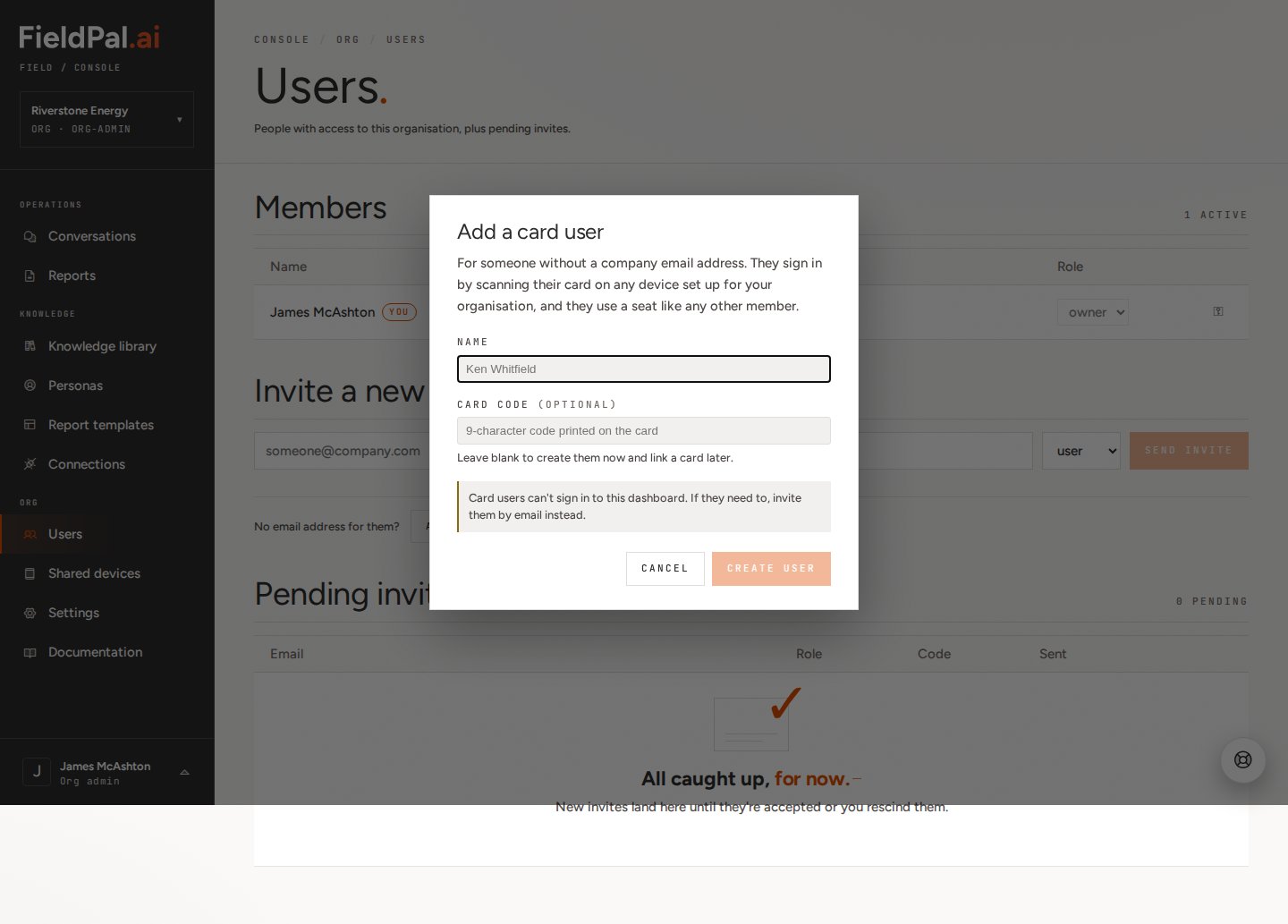 ### Step 3: Enter their name
Type the person's name in the **Name** field. The **Card code** field is optional — leave it blank to create the user now and link a card to them later.
### Step 3: Enter their name
Type the person's name in the **Name** field. The **Card code** field is optional — leave it blank to create the user now and link a card to them later.
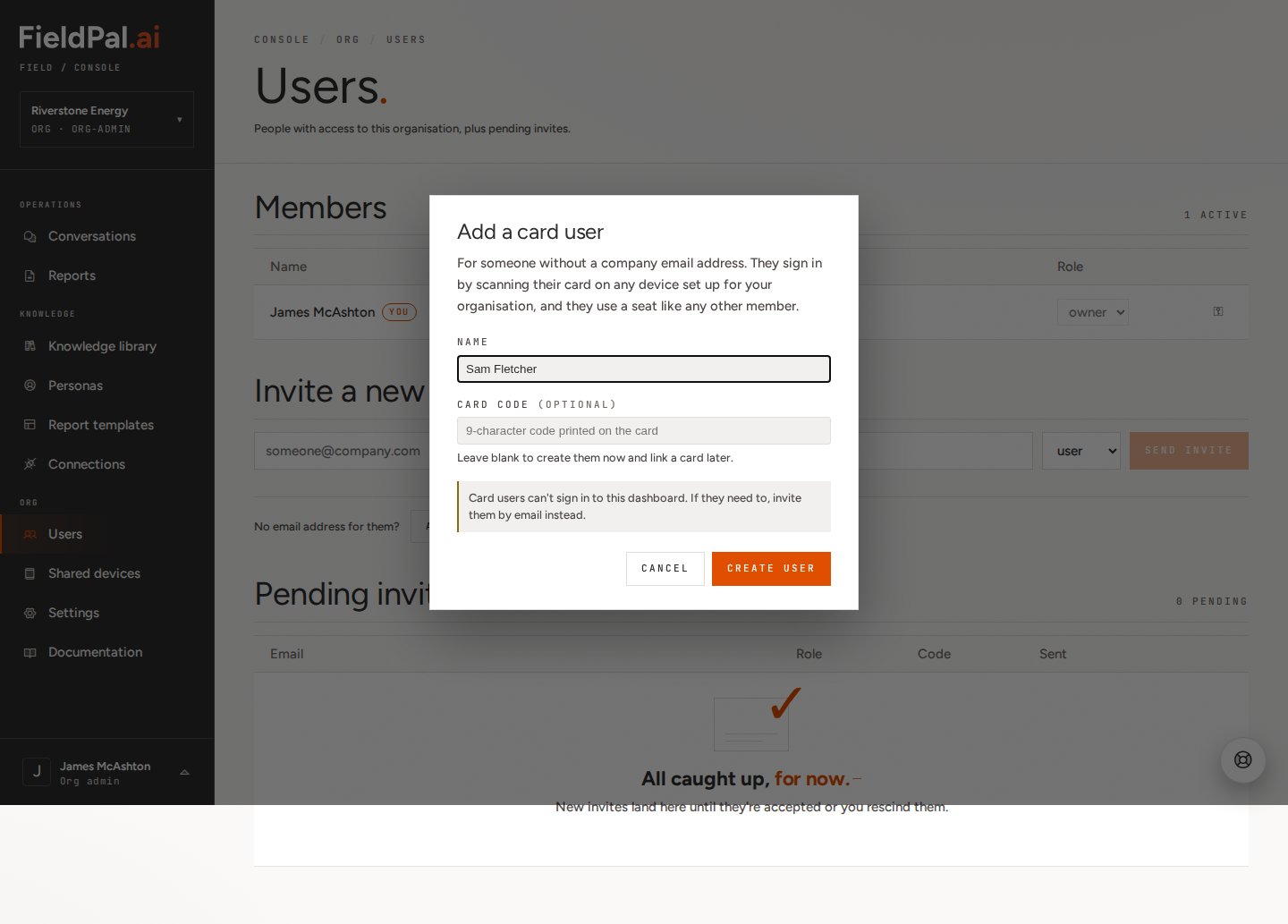 Click **Create user**.
### Step 4: Card user is added
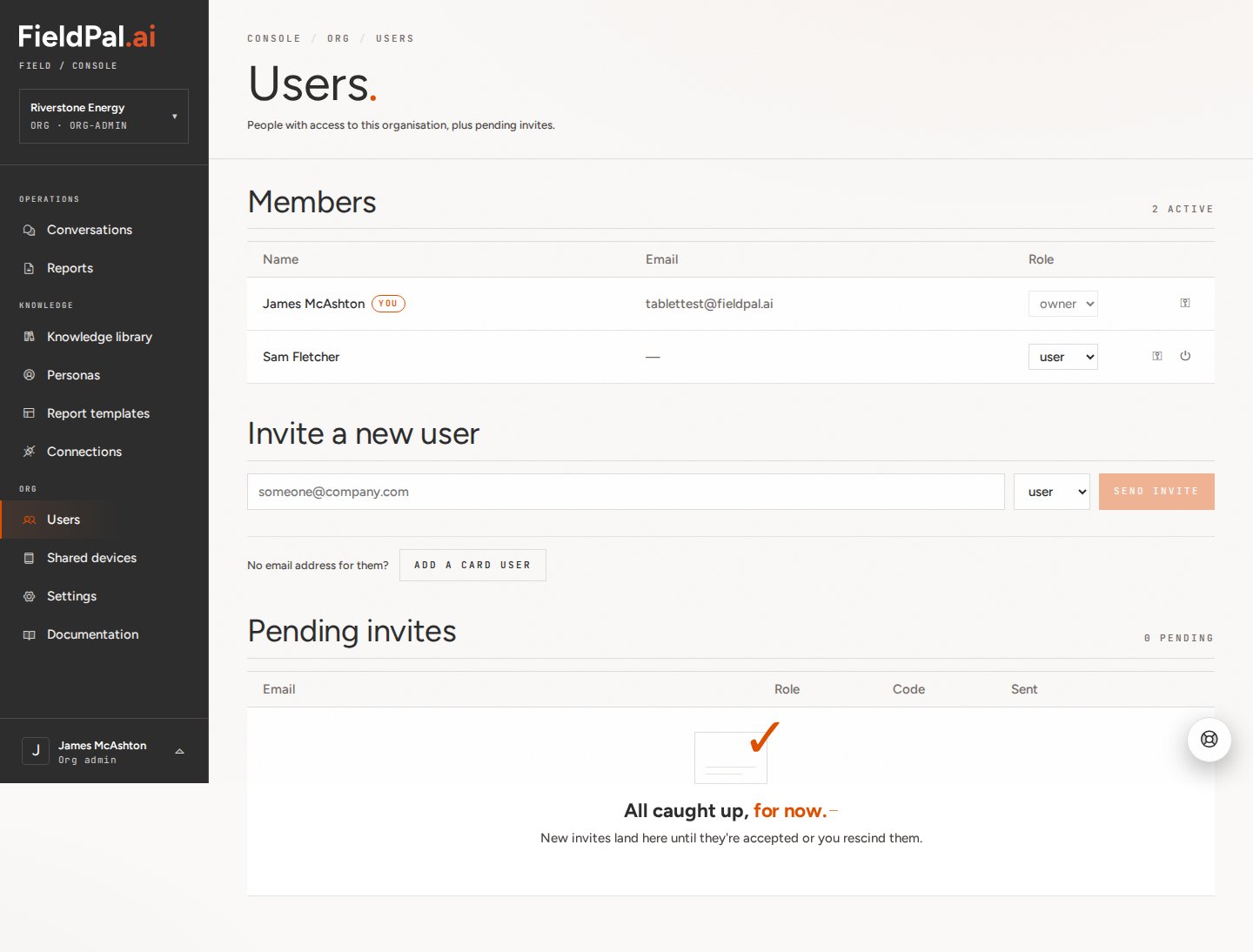
The new card user appears in the **Members** list with no email address. They use a seat like any other member, but can't sign in to the dashboard, only to a shared device, by scanning their card.
Click **Create user**.
### Step 4: Card user is added
The new card user appears in the **Members** list with no email address. They use a seat like any other member, but can't sign in to the dashboard, only to a shared device, by scanning their card.
 ***
## Linking a physical card
If a card user was created without a card code, or needs a replacement card, link one from the Users page.
### Step 1: Open login methods
Next to the card user's name, click the key icon.
### Step 2: Assign the card
Type the 9-character code printed on the physical card and click **Assign card**.
***
## Linking a physical card
If a card user was created without a card code, or needs a replacement card, link one from the Users page.
### Step 1: Open login methods
Next to the card user's name, click the key icon.
### Step 2: Assign the card
Type the 9-character code printed on the physical card and click **Assign card**.
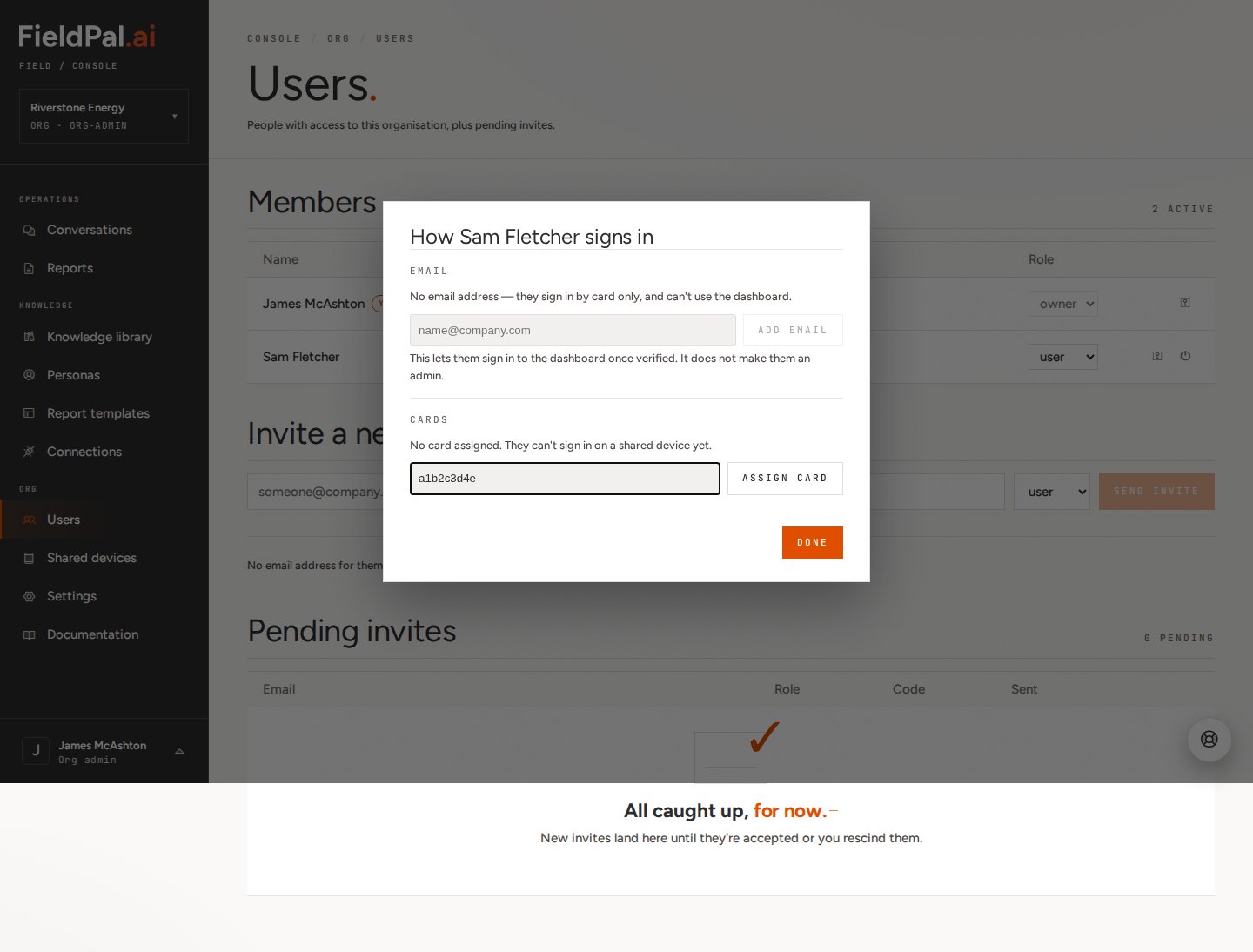 If the code doesn't match a real, issued card, you'll see an error:
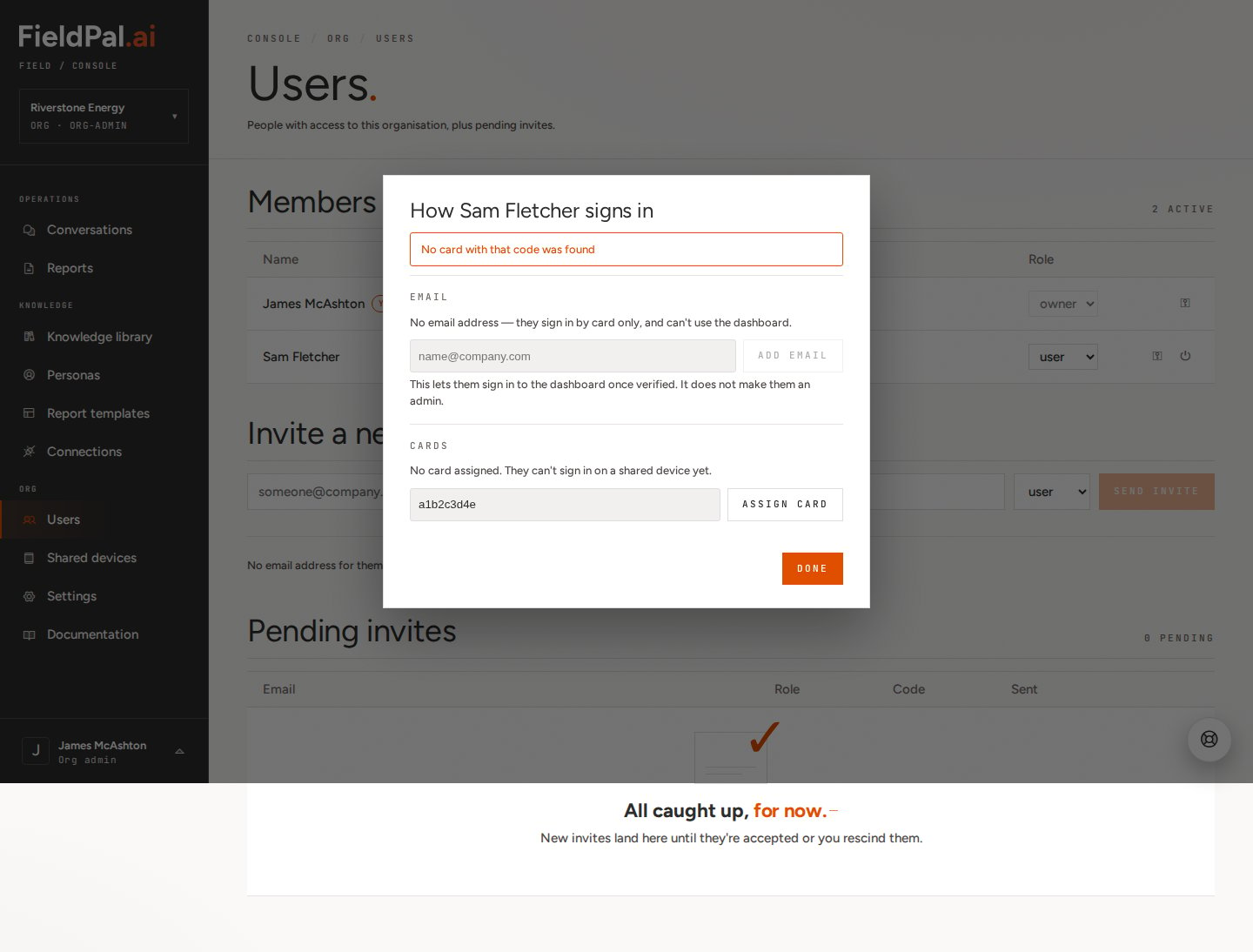 Once a valid card is assigned, click **Done**. The card user can now sign in on any shared device registered to your organisation.
***
## What the card user sees
On a registered shared device, the sign-in screen looks like this:
Once a valid card is assigned, click **Done**. The card user can now sign in on any shared device registered to your organisation.
***
## What the card user sees
On a registered shared device, the sign-in screen looks like this:
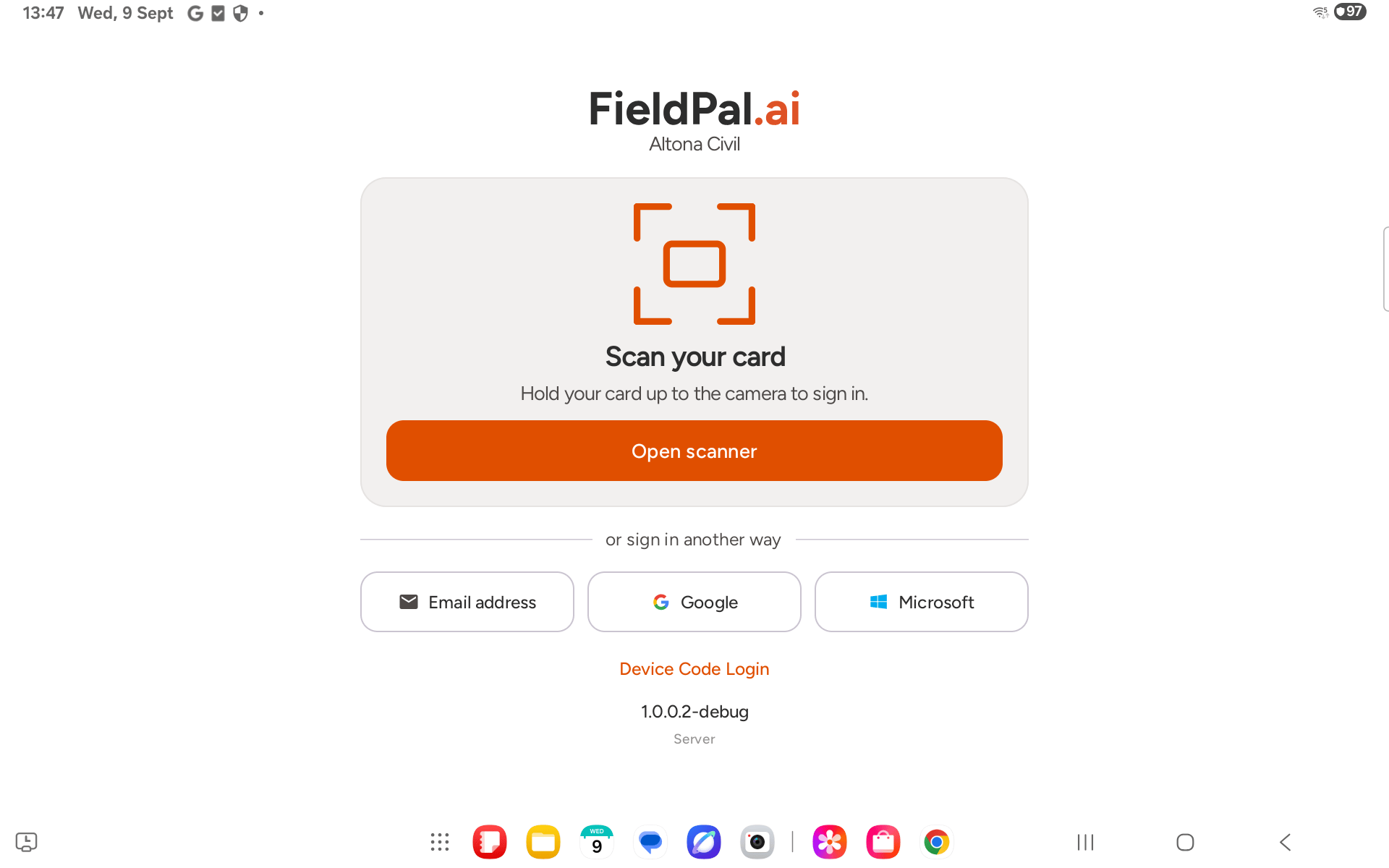 They tap **Open scanner** and hold their card up to the camera to sign in.
***
## Tips
* **Order doesn't matter.** Register the device or add the card user first — the dashboard supports either order.
* **Setup codes expire fast.** If the 300-second window runs out before the device connects, generate a new code rather than reusing the old one.
* **Card users can't use the dashboard.** If one later needs dashboard access, add an email address for them from the same login methods dialog. This doesn't make them an admin on its own.
* **Card codes must be real.** The code has a built-in checksum that catches typos, but it isn't something you can invent — it has to match a card FieldPal has actually issued for your organisation.
* **A card only works on registered devices.** If a card won't scan, check the device it's being used on is actually listed under Shared devices for the same organisation.
They tap **Open scanner** and hold their card up to the camera to sign in.
***
## Tips
* **Order doesn't matter.** Register the device or add the card user first — the dashboard supports either order.
* **Setup codes expire fast.** If the 300-second window runs out before the device connects, generate a new code rather than reusing the old one.
* **Card users can't use the dashboard.** If one later needs dashboard access, add an email address for them from the same login methods dialog. This doesn't make them an admin on its own.
* **Card codes must be real.** The code has a built-in checksum that catches typos, but it isn't something you can invent — it has to match a card FieldPal has actually issued for your organisation.
* **A card only works on registered devices.** If a card won't scan, check the device it's being used on is actually listed under Shared devices for the same organisation.