> ## Documentation Index
> Fetch the complete documentation index at: https://docs.fieldpal.ai/llms.txt
> Use this file to discover all available pages before exploring further.
# Logging in
> How to sign in to the FieldPal dashboard.
The FieldPal dashboard is at [dashboard.fieldpal.ai](https://dashboard.fieldpal.ai). You can sign in with Google, Microsoft, or an email and password.
## Step 1: Go to the login page
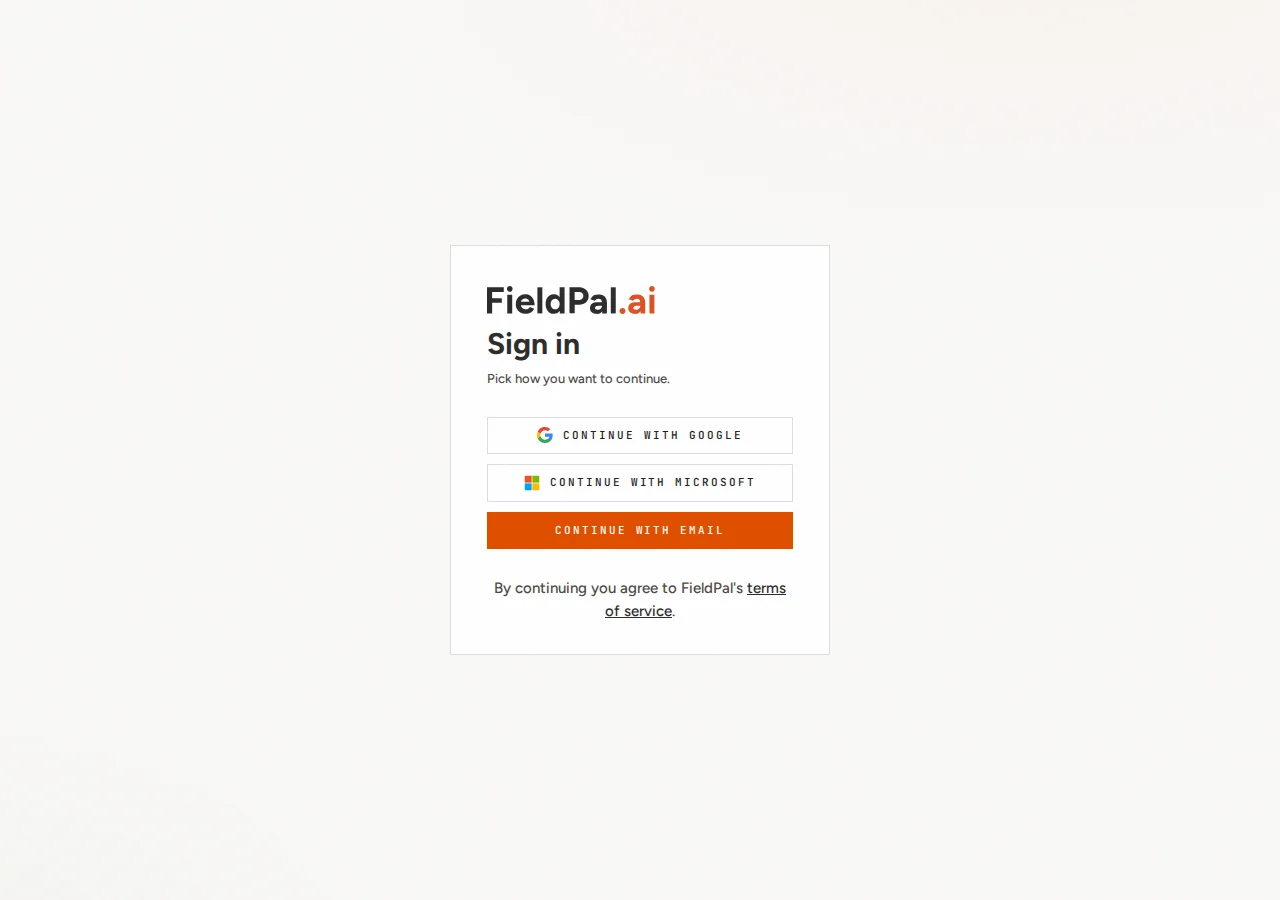
Navigate to [dashboard.fieldpal.ai](https://dashboard.fieldpal.ai). You will see three options.
 ## Step 2: Choose how to sign in
Pick whichever method matches your account:
* **Continue with Google**: signs you in using your Google account.
* **Continue with Microsoft**: signs you in using your Microsoft / work account.
* **Continue with email**: signs you in with an email address and password.
## Signing in with email
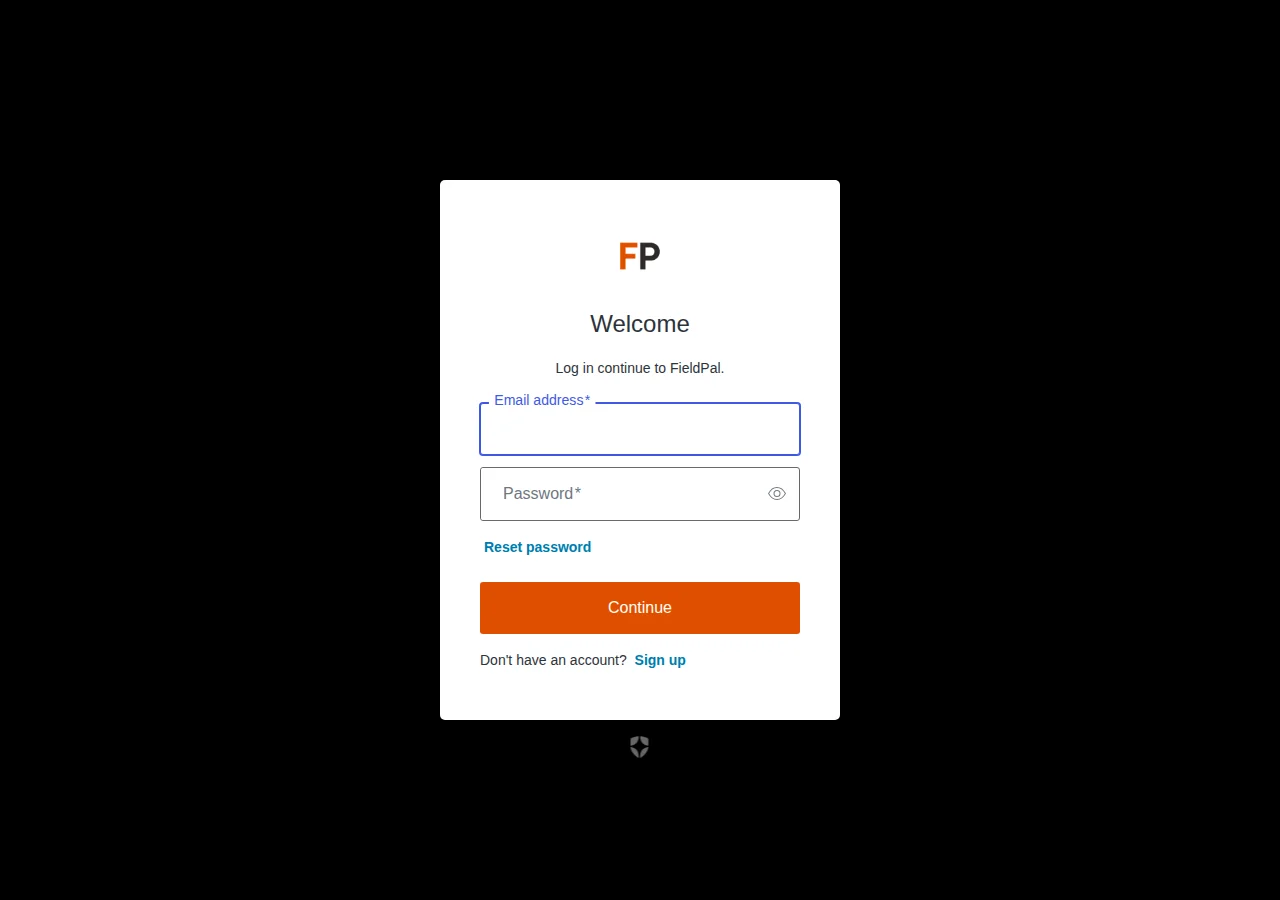
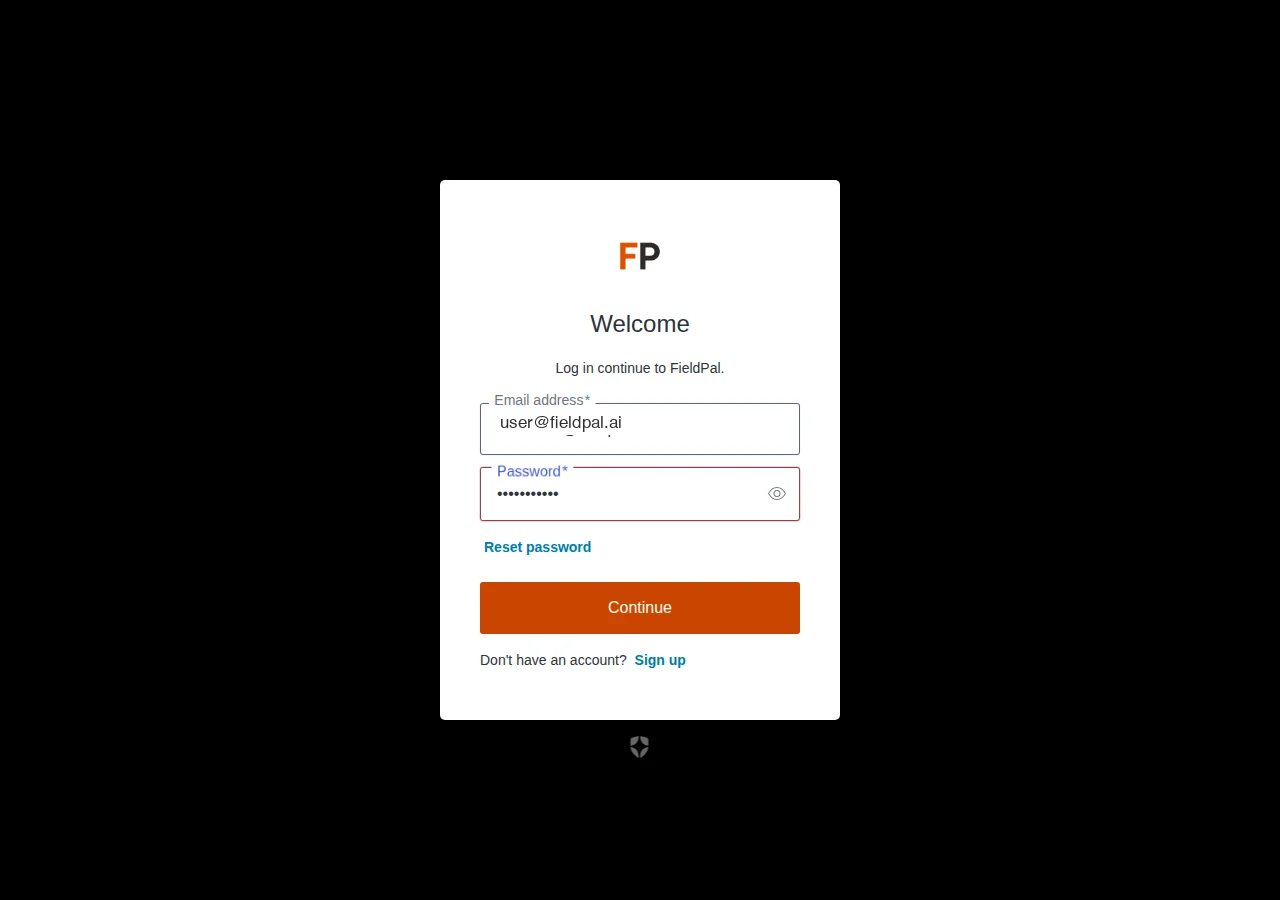
If you choose **Continue with email**, you are taken to a two-step form.
### Enter your email address
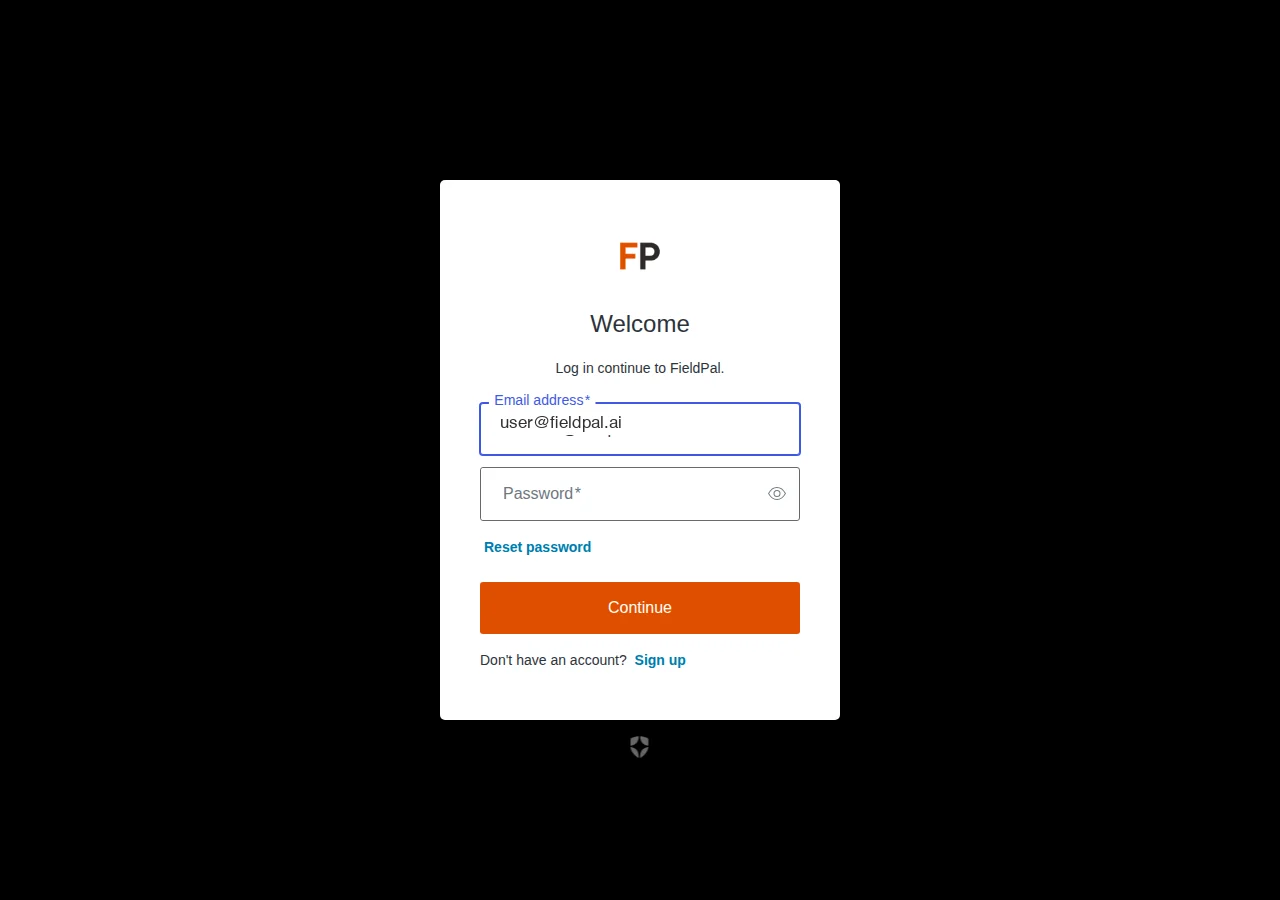
Type your email into the username field and click **Continue**.
## Step 2: Choose how to sign in
Pick whichever method matches your account:
* **Continue with Google**: signs you in using your Google account.
* **Continue with Microsoft**: signs you in using your Microsoft / work account.
* **Continue with email**: signs you in with an email address and password.
## Signing in with email
If you choose **Continue with email**, you are taken to a two-step form.
### Enter your email address
Type your email into the username field and click **Continue**.
 ### Enter your password
After clicking Continue, the password field appears on the same page.
### Enter your password
After clicking Continue, the password field appears on the same page.
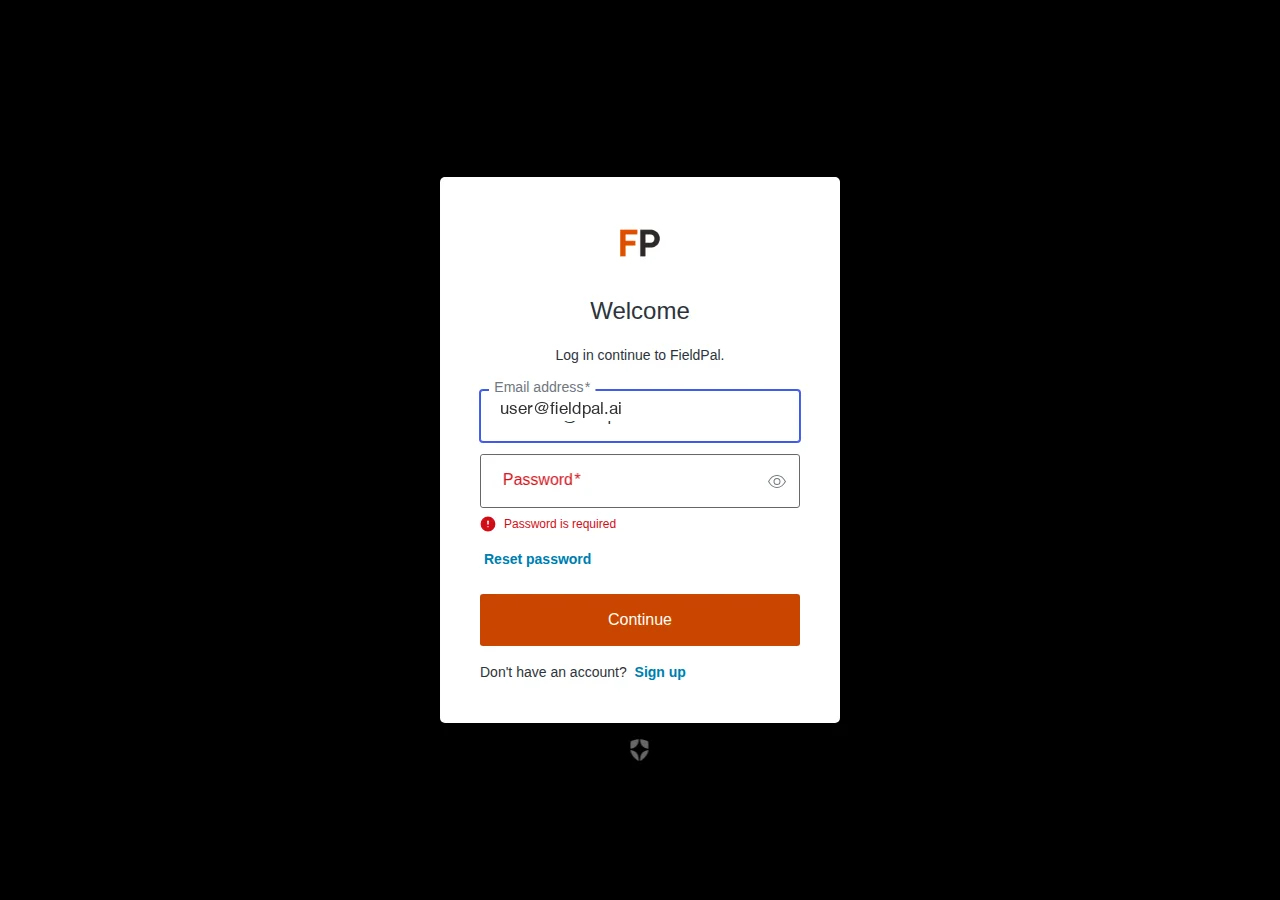 Type your password and click **Continue** again.
 ## After signing in
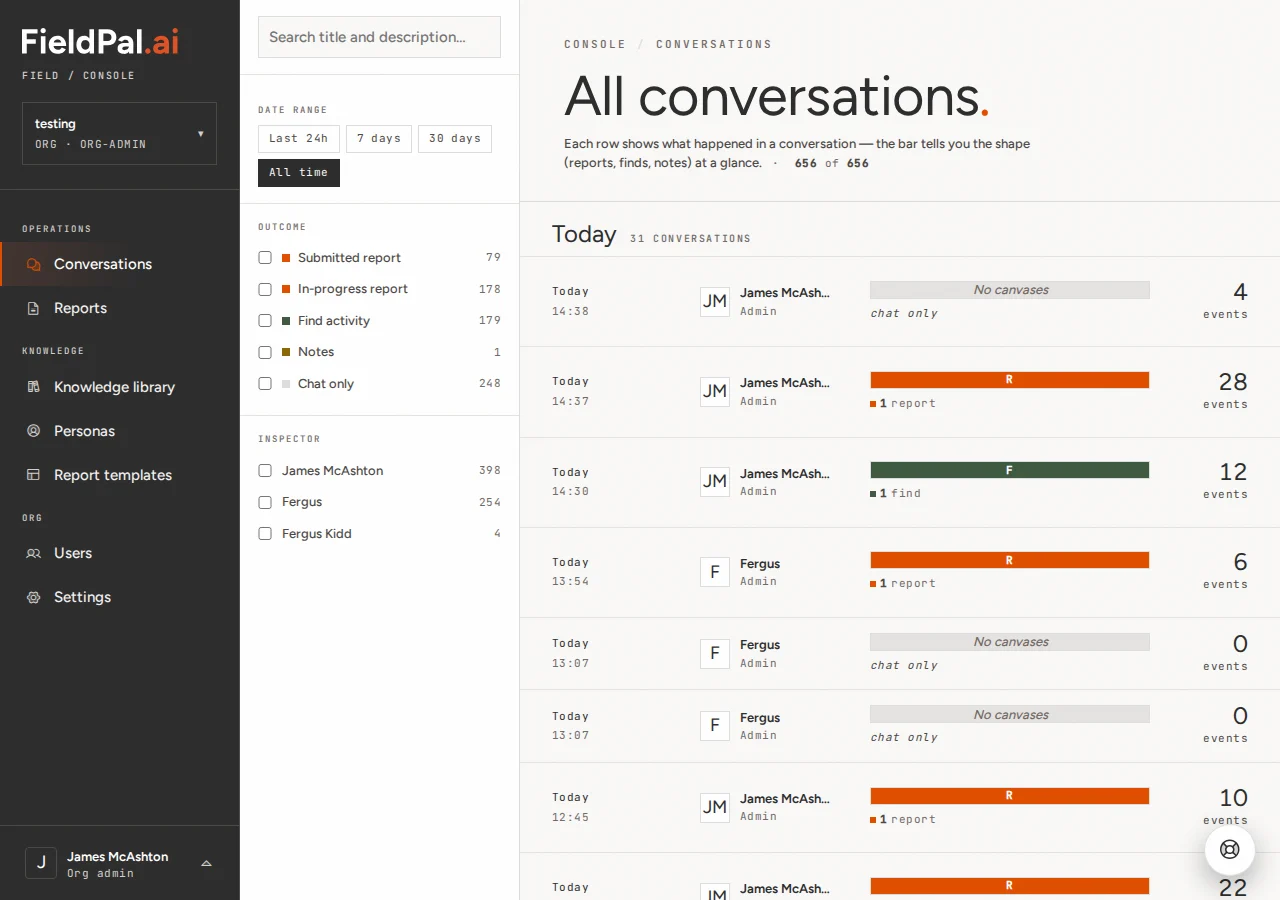
On success you are redirected back to the FieldPal dashboard and land on the **Conversations** page.
## After signing in
On success you are redirected back to the FieldPal dashboard and land on the **Conversations** page.
 If you have forgotten your password, use the **Reset password** link on the sign-in form to reset it.