

What it enables on site
Once documents are in the library, field workers can ask the assistant natural questions while they are on the job:- “How do I connect the scissor lift to AC power?”
- “Can you tell me about the Truma heating system on a Bailey caravan?”
- “How do I clean the Phillips coffee machine?”
Supported file types
Adding documents to the library
Step 1: Open the Knowledge Library
In the left-hand sidebar, click Knowledge library. You will see all previously uploaded documents, each listed with its file type, size, and indexed status.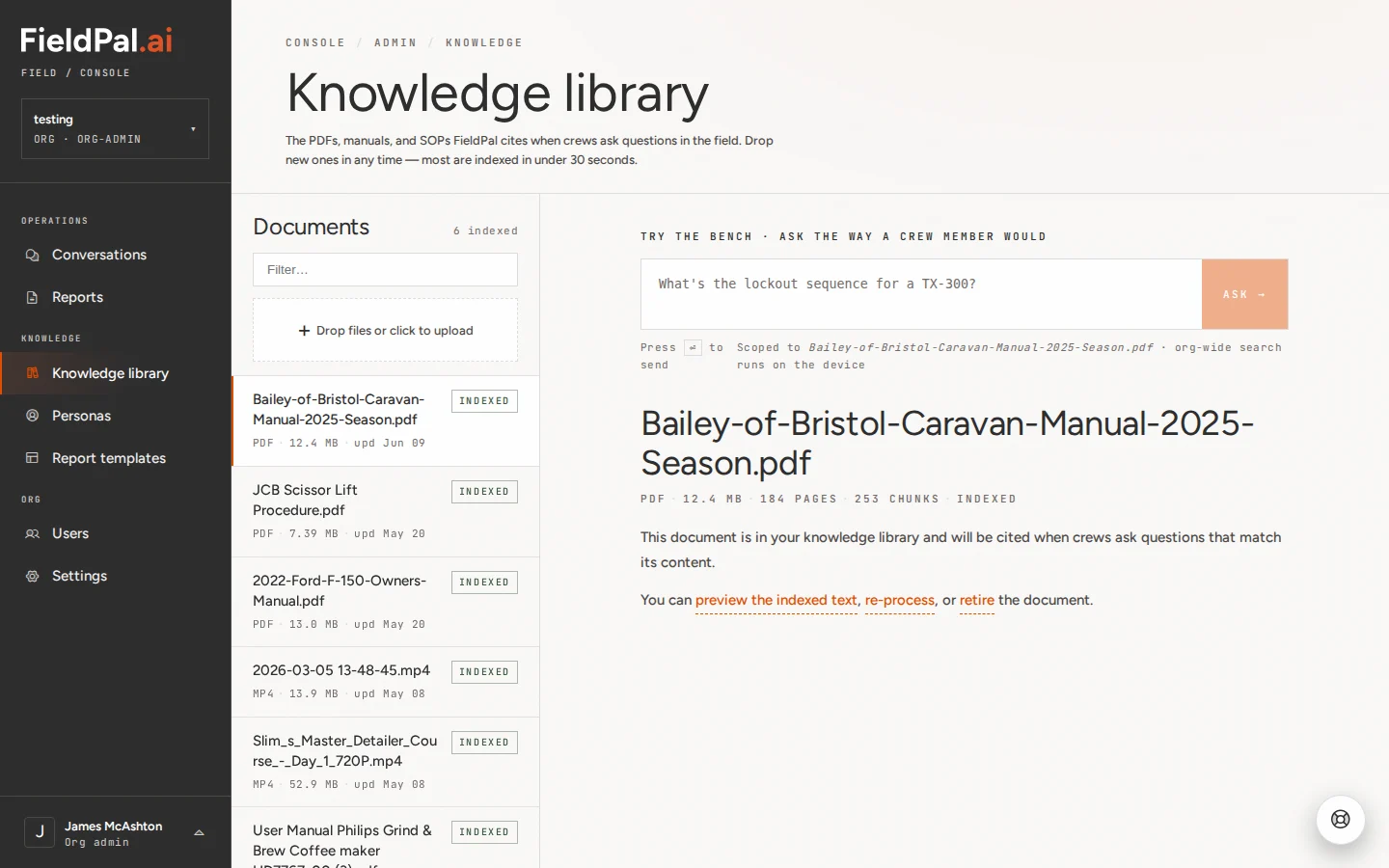
Step 2: Open the upload dialog
Click the + Drop files or click to upload button at the top of the document list. The “Upload documents” dialog will appear.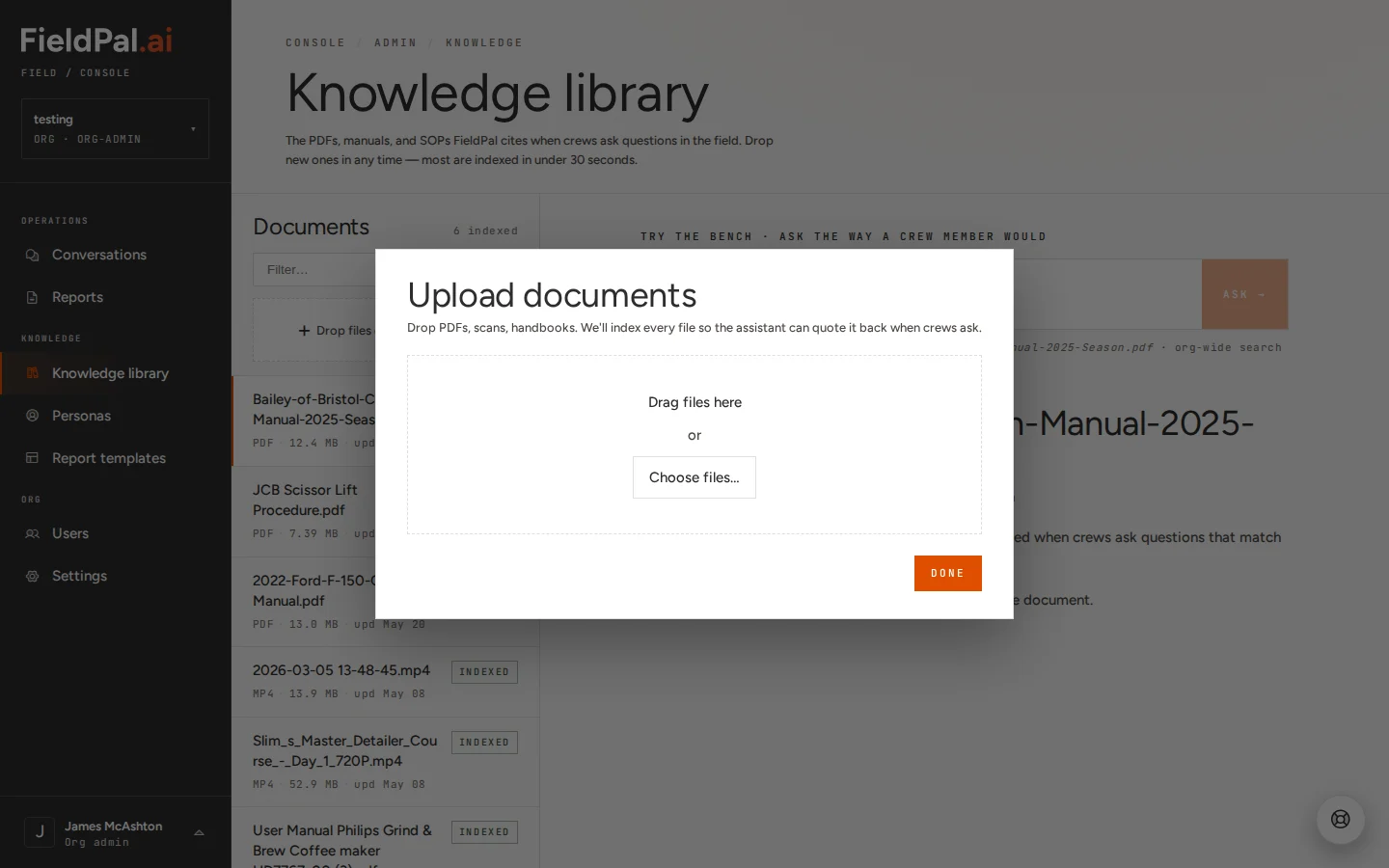
Step 3: Choose your files
File picker: Click Choose files… inside the dialog and select one or more files. The file picker shows documents and images. Drag and drop: Drag files from your file manager directly onto the drop area. Use this method for video files (.mp4), which do not appear in the file picker. You can upload multiple files at once with either method. Each file appears in the dialog with its filename, size, and a status indicator.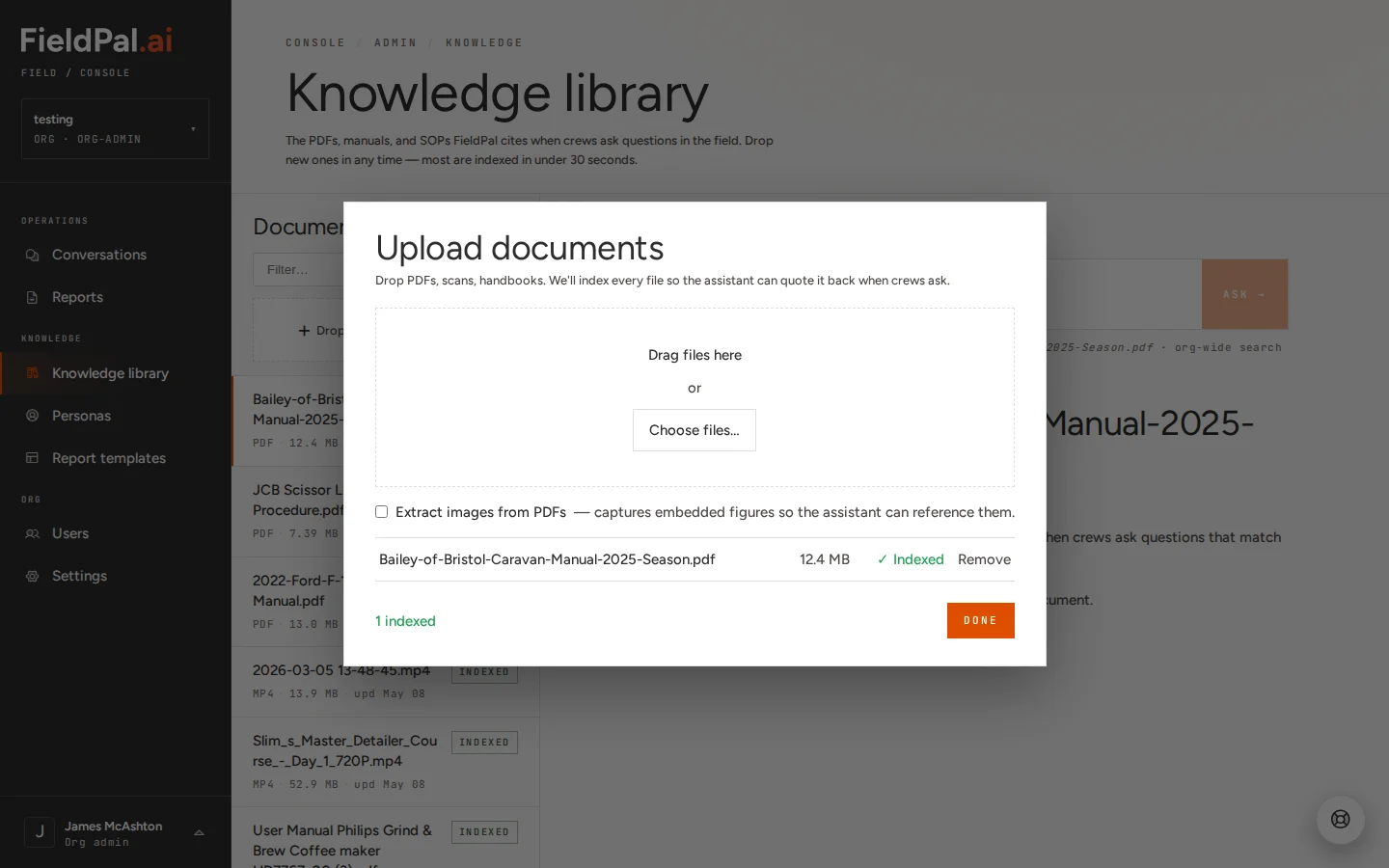
Step 4: Extract images from PDFs (optional)
Before clicking Done, you will see a toggle: Extract images from PDFs. Turn this on if your PDFs contain diagrams, charts, safety illustrations, or labelled photos that you want the assistant to reference. Leave it off for text-only documents.Step 5: Confirm the upload
Click Done. Your files appear in the document list with a Processing status while indexing runs in the background. Standard documents typically take a minute or two. Large video files can take 10–15 minutes.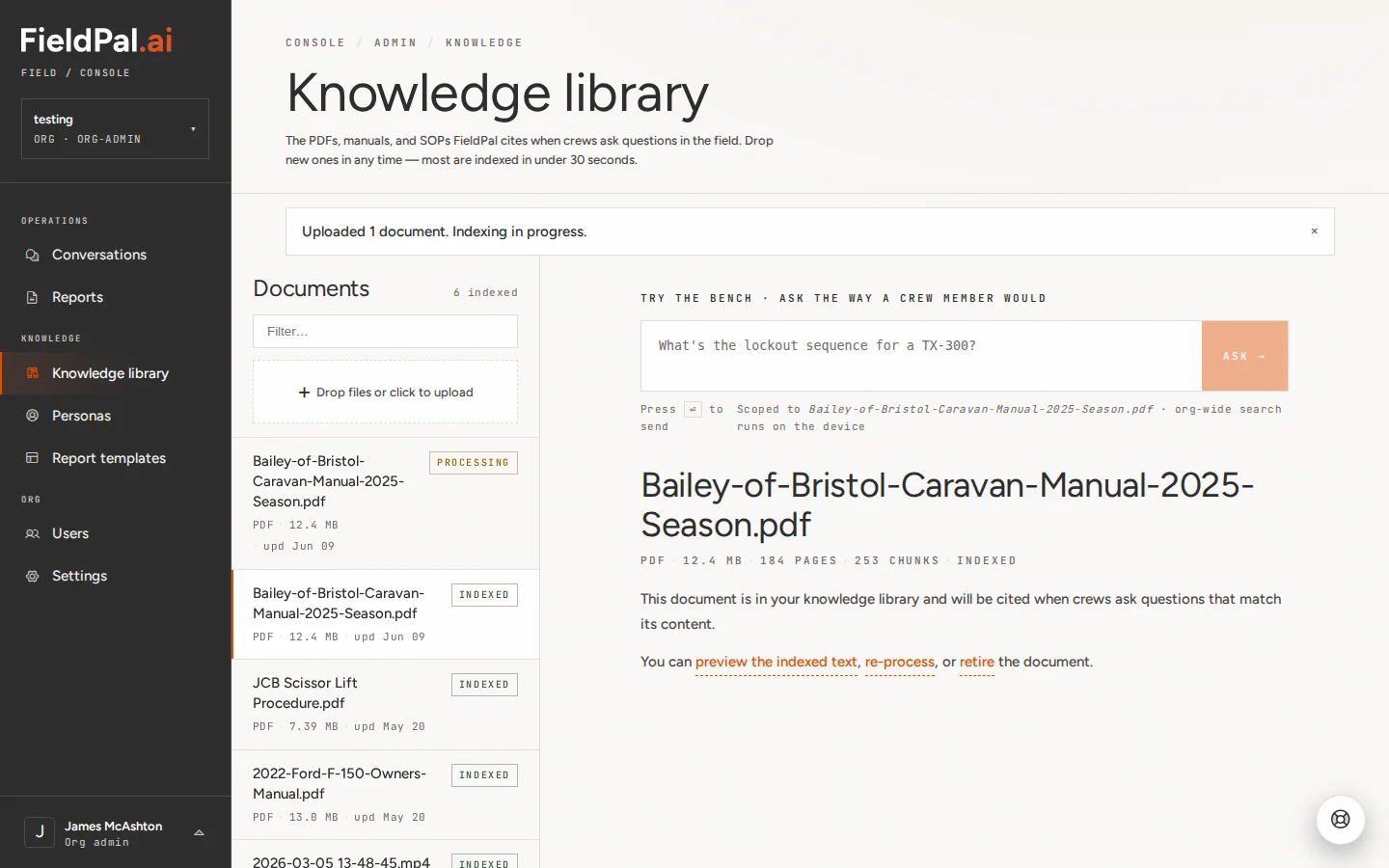
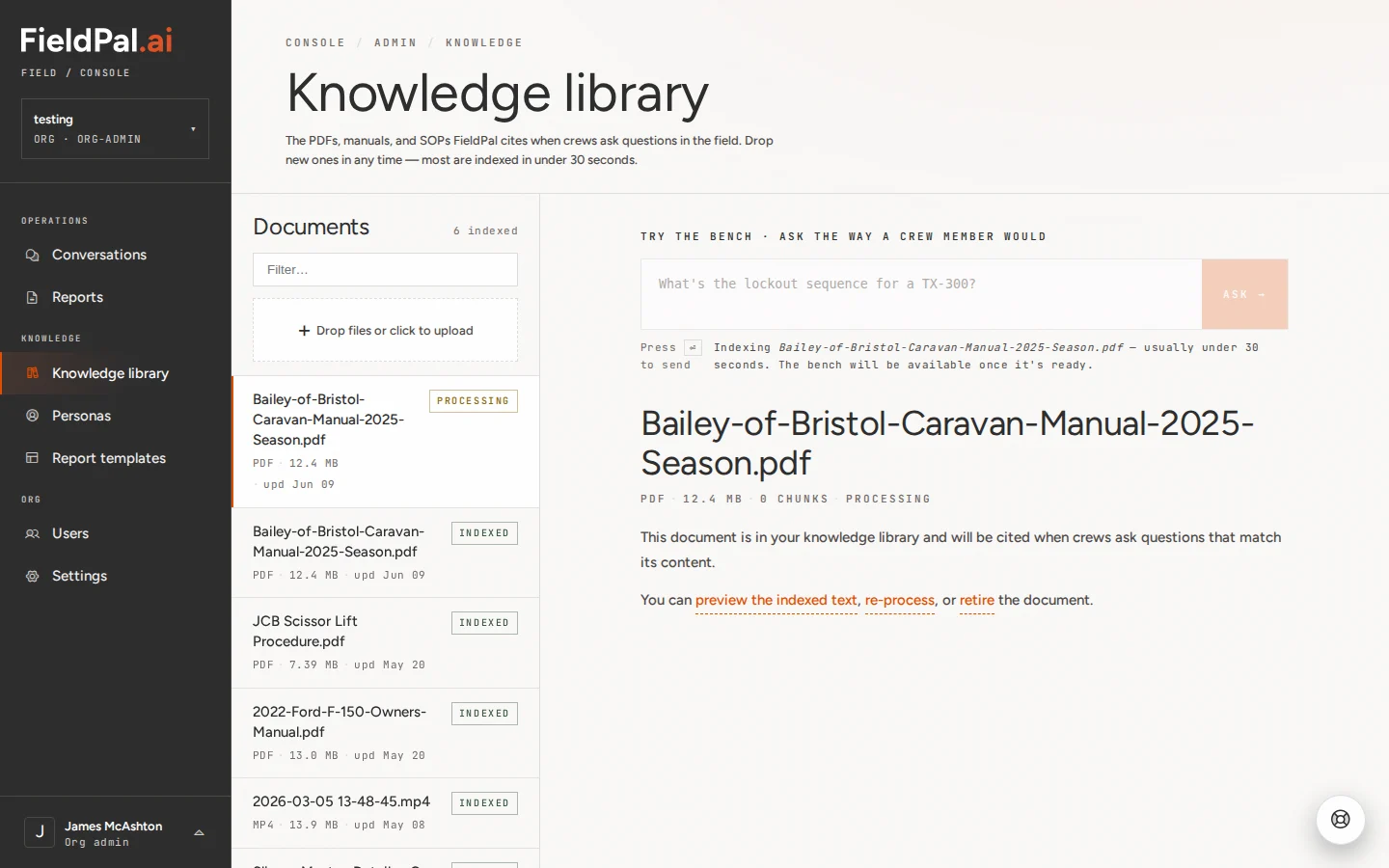
Step 6: Verify it is working (optional)
Hover over any document to reveal its action buttons. Click Ask → to open a test conversation pre-loaded with that document as context. Ask a question about the content to confirm the assistant finds the right information before your team starts relying on it.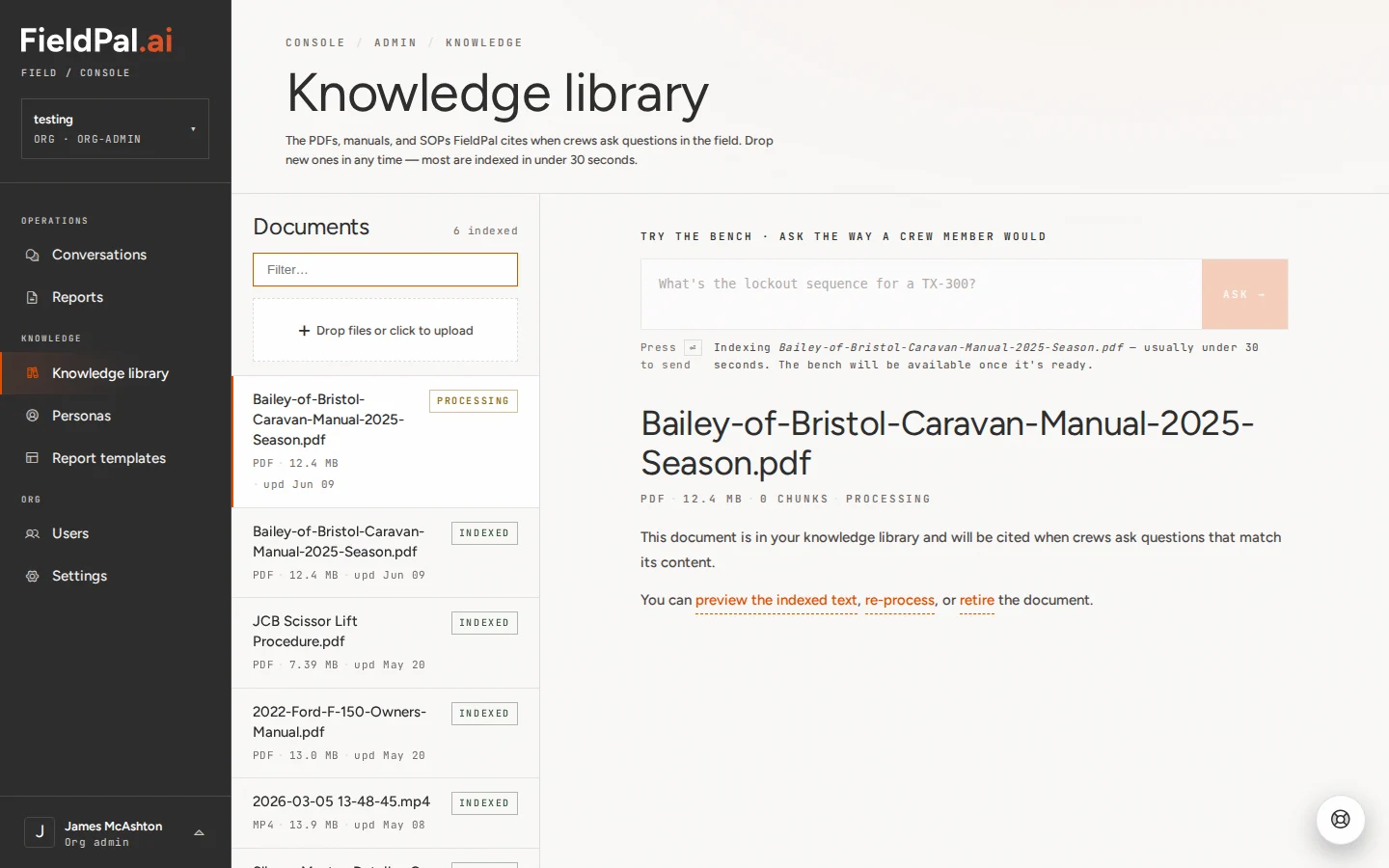
Filtering the library
Use the Filter… search box at the top of the document list to find a file by name.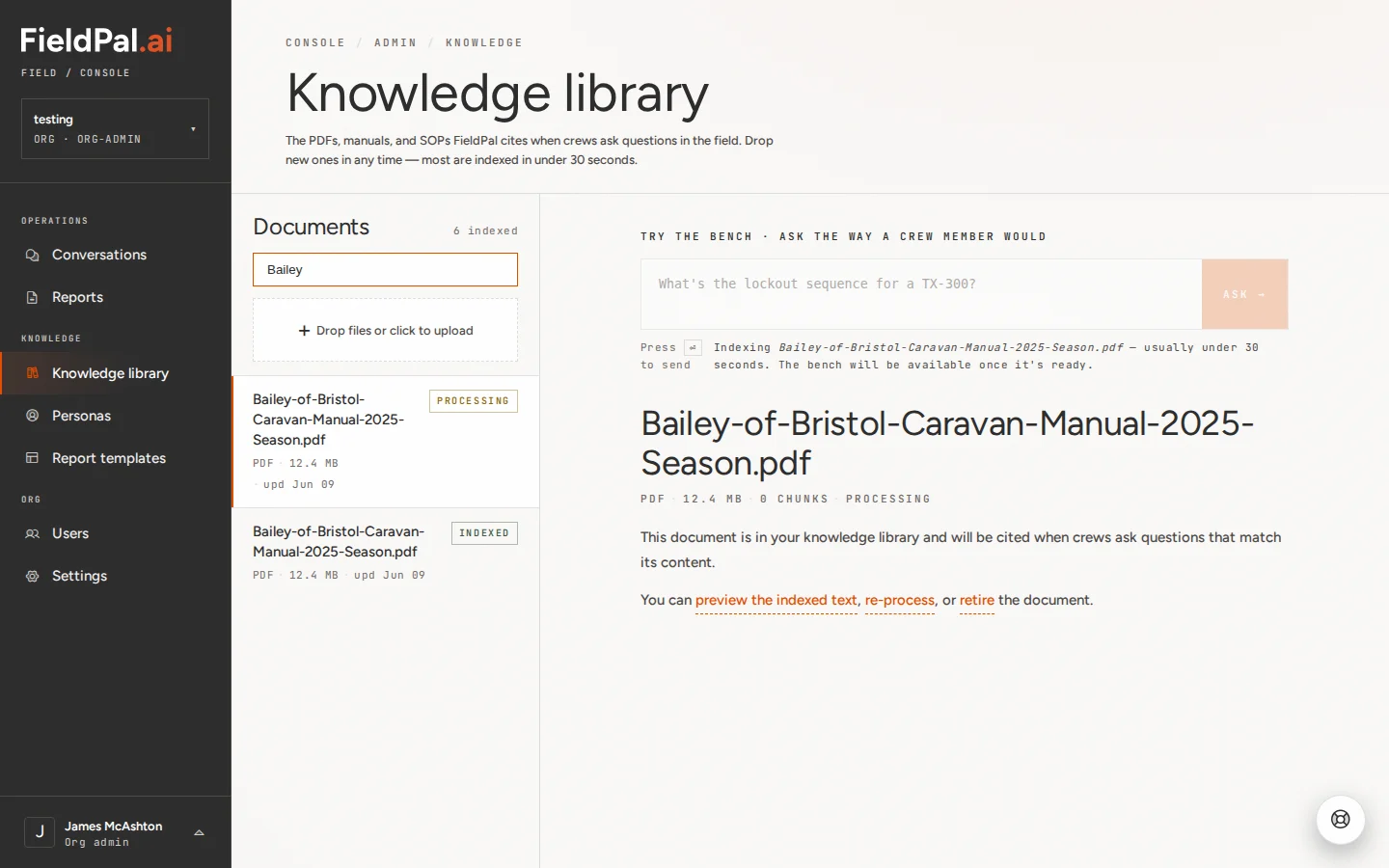
Managing existing documents
Hover over any document to reveal three actions: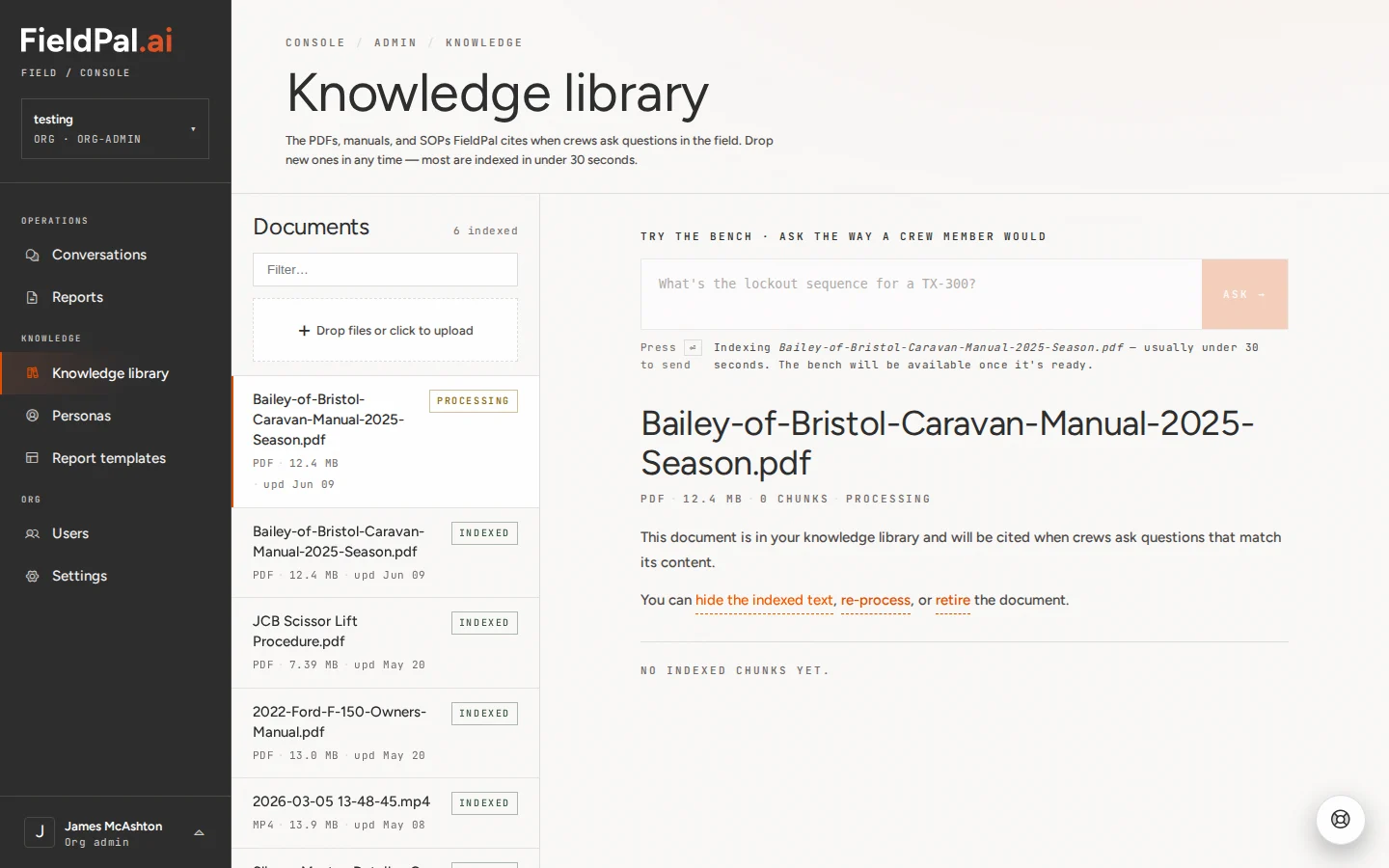
Tips
- File names matter. The assistant uses the file name as part of its context. Rename files to something descriptive before uploading:
JCB-Scissor-Lift-Safety-Procedure.pdfis far more useful thandoc_v3_final.pdf. - Scanned PDFs index less accurately. If the assistant gives poor answers from a scanned document, use “Preview indexed text” to check what was extracted. Upload a text-based version if one is available.
- The library is organisation-wide. All admin users can see and manage it. There is no per-user scoping at upload time.