

Step 1: Open the app
Tap the FieldPal icon on your device’s home screen. On a device set up for card sign-in, you will see Scan your card as the main option, with other ways to sign in underneath.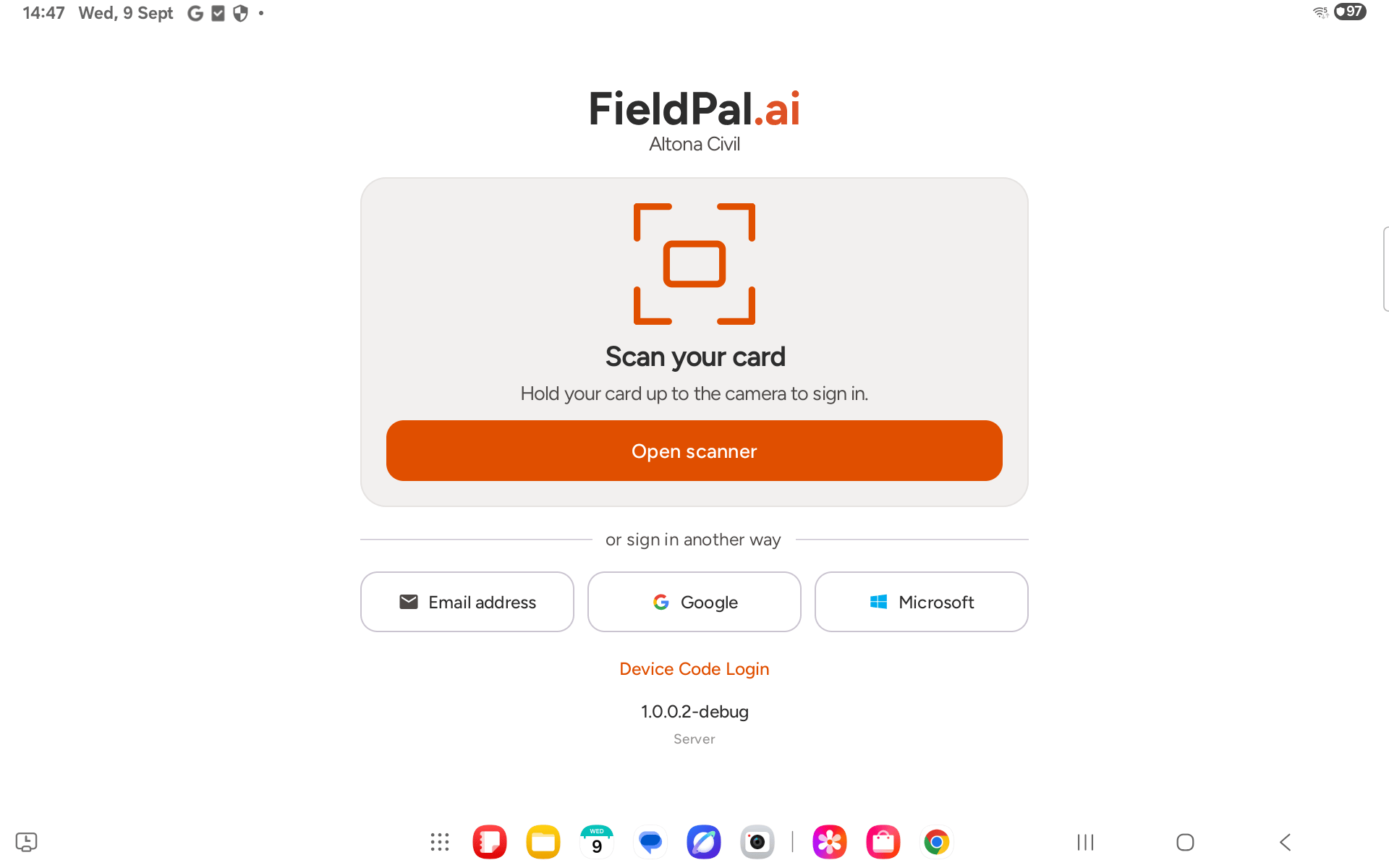
- If your organisation has issued you a card, tap Open scanner and hold your card up to the camera. See Shared devices and card users for how this is set up.
- Otherwise, sign in with your email and password, or with Google or Microsoft if your organisation uses one of those, using the options under or sign in another way.
Step 2: Sign in with email
Tap Email address. You’ll see a dedicated sign-in screen for entering your credentials.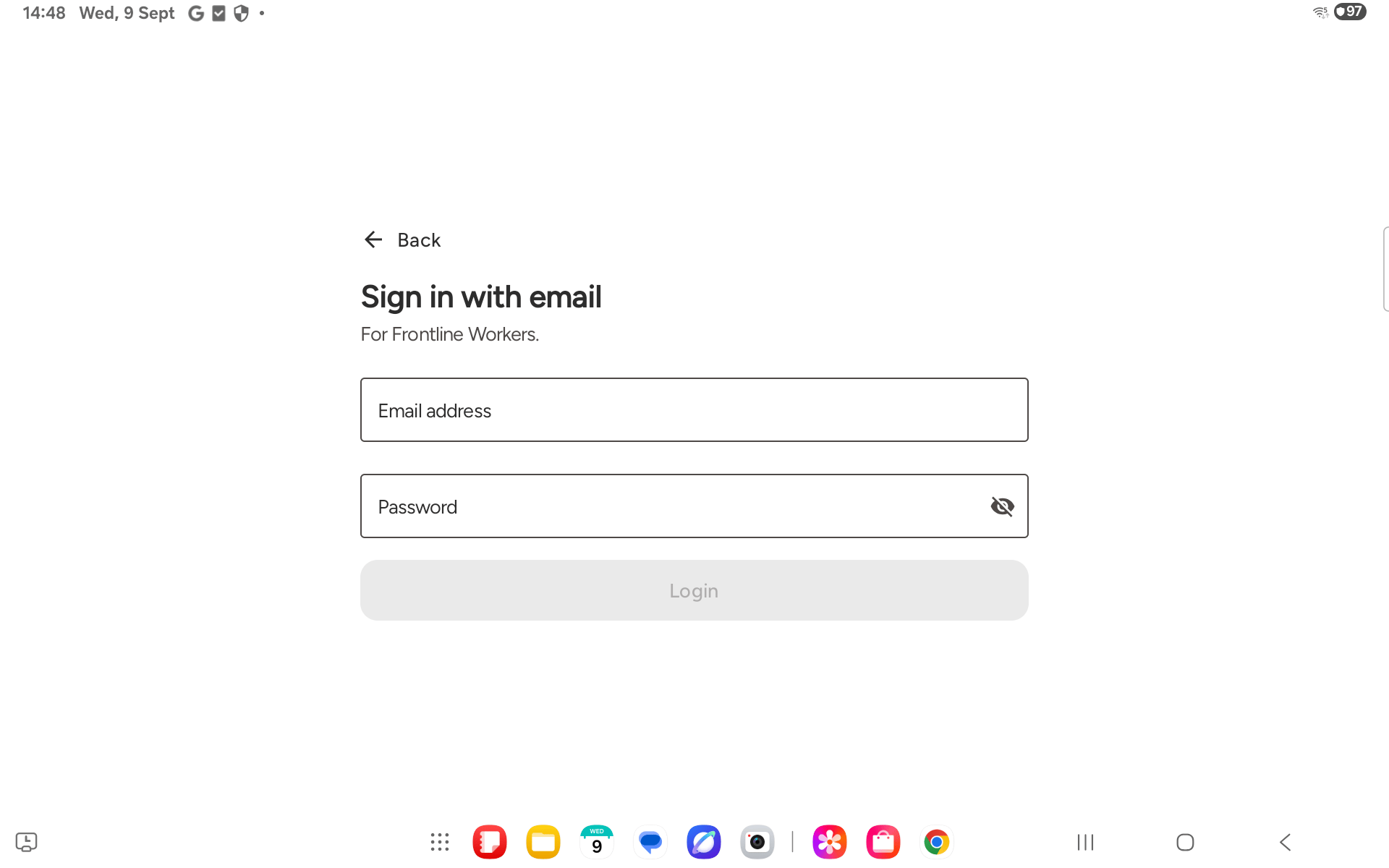
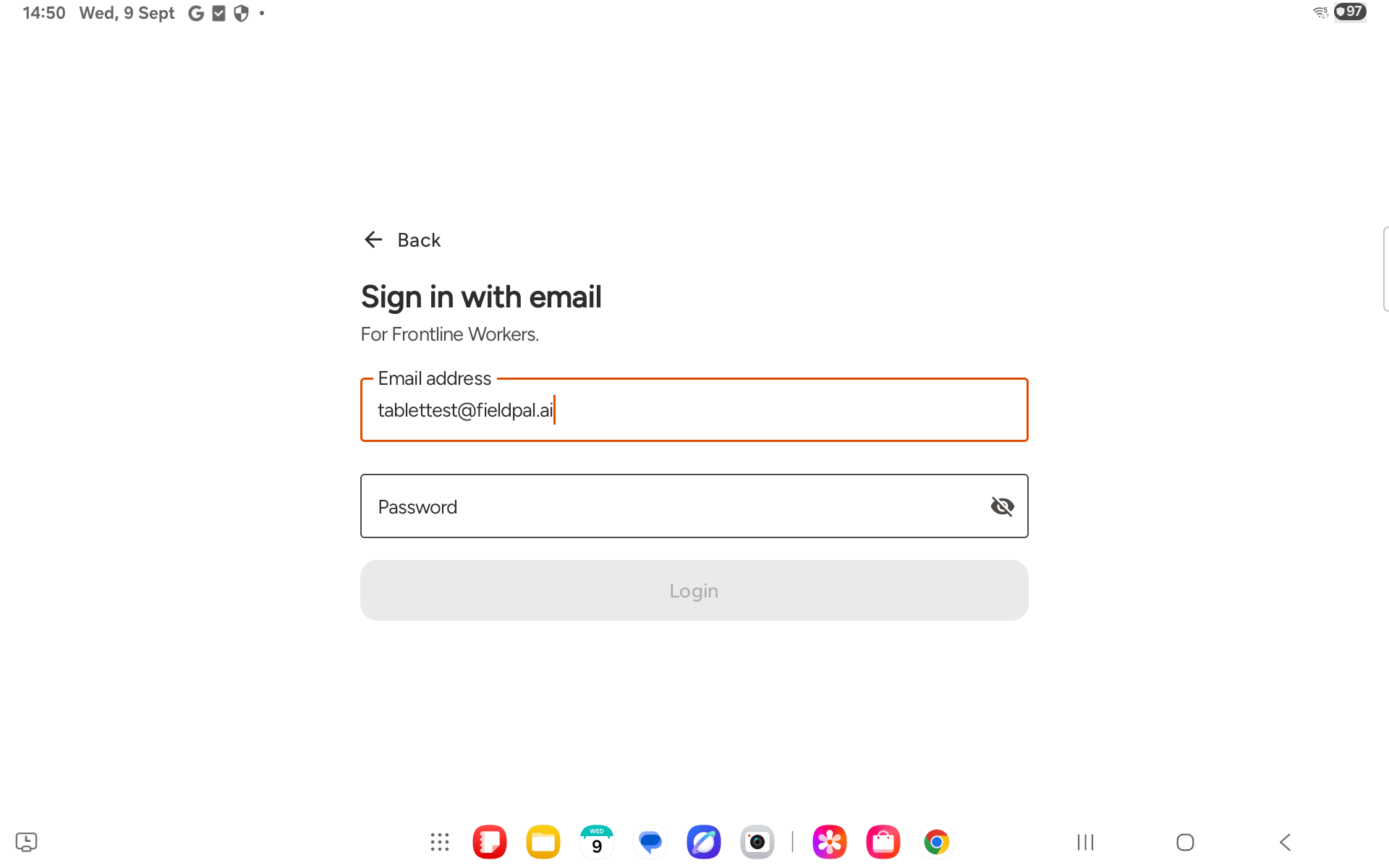
Step 3: Enter your password
Tap the Password field and type your password. Tap the eye icon to reveal what you have typed if needed.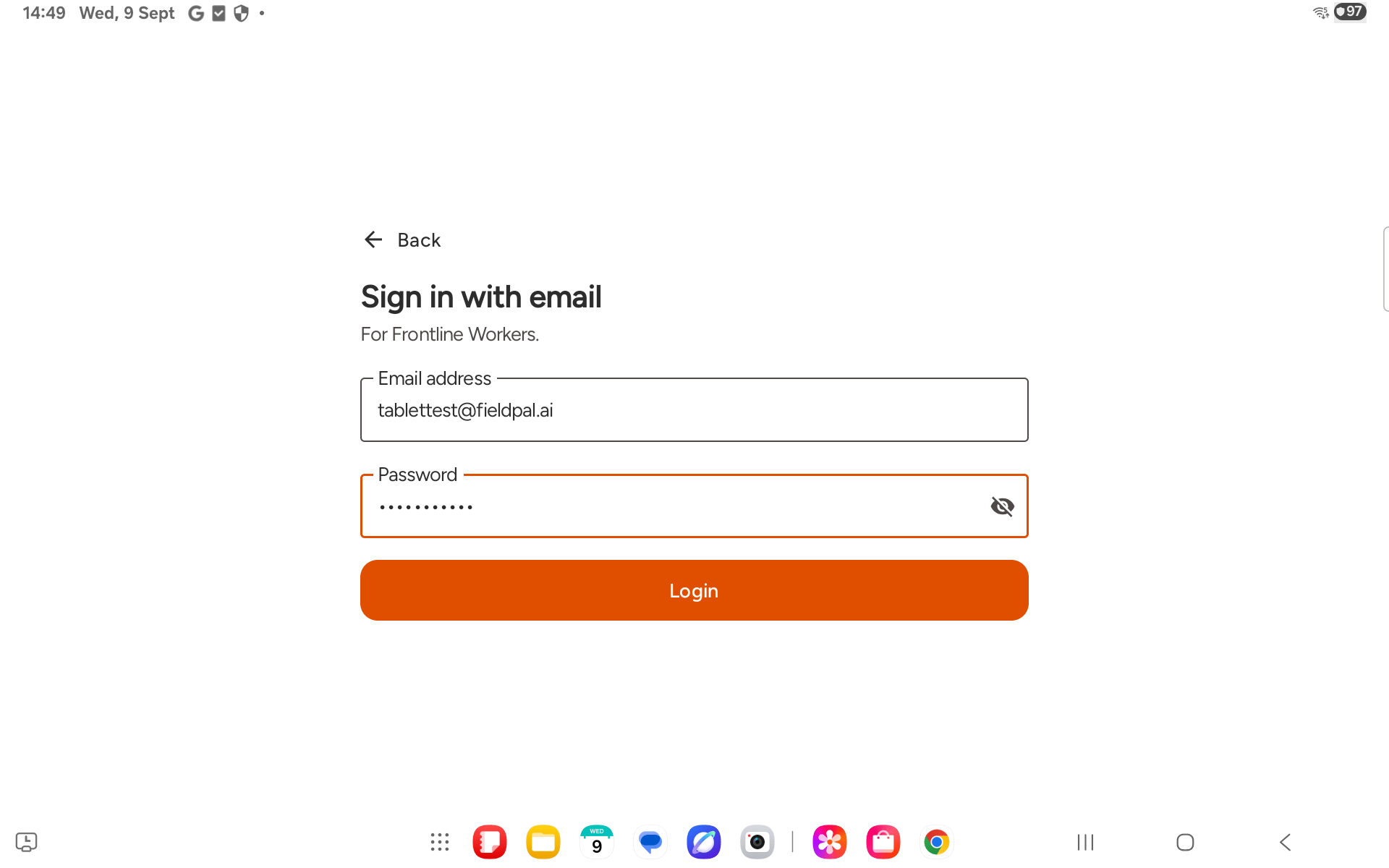
Step 4: Tap Login
Tap Login. The app will connect and take you to the home screen.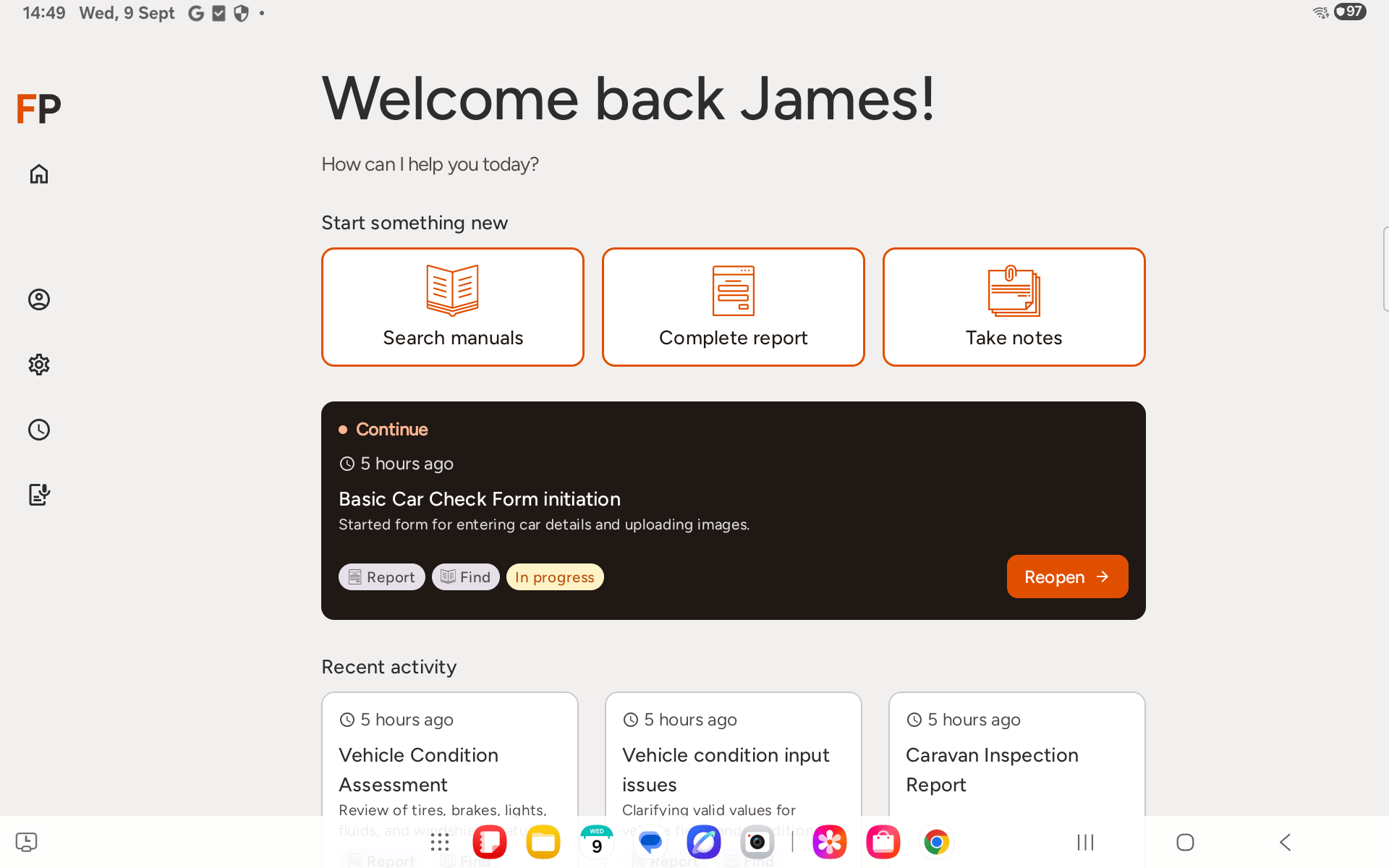
Tips
- If you forget your password, contact your administrator. There is no self-service password reset in the app.
- Scan your card only appears on devices your organisation has registered as a shared device. On a personal device that isn’t set up this way, the app goes straight to the email, Google, and Microsoft options.
- The Device Code Login link at the bottom lets you sign in to an already-registered shared device without typing your password: it shows a short code and a web address, which you enter on another device to approve. This is separate from the setup code an admin uses to register the device itself. Most users will not need this.
- Once logged in, the app keeps you signed in between sessions.