

How it works
Every conditional section has three parts:- A trigger field — one other field on the template, chosen from a dropdown of its siblings.
- A list of matching values — one or more values, one per line. The section appears if the trigger field’s answer matches any value in the list (an OR match).
- Inner fields — the fields that only appear once the condition is met. These can be any field type, including short text, image upload, or PDF upload.
A conditional section can’t use another conditional section as its trigger. The Field dropdown only lists non-conditional siblings.
Step 1: Add a Conditional section field
Open your template, scroll to the Fields section, and click + Add field. Choose Conditional section from the bottom of the type picker.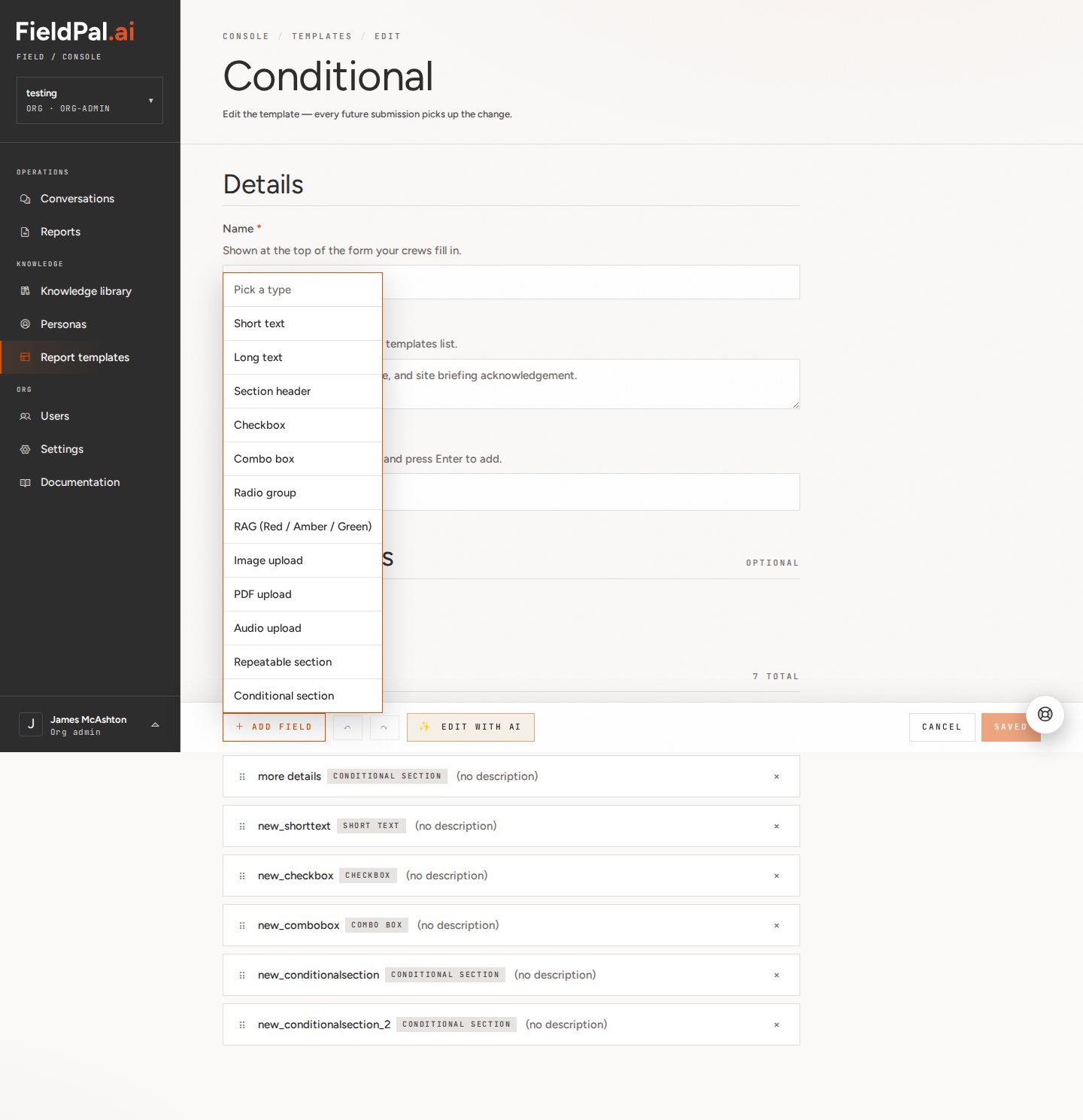
Step 2: Name the section
Click the new field row to open the Edit field panel. Set the Field name and, optionally, the Section heading shown to the worker — this defaults to the field name if left blank. A Section ID is generated automatically from the section name.Step 3: Set the trigger field and matching values
Scroll down in the panel to Show this section when….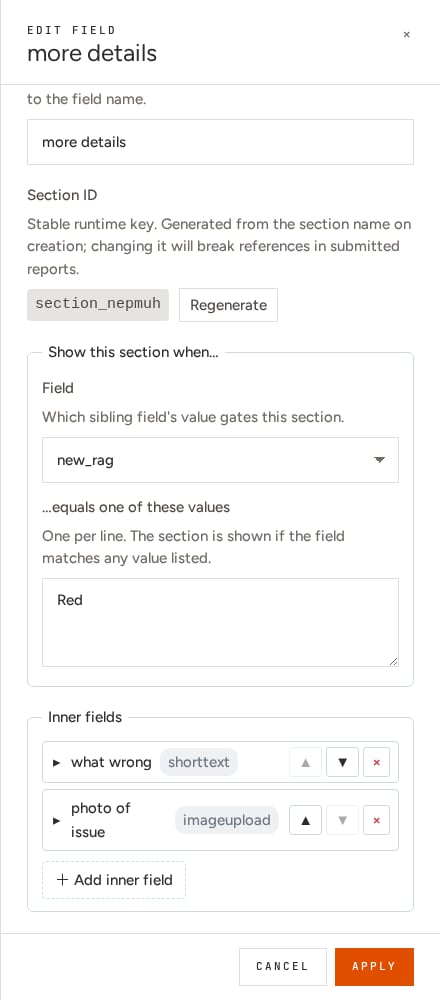
- Field — pick the sibling field whose answer should control visibility.
- …equals one of these values — list the value or values that reveal the section, one per line.
Red, so the section only appears if the field worker sets that rating to Red.
The same pattern works with any field type as the trigger. A short text field can gate a section on an exact answer:
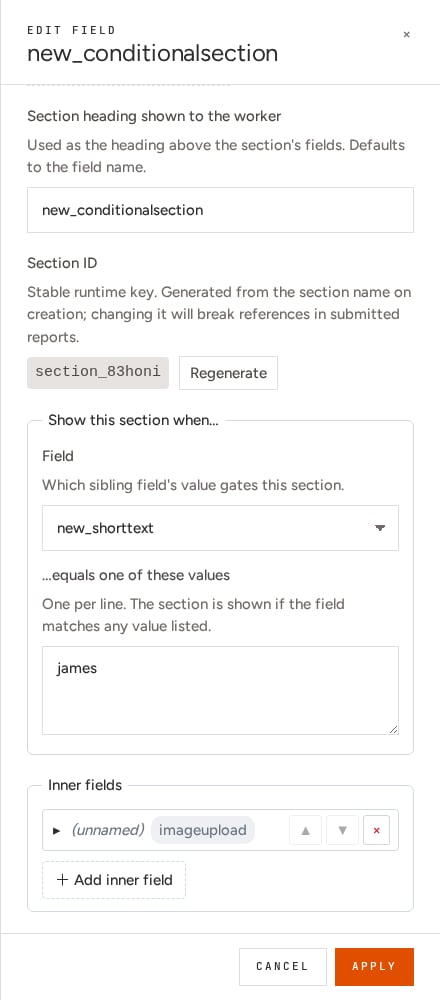
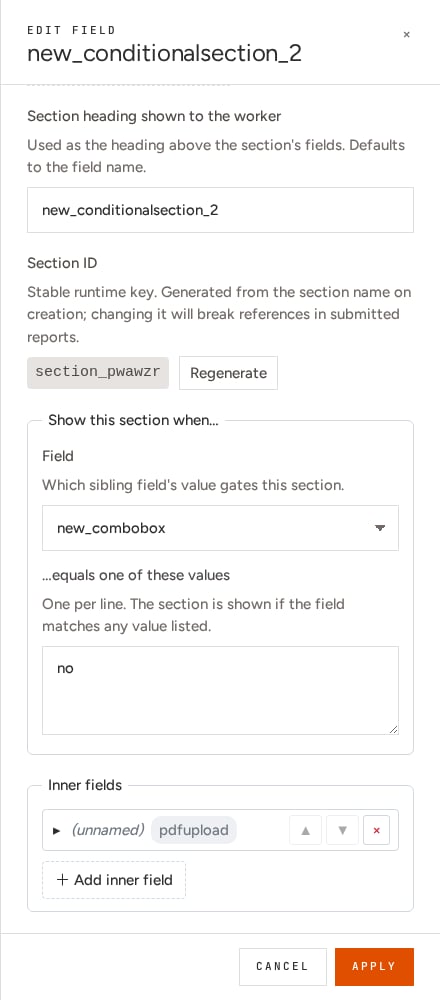
Step 4: Add inner fields
Under Inner fields, click + Add inner field for each field that should only appear once the condition is met. These work exactly like top-level fields — name them, pick a type, configure options — but they’re nested inside the section rather than sitting loose on the form. Click Apply to save the conditional section, then save the template as normal.Tips
- Matching is OR-based across multiple lines, not a range or comparison — there’s no “greater than” or “not equal to,” only “equals one of these listed values.”
- If you change the trigger field or values later, it only affects future submissions. Reports submitted under the old rule keep their answers.
- Data entered into a conditional section’s inner fields is preserved even if the section is later hidden by a change to the trigger’s answer — it just doesn’t display.
Field types reference
See the full list of field types available in report templates, including Conditional section.
Conditional sections in a report
See how these appear to the field worker filling in the form.