

Step 1: Open Recordings
Tap Recordings in the navigation — the sidebar on tablet, or the bottom bar on phone. You will see two large buttons, Voice note and Video, and a History list below showing recordings captured on this device.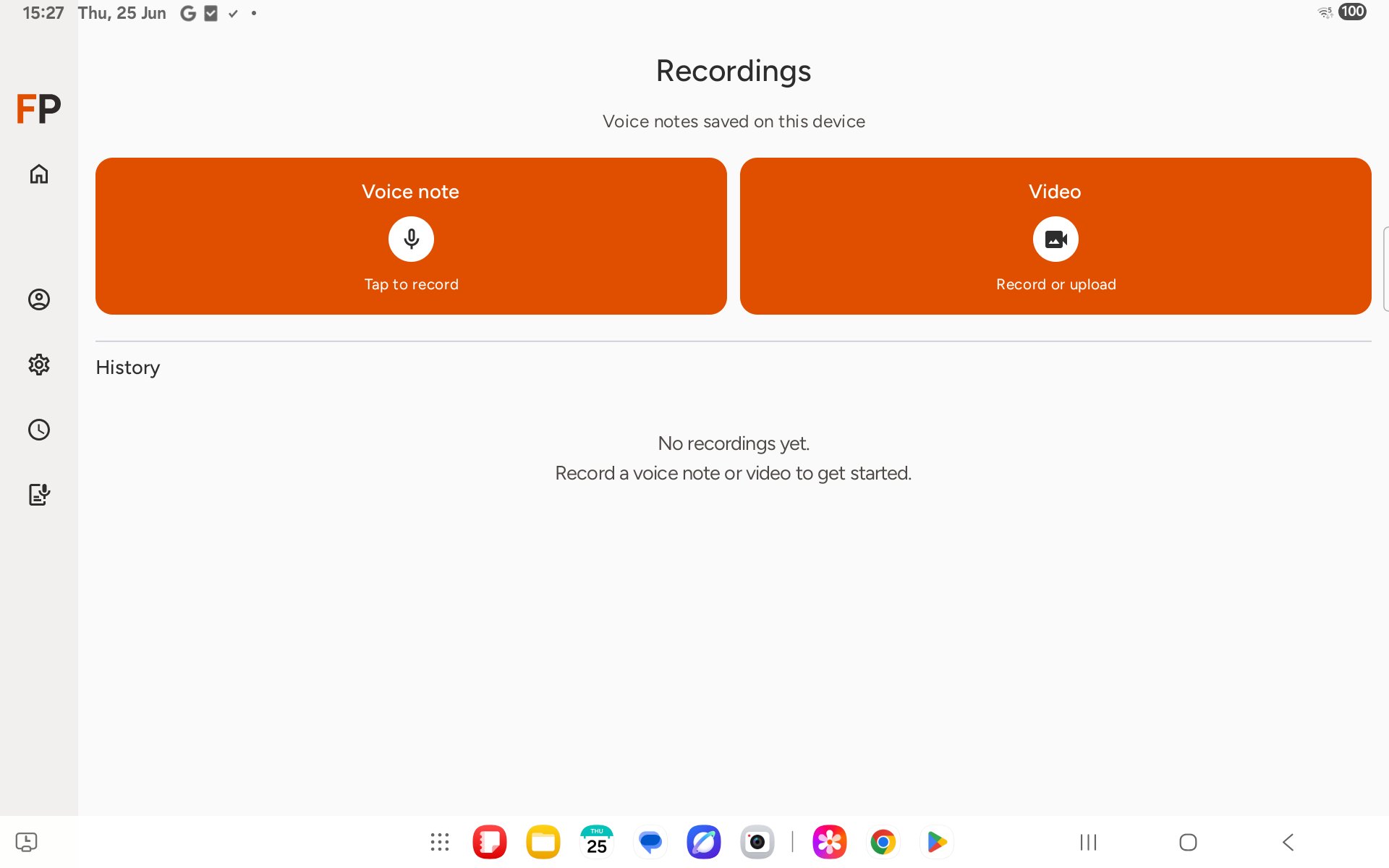
Step 2: Record a voice note
Tap Voice note. Recording starts straight away — you will see Listening and a live timer while FieldPal captures audio.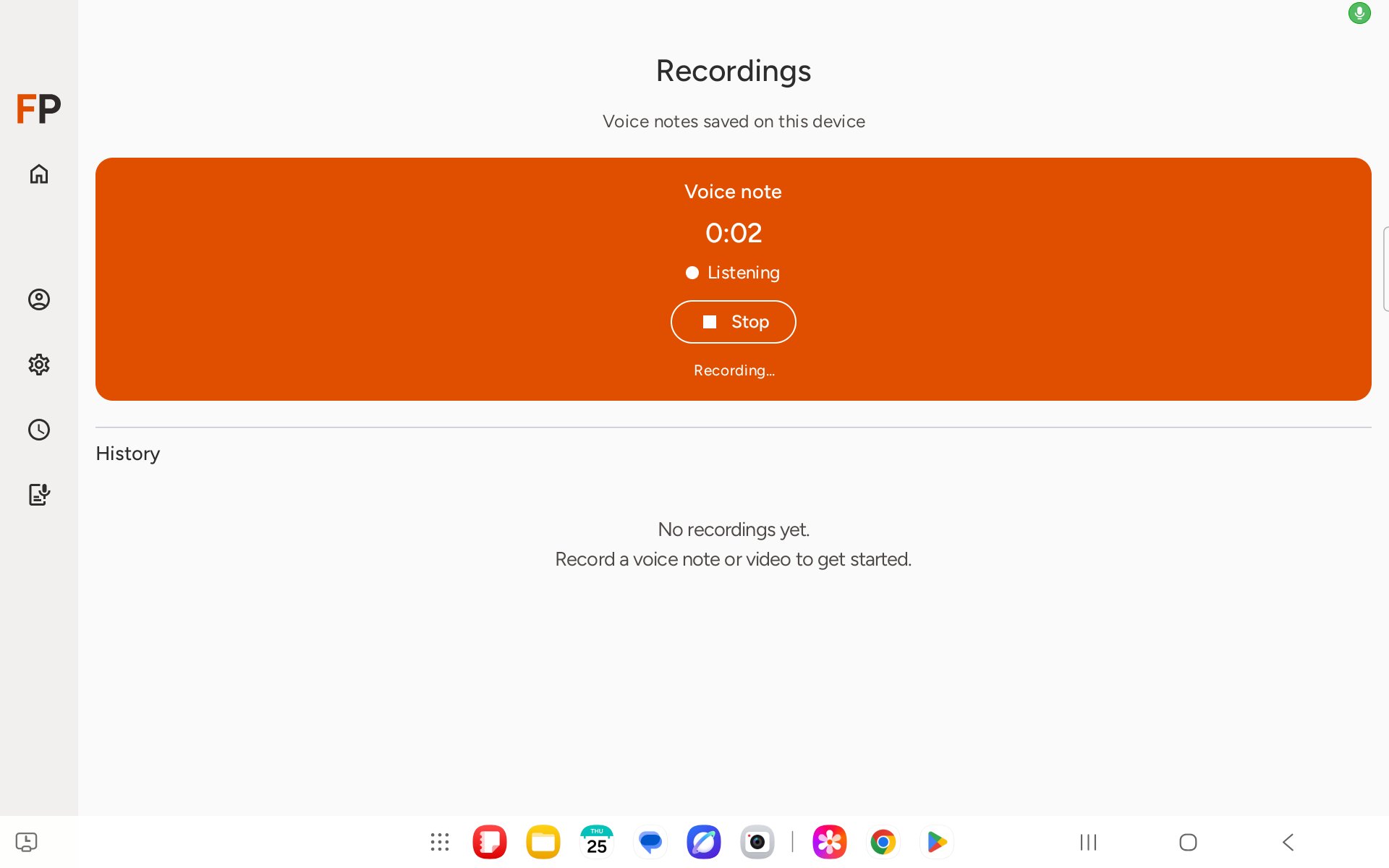
Step 3: Watch it process
The recording appears in History with playback and delete controls, marked Queued.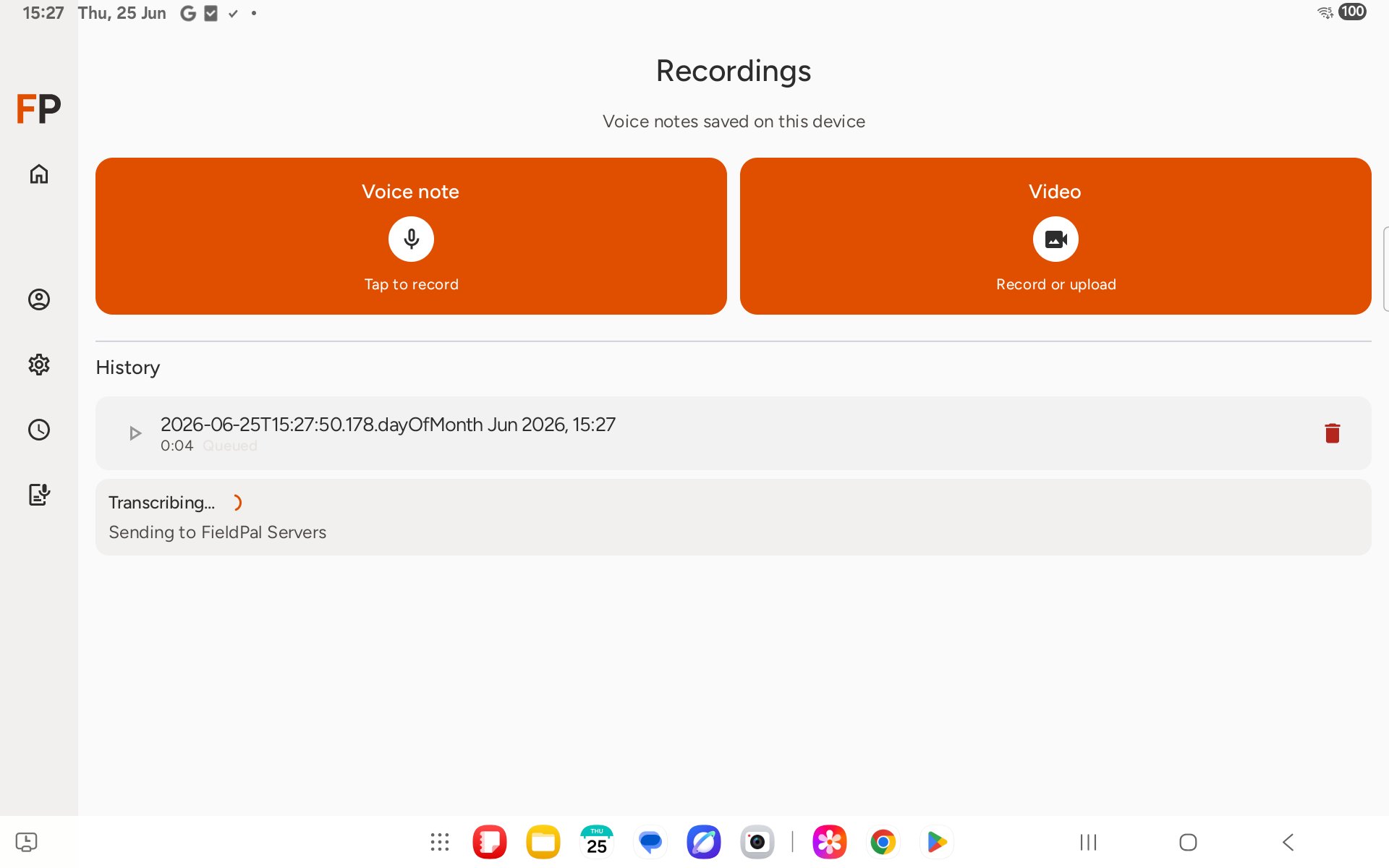
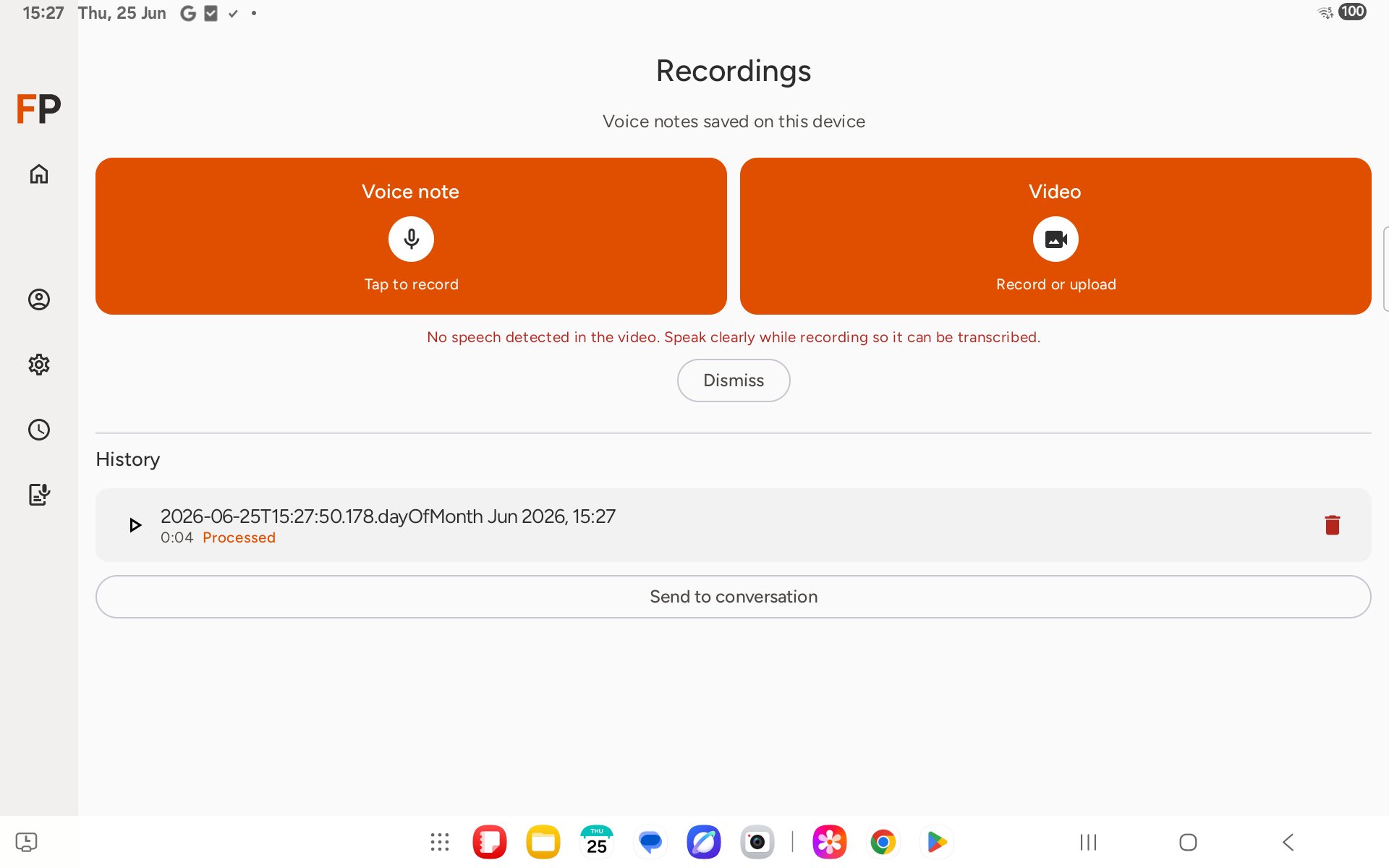
Step 4: Record or upload video
Tap Video to capture video instead. You are given the choice to Record with camera or Choose from device.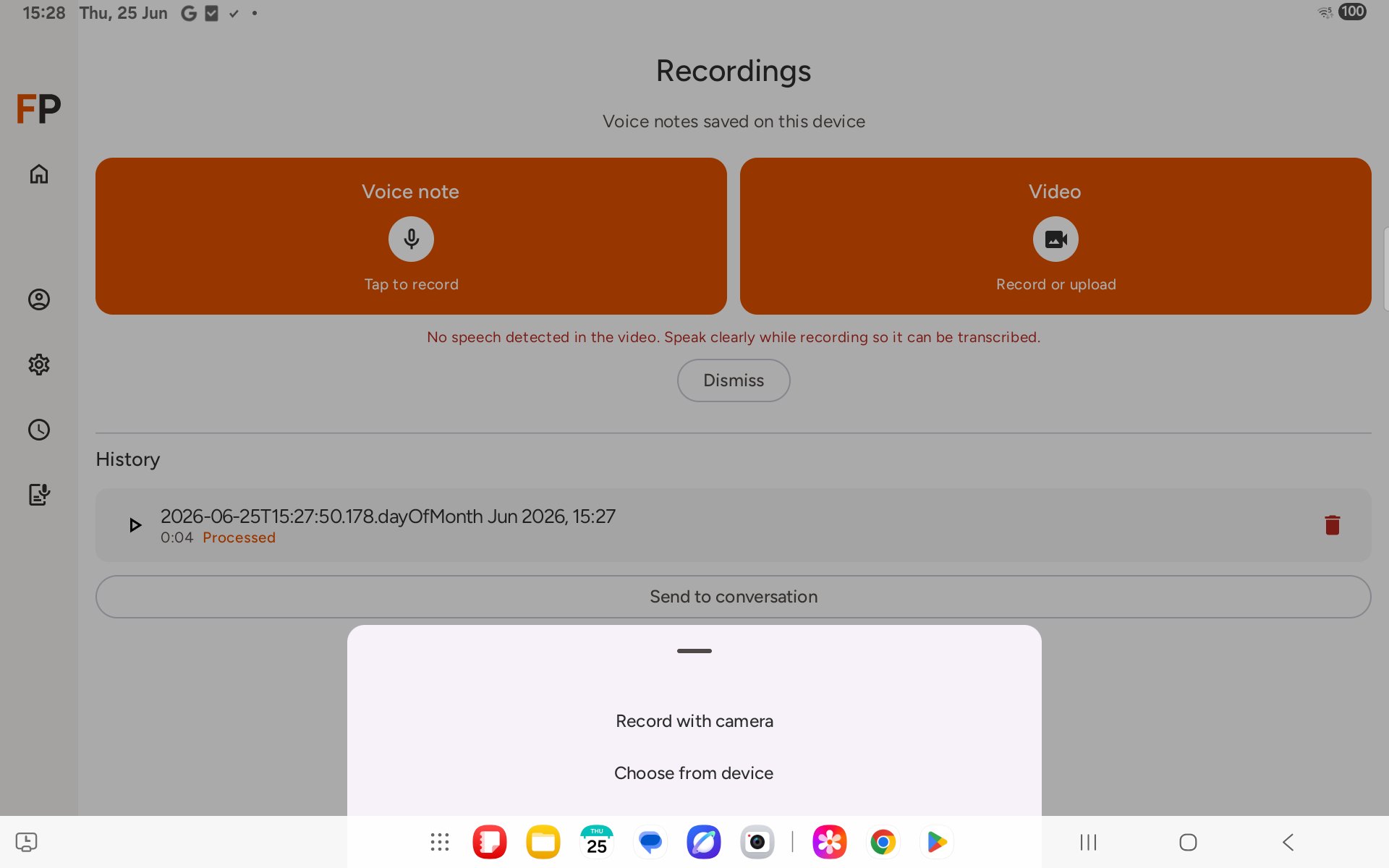
- A timer chip at the top centre — red dot while recording, amber dot while paused.
- A flashlight toggle at top right, on devices with a torch. It works while recording or paused.
- A large red record button to start. Once recording, it’s replaced by a Pause button and a large red Stop button.
- While paused, a Paused banner appears over the preview, and Pause is replaced by Resume.
- A close (X) button at top left to cancel and discard the clip, at any point before you stop.
On RealWear devices, the icon buttons are replaced with speakable labels: “Record video”, “Pause video”, “Resume video”, “Stop video”, “Flashlight on” / “Flashlight off”.