

- PDF: one report, with every answer, photo and comment, laid out for printing or sending to a customer
- CSV: a spreadsheet list of the reports you select, with who filed each one, when, and how complete it is. See Exporting a list of reports as CSV below.
Exporting a report as PDF
Step 1: Open the Reports section
After logging in, click Reports in the left-hand sidebar.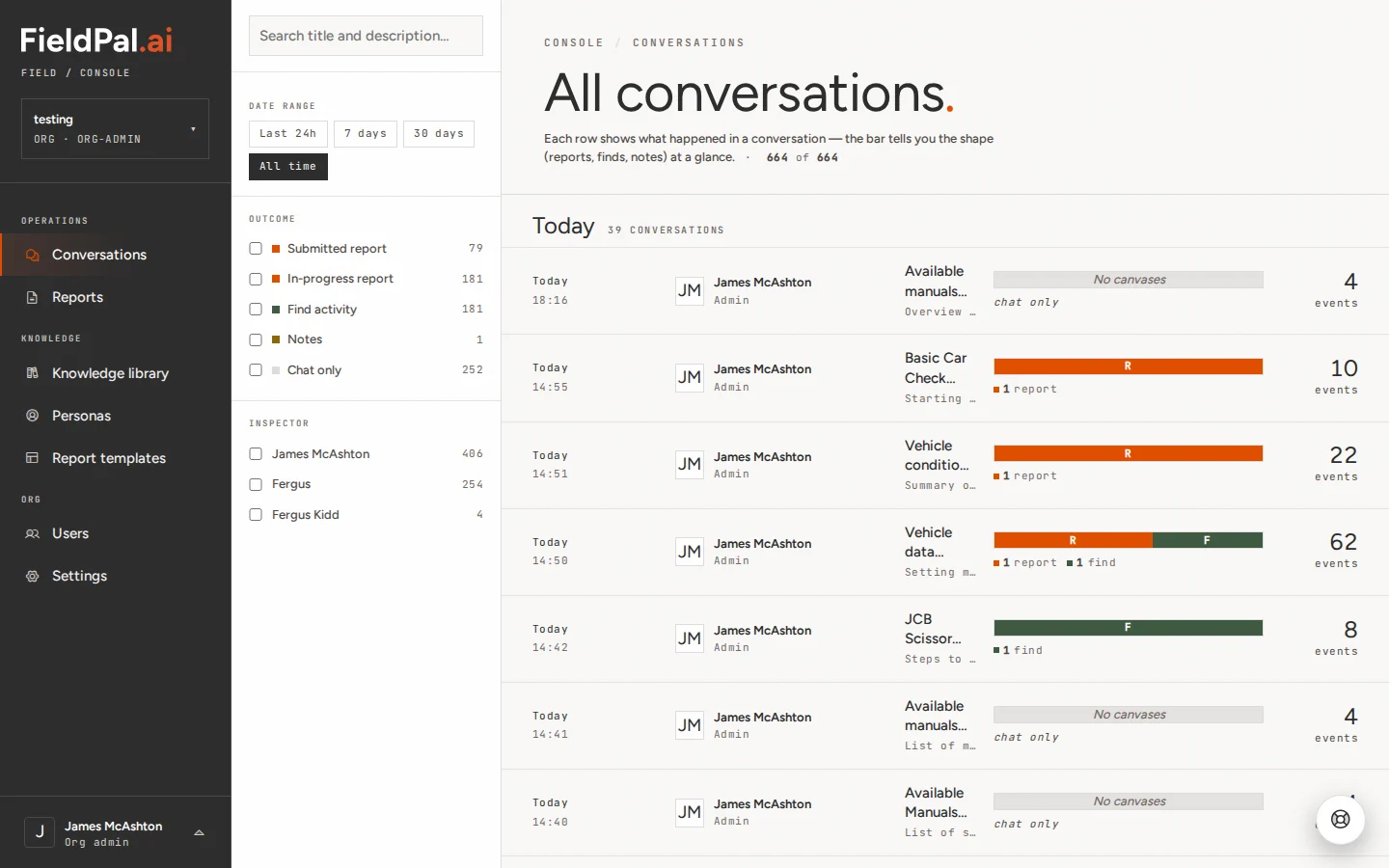
Step 2: Find your report
You will see the Reports register, a list of every report your team has filed. Each row shows the report name, template, author, date filed, completion percentage, and status.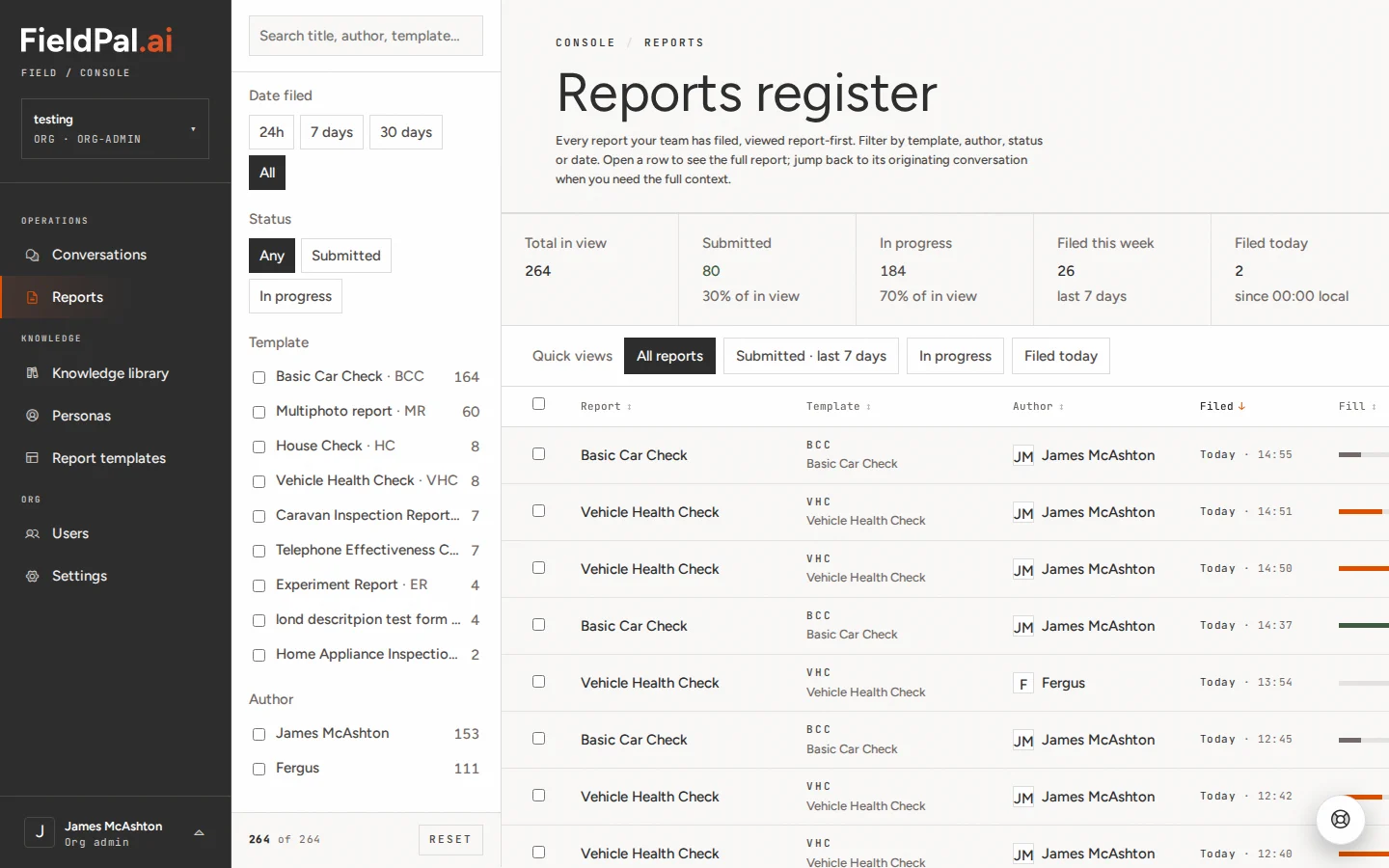
- Date filed: last 24 hours, 7 days, 30 days, or all time
- Status: Submitted or In progress
- Template: reports from a specific template only
- Author: reports filed by a specific person
Step 3: Filter to Submitted reports (optional)
To see only completed reports, click Submitted under Status in the filter panel.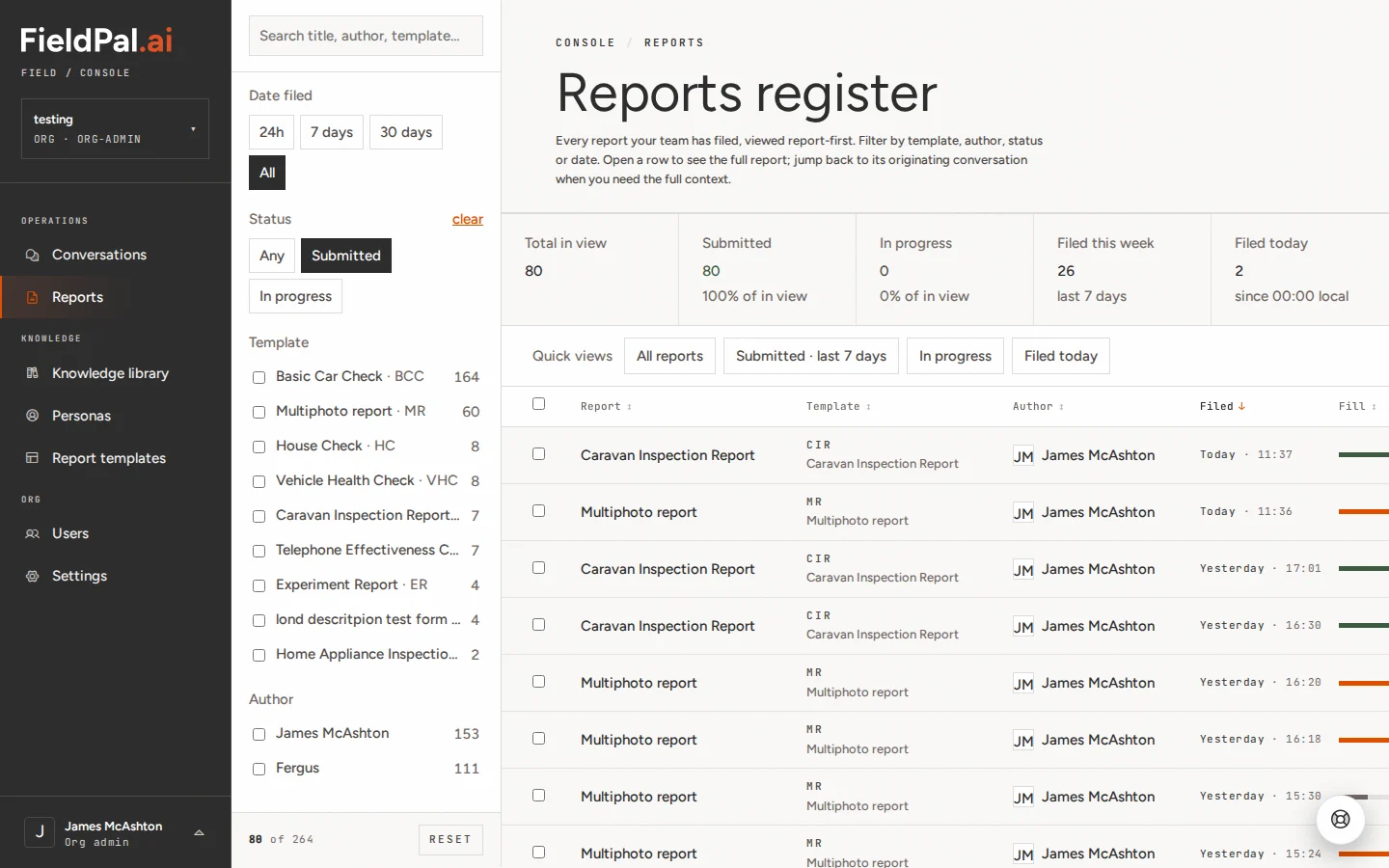
Step 4: Open the report
Click anywhere on a report row to open it.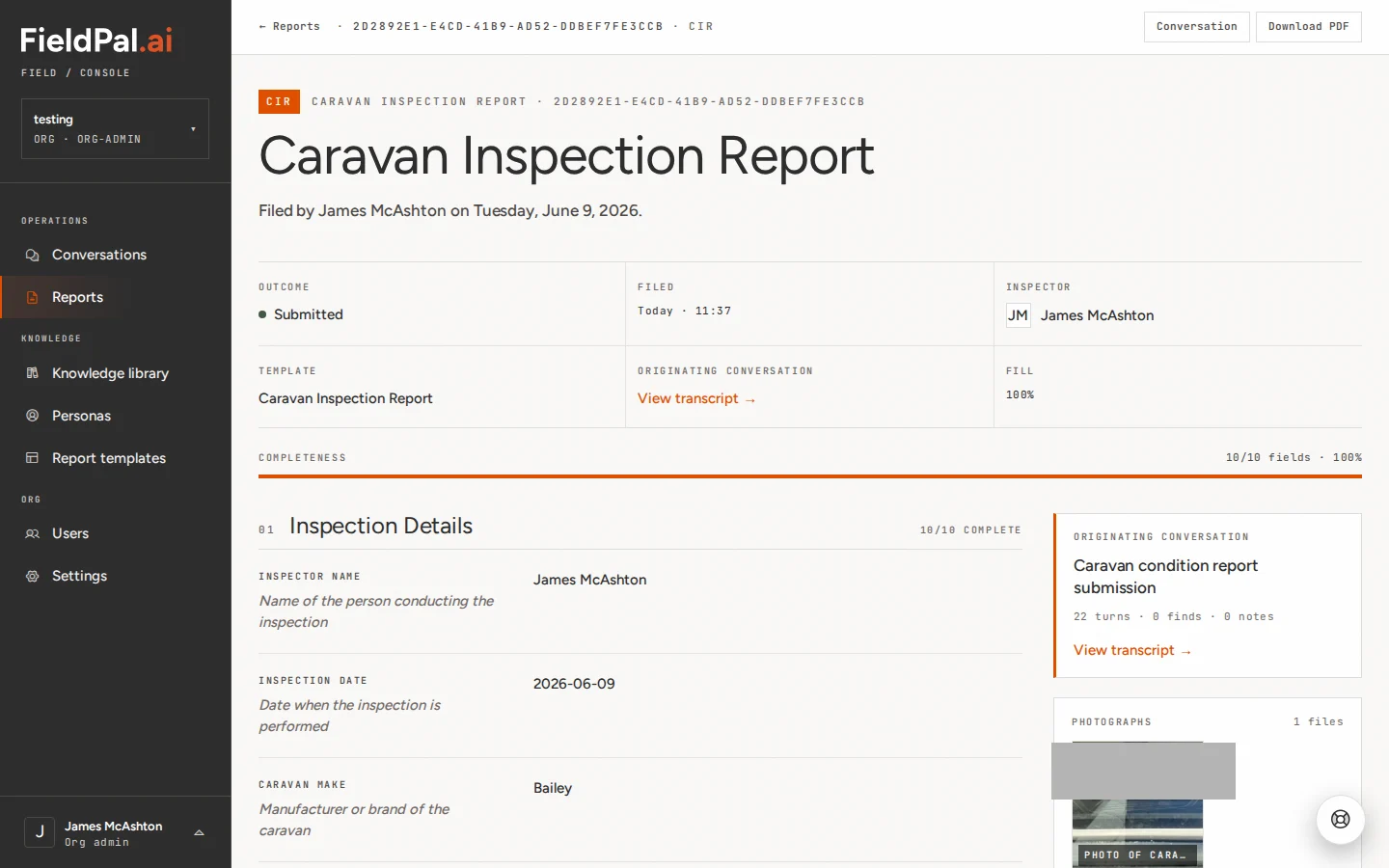
Step 5: Review the report content
Scroll down to see all the fields and answers the field worker filled in.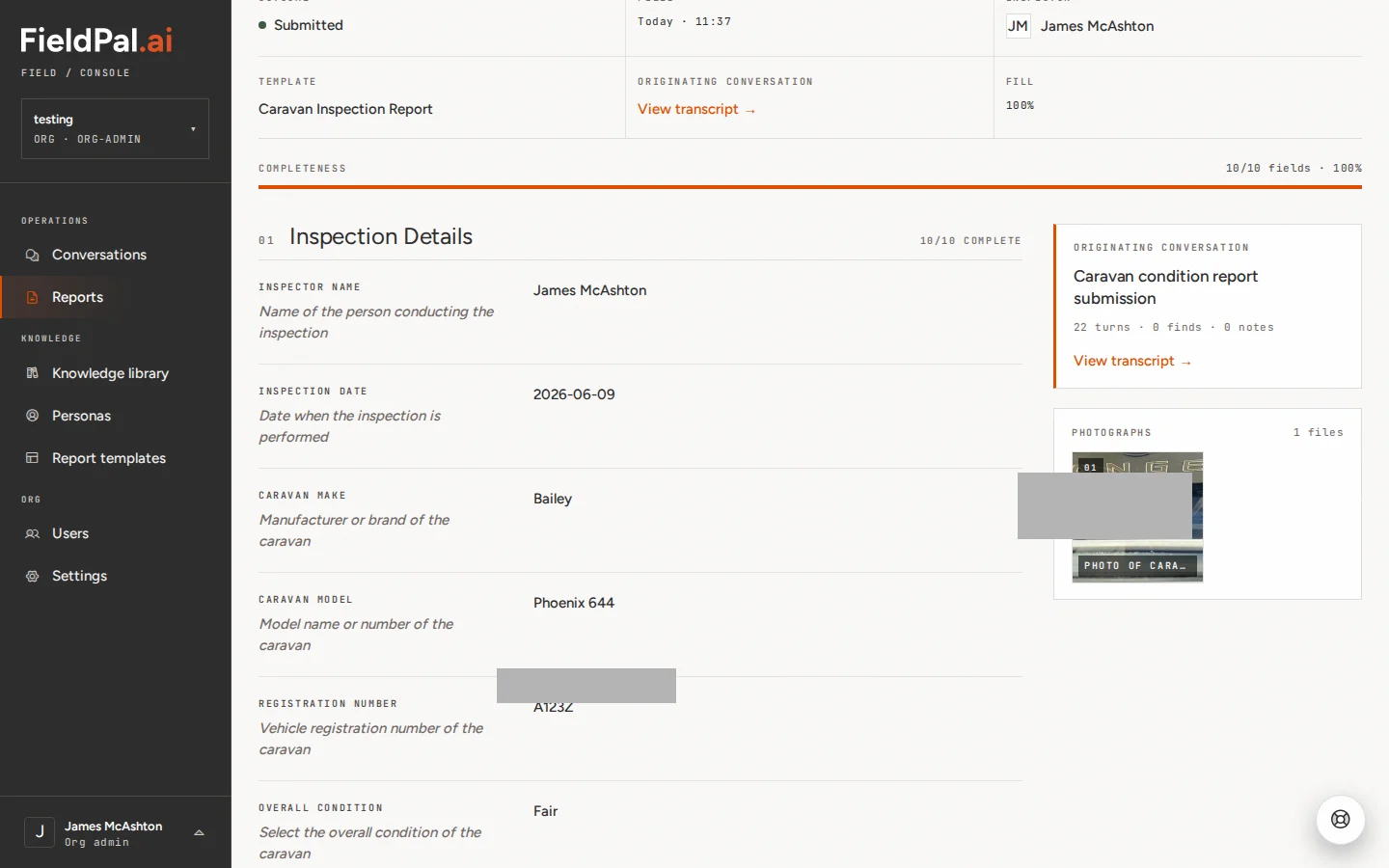
Step 6: Click Download PDF
At the top of the report, click Download PDF.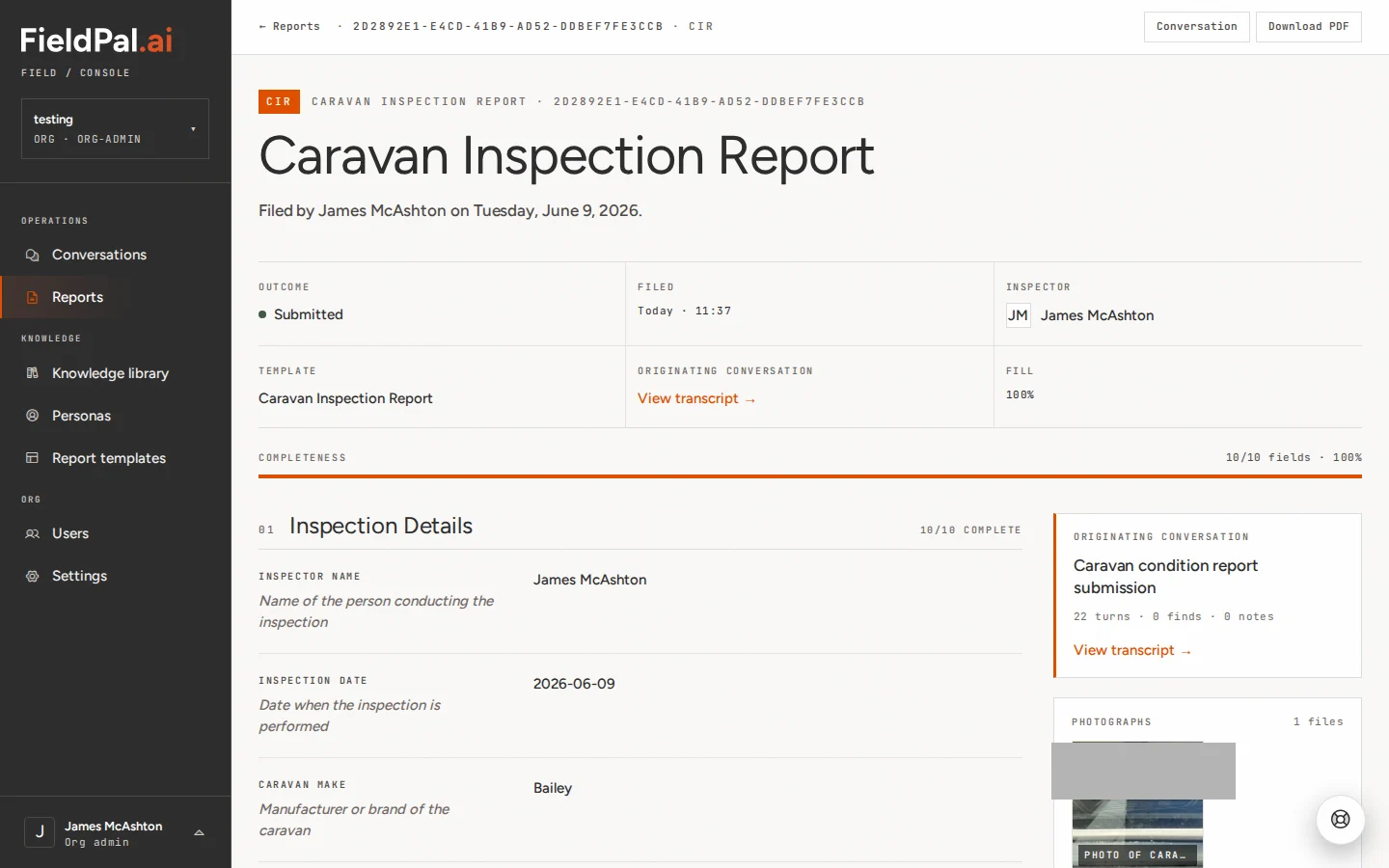
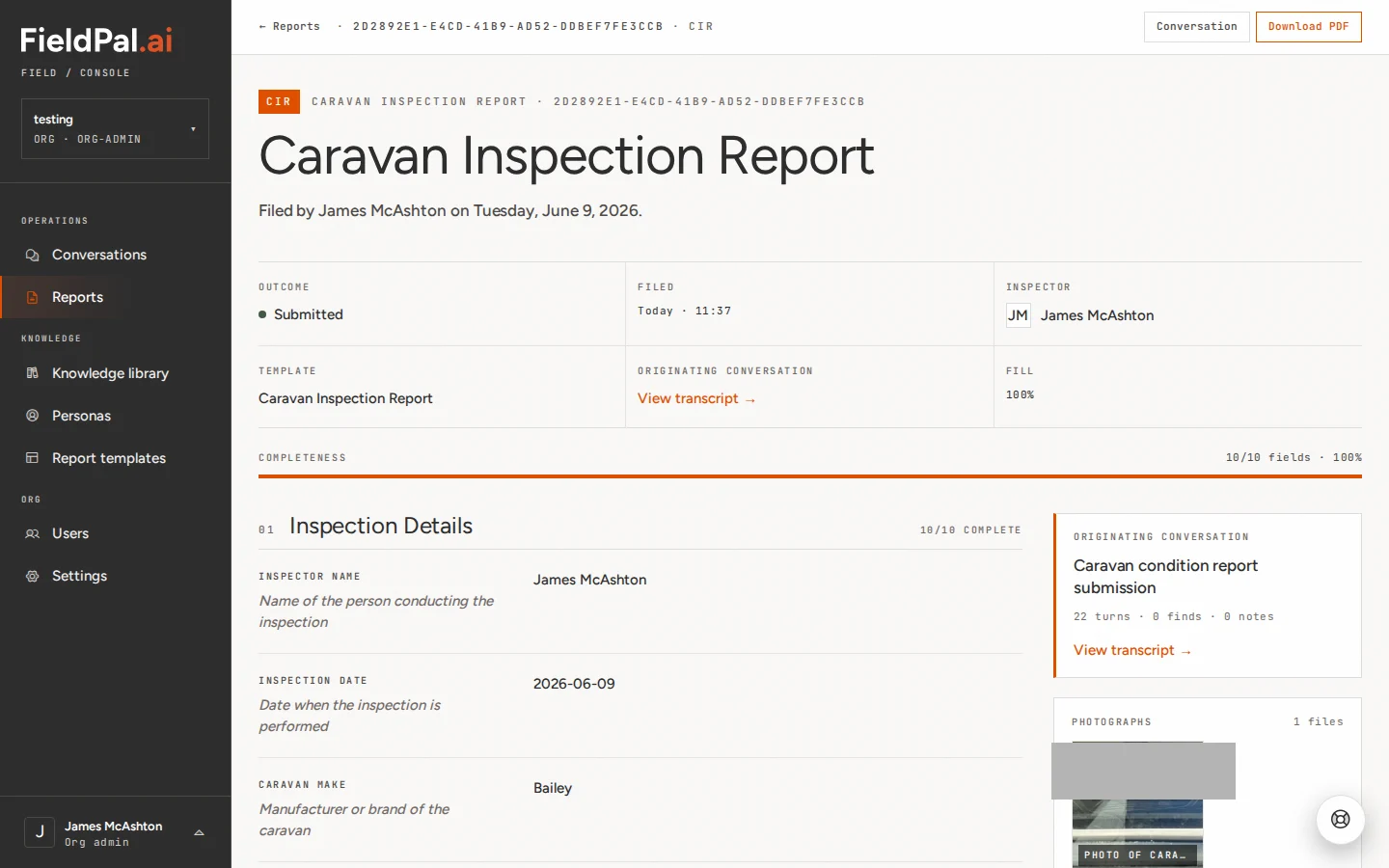
Step 7: The PDF downloads
The file downloads to your computer immediately. Your browser will show it in the usual way: downloads bar, notification, or bottom of the screen depending on your browser.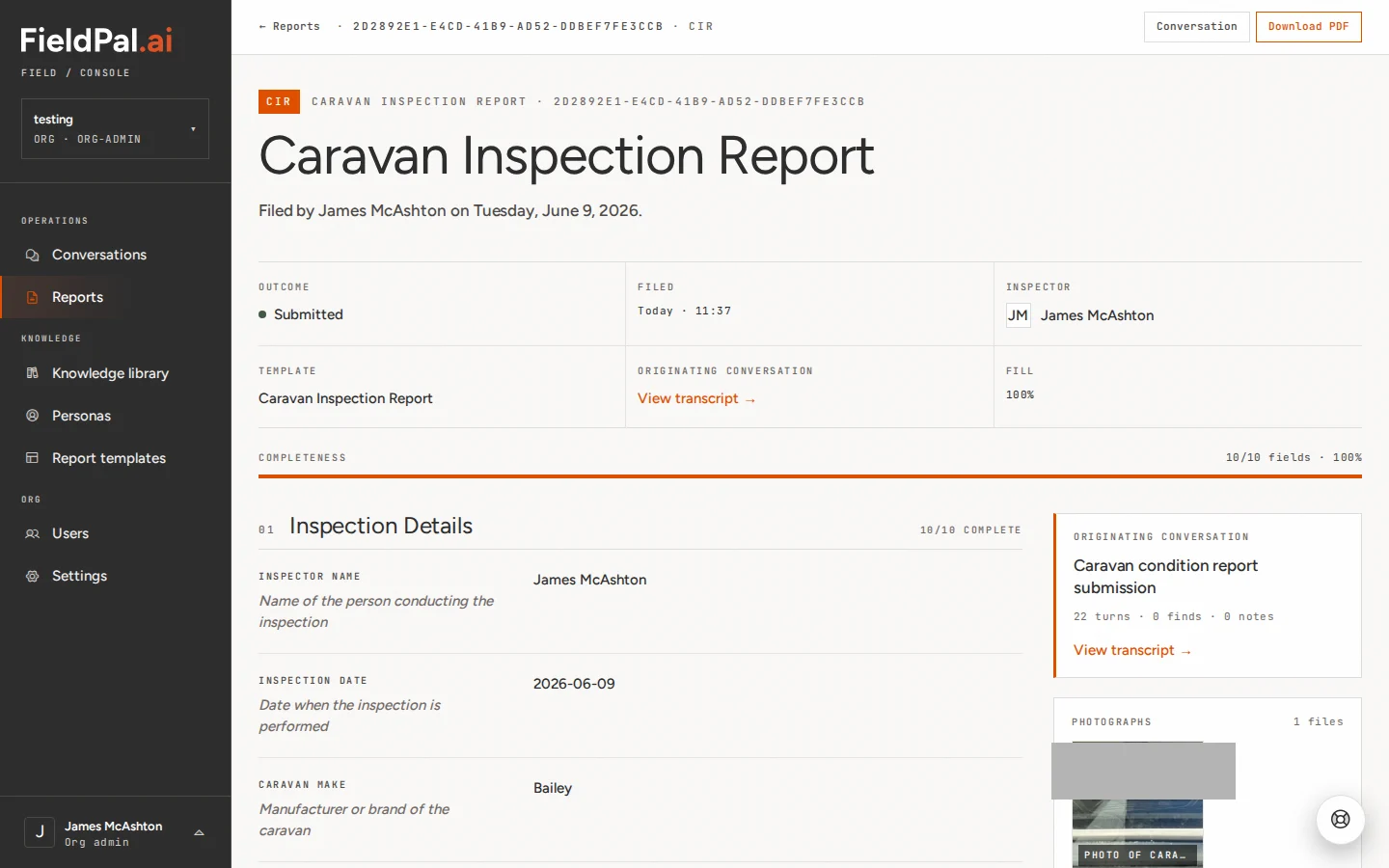
Exporting a list of reports as CSV
Step 1: Select the reports
In the Reports register, use the filters to narrow the list, then tick the box at the start of each report row you want. A dark bar appears above the list showing how many reports are selected.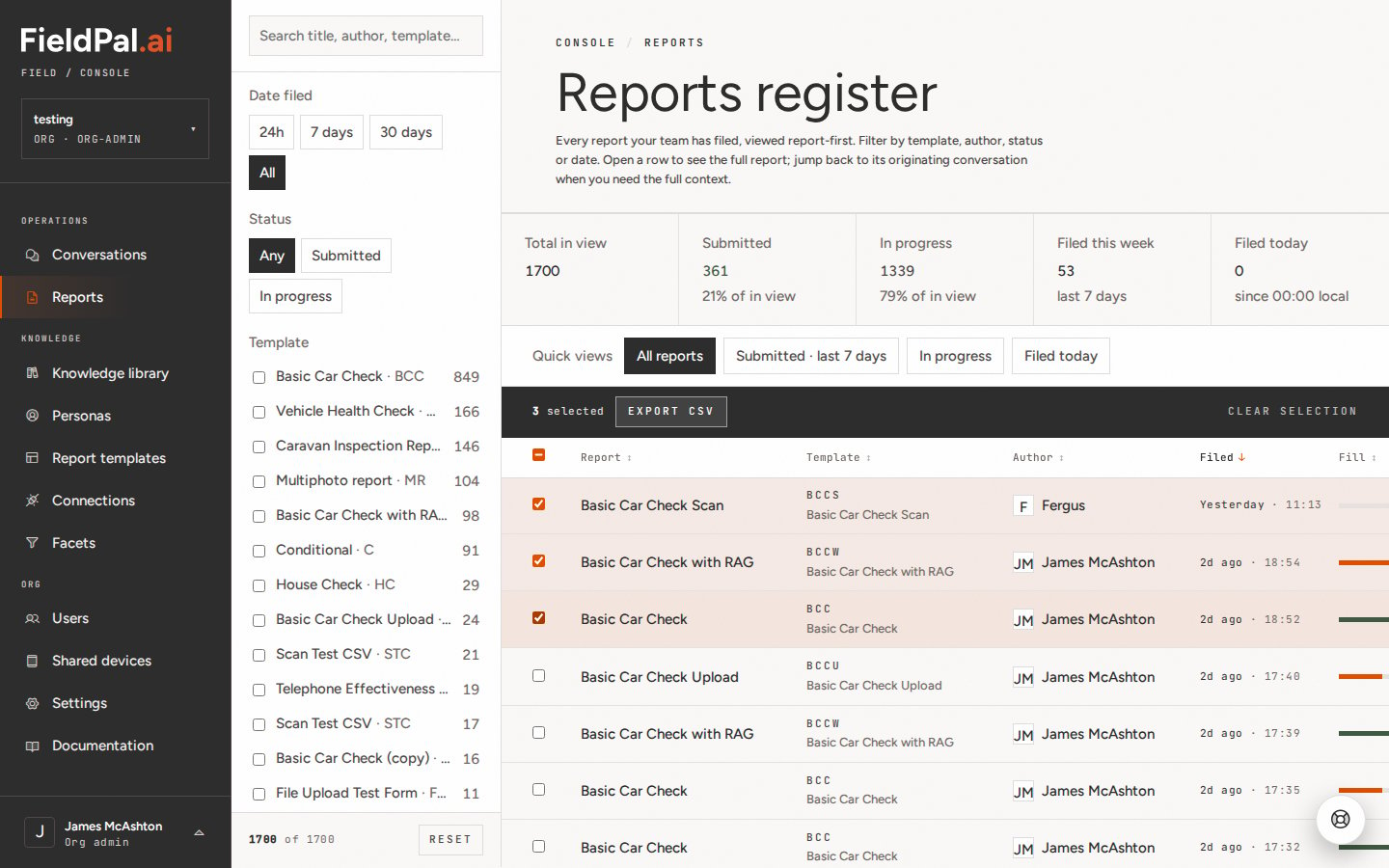
Step 2: Click Export CSV
Click Export CSV in the selection bar. A file named likefieldpal-reports-2026-09-23.csv downloads straight away. Click Clear selection when you are done.
What’s in the file
One row per selected report, with these columns:The CSV is a list of reports, not their contents. It doesn’t include the answers inside each report. To get the answers, open the report and download the PDF.
Tips
- You must open a report first before you can download it as a PDF. There is no bulk PDF export from the list view.
- Excel may show the Filed At column as text. Use Excel’s Data > Text to Columns or a formula such as
=DATEVALUE(LEFT(F2,10))to turn it into a date. - The conv ↗ button on each row in the reports list opens the originating AI conversation, not the report PDF.
- Reports with In progress status can be downloaded, but may have empty fields where the field worker has not yet answered.
- The ← Reports button at the top left of the report detail page takes you back to the full list.