

Part 1: Send the invite (dashboard)
Step 1: Open Users
In the left-hand sidebar, click Users. This page lists everyone with access to your organisation, plus any pending invites.Step 2: Enter the new user’s details
Under Invite a new user, type the person’s email address, choose a role from the dropdown (user for most field workers), and click Send invite.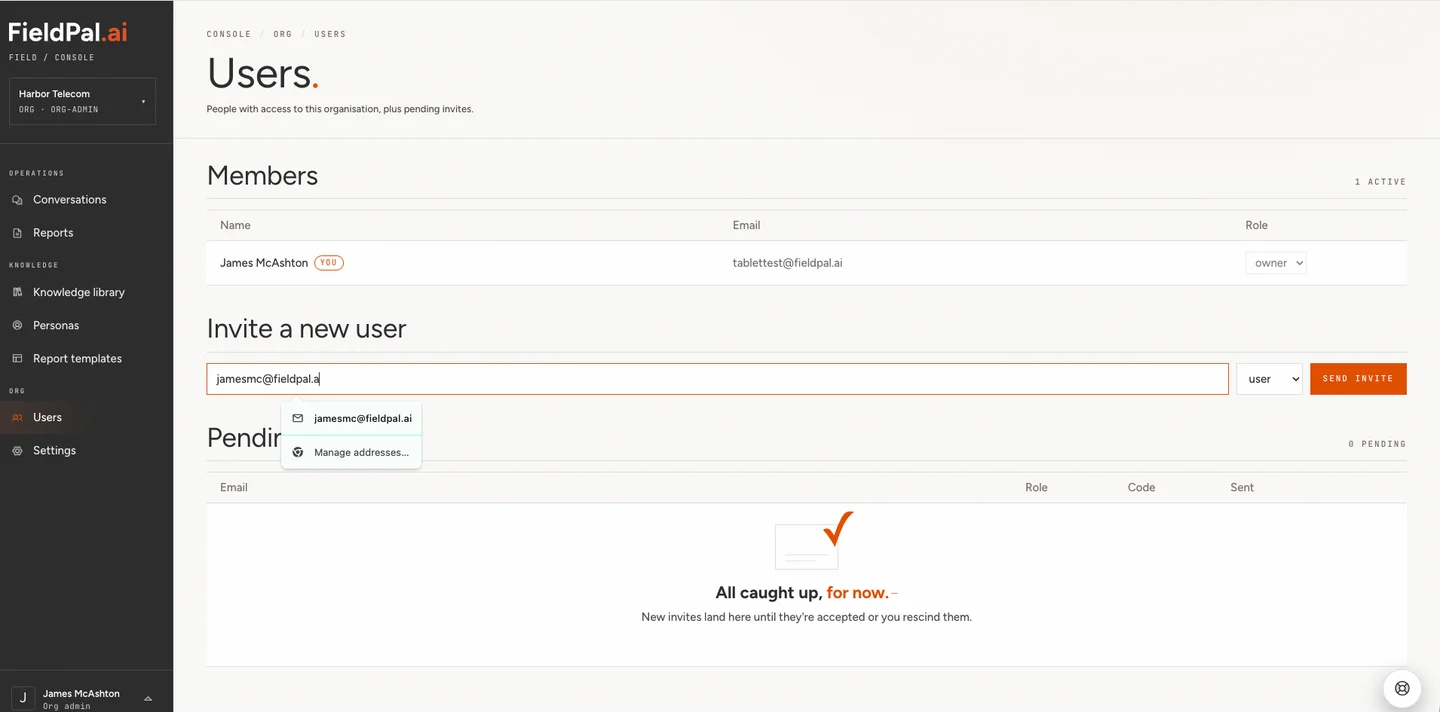
Step 3: Check the pending invite
The new invite appears under Pending invites, showing the email address, role, invite code, and when it was sent. FieldPal emails the invite code to the user automatically, so you don’t need to send it yourself.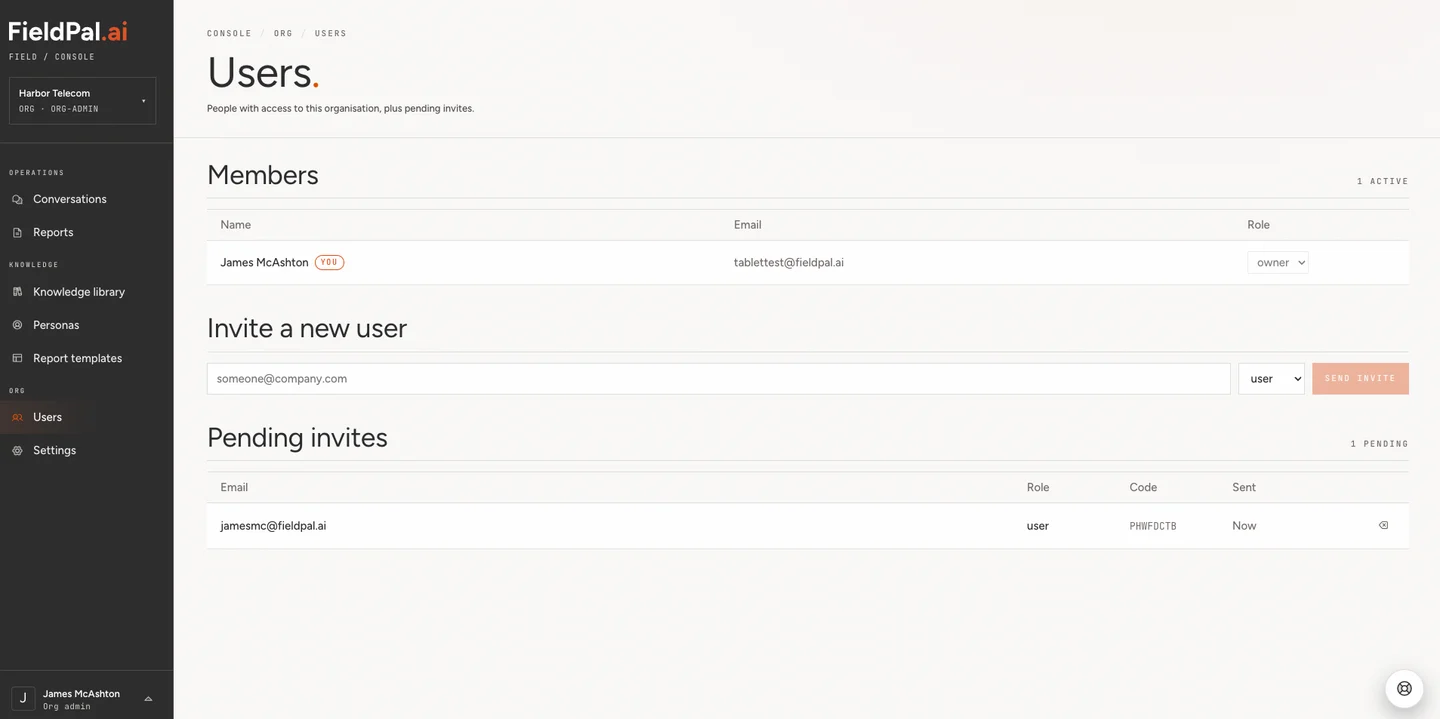
Part 2: Accept the invite (mobile app)
The new user now needs to do the following on their own device.Step 1: Open the invite email
The user receives an email titled “You’re invited to FieldPal”, containing their invite code for your organisation.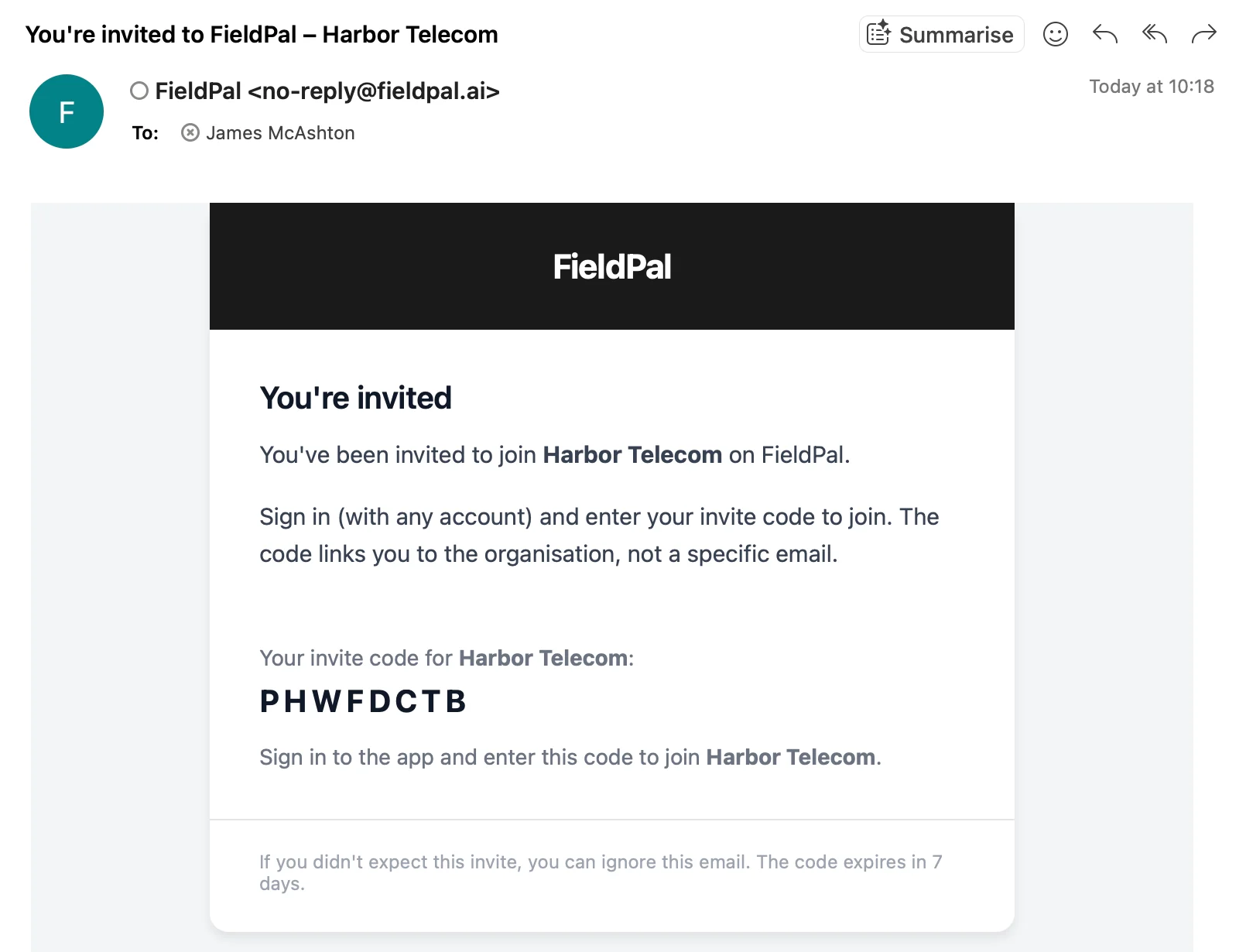
Step 2: Sign in to the FieldPal app
The user opens the FieldPal app and signs in using the email address the invite was sent to, with email and password, Google, or Microsoft.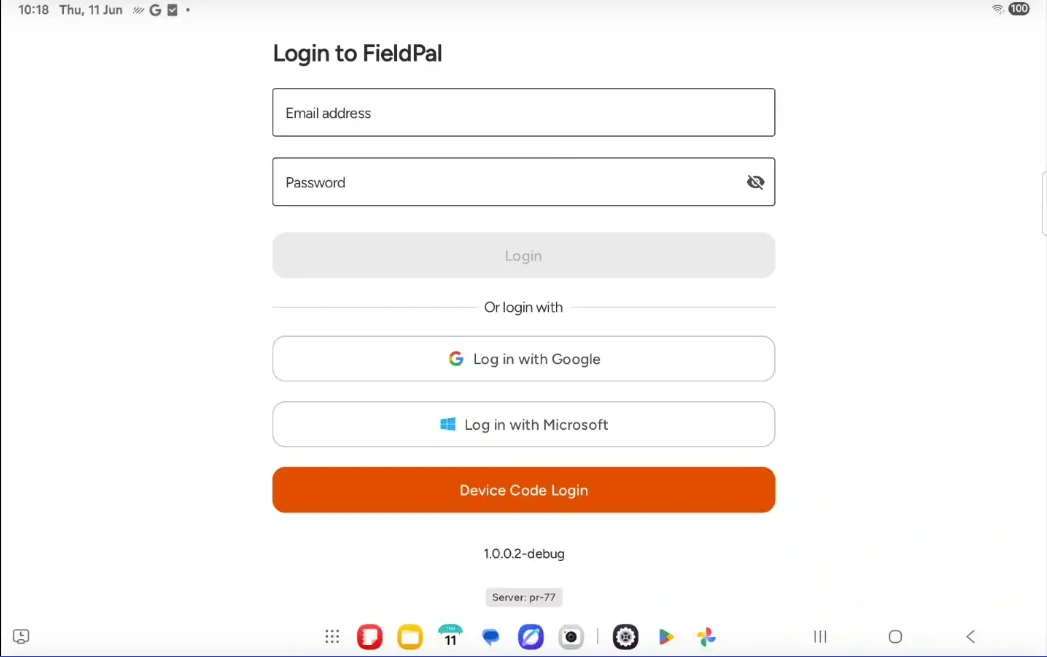
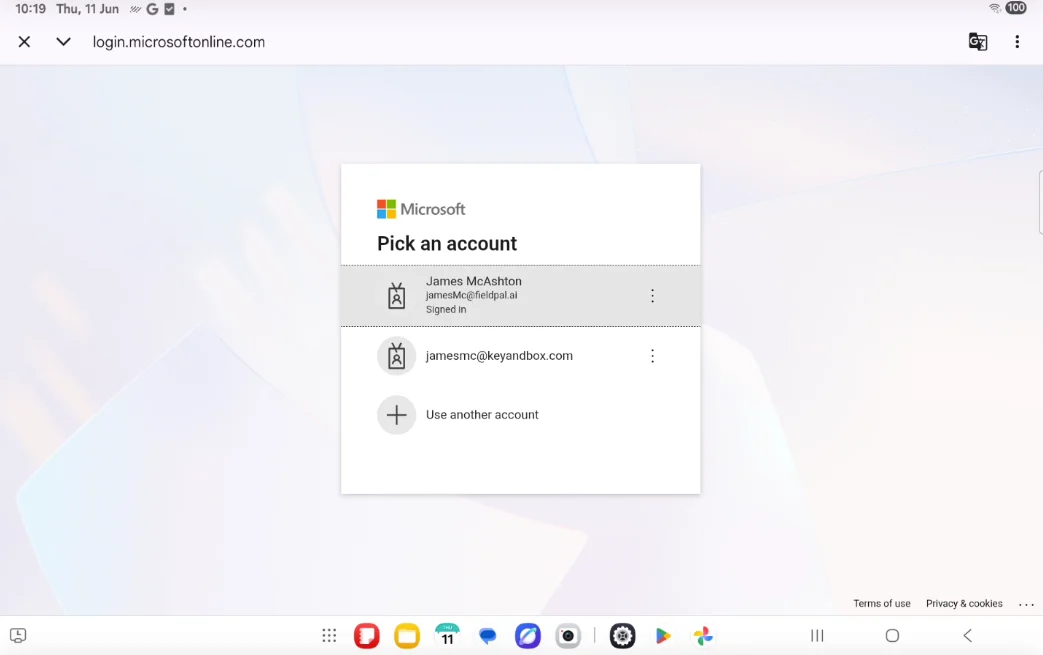
Step 3: Enter the invite code
Because the account isn’t part of an organisation yet, the app shows an Enter your invite code screen. The user types in the code from the invite email and taps Continue.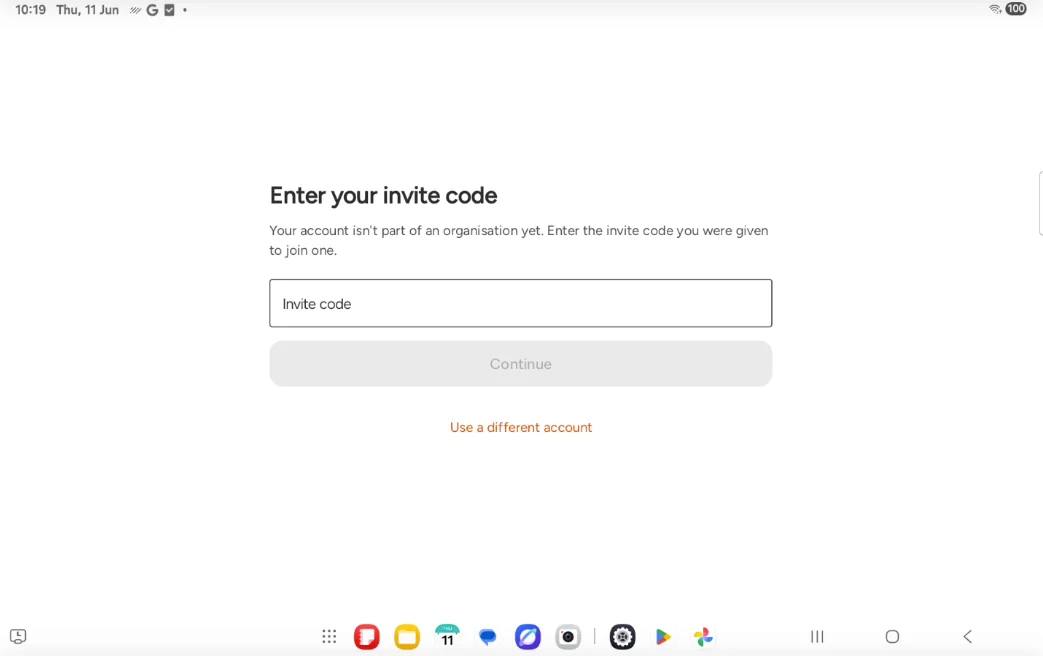
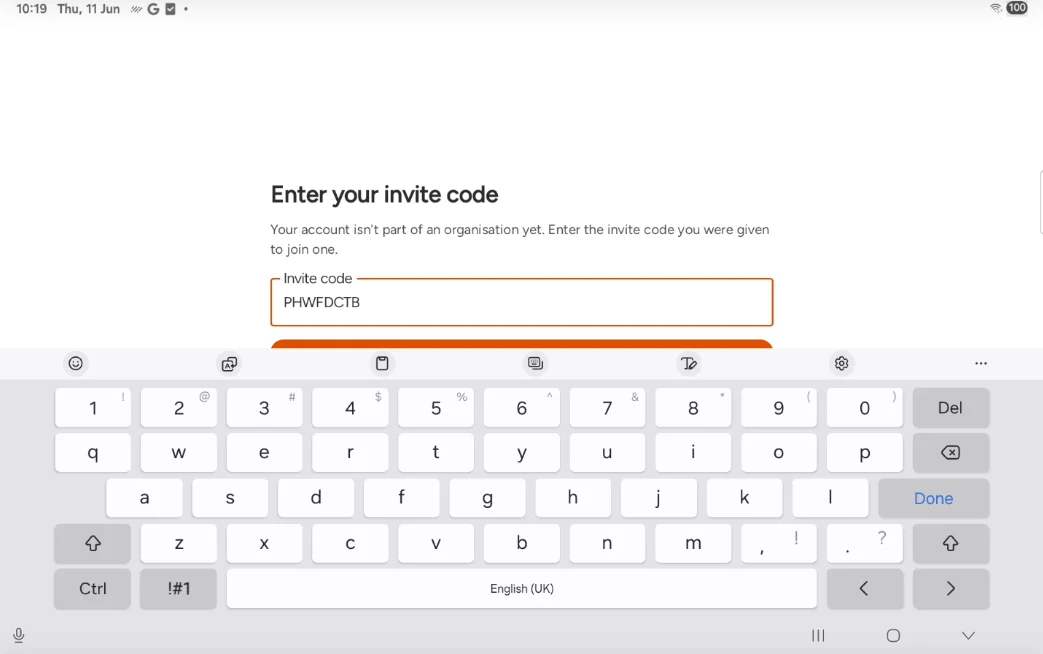
Step 4: Join the organisation
The app confirms which organisation the code belongs to. The user taps Join to confirm.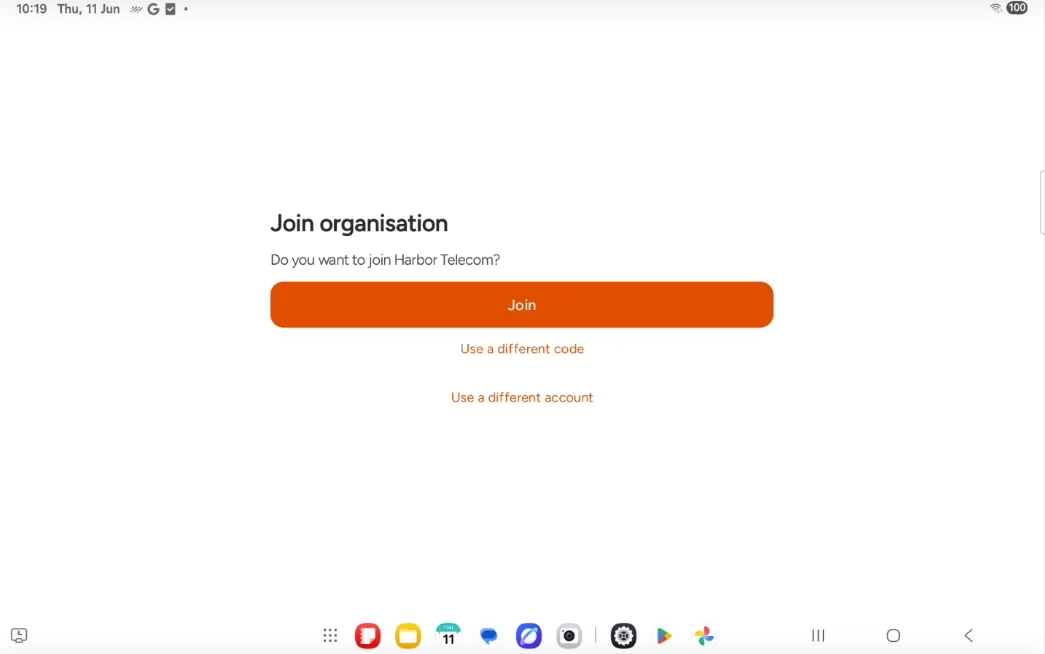
Step 5: Start using FieldPal
The user is now signed in and ready to go.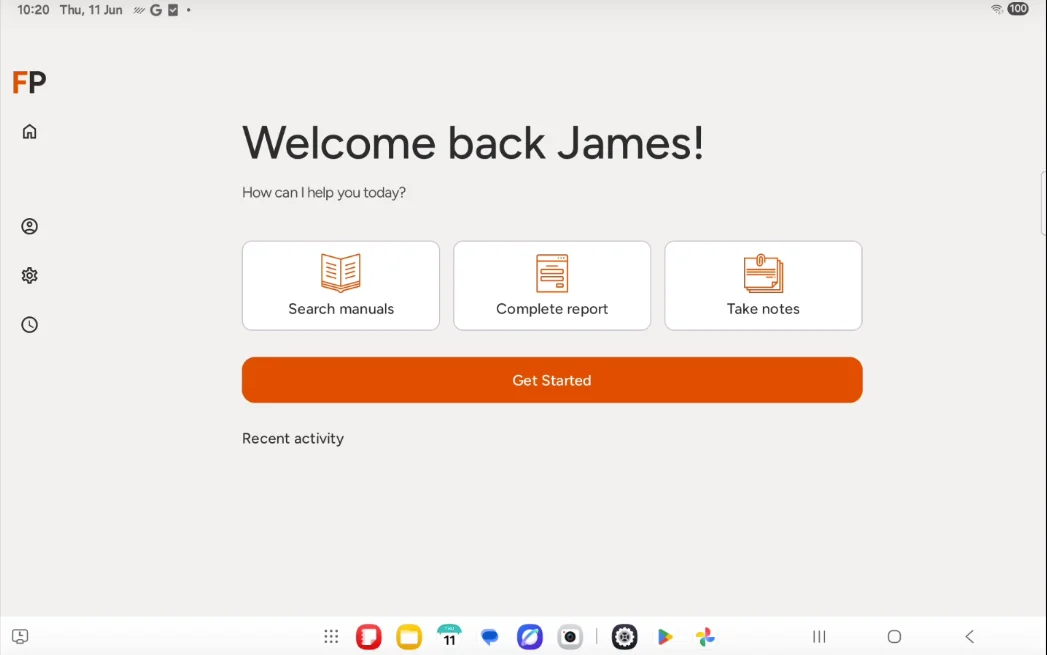
Confirming access (dashboard)
Back on the dashboard Users page, the pending invite disappears and the new user appears in the Members list with the role you assigned.
Tips
- The user must sign in with the email address the invite was sent to. If they sign in with a different account, the invite code won’t work.
- Codes expire after 7 days. If a user hasn’t joined in time, cancel the pending invite using the icon next to it in the Pending invites table, then send a new one.
- Wrong account? On the sign-in or invite code screens, the user can tap Use a different account to switch to the correct one before entering the code.