

Step 1: Open Settings
Tap the gear icon in the left sidebar (third icon down).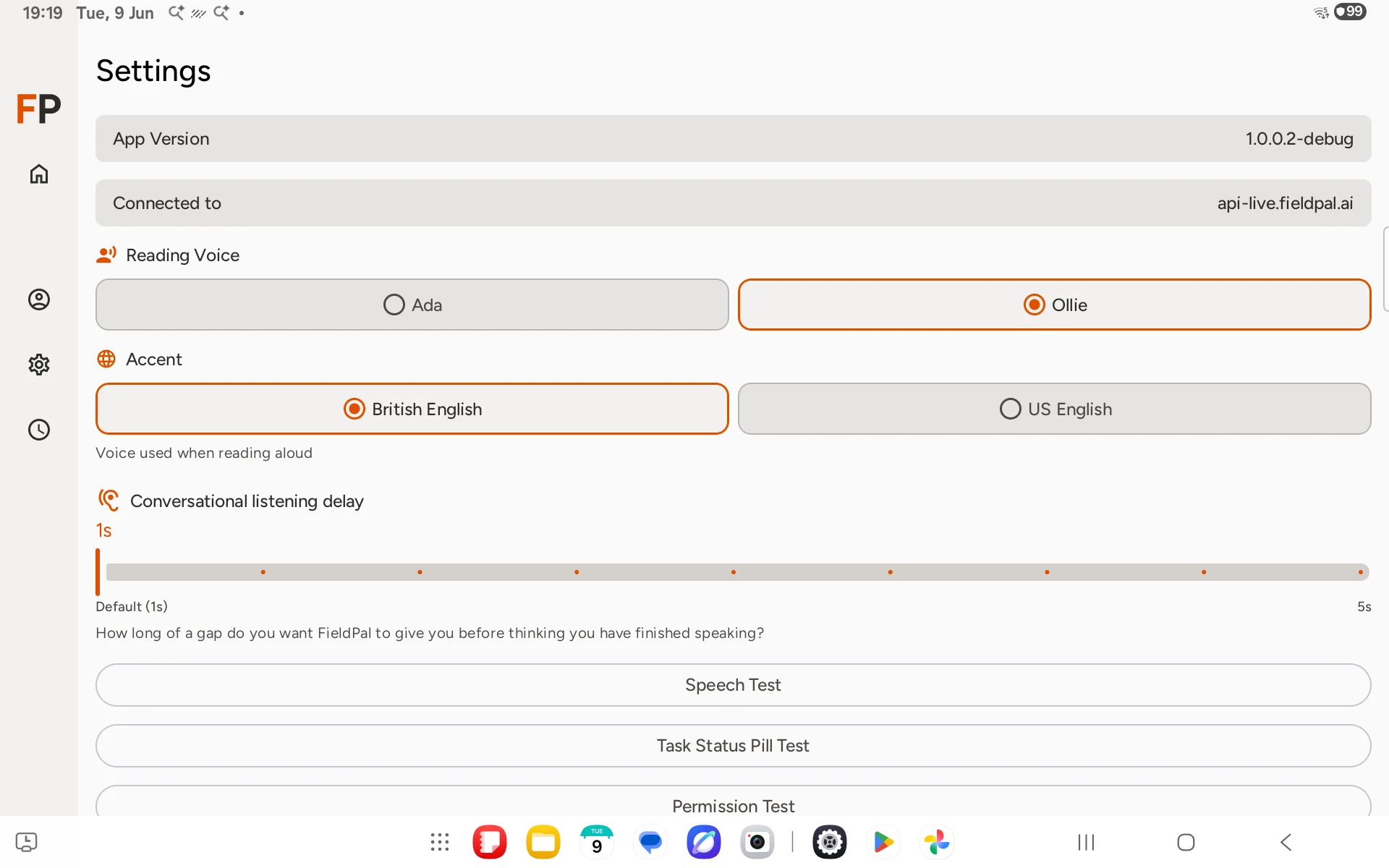
Step 2: Choose a language
Near the top of Settings, under Language, tap the dropdown. The first option is always System default, showing your device’s language in brackets, followed by every supported language:- English (UK)
- English (US)
- Español (España)
- Français (France)
- Deutsch (Deutschland)
- Português (Brasil)
- Nederlands (Nederland)
- 中文(普通话,简体)
- 日本語(日本)
- العربية (الإمارات)
Arabic doesn’t yet lay text out right-to-left. The interface will still read left-to-right even though the translated text itself is correct.
Step 3: Choose a reading voice
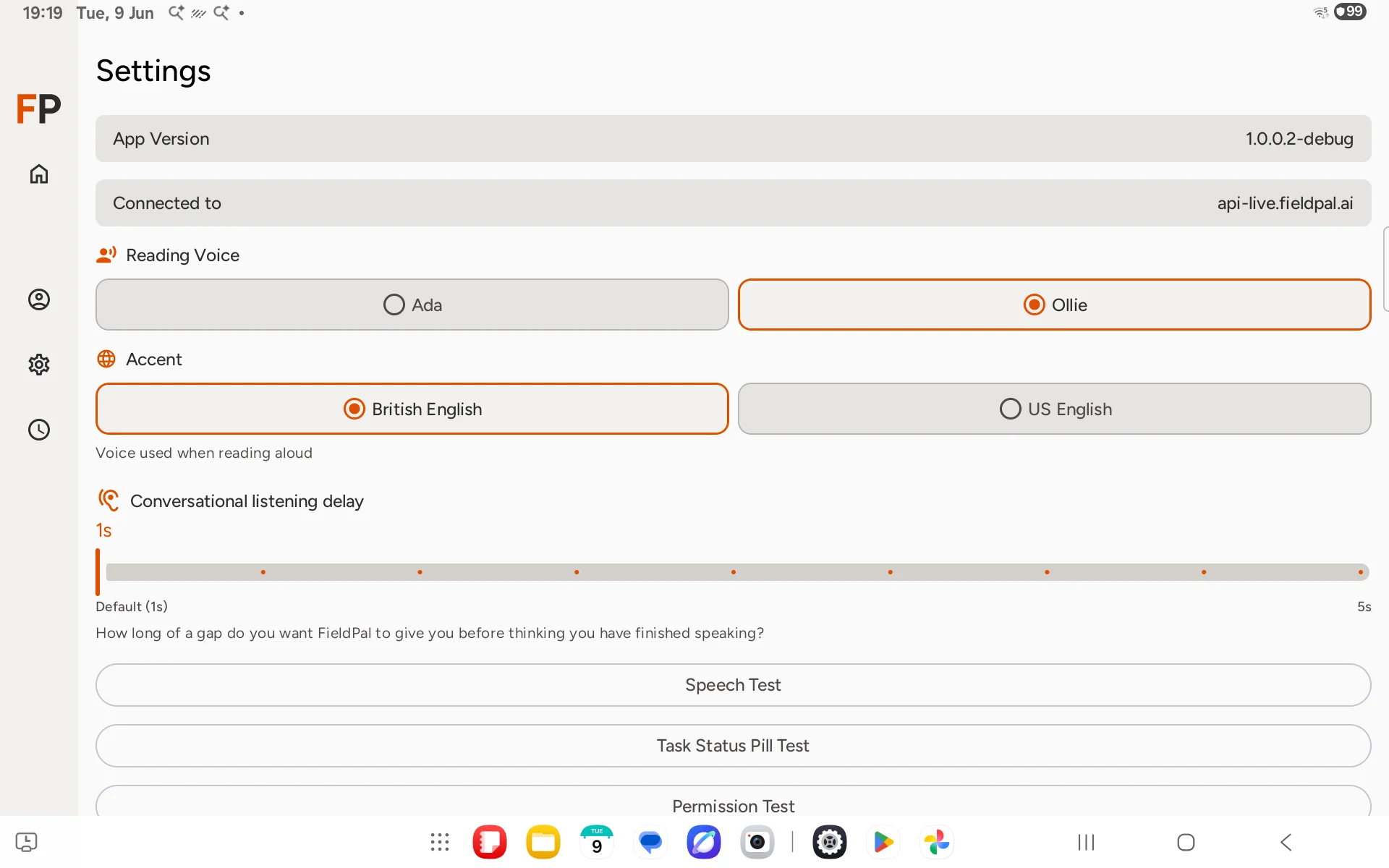
Under Reading Voice, tap Ada or Ollie, the voices the AI uses to read responses aloud.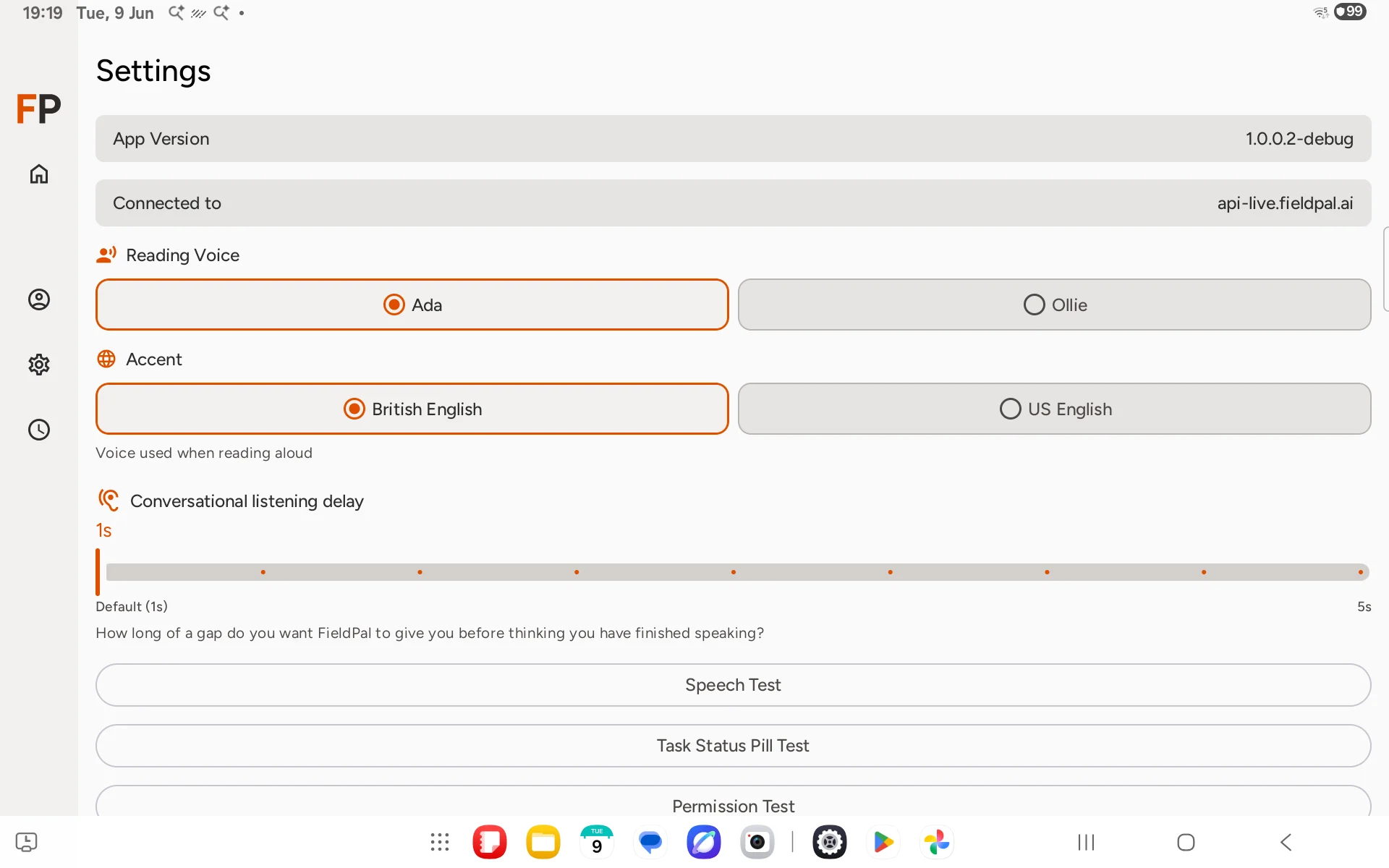
Step 4: Test the voice
Tap Speech Test to hear a sample and confirm your speaker and microphone are working. Press the back button to return to Settings when done.Tips
- Your voice choice saves automatically: there is no Save button.
- If the AI reads too quietly, use the physical volume buttons on the side of your device.
- The Task Status Pill Test option is a developer tool. You do not need it for normal use.