

Step 1: Tap Take notes
From the home screen, tap Take notes.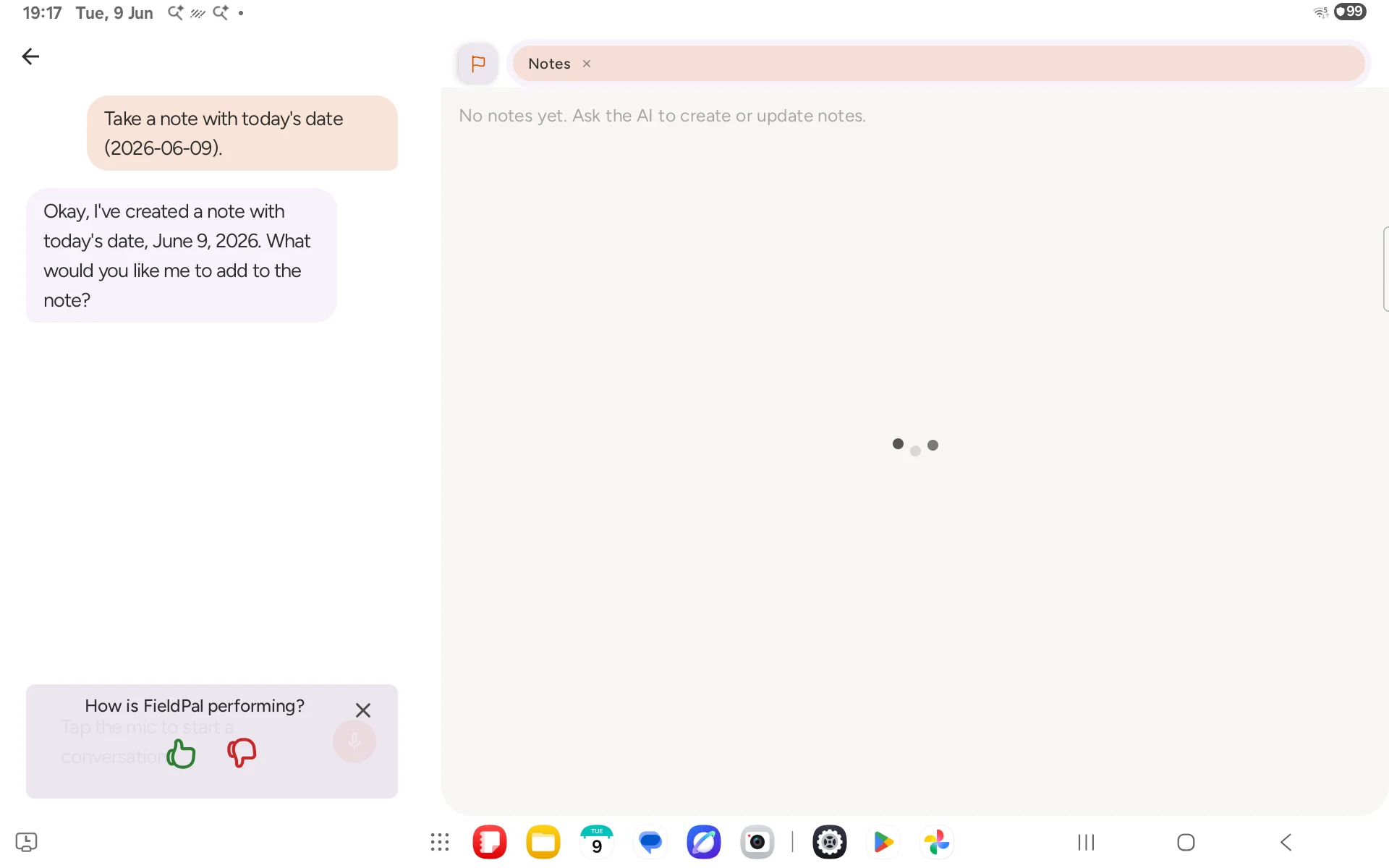
Step 2: Tell the AI what to note
Tap the microphone to speak, or the text area to type. Be as informal as you like: the AI will format it. Examples:- “Add a note: windscreen cracked on AB12 CDE, needs booking in”
- “Note that the warehouse door on the north side is not closing properly”
- “Record that the inspection was completed at 14:30”
Step 3: Add more notes or return later
You can add as many notes as you need. Each one is stored separately and timestamped. Tap Take notes again any time to pick up where you left off. Previous notes are listed and you can ask the AI to add to, update, or review them.Tips
- Notes are separate from reports. Use notes for quick observations that do not fit a report template.
- Ask the AI to summarise: “What notes do I have from today?”
- Notes are visible to your administrator on the dashboard.