

Step 1: Tap Complete report
From the home screen, tap Complete report.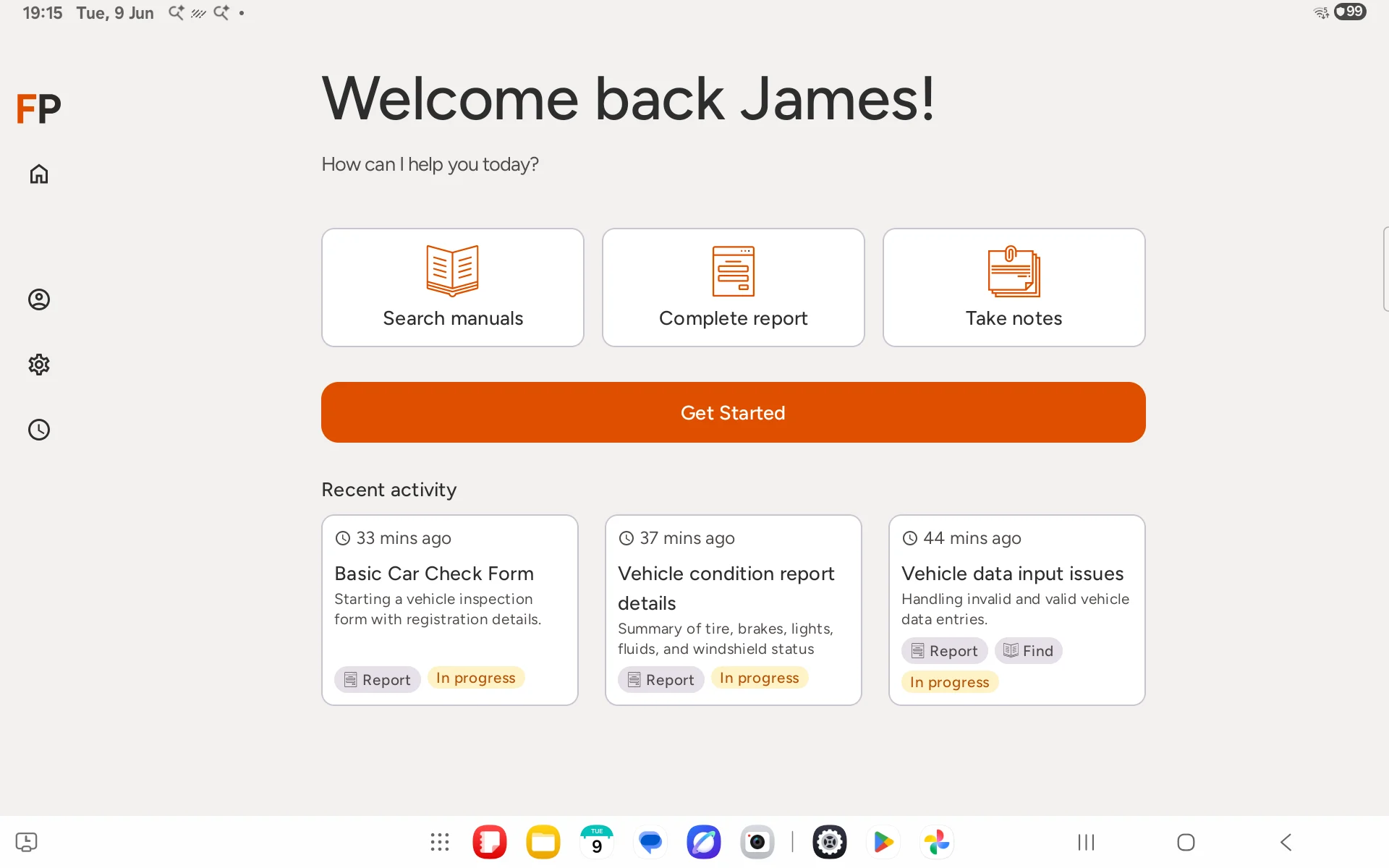
Step 2: Choose a report template
A list of available report types will appear. Tap the one that matches your current job.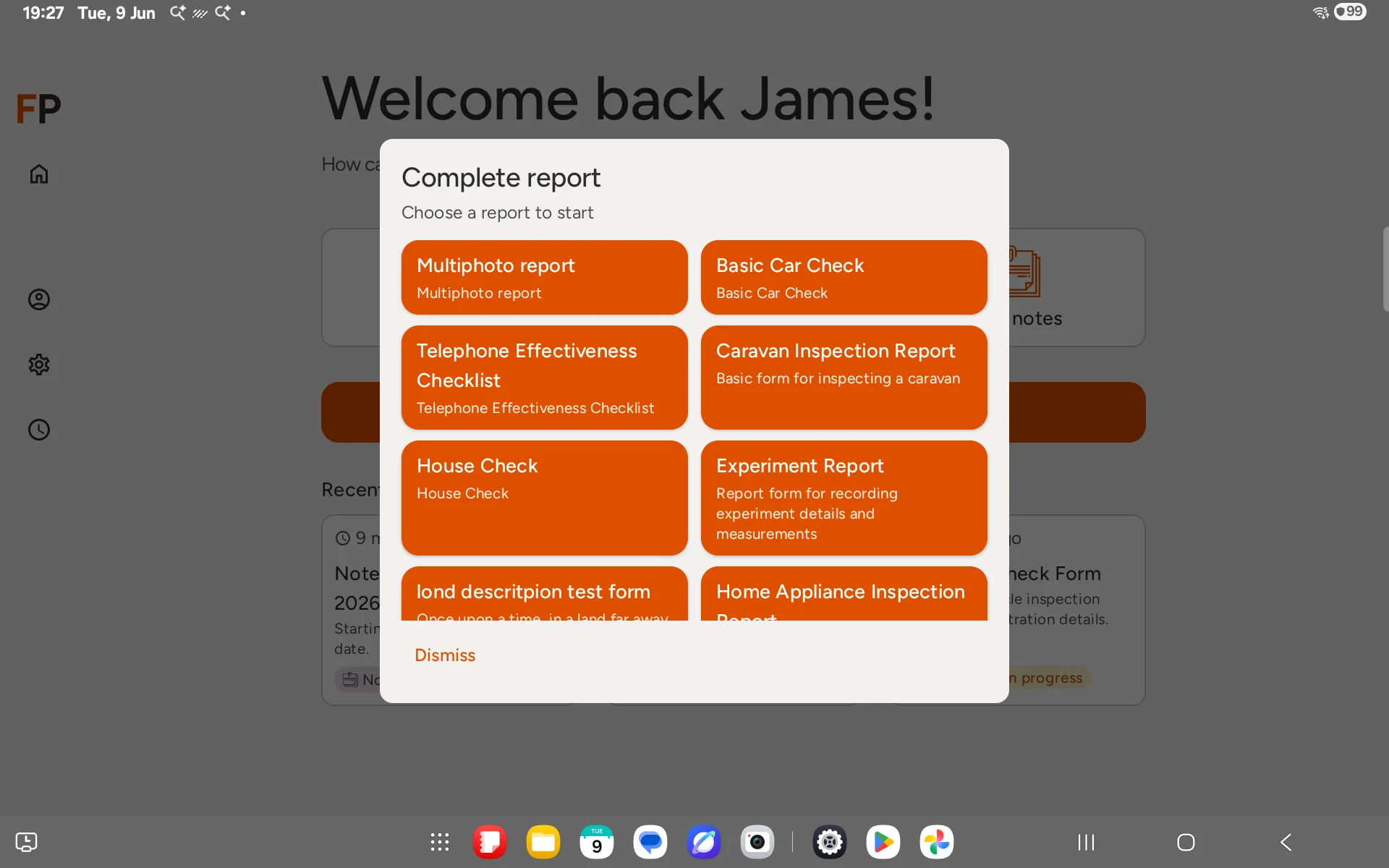
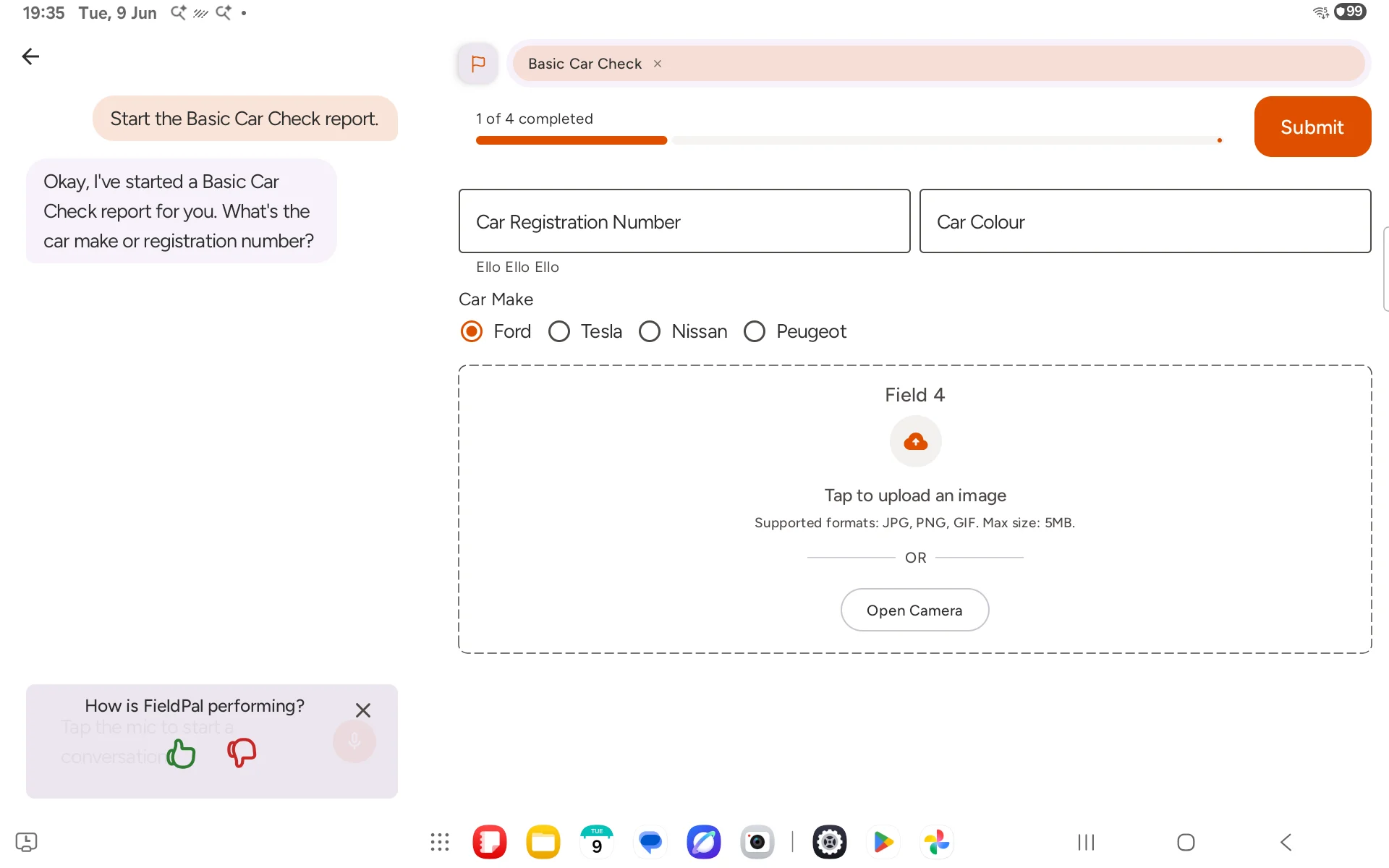
Step 3: Fill in the form with the AI assistant
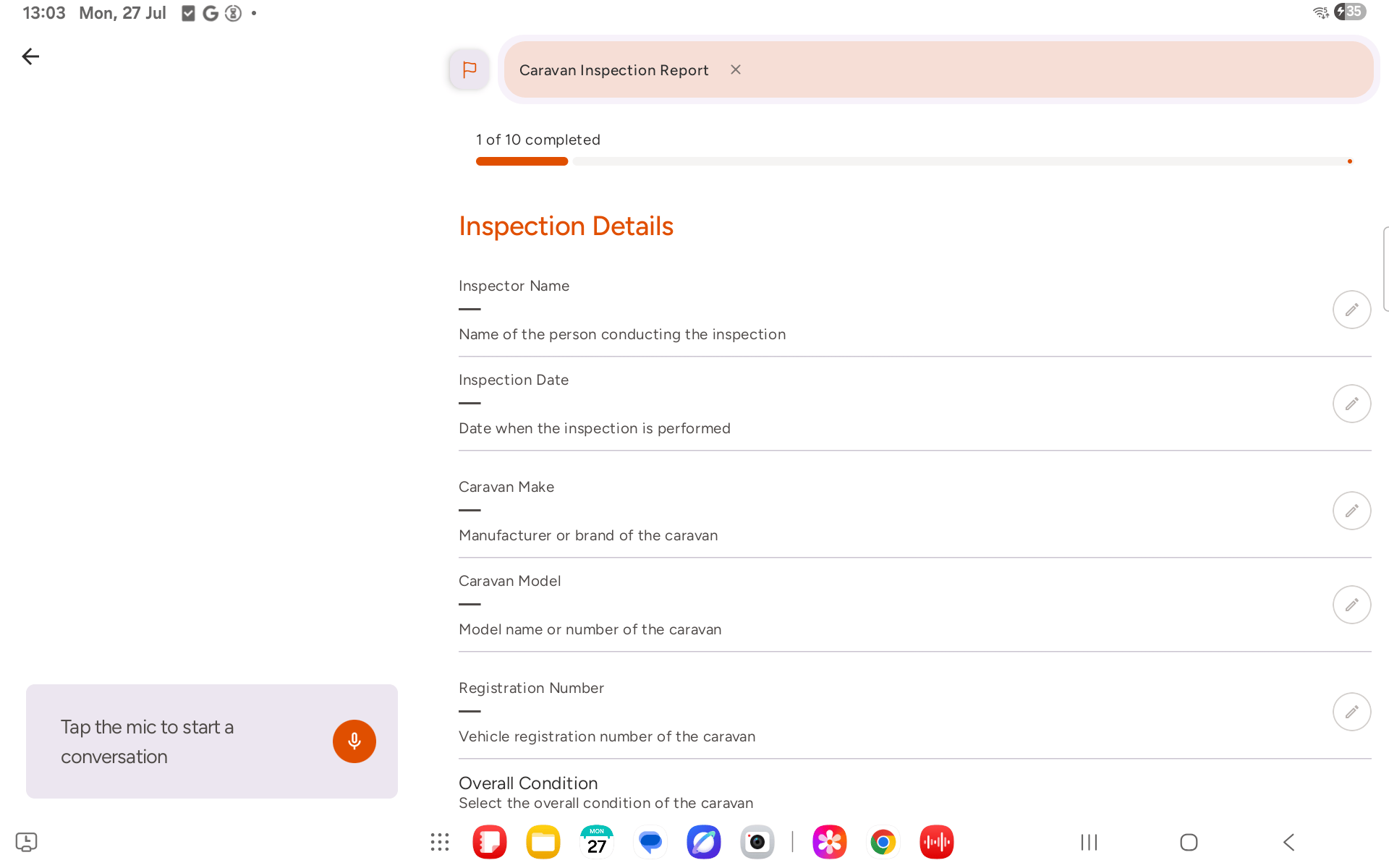
The report screen opens with two panels:- Left: the AI assistant chat, where you describe what you are doing
- Right: the form fields, which the AI fills in automatically as you speak or type
Step 4: Talk to the AI naturally
FieldPal is voice-first. The fastest way to complete a form is to speak to the assistant the same way you would describe a job to a colleague, in full sentences, without worrying about which field you are filling in.Step 5: Edit a field manually
The first time you tap a text field in a conversation, a coach overlay appears encouraging voice input instead.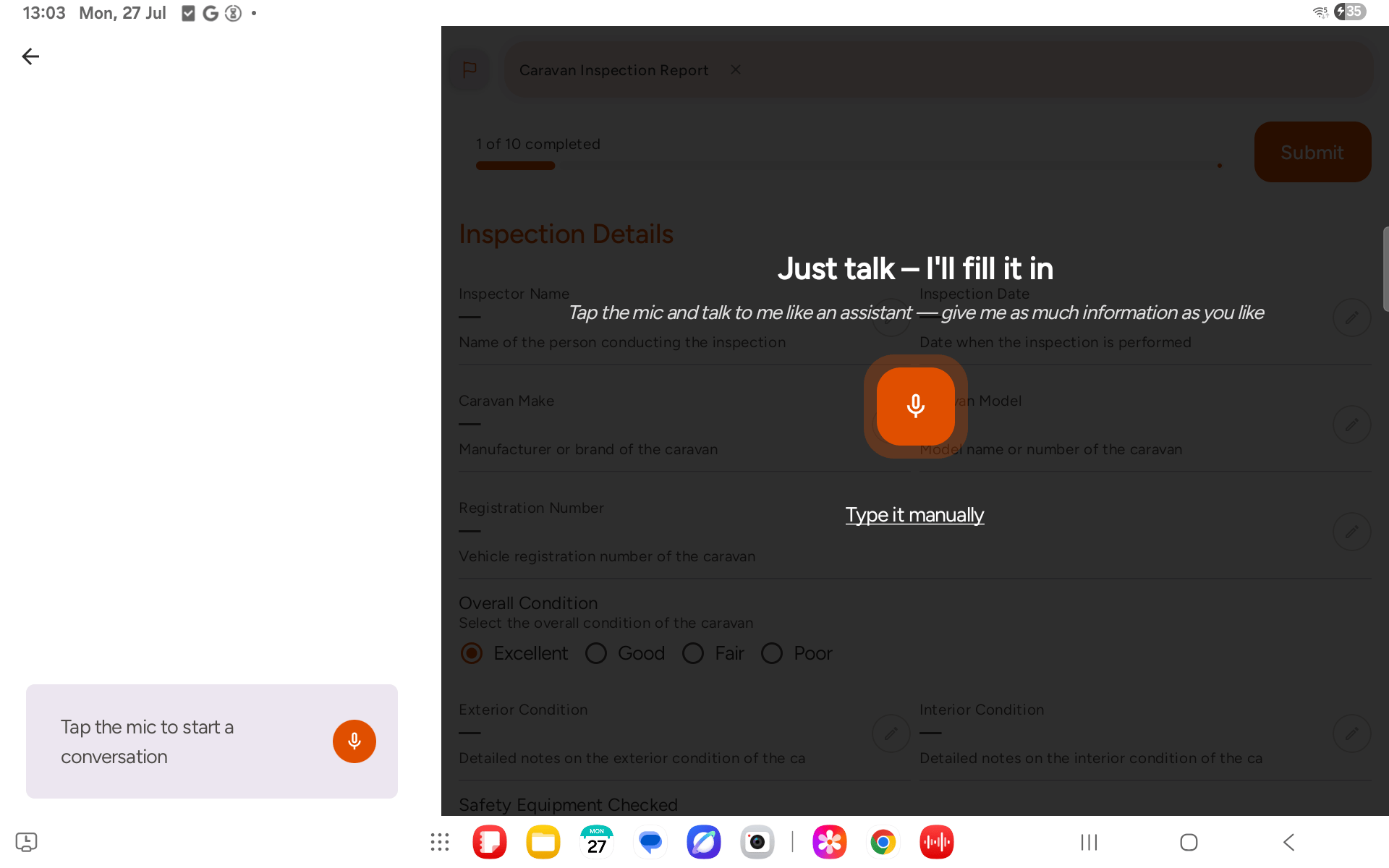
- Tap the microphone to start speaking your answer
- Tap Type it manually to dismiss the coach and use the keyboard instead
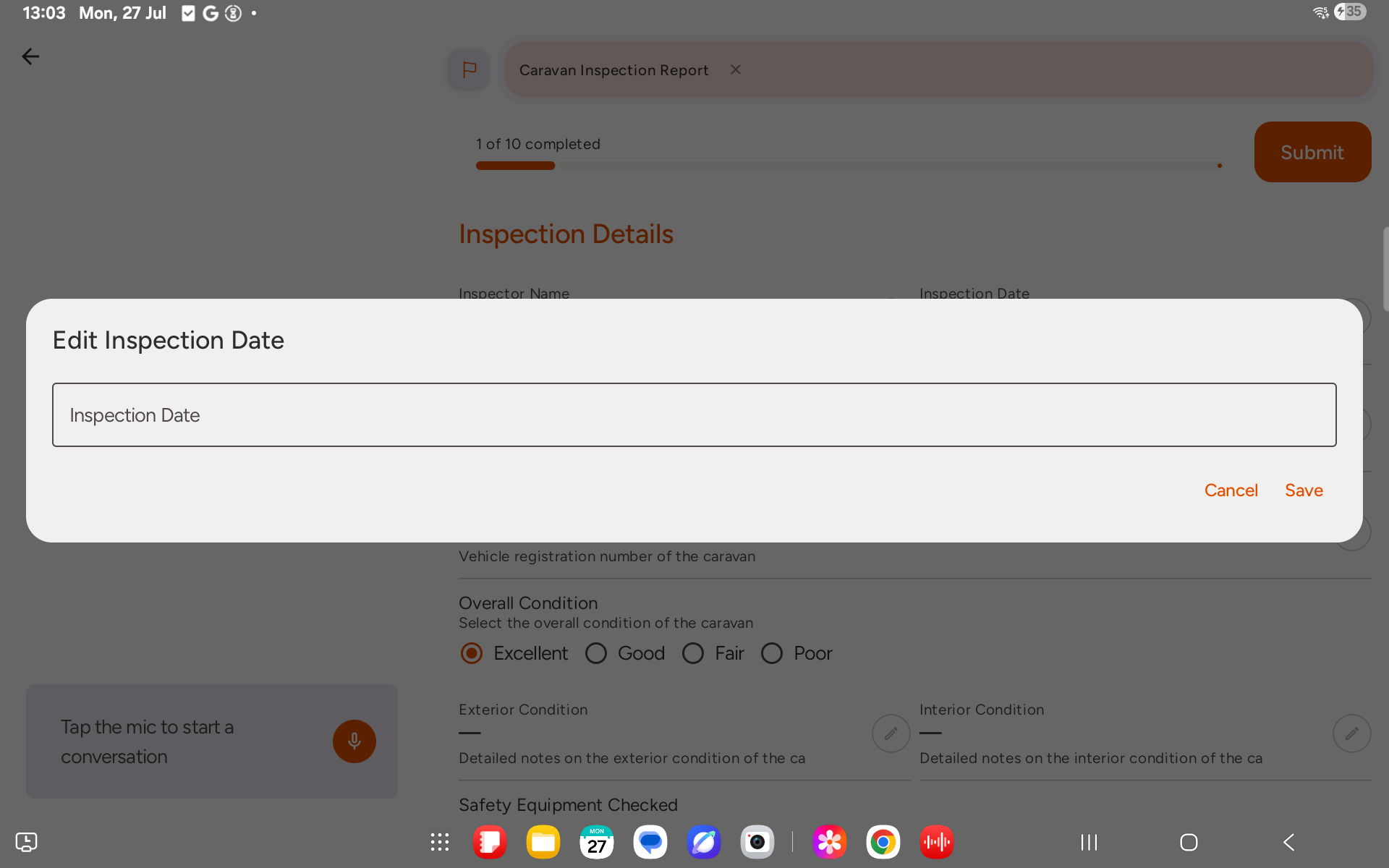
The coach only appears once per conversation. The pencil button is hidden once a field has been submitted, or while voice mode is active.
Step 6: Submit the report
When all required fields are complete, tap Submit in the top right corner. The report is sent to your organisation’s dashboard immediately.If you close the app mid-way through, your progress is saved. The report appears as In progress under Recent activity on the home screen. Tap it to continue.
If the report takes a while to open
On a slow connection, the report can take a few seconds to appear. FieldPal shows a spinner until the form is ready.- After a couple of seconds you’ll see This seems to be taking a little longer than expected.
- After a few more seconds a Cancel button appears. Tapping it, using your device’s back gesture, or saying Navigate back on a RealWear headset takes you back to the home screen without starting the report.
- If the report can’t be started at all, you’ll see Couldn’t start conversation with the reason. Tap Try again once you have signal, or Back to return home.