

Your organisation admin turns the review on for each template in the dashboard, and writes the checks it runs. See setting up AI report review. If the button at the bottom of a report says Submit rather than Review, that template isn’t checked before you submit.
Step 1: Tap Review
Fill in the report as usual, by voice, typing or tapping. When a template has a review, the button at the bottom of the form says Review instead of Submit.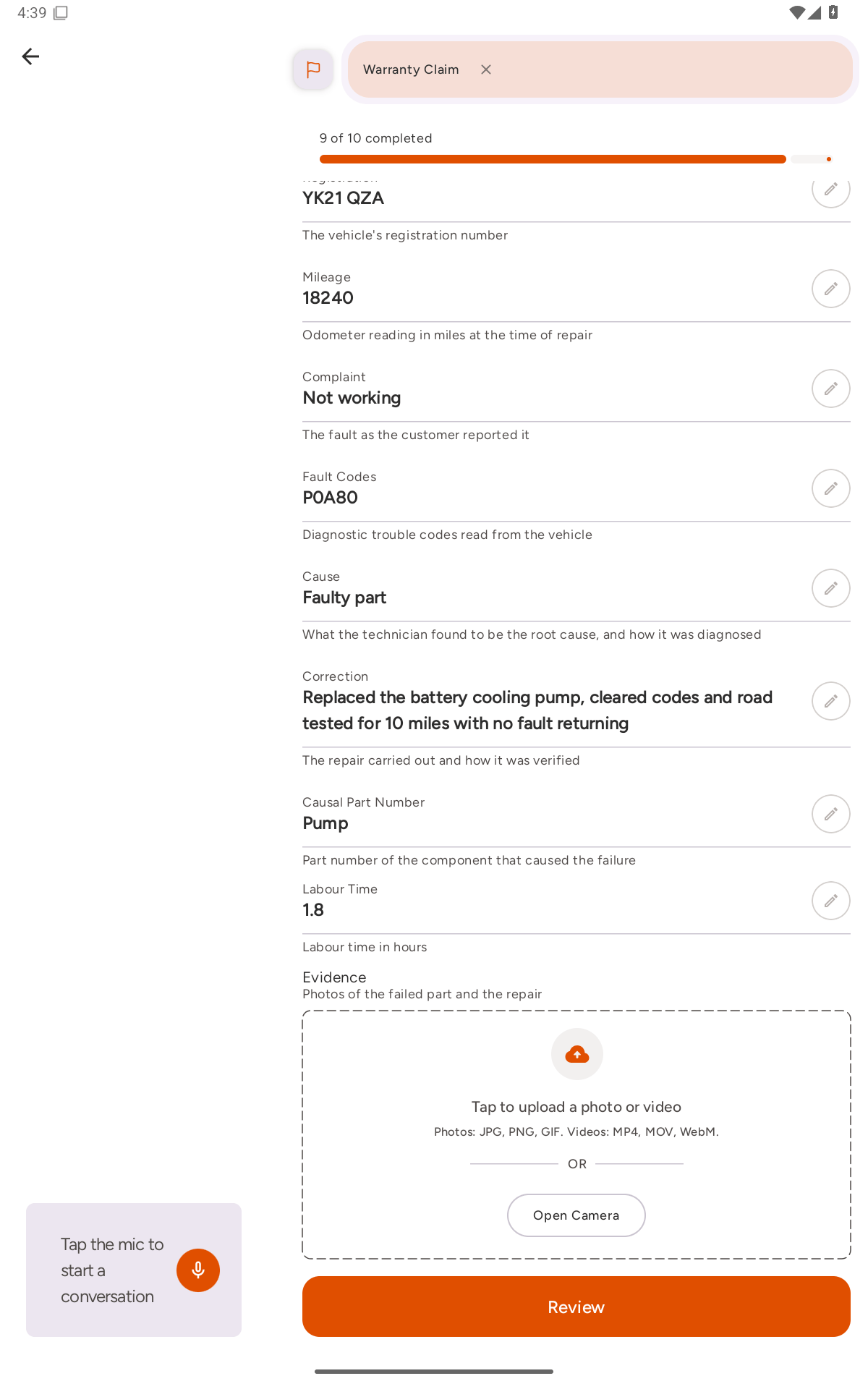
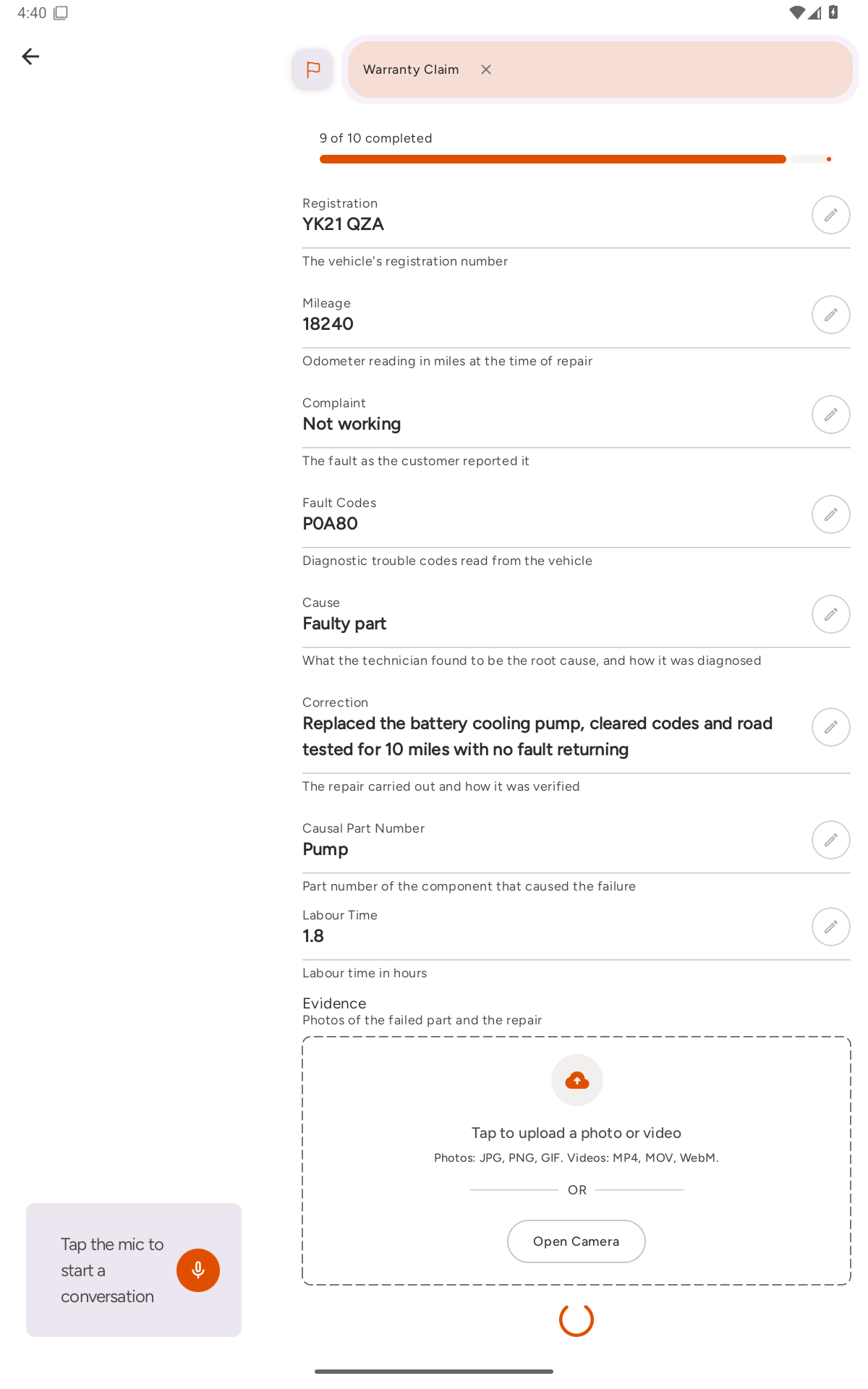
Step 2: Read the result
The result opens over the report. At the top is a headline, Some checks didn’t pass or Checks passed (your admin can change this wording), followed by a one-line summary. Below that is one row for each check. Each row shows the name of the check, what FieldPal found and, when something needs fixing, what to do about it. Rows that didn’t pass are shaded red.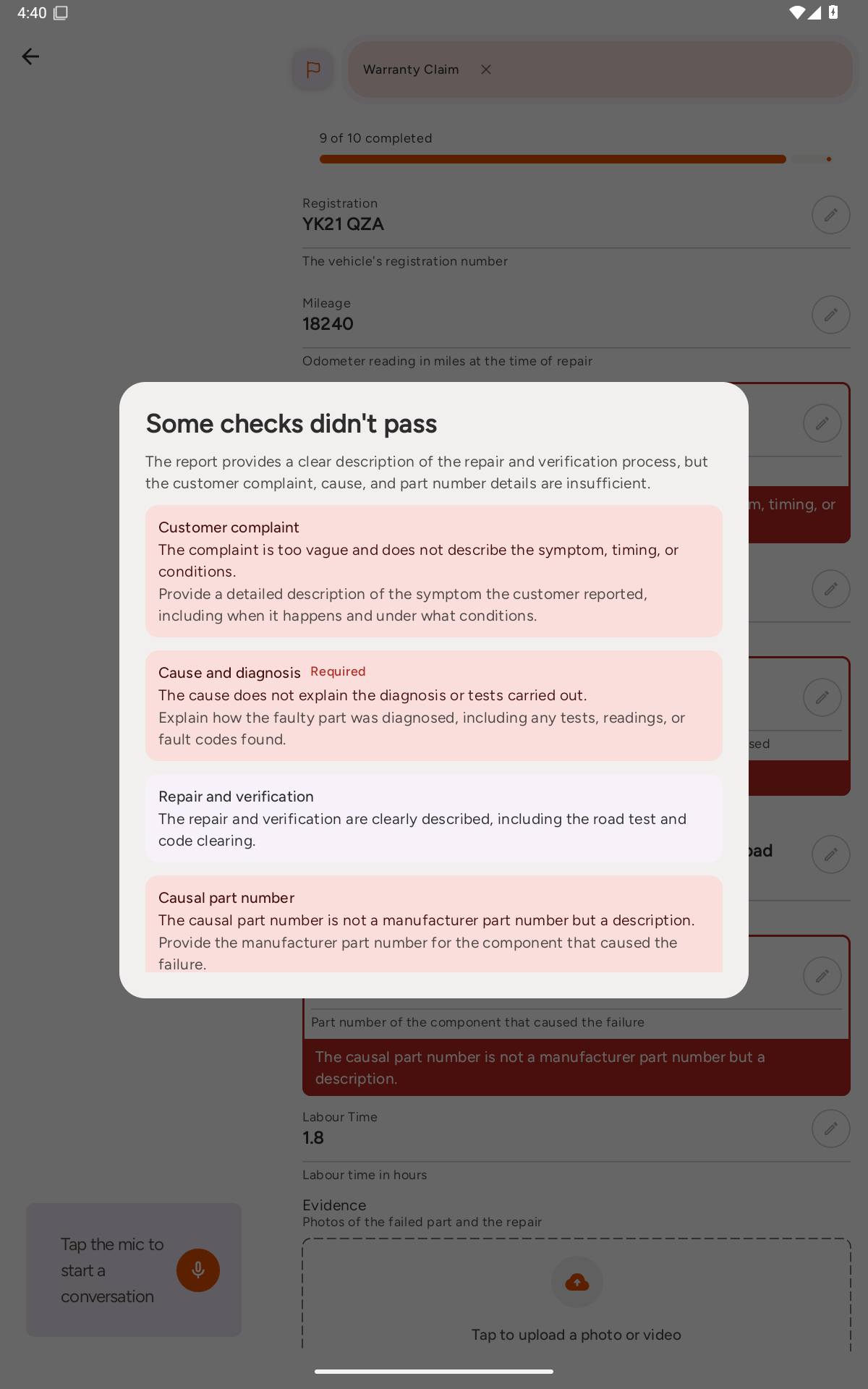
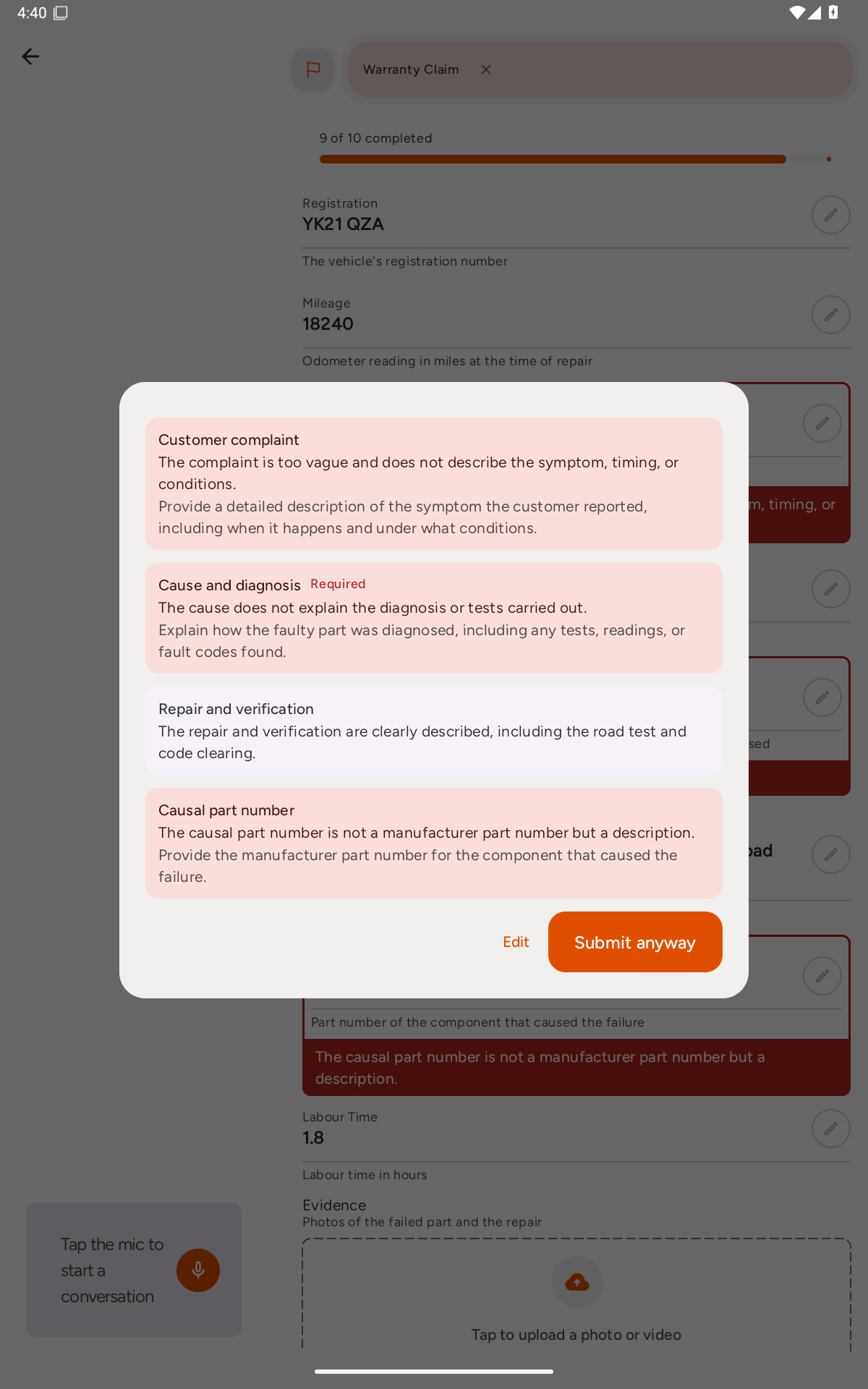
- Edit closes the result so you can change your answers.
- Submit anyway sends the report as it is.
Step 3: Fix the flagged fields
Tap any red row to close the result and jump straight to the field it is about. You can also tap Edit and scroll through the form yourself. Every field that didn’t pass has a red border, with FieldPal’s comment in a red bar underneath.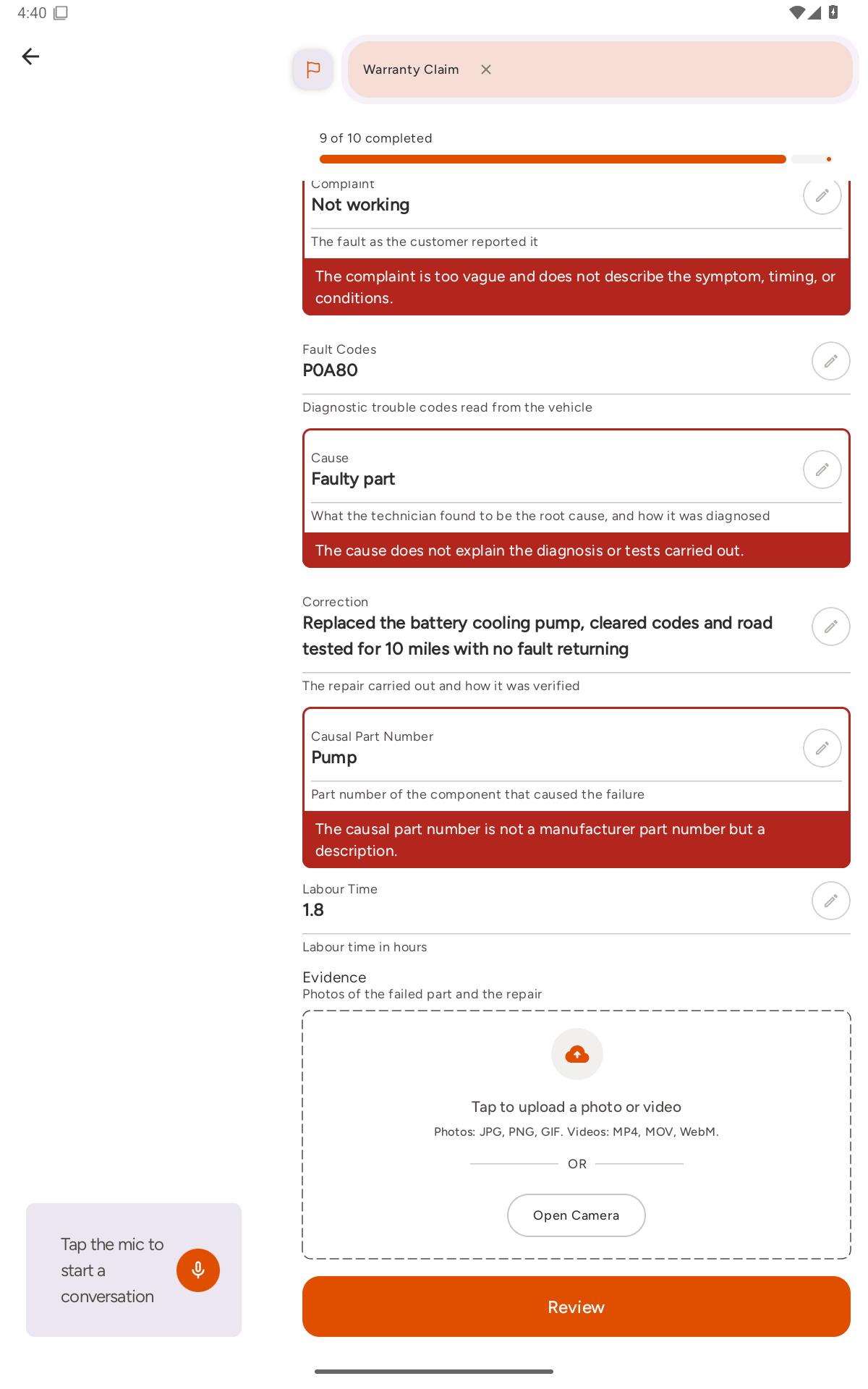
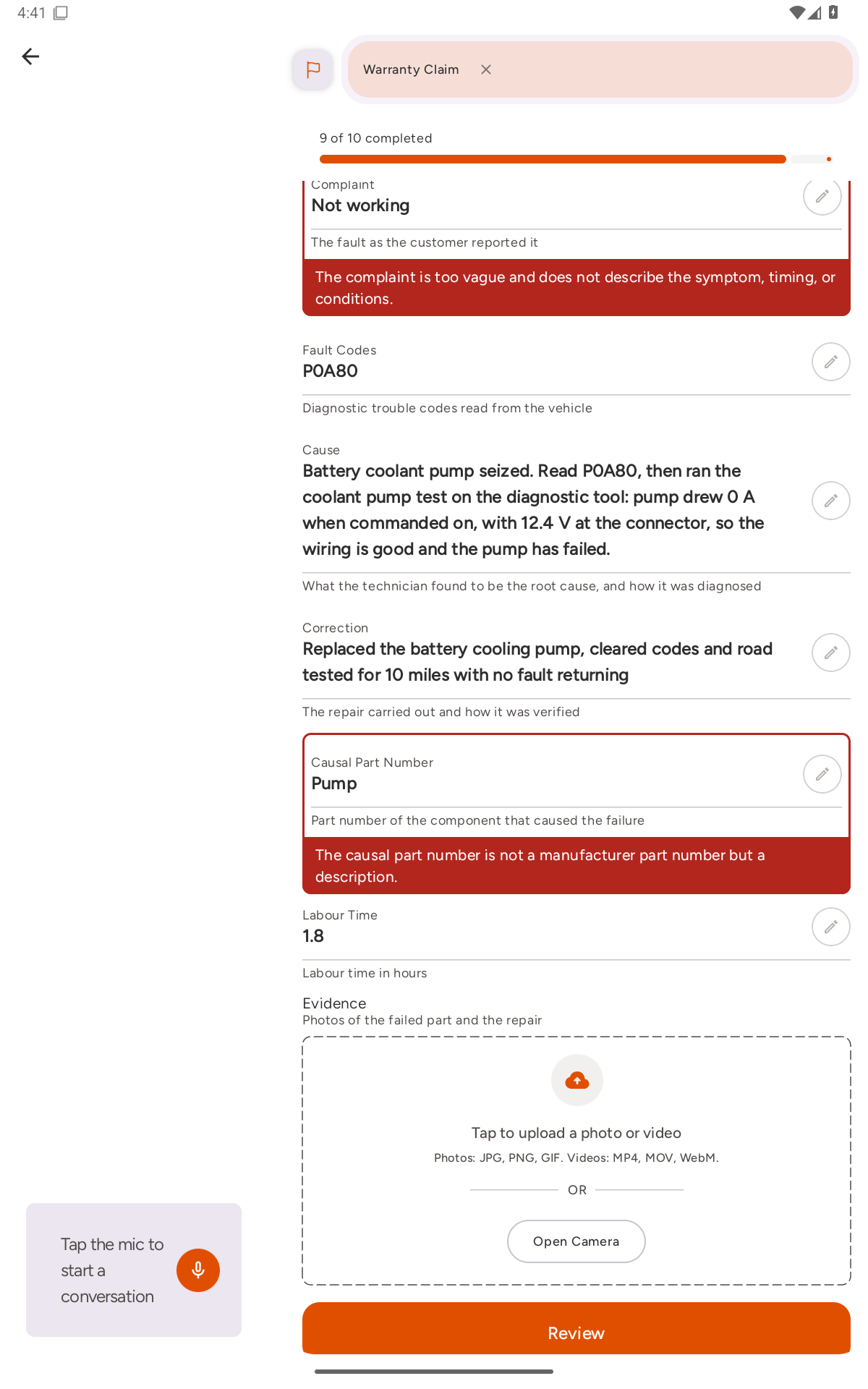
Step 4: Review again and submit
When you have made your changes, tap Review again. FieldPal checks the new answers. When everything passes, the headline reads Checks passed and the button reads Submit.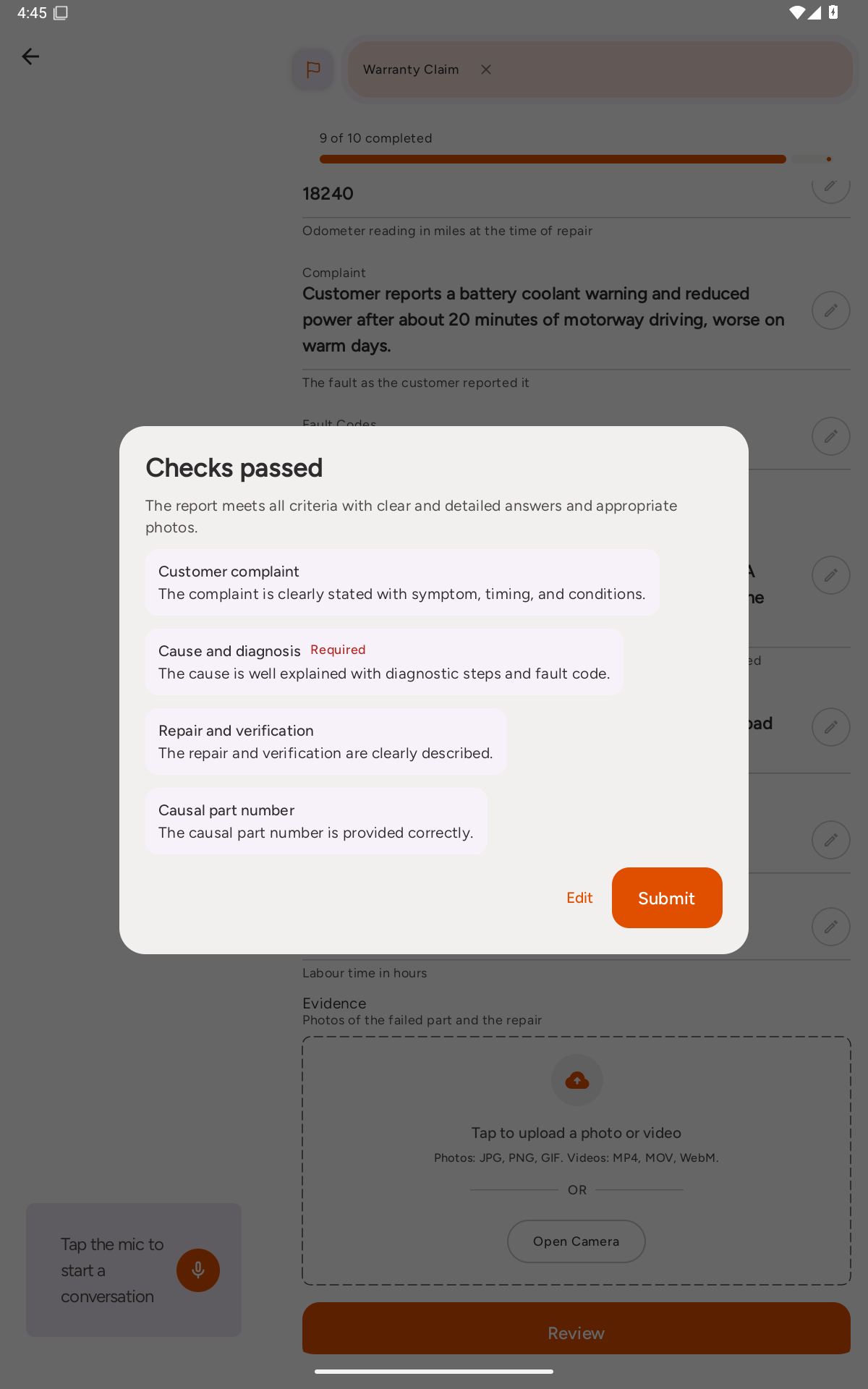
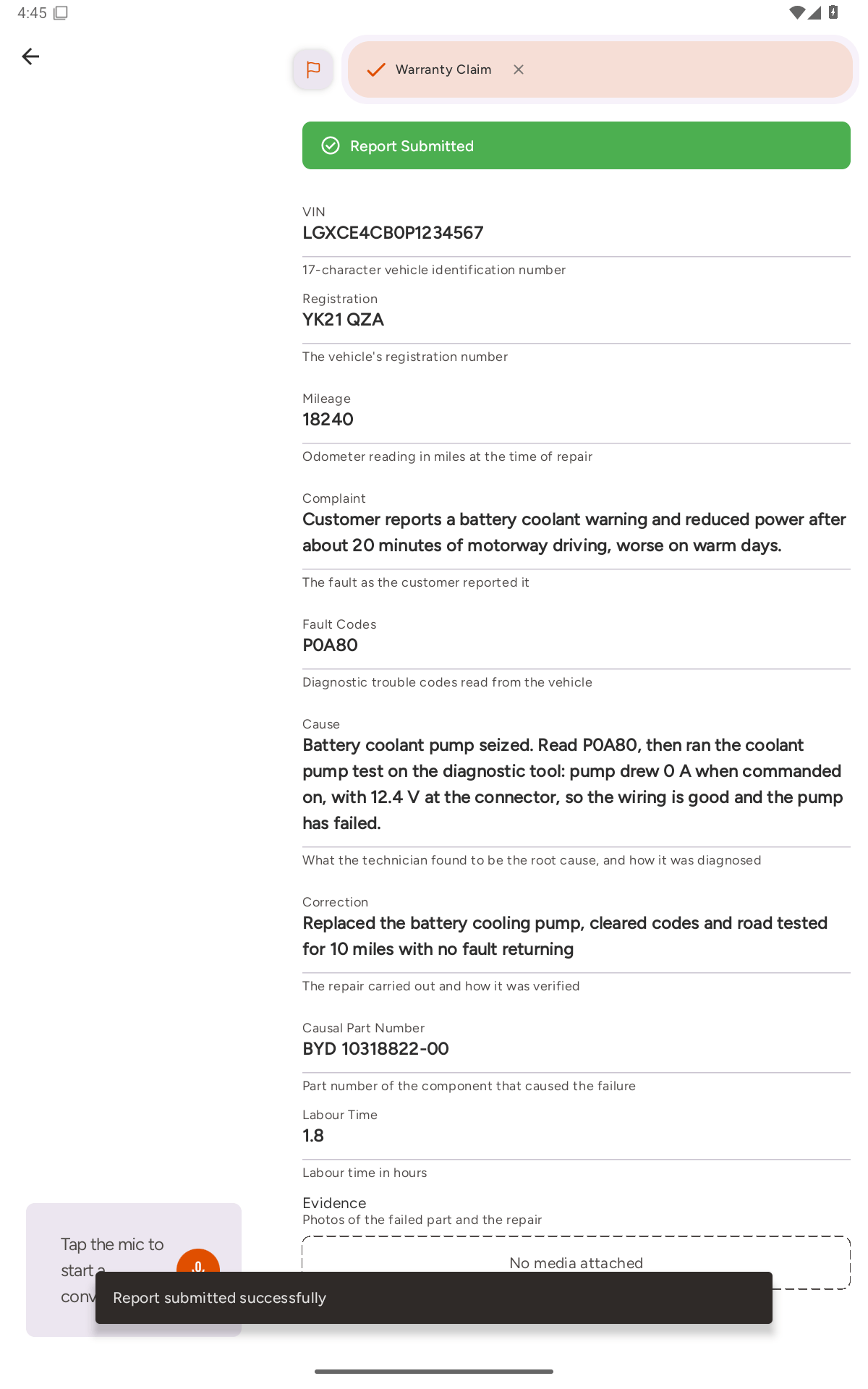
Submitting anyway
You know the job better than any check does. If you are happy with an answer that FieldPal has flagged, tap Submit anyway and the report is sent as it is. Your admin can see on the dashboard that the report was submitted after a check didn’t pass. See AI review results.If the check can’t run
If the review can’t run at that moment, the result says We couldn’t check this report right now. Tap Try again to run the check again, or Submit anyway to send the report without it. A check that can’t run never stops you submitting.Good to know
- Asking the assistant to submit runs the same review. If you say “submit the report”, FieldPal stops listening, runs the check and shows you the result, just as if you had tapped Review.
- Changing any answer means a fresh check. If you edit a field or replace a photo after a review, the next Review checks the new answers. Reviewing the same answers again gives the same result straight away.
- On RealWear devices the button reads Review report.
- The checks themselves stay on the dashboard. You see what FieldPal found, but not the wording your admin wrote for each check or how the checks are weighted.