

Why templates get graded
Most templates start life as a paper form typed up field-for-field, or a form the AI has drafted from a description. Neither process tells you whether the result will actually work when someone is on site, hands full, talking to the assistant instead of typing. A form built for typing does not automatically work for talking. Long capitalised field codes, forms with no guidance on what a good answer looks like, and huge flat lists of fields are all fine on a screen and awkward out loud. The grade exists to catch that before your team does.Grading is advisory only. It never blocks you from saving a template, and it never changes while you are typing, only when you save and reopen it.
Where to find it
Open any template from Report templates in the left-hand navigation. The grading panel sits at the top of the editor, above your fields.A well-graded form
A small, clean template, seven fields, each with a plain-English description of what it’s asking for:
A form with one thing to fix
The same template, before its AI instructions were added: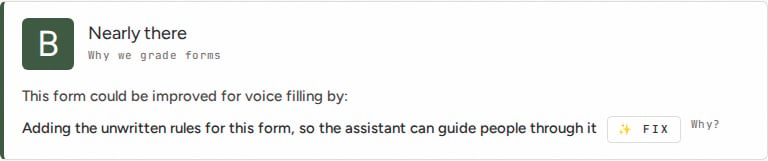
A form that needs real work
A 129-field form typed up field-for-field from a paper sheet, with capitalised codes and almost no guidance: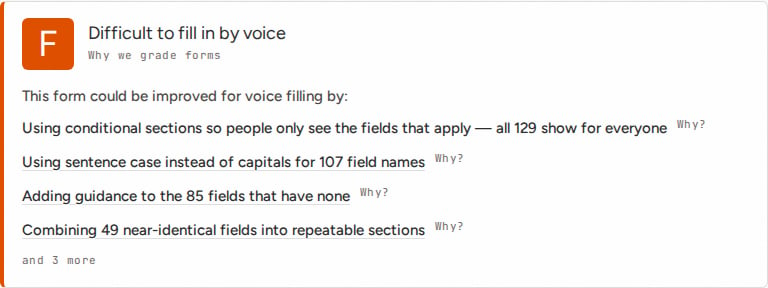
What the grade is looking at
There is no single thing that makes a form grade well or badly. The panel checks for:- Fields that reference each other incorrectly: a conditional section pointing at a field that does not exist, or a field name with hidden extra spaces
- Repeated field groups that should be one repeatable section instead of being typed out many times
- Hard-to-say field names: ALL CAPS, abbreviations, near-identical names sitting next to each other
- Missing guidance: fields with no description of what a good answer looks like
- Too many fields, or sections that run too long
- Empty sections: a heading with nothing underneath it
- A field asking for more than it’s built for: a single-line answer where the guidance is really asking for a paragraph
- No standing instructions for the assistant: the unwritten rules of the form that only a person would otherwise know
Improving a grade
- Save, then reopen, to see a grade update. The grade is calculated when the template is opened, not live as you type, so a change won’t show on the panel until you save and come back to it.
- Start with the Why? links, not the grade itself. The letter is a summary; the explanation tells you what will actually go wrong for the person filling the form in.
- The ✨ FIX button on the AI instructions suggestion opens a short set of questions about your form, and drafts a standing brief for the assistant from your answers. You approve it before anything is saved.
- A low grade doesn’t mean start again. Suggestions are ranked, so working down the list in order gets you the most improvement for the least effort.
Summary
Grading applies to every template in your organisation automatically. There is nothing to turn on: just open a template to see its grade.