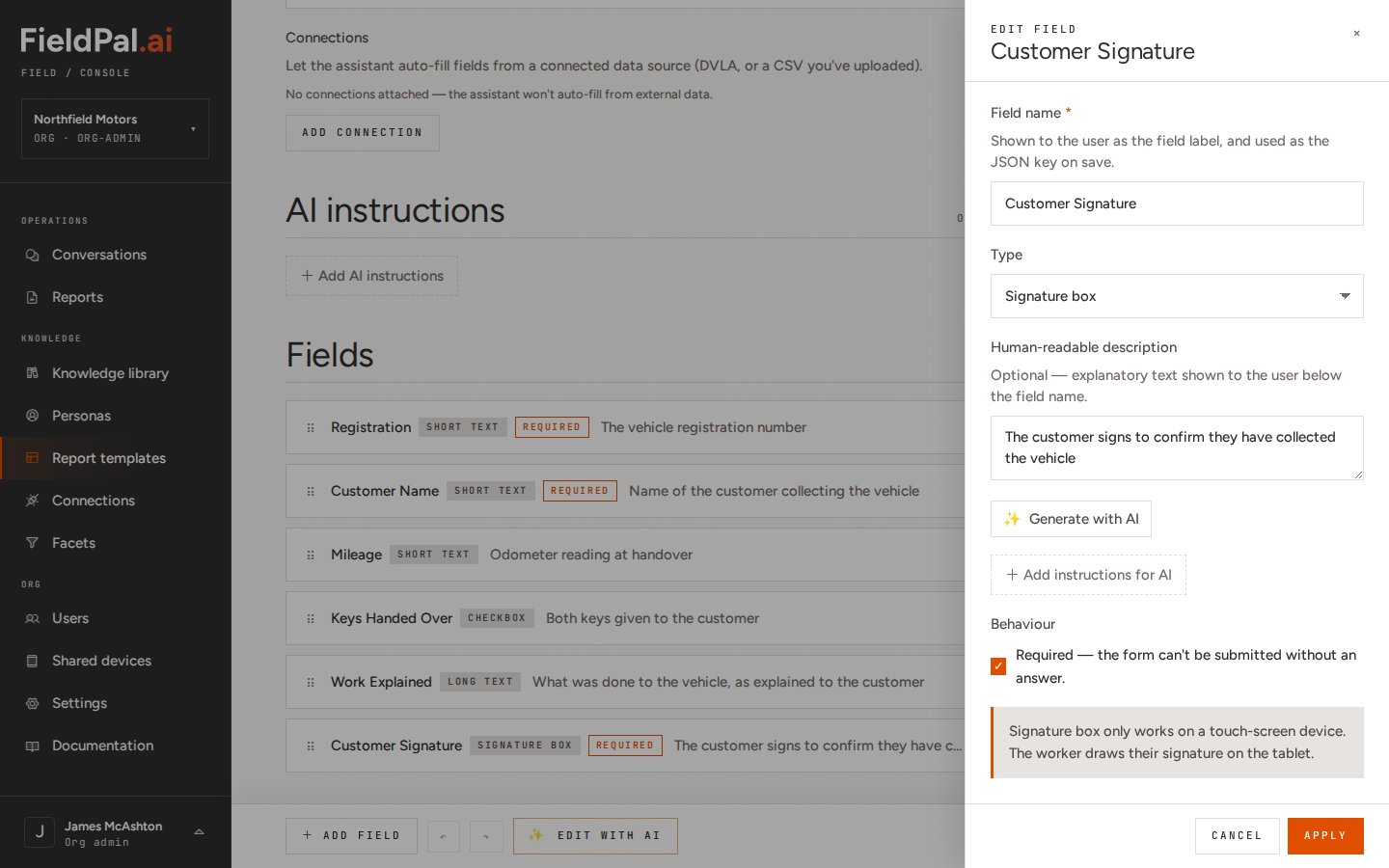
Signature boxes need a phone or tablet. On a RealWear or Vuzix headset the field shows Please continue on tablet or mobile to sign. Open the same report on a phone or tablet to collect the signature.
Step 1: Tap the signature box
Fill in the rest of the report as normal. When you reach the signature, tap Tap to sign.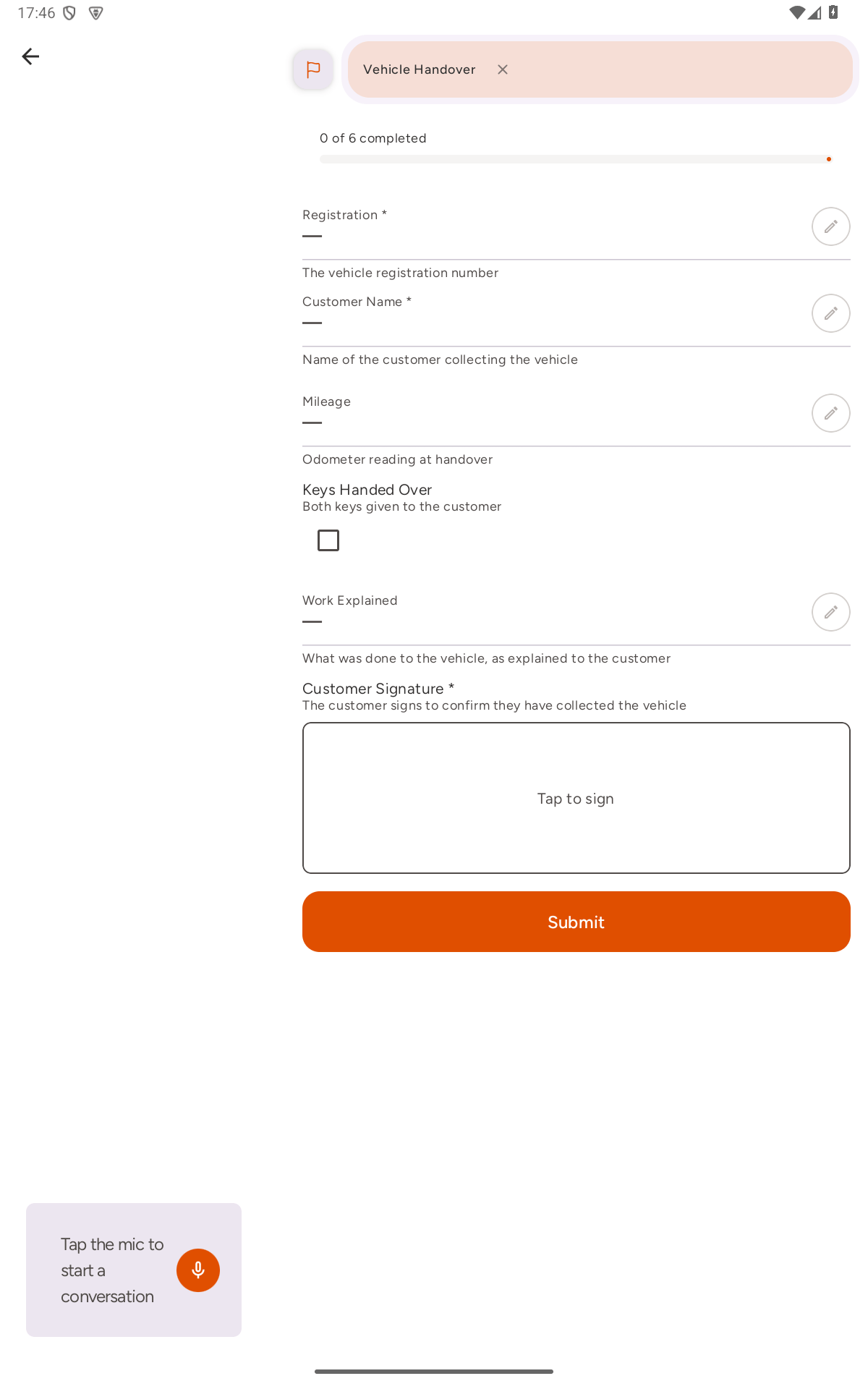
Step 2: Sign
A drawing pad opens. Hand the device over, and ask the person to sign inside the box.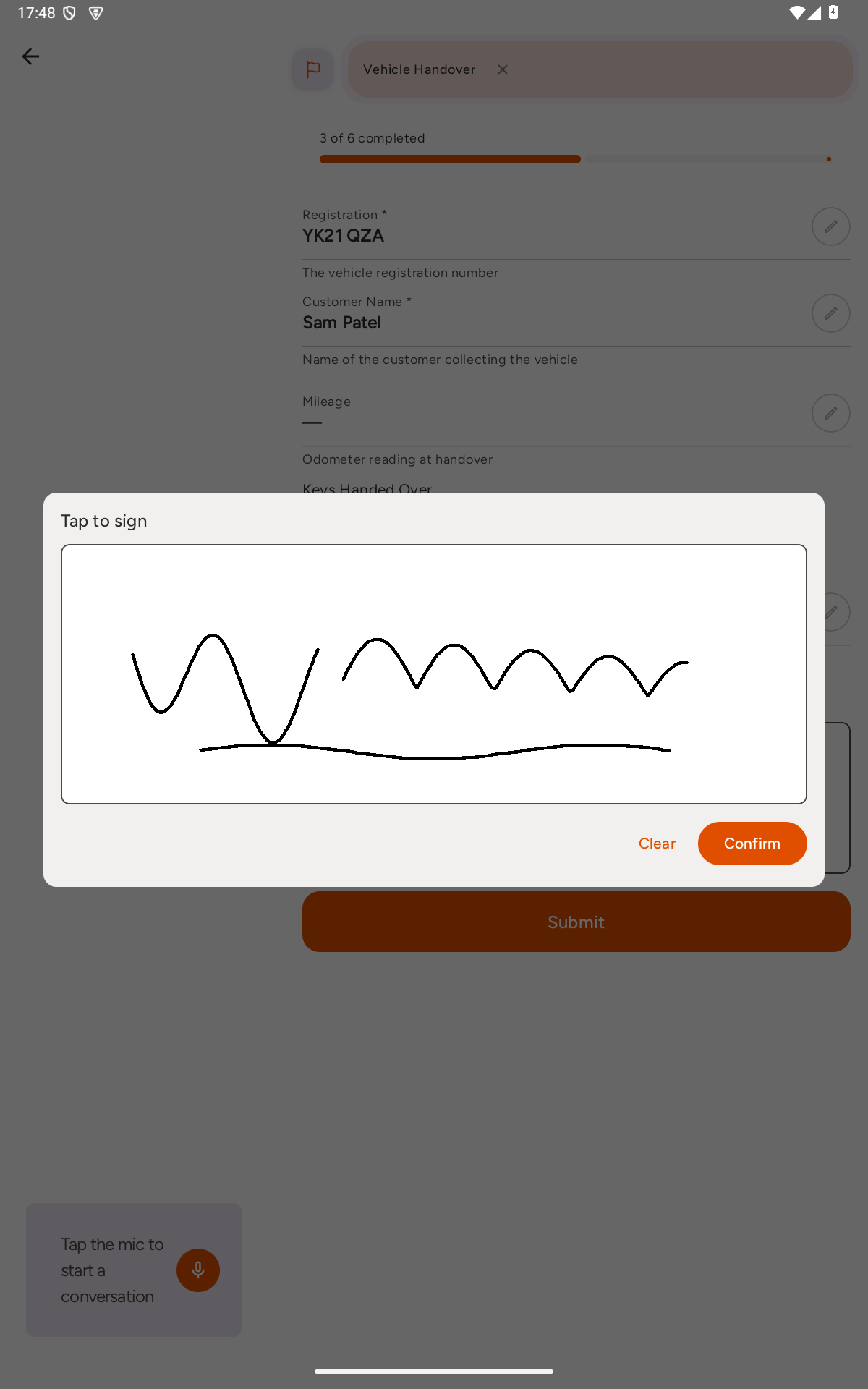
- Clear wipes the pad so they can sign again.
- Confirm saves the signature. It stays greyed out until something has been drawn.
Step 3: Check the signature on the report
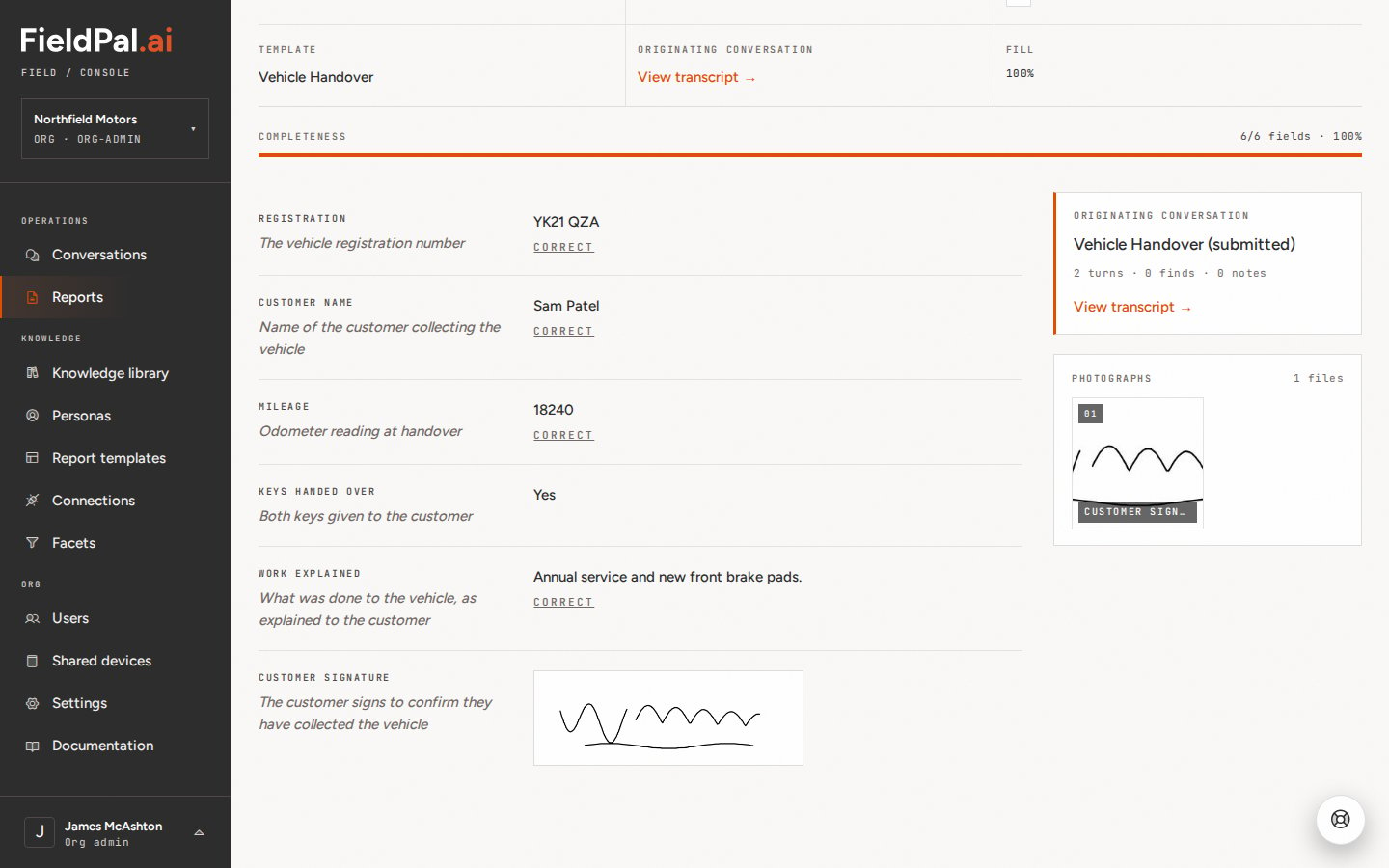
The signature now shows in the field, and it counts towards the completed fields at the top of the report.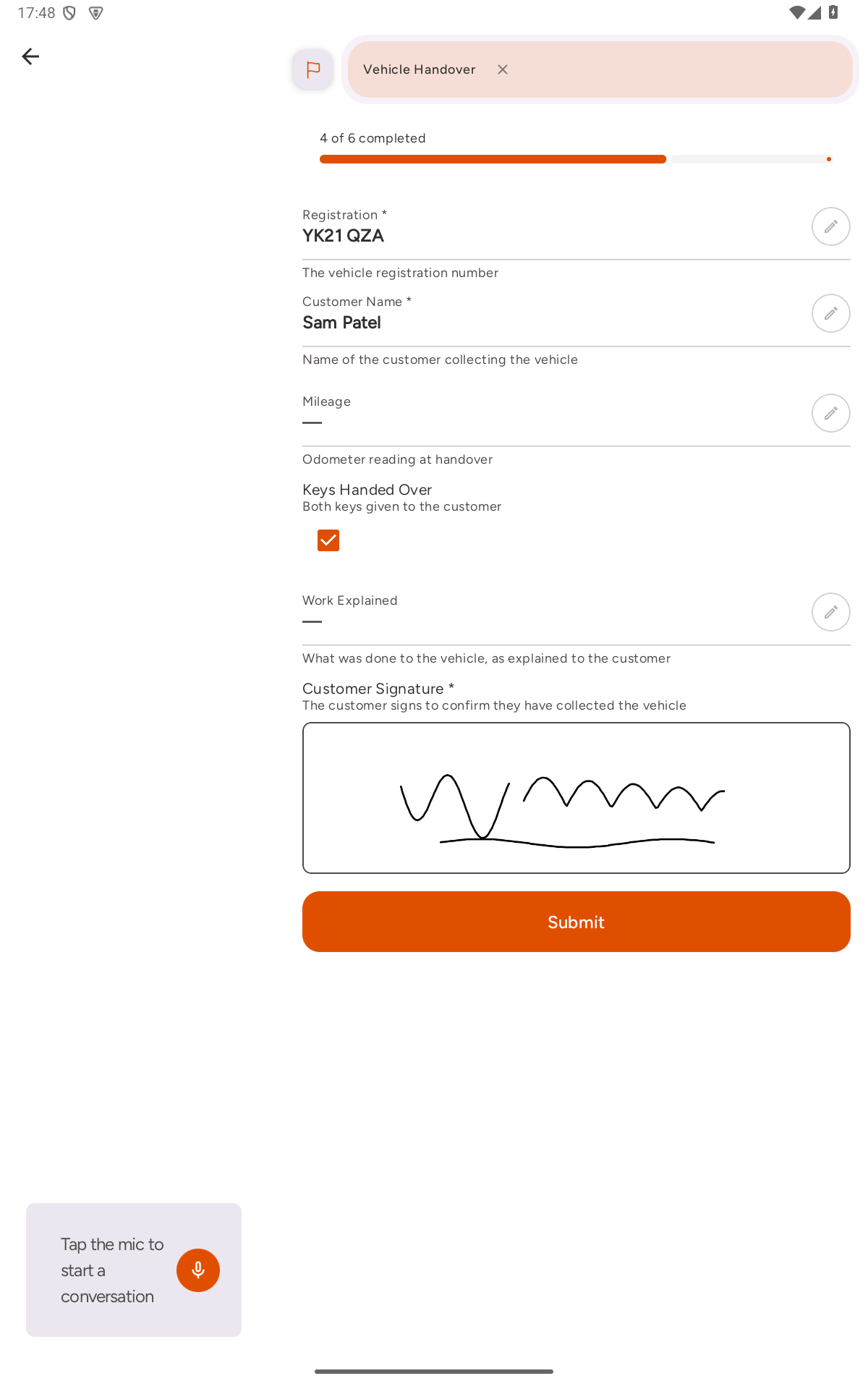
If the app can’t start a report from a template with a signature box, the device is on an older build. Update FieldPal from the app store.
Adding a signature box to a template
Admins add a signature box in the template editor like any other field: click Add field and choose Signature box. The editor reminds you that the field only works on a touch-screen device.