

Only organisation admins can correct reports, and only reports with the status Submitted. In-progress reports are still being filled in, so any changes should be made in the app.
What can be corrected
You can correct short text and long text answers. Other field types can’t be corrected from the dashboard yet: photos, videos, PDFs, audio and scan fields, and fields with a fixed set of answers (combo box, radio group, RAG and checkbox). These don’t show a Correct button.Step 1: Open the report
Go to Reports, find the report and click it to open it. Fields you can correct have a Correct link under the answer.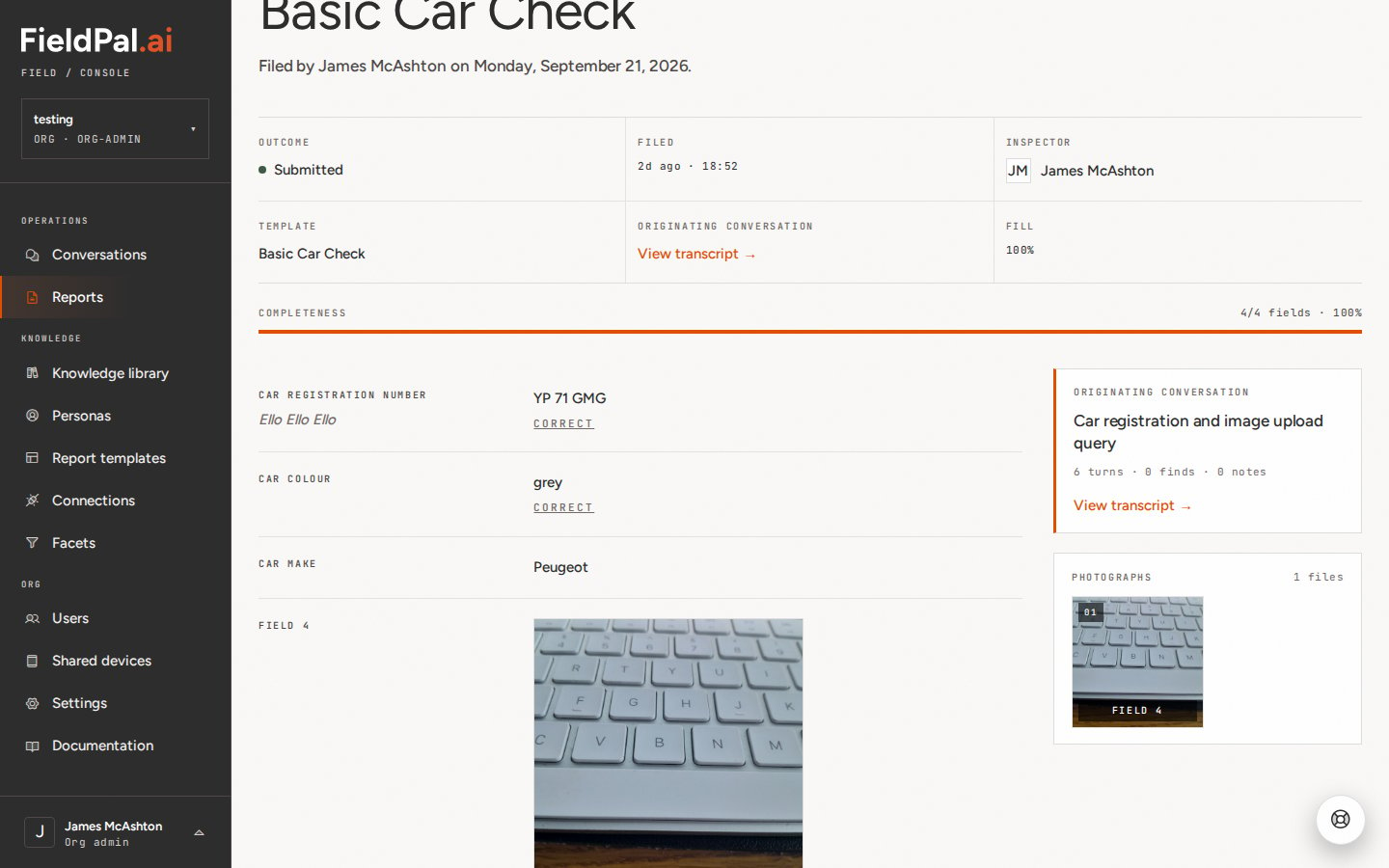
Step 2: Enter the corrected value
Click Correct under the answer you want to change. A dialog shows the current answer. Type the corrected answer in New value.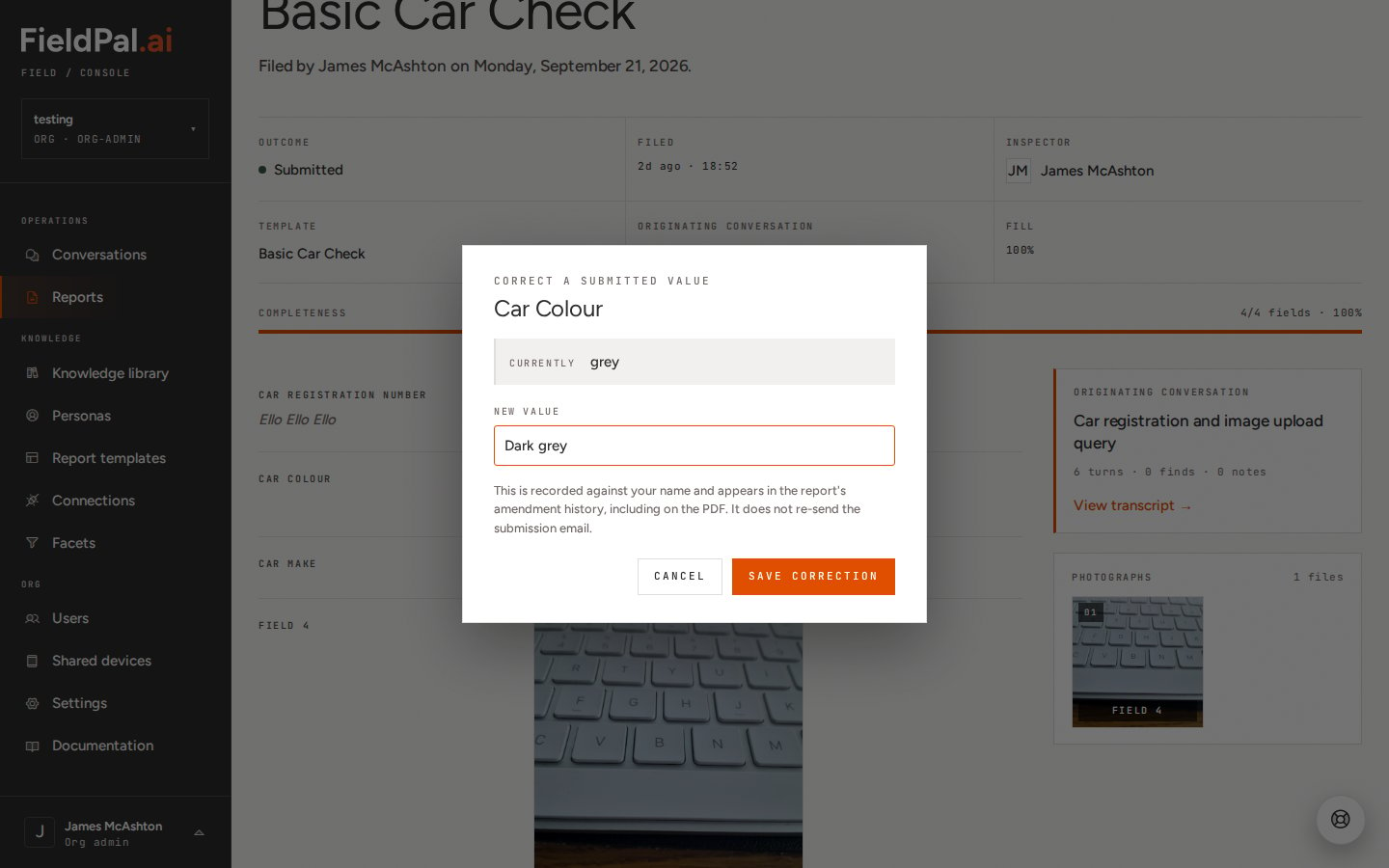
Step 3: Save the correction
Click Save correction. The new answer appears straight away, with a line underneath showing who changed it and when, for example Edited by James McAshton · Sep 23, 09:51 AM. Hover over that line to see the original answer.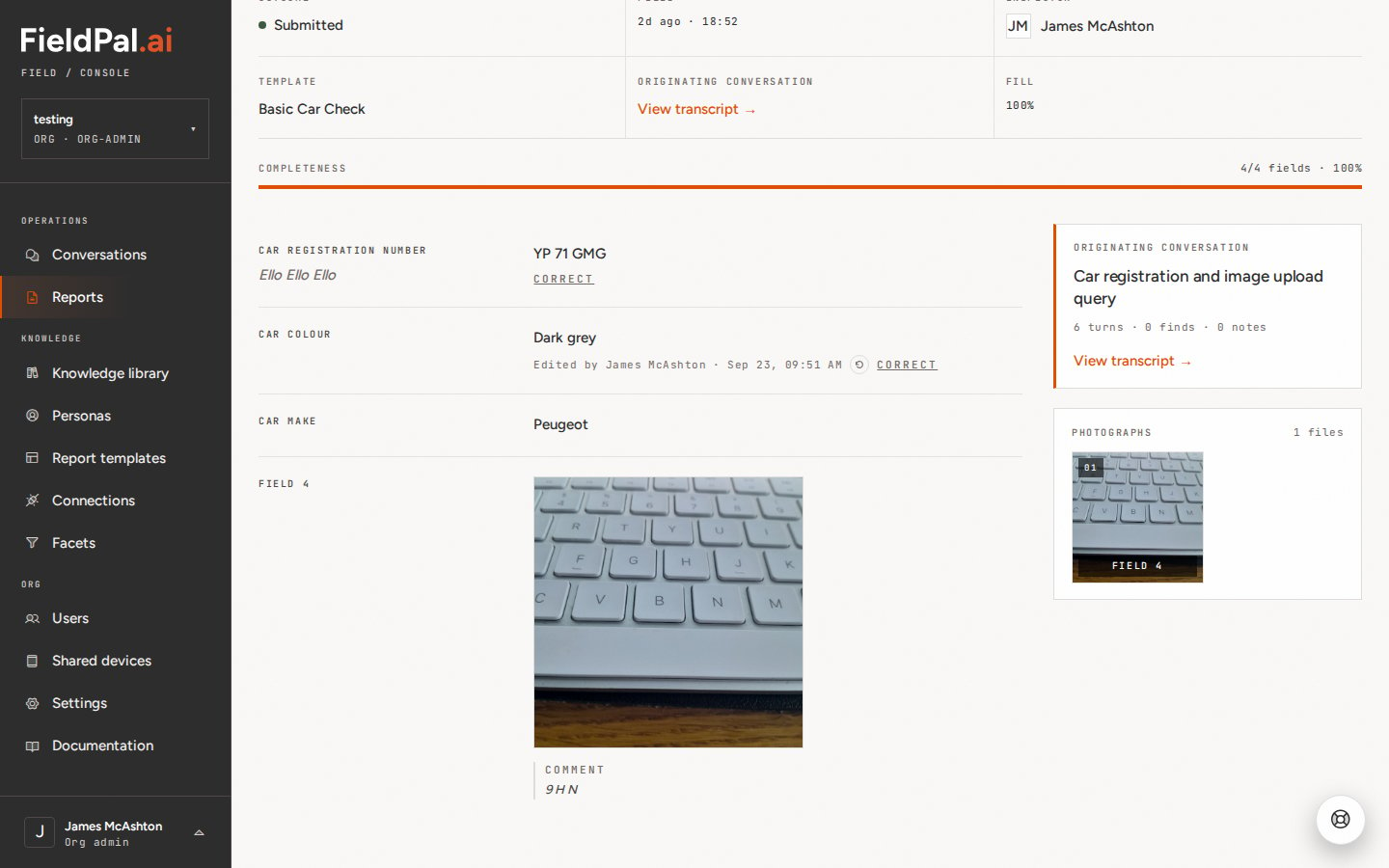
Correcting a field again
Click Correct again to change the answer a second time. If the field has already been corrected, the dialog shows both the current answer and what was Originally recorded, so you can see you’re changing someone else’s correction.Putting the original answer back
Click the circular arrow button next to Edited by to revert the field to the answer the field worker first recorded. Confirm by clicking Revert.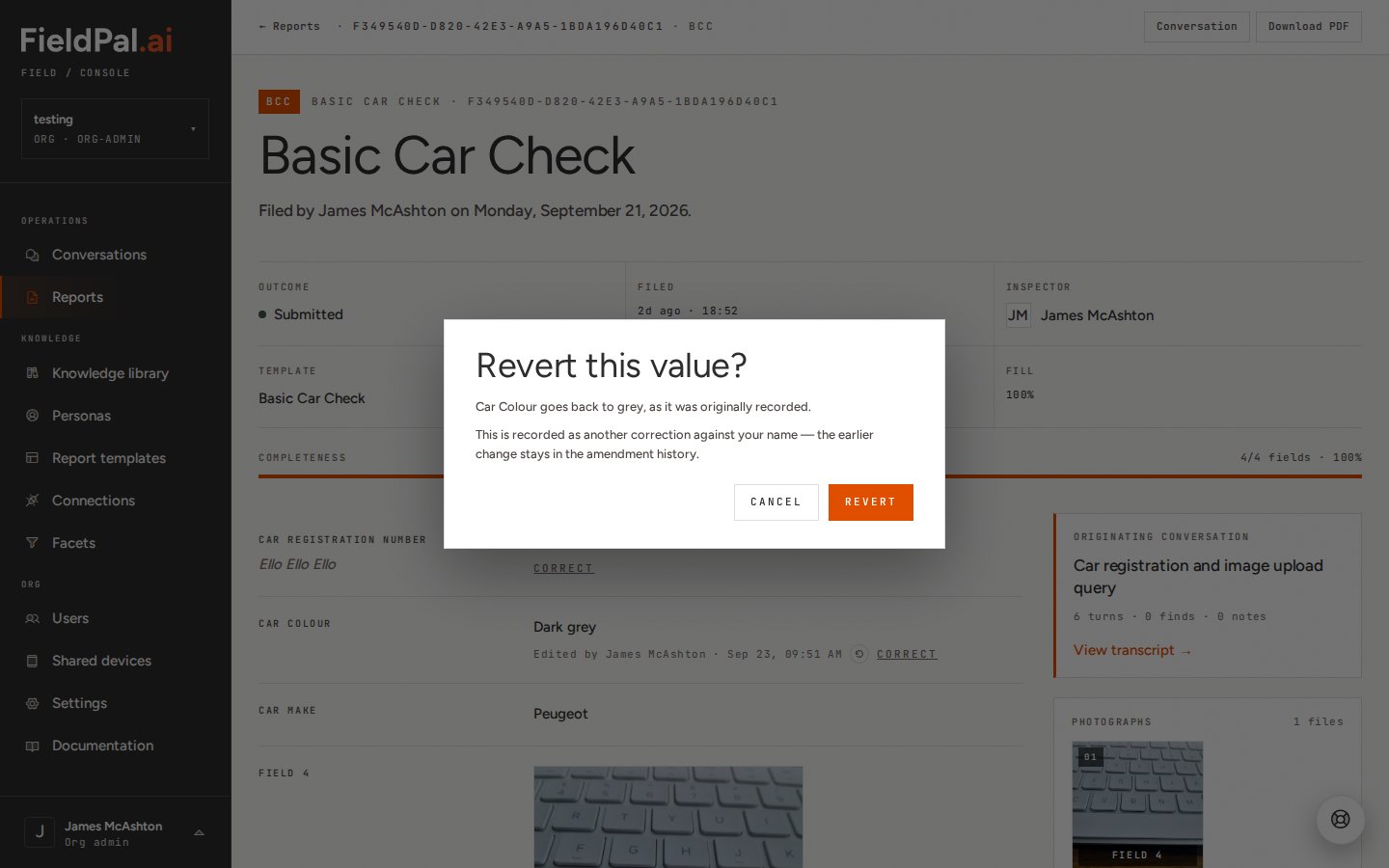
Corrections on the PDF
When you download a corrected report as a PDF, each corrected answer shows who edited it and when, directly underneath.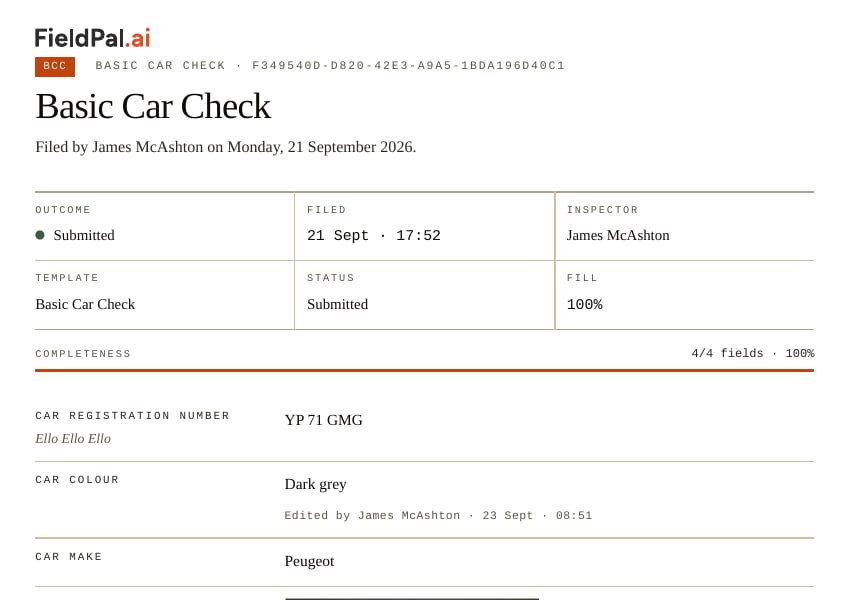
Tips
- Corrections are for fixing mistakes, not rewriting what was found. Anyone viewing the report or its PDF can see that it was changed and by whom.
- The Edited by line is visible to everyone who can see the report, not just admins.
- If a save fails, an error appears under the field and the answer is unchanged. Try again, or contact support@fieldpal.ai if it keeps failing.