

Part 1: Register a shared device
Step 1: Open Shared devices
In the left-hand sidebar, click Shared devices.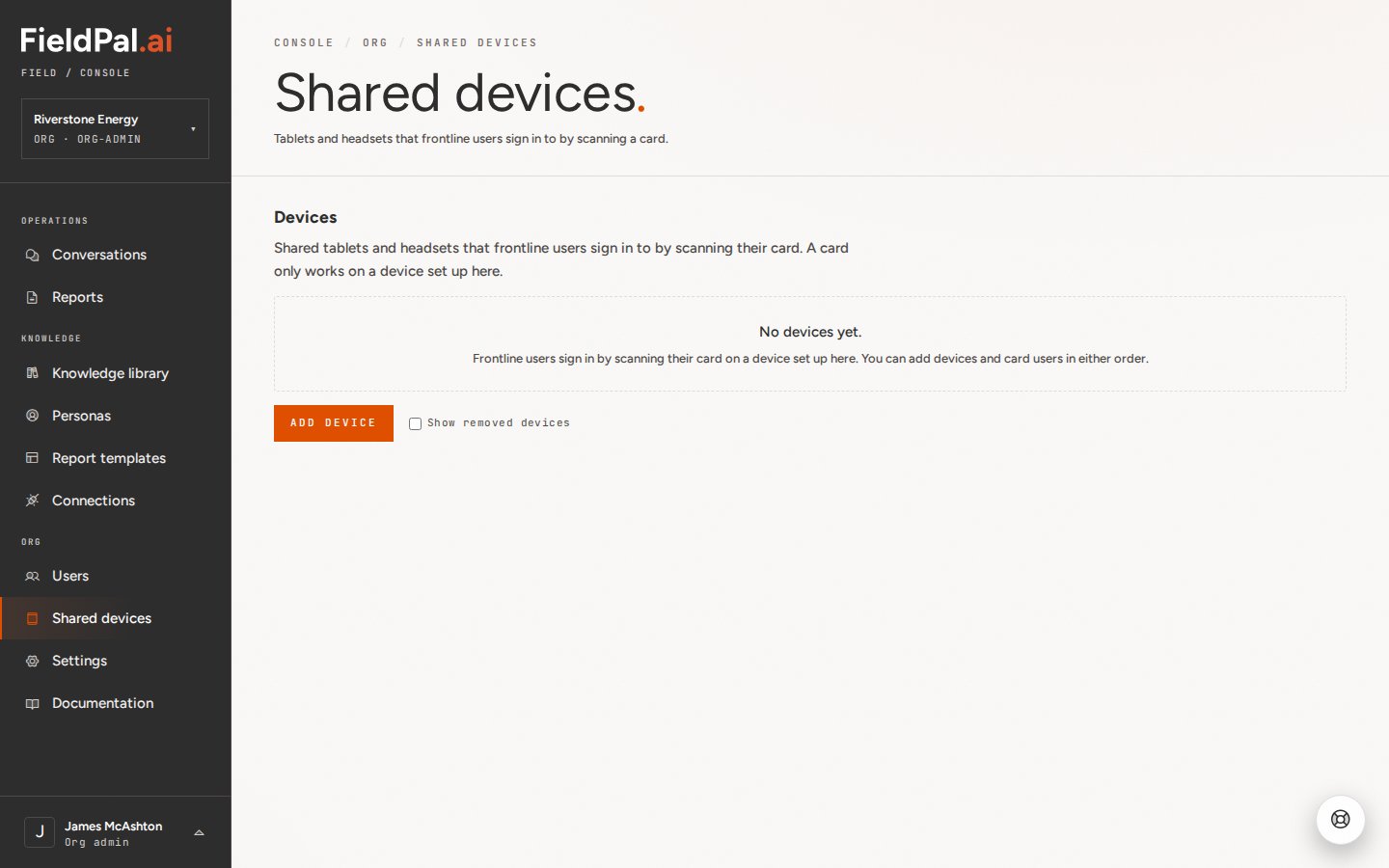
Step 2: Click Add device
Click Add device. A QR code appears, along with the instruction to open Scan setup code on the tablet or headset and enter the code shown.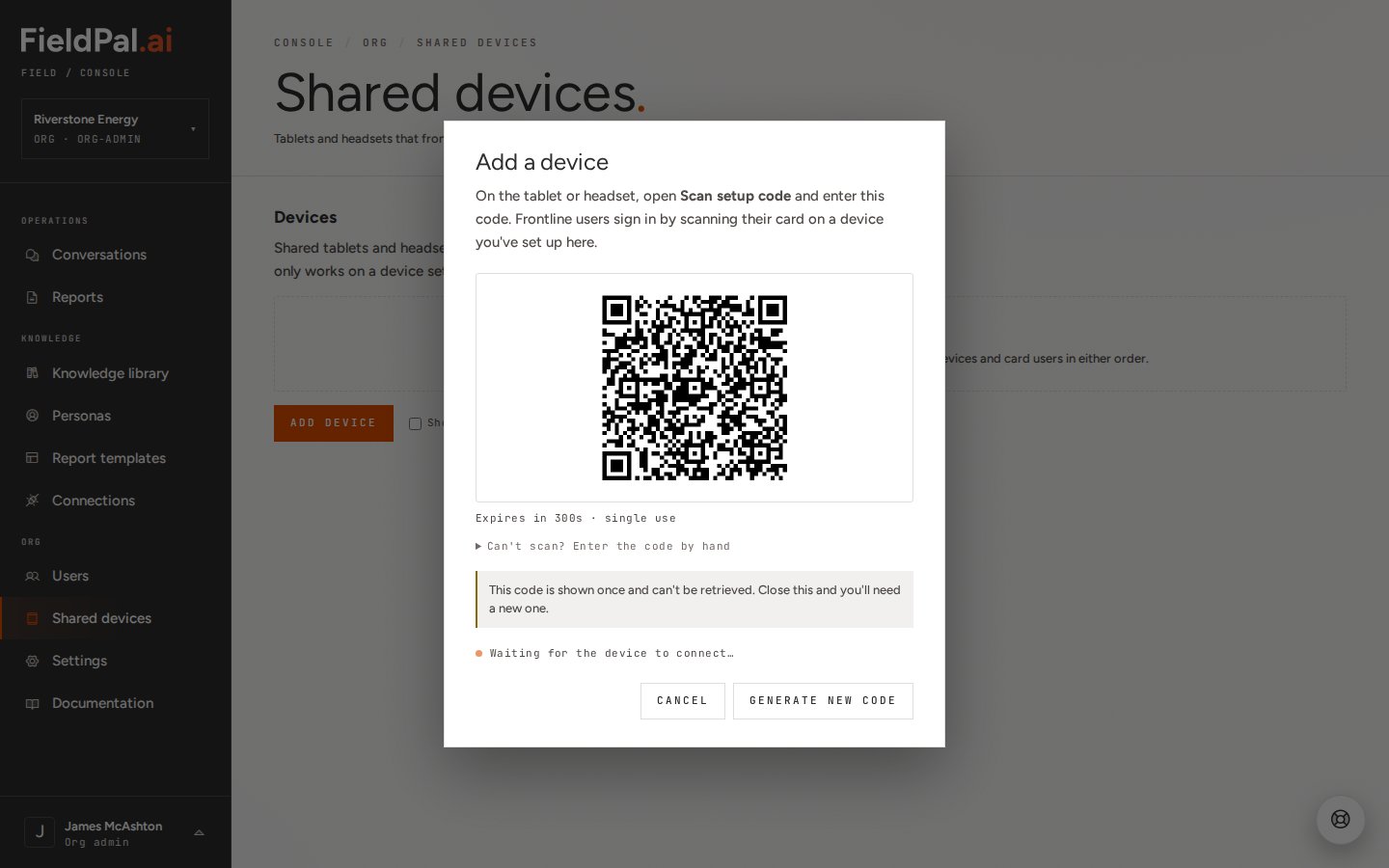
Step 3: Scan or enter the code on the device
On the tablet or headset, open the FieldPal app and choose Scan setup code, then point the camera at the QR code. If the device can’t scan the code, click Can’t scan? Enter the code by hand to reveal a text version that can be typed in instead.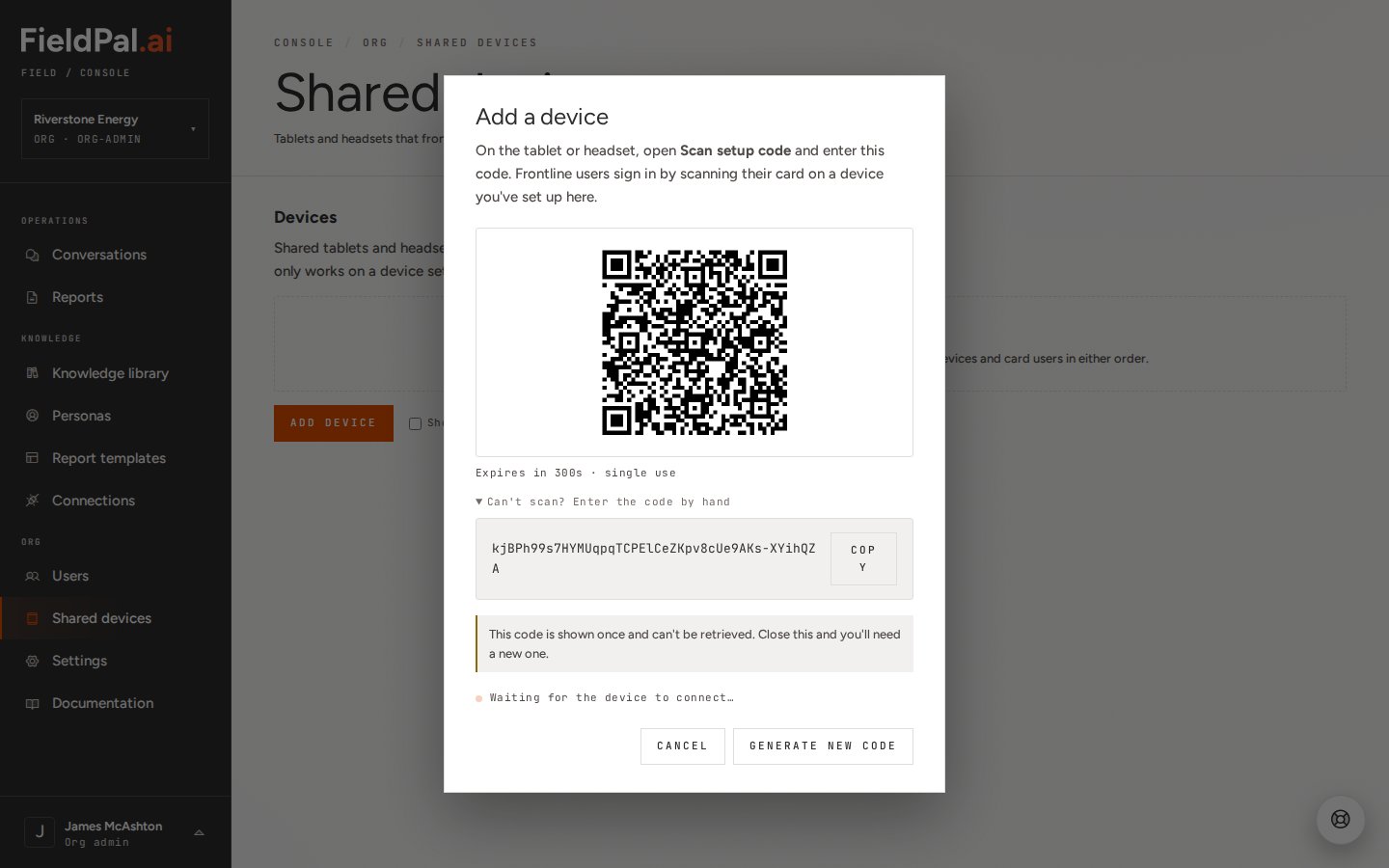
Step 4: Device connects
Once the device scans or enters the code, it pairs to your organisation and shows in the Devices list. Card users can now sign in on it.Part 2: Add a card user
Step 1: Open Users
In the left-hand sidebar, click Users.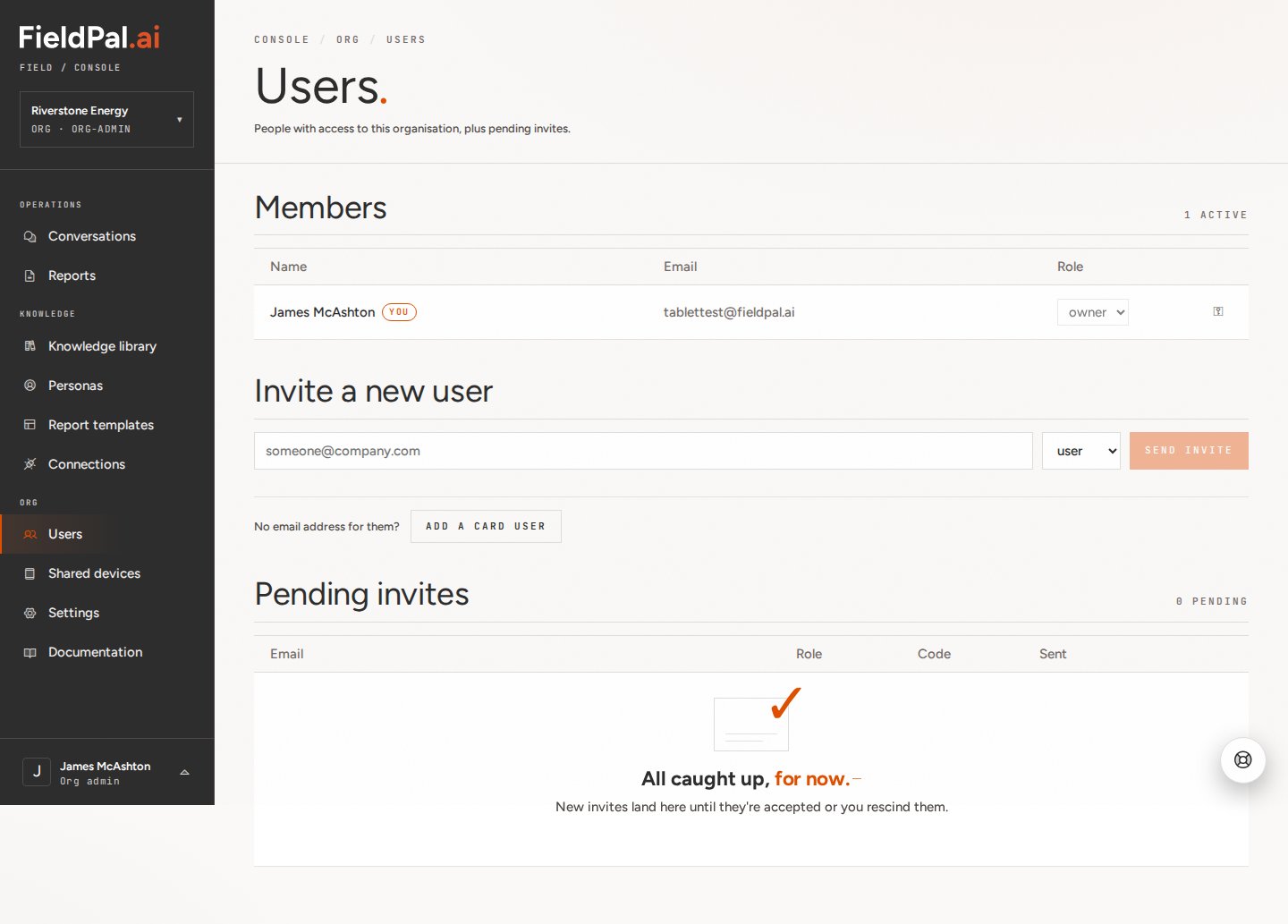
Step 2: Click Add a card user
Under Invite a new user, next to “No email address for them?”, click Add a card user.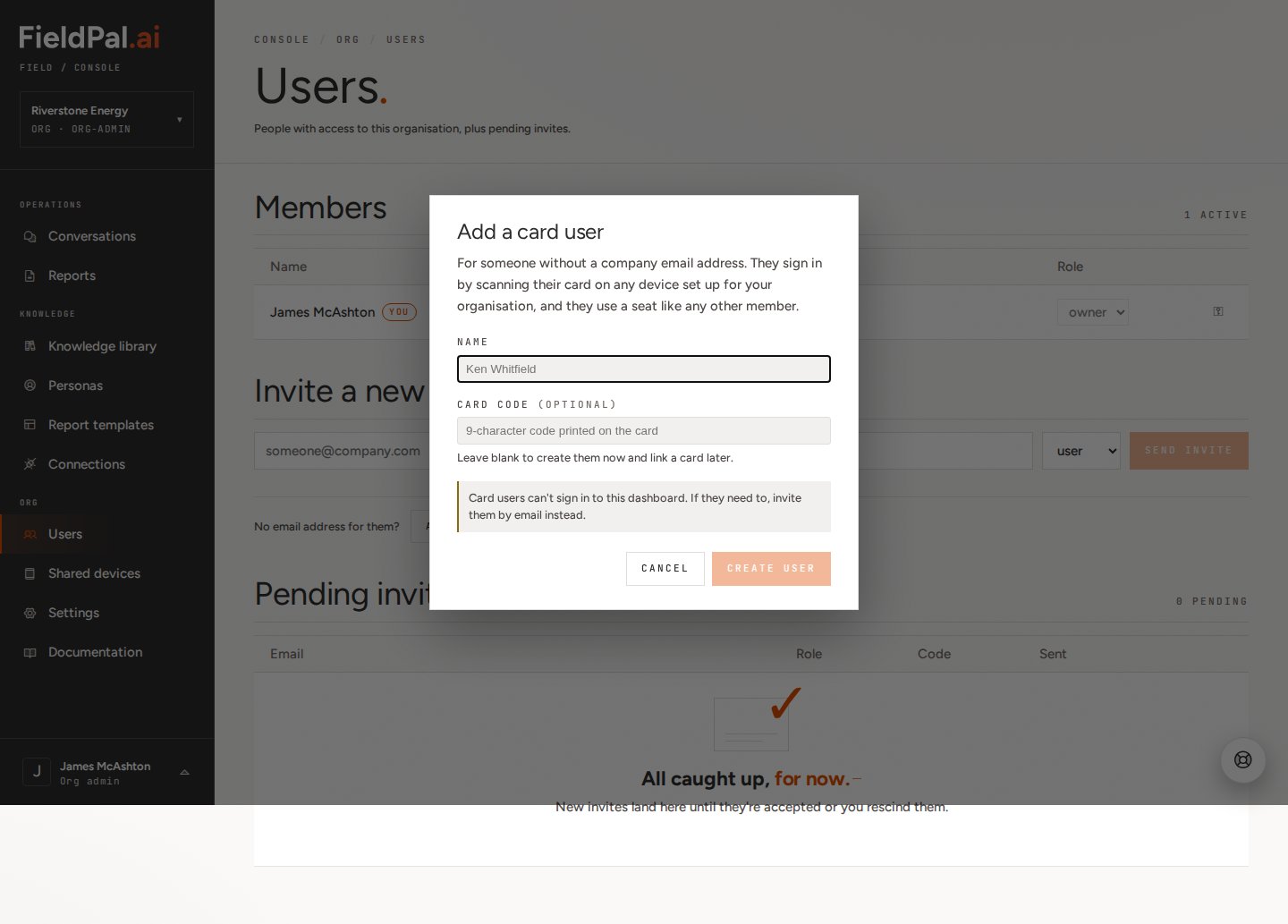
Step 3: Enter their name
Type the person’s name in the Name field. The Card code field is optional — leave it blank to create the user now and link a card to them later.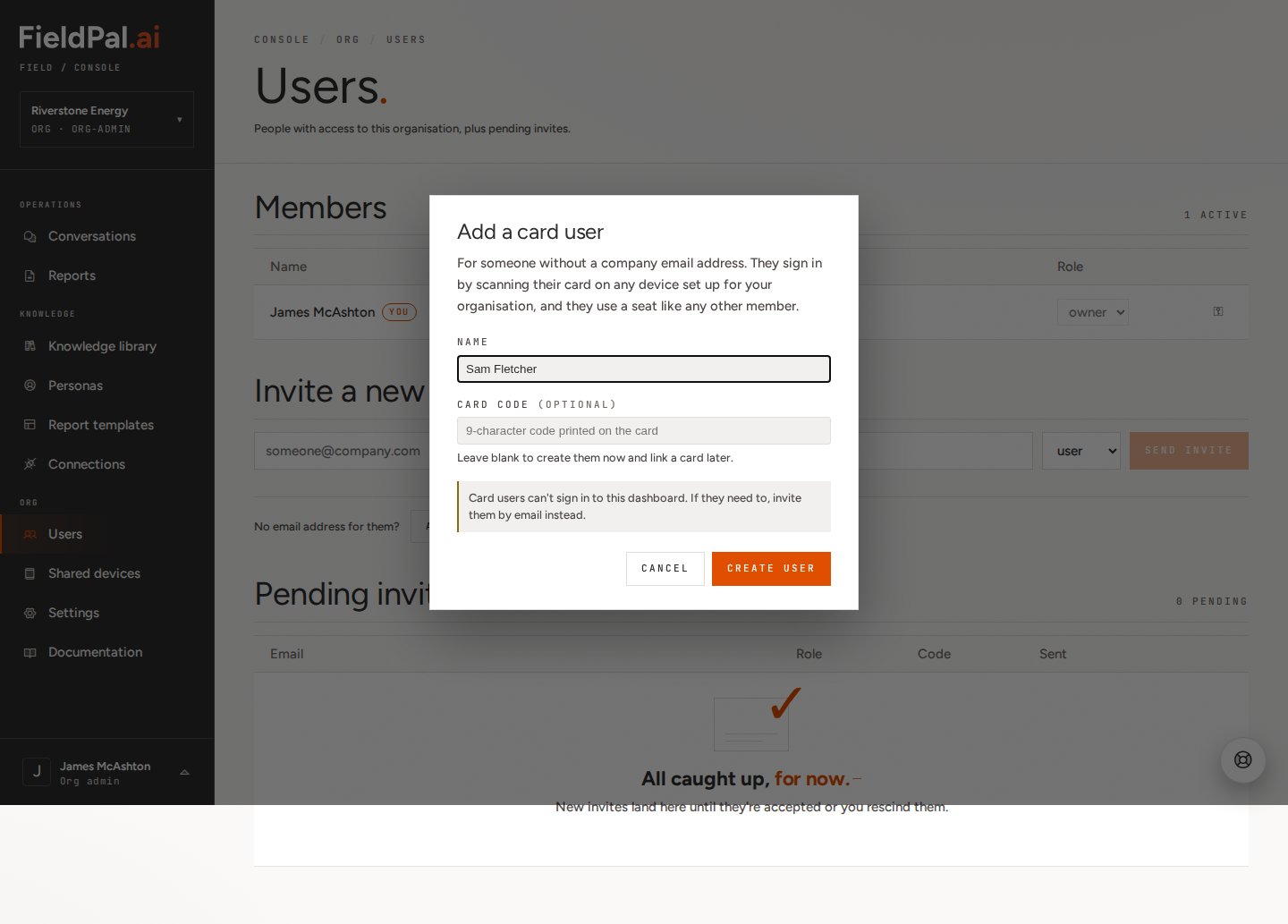
Step 4: Card user is added
The new card user appears in the Members list with no email address. They use a seat like any other member, but can’t sign in to the dashboard, only to a shared device, by scanning their card.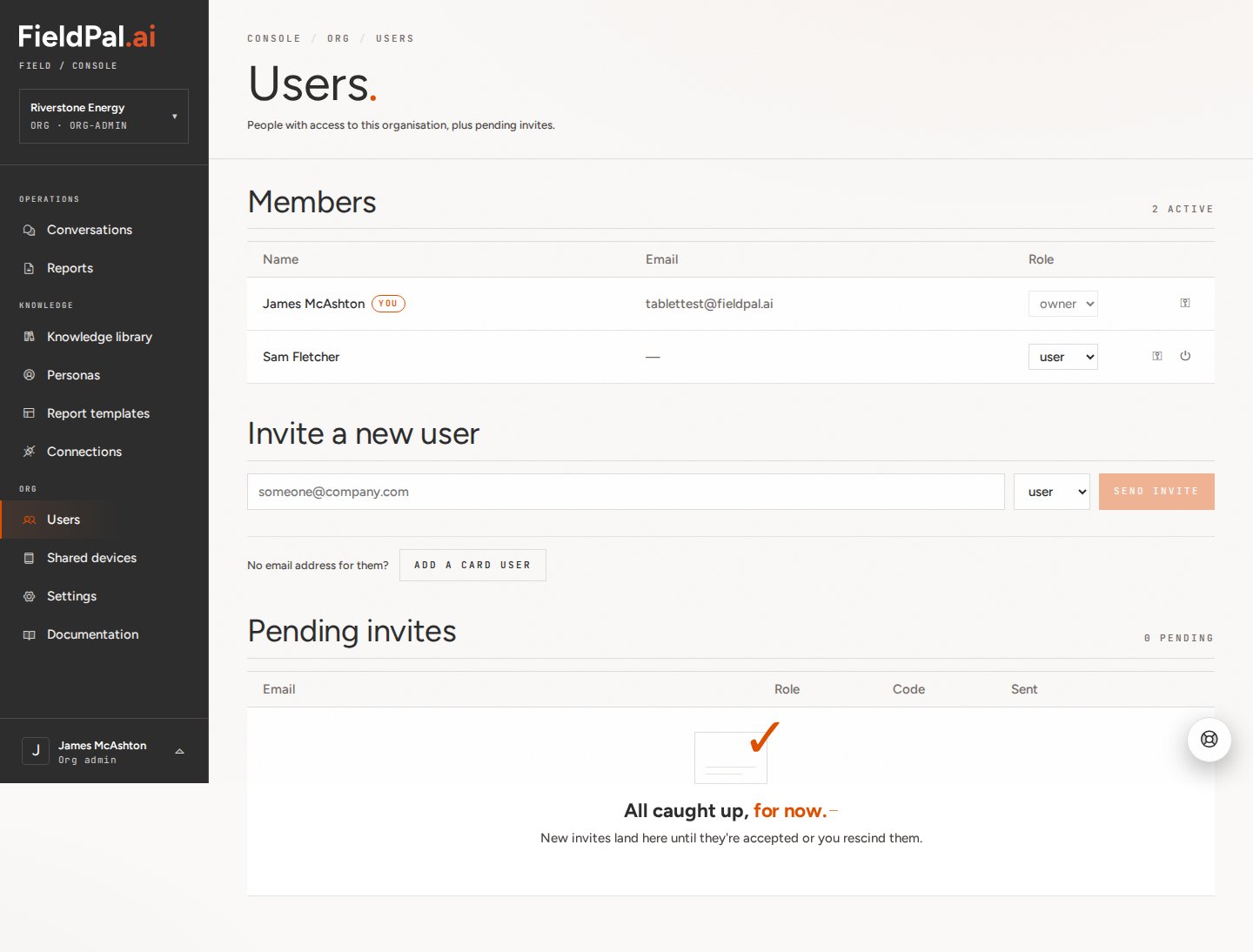
Linking a physical card
If a card user was created without a card code, or needs a replacement card, link one from the Users page.Step 1: Open login methods
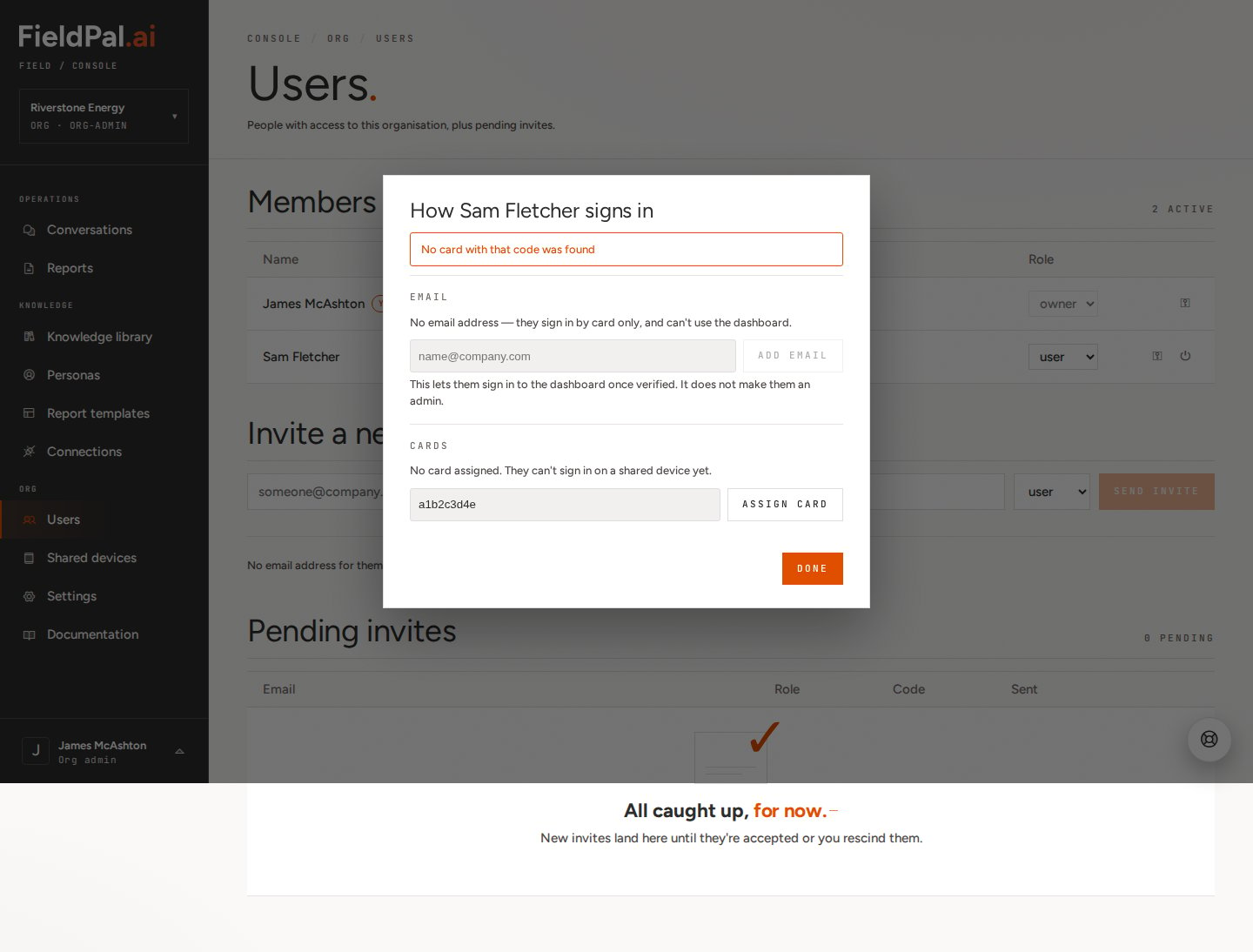
Next to the card user’s name, click the key icon.Step 2: Assign the card
Type the 9-character code printed on the physical card and click Assign card.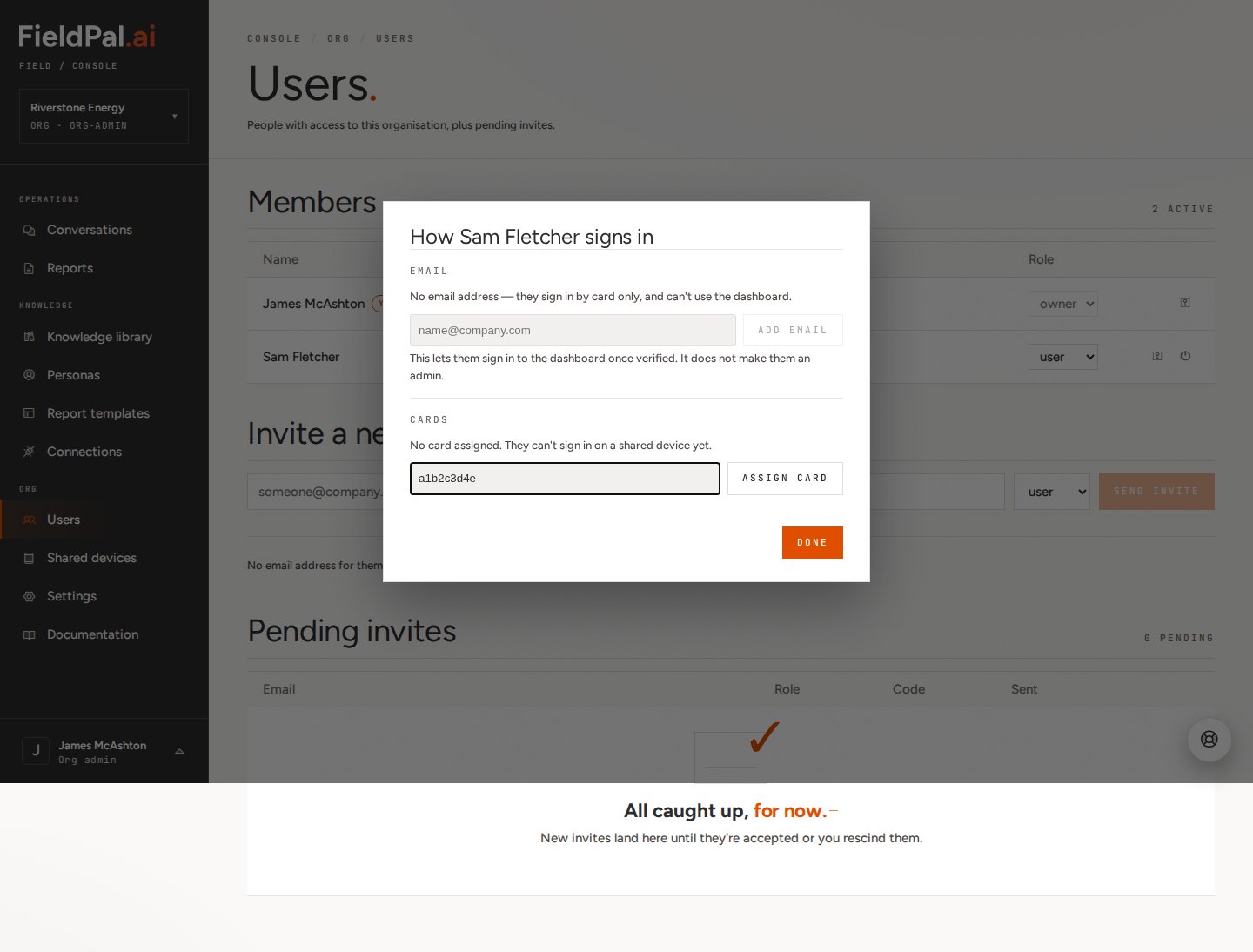
What the card user sees
On a registered shared device, the sign-in screen looks like this: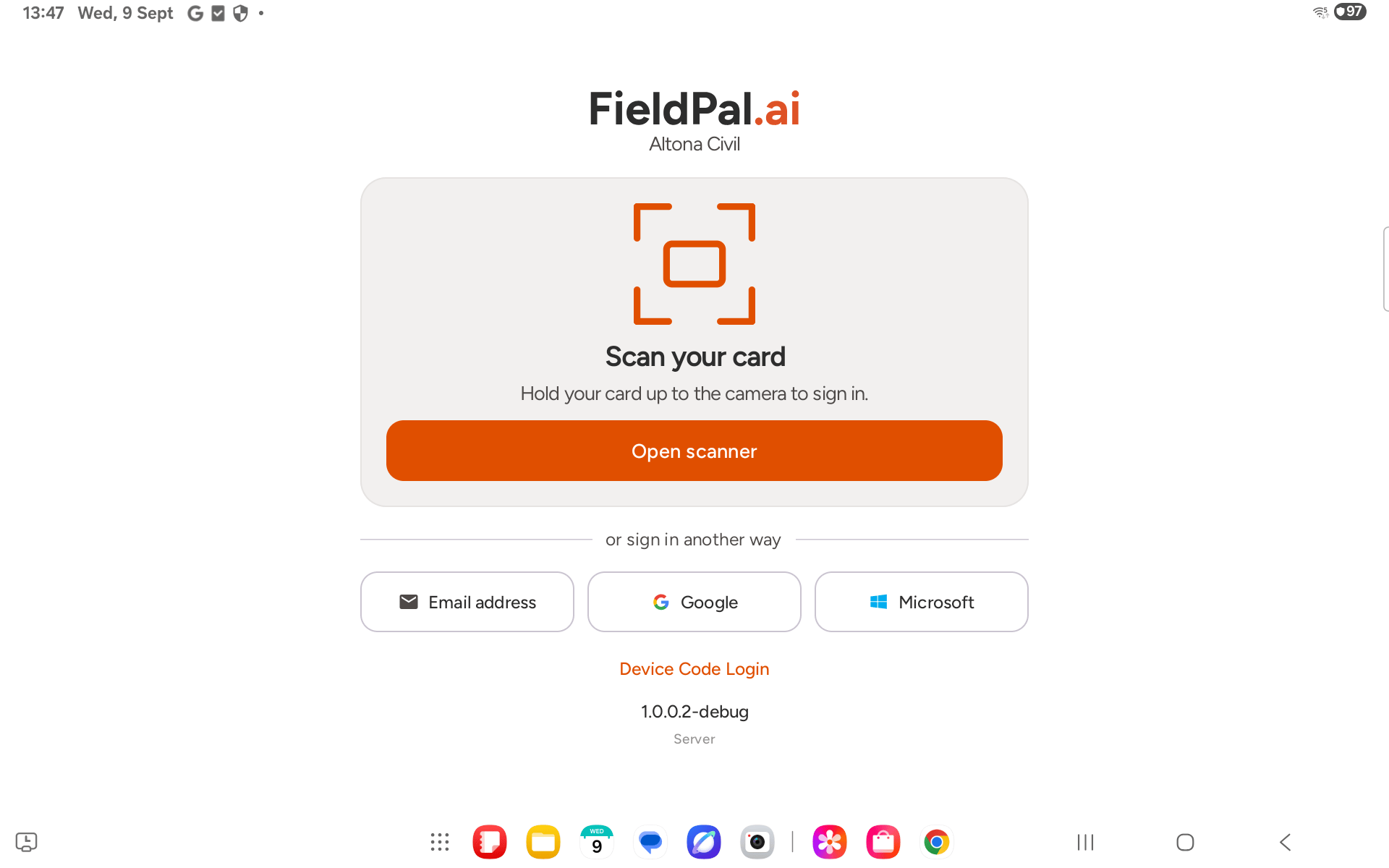
Tips
- Order doesn’t matter. Register the device or add the card user first — the dashboard supports either order.
- Setup codes expire fast. If the 300-second window runs out before the device connects, generate a new code rather than reusing the old one.
- Card users can’t use the dashboard. If one later needs dashboard access, add an email address for them from the same login methods dialog. This doesn’t make them an admin on its own.
- Card codes must be real. The code has a built-in checksum that catches typos, but it isn’t something you can invent — it has to match a card FieldPal has actually issued for your organisation.
- A card only works on registered devices. If a card won’t scan, check the device it’s being used on is actually listed under Shared devices for the same organisation.