

To see what the technician sees in the app, read AI report review in the app guide.
Review settings are part of the new template editor, which FieldPal turns on for each organisation. If your template editor doesn’t have a Review section, ask your FieldPal contact.
Open the review settings
- In the left-hand navigation, click Report templates and open the template.
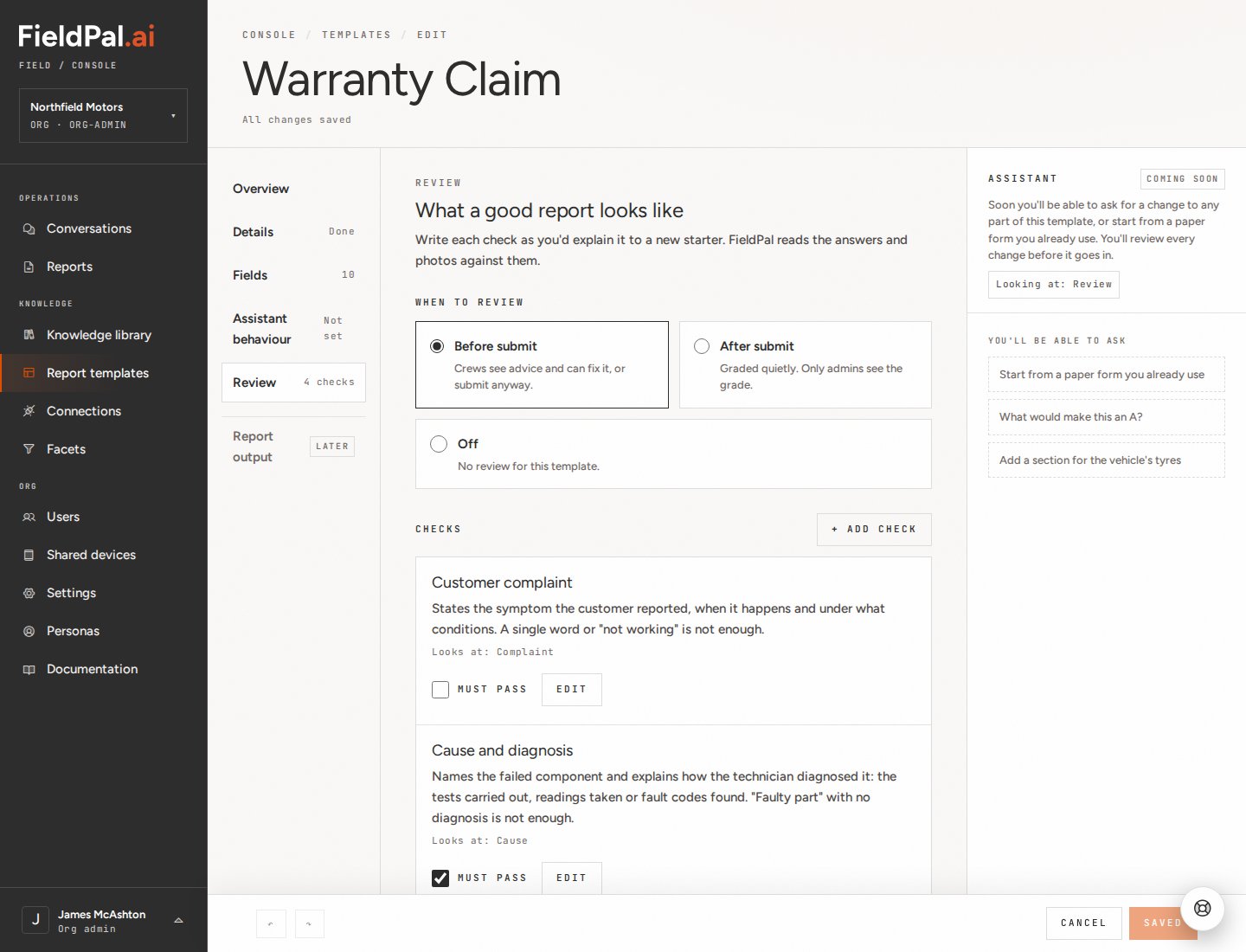
- In the list of sections down the left of the editor, click Review. Once checks are set up, it shows how many there are. The section is headed What a good report looks like.
- Under When to review, choose Before submit, After submit or Off.
Add your checks
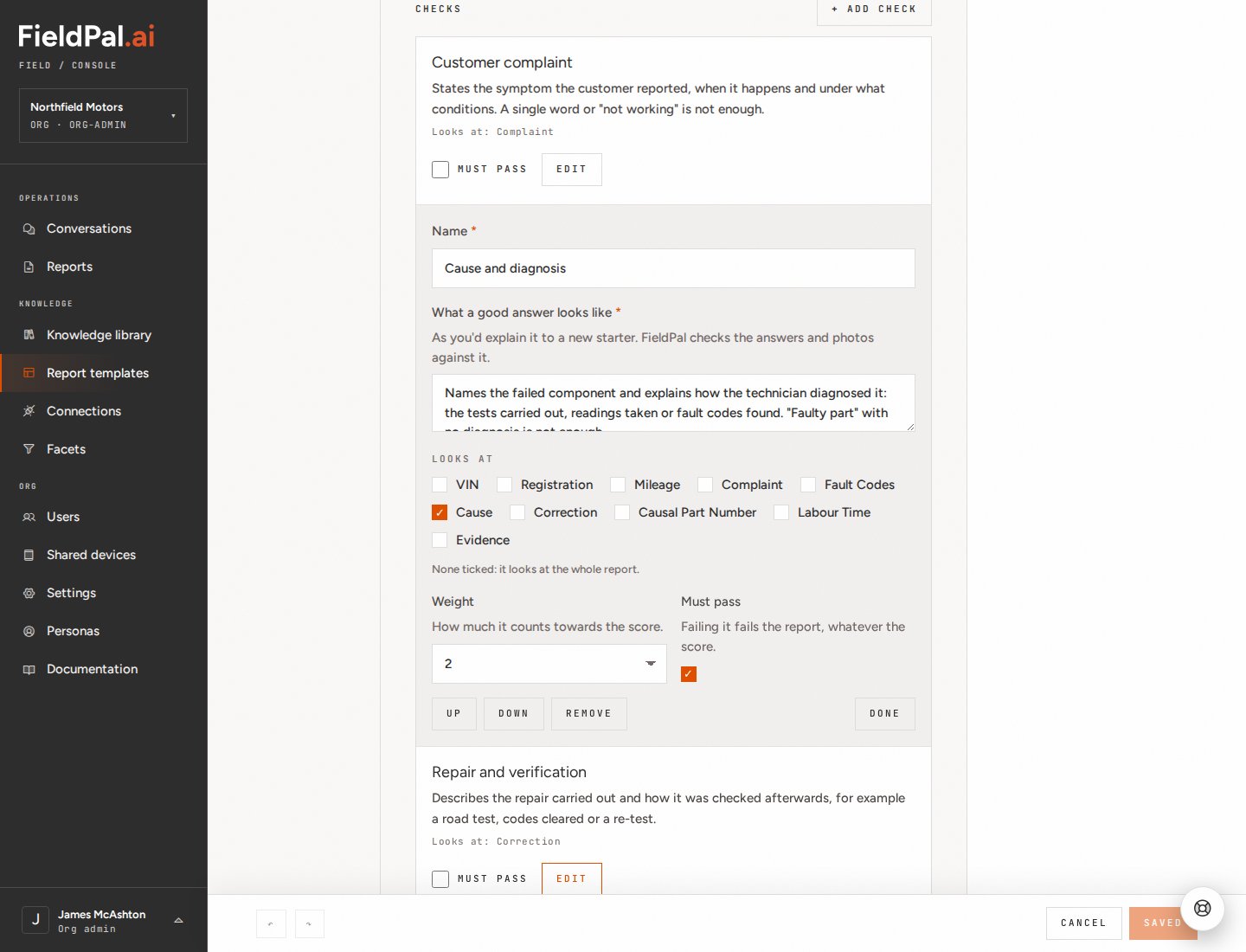
Each check is one thing that gets a report sent back today: a vague fault description, a missing reading, a blurred photo. Click + Add check and fill in:- Name: a short label, such as Cause and diagnosis. With Before submit, the technician sees this name in the app.
- What a good answer looks like: a plain description of a good answer. FieldPal checks the answers and photos against this. The technician never sees it.
- Looks at: tick the fields this check judges. Tick nothing and the check looks at the whole report. Photo fields you tick are sent to FieldPal as images, so a check can judge what a photo shows.
- Weight: how much the check counts towards the score, from 1 to 10.
- Must pass: tick this for anything essential. If a must-pass check fails, the whole review fails, whatever the score. In the app, these checks are marked Required.
Try the checks on a real report
Under Try these checks on a real report, click Pick a report, choose a report filled in from this template under Report to try, and click Run review. FieldPal judges that report against your checks as they stand, including changes you haven’t saved yet. It shows the headline with the score, the summary, and whether each check was Met or Not met, with a fix for any that weren’t.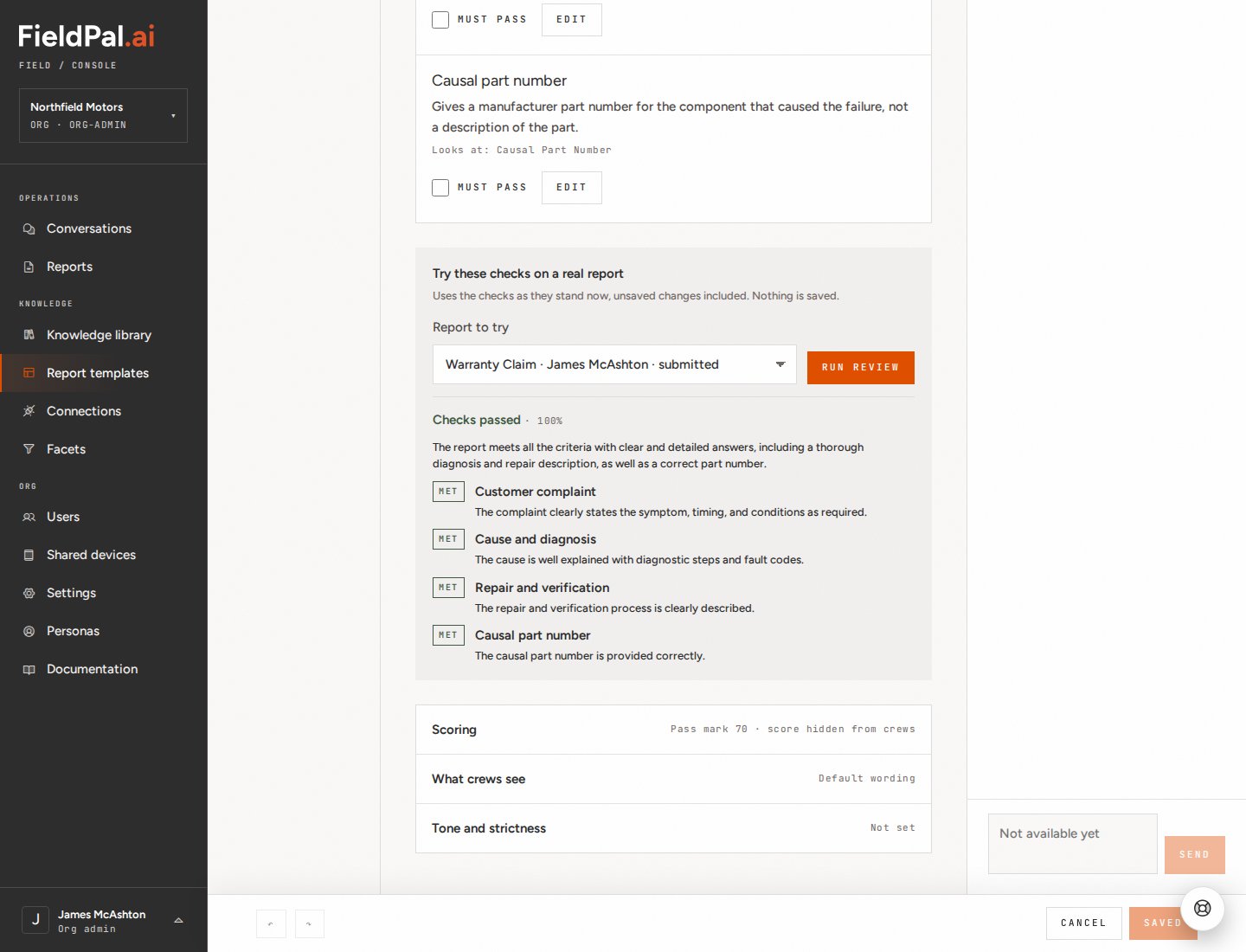
Scoring
Scoring, What crews see and Tone and strictness sit below the checks. Each one shows a short summary of its current setting, such as Pass mark 70 · score hidden from crews. Click one to open it.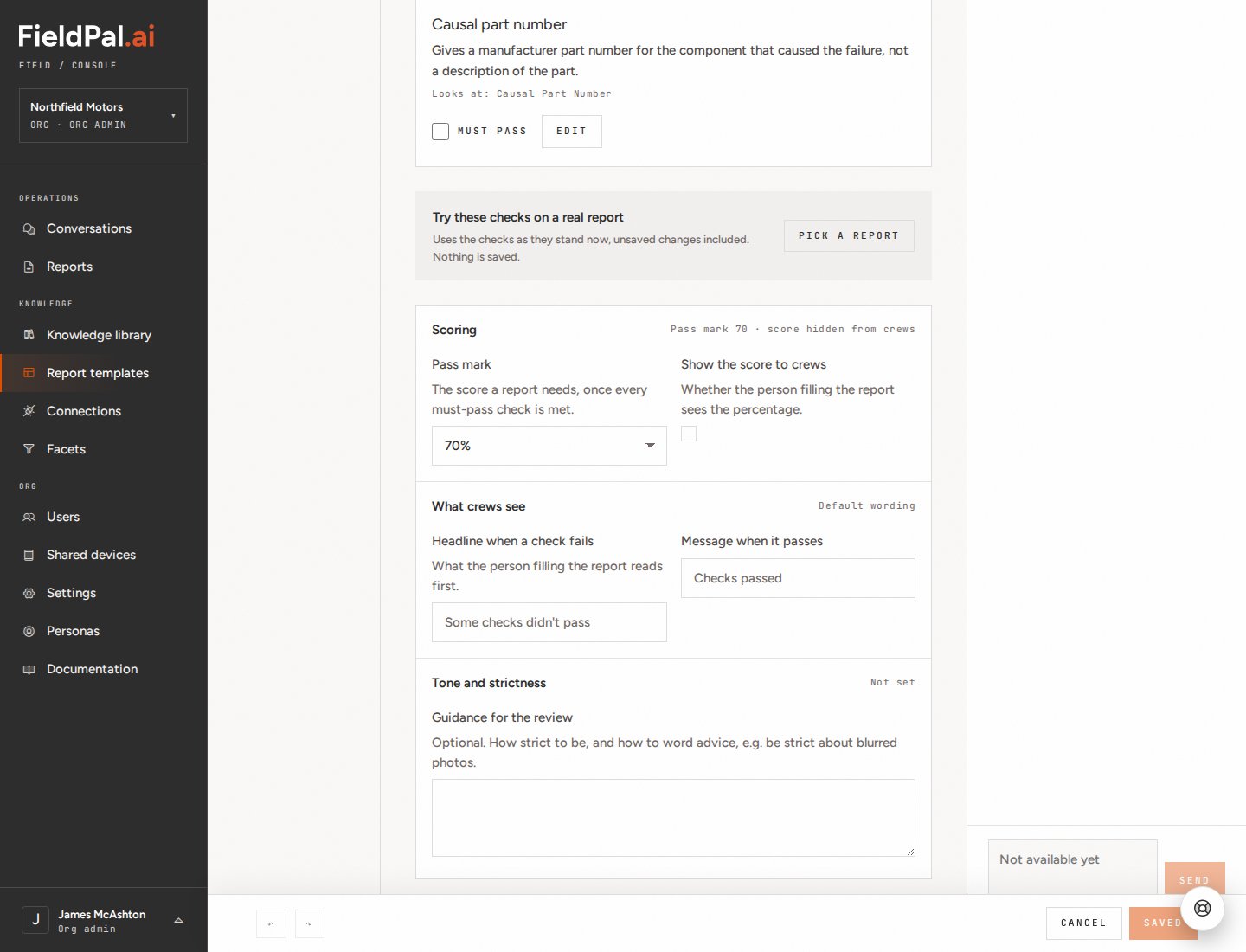
- Pass mark: the score a report needs, from 0% to 100%. The default is 70%. The score is the weighted share of checks the report meets. A report passes when it reaches the pass mark and meets every must-pass check.
- Show the score to crews: with Before submit, whether the technician sees the score in the app. Admins always see it. With After submit, technicians never see a score.
What technicians see
With Before submit, open What crews see to change the headline at the top of the result in the app:- Headline when a check fails: the default is Some checks didn’t pass.
- Message when it passes: the default is Checks passed.
Tone and strictness
Open Tone and strictness to add optional Guidance for the review: how strict to be and how to word advice. For example, Be strict about blurred photos. Ignore spelling.Save the template
Click Save at the bottom right of the editor. It reads Saved when there is nothing new to save. If a check is missing a name or a description, or looks at a field that is no longer on the template, the editor shows Can’t save yet with the problem. Click Fix in Review to go straight to it.Where results appear
- On the report: every reviewed report shows an AI review panel in the dashboard. See viewing reports.
- In the report email: when a report passed a Before submit check, or was submitted after one failed, the submitted-report email repeats the check, with the checks that weren’t met listed first.