

Only organisation admins can edit report templates. A title only uses the answers recorded on that report, so it never changes because of something outside it.
Step 1: Open the field
Go to Report templates, open the template, and click the field you want in the title, for example Registration. The field editor opens on the right.Step 2: Tick Show in report title
Scroll down to Report title and tick Show in report title. The preview underneath shows what reports from this template will be called, with the field name in angle brackets standing in for the answer.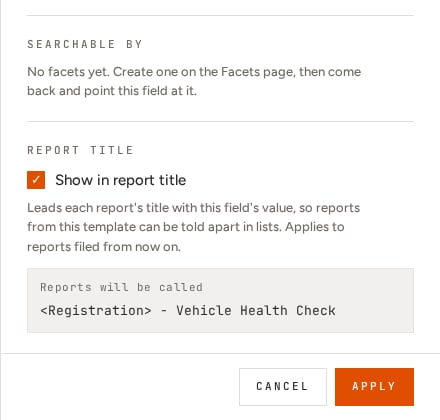
Step 3: See the titles
Reports filed from now on are titled with the answer as soon as it’s recorded, while the report is still in progress. The title shows in the Reports register, on the report page, and as the title of the conversation the report was filled in. If the answer is corrected later, the title follows.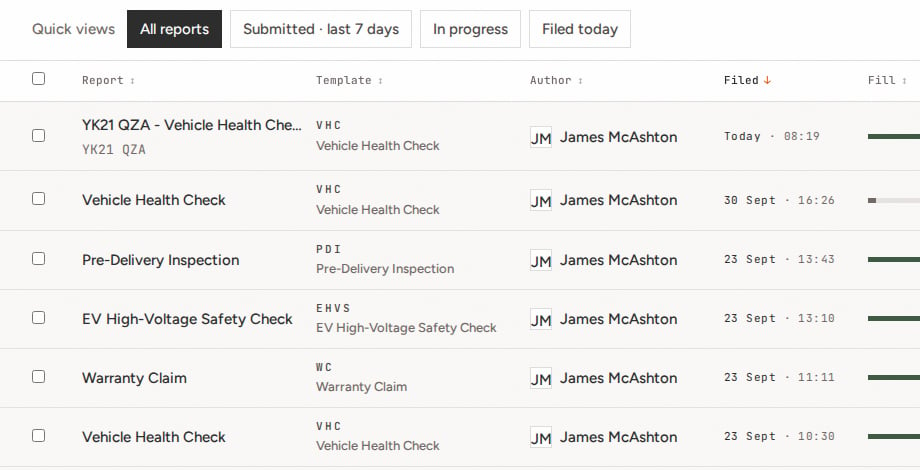
Rules
- Up to two fields. If two fields are ticked, their answers appear in the order the fields sit on the form, separated by a dot: YK21 QZA · J-4471 - Vehicle Health Check. To use a different field, untick one of the two first.
- Single-value fields only: short text, long text, combo box, radio group, RAG, checkbox and scan fields. Photo, file and section fields can’t be ticked.
- Not inside a section. A field inside a repeatable or conditional section can hold many answers, or none, so it can’t go in the title.
- Long answers are shortened. Each answer is cut to 40 characters in the title. The full answer is still on the report.
- Checkboxes show their label. A checkbox shows the text you set for ticked or unticked, or Yes or No if you didn’t set any.