Some report templates include a scan field for capturing a QR code, barcode, or piece of printed text, rather than typing it in by hand. Each scan field is set up by your admin to look for one of three things: a QR code, a barcode, or text via OCR.

Scanning the code

Tap the scan icon on the field to open your camera, then point it at the QR code, barcode, or text. FieldPal reads it instantly and fills the field with the result — no typing required.
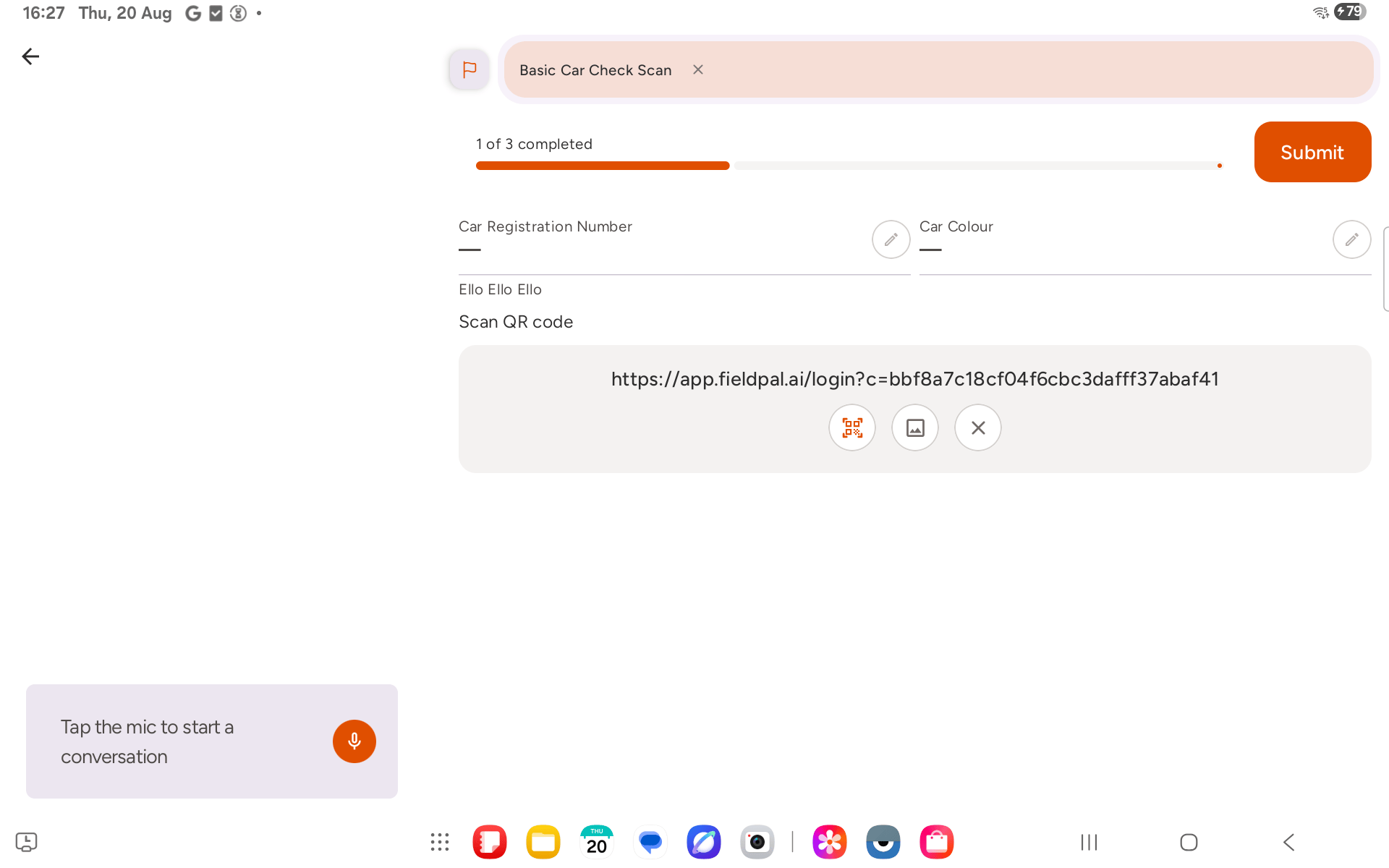
Scan field showing a decoded QR code result, with rescan, view photo, and clear controls
Once a code has been read, the field shows the decoded value as text. Three controls sit underneath it:
  • Rescan (the QR icon) — scan again if you got the wrong code or need to replace it.
  • View photo (the image icon) — see the photo FieldPal captured of the code when it was scanned.
  • Clear (✕) — remove the scanned value and start again.
A scan field always keeps the photo it was scanned from alongside the decoded text — useful evidence if a value ever needs double-checking later.
After a scan, FieldPal also checks the value against any connected data and can fill in other related fields on the report for you — for example, scanning an asset tag could pull through that asset’s make, model, and location without you typing them in.

Submitting the report

Fill in the rest of the report as normal, then tap Submit. The submitted report keeps both the decoded value and the captured photo against the scan field.
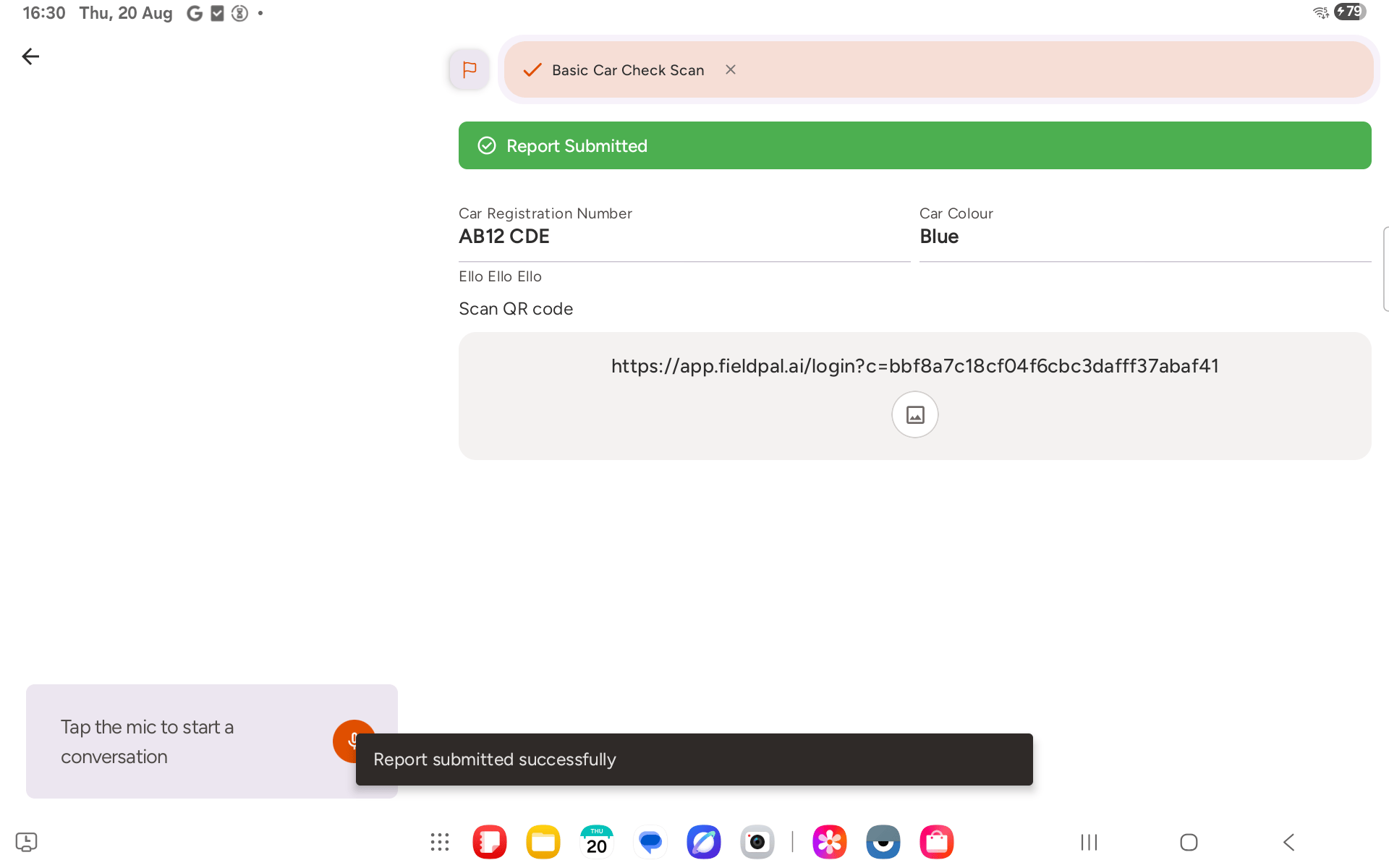
Submitted report showing the scan field's decoded value and its captured photo thumbnail
If your device doesn’t support scan fields, a report template that includes one won’t be available to start — ask your admin to check the device is on a current build.